Raw → Khiip → Khiip Plus
Same link, three outcomes. Pick a source — then a capture type — and watch the mess become clean Markdown you own; Plus adds the full depth.
<!DOCTYPE html><html lang="en" dir="ltr" data-app-env="prod" data-app-version="793a0fd0fd2bb2bd44166dce182f600eea8bcd51"><head><meta charSet="utf-8" nonce="YcXOuggVh54G1udxL/3pDA=="/><meta name="viewport" content="width=device-width,initial-scale=1,maximum-scale=1,user-scalable=0,viewport-fit=cover" nonce="YcXOuggVh54G1udxL/3pDA=="/><meta name="color-scheme" content="light dark"/><meta name="theme-color" media="(prefers-color-scheme: light)" content="#FFFFFF"/><meta name="theme-color" media="(prefers-color-scheme: dark)" content="#000000"/><meta property="csp-nonce" content="YcXOuggVh54G1udxL/3pDA=="/><title>Simon Willison on X: "Excited to see my LLM CLI tool used by Sean Heelan to help identify a remote zeroday vulnerability in the Linux kernel! https://t.co/X81V8vlPx0" / X</title><meta property="fb:app_id" content="2231777543" nonce="YcXOuggVh54G1udxL/3pDA=="/><meta property="og:site_name" content="X (formerly Twitter)" nonce="YcXOuggVh54G1udxL/3pDA=="/><meta property="og:locale" content="en_US" nonce="YcXOuggVh54G1udxL/3pDA=="/><meta name="application-name" content="X (formerly Twitter)" nonce="YcXOuggVh54G1udxL/3pDA=="/><meta name="google-site-verification" content="reUF-TgZq93ZGtzImw42sfYglI2hY0QiGRmfc4jeKbs" nonce="YcXOuggVh54G1udxL/3pDA=="/><meta name="facebook-domain-verification" content="x6sdcc8b5ju3bh8nbm59eswogvg6t1" nonce="YcXOuggVh54G1udxL/3pDA=="/><meta http-equiv="onion-location" content="https://twitter3e4tixl4xyajtrzo62zg5vztmjuricljdp2c5kshju4avy
Simon Willison @simonw · May 24, 2025
Excited to see my LLM CLI tool used by Sean Heelan to help identify a remote zeroday vulnerability in the Linux kernel! https://simonwillison.net/2025/May/24/sean-heelan/
13 replies · 34 reposts · 568 likes

Excited to see my LLM CLI tool used by Sean Heelan to help identify a remote zeroday vulnerability in the Linux kernel! https://simonwillison.net/2025/May/24/sean-heelan/
<!DOCTYPE html><html lang="en" dir="ltr" data-app-env="prod" data-app-version="3beada7dae182390e54561fdd9ac7fcc08d2e24b"><head><meta charSet="utf-8" nonce="duJeTbMjID08MSKBAmedYw=="/><meta name="viewport" content="width=device-width,initial-scale=1,maximum-scale=1,user-scalable=0,viewport-fit=cover" nonce="duJeTbMjID08MSKBAmedYw=="/><link rel="preload" as="image" href="https://pbs.twimg.com/amplify_video_thumb/2046982244917809152/img/BI-fNy85fQ0vk3ri.jpg"/><meta name="color-scheme" content="light dark"/><meta name="theme-color" media="(prefers-color-scheme: light)" content="#FFFFFF"/><meta name="theme-color" media="(prefers-color-scheme: dark)" content="#000000"/><meta property="csp-nonce" content="duJeTbMjID08MSKBAmedYw=="/><title>Zain Shah on X: "Imagine every pixel on your screen, streamed live directly from a model. No HTML, no layout engine, no code. Just exactly what you want to see. @eddiejiao_obj, @drewocarr and I built a prototype to see how this could actually work, and set out to make it real. We're calling it https://t.co/C4BEi1lse8" / X</title><meta property="fb:app_id" content="2231777543" nonce="duJeTbMjID08MSKBAmedYw=="/><meta property="og:site_name" content="X (formerly Twitter)" nonce="duJeTbMjID08MSKBAmedYw=="/><meta property="og:locale" content="en_US" nonce="duJeTbMjID08MSKBAmedYw=="/><meta name="application-name" content="X (formerly Twitte
Dep @0xDepressionn · May 17, 2026
Karpathy’s CLAUDE.md hit #1 on GitHub with 82,000 stars. Most devs still haven’t read it.
A file named CLAUDE.md hit #1 on GitHub Trending. 82,000 stars. 7,800 forks. It started with Andrej Karpathy. Former Director of AI at Tesla. Founding member of OpenAI. He identified 4 behaviors that
Base captures the title and preview only. Khiip Plus captures the complete article body.
50 replies · 284 reposts · 2.5K likes

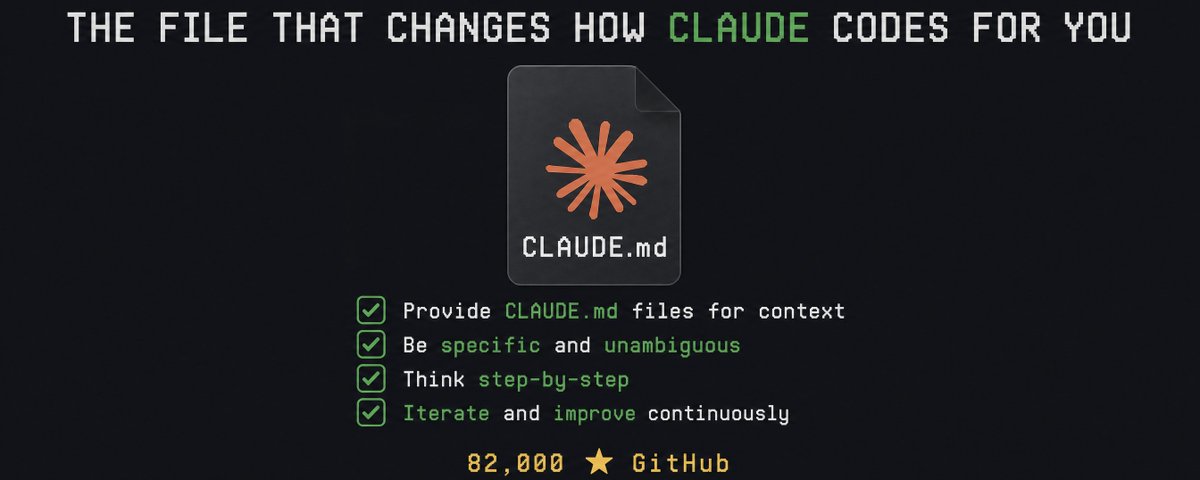
Karpathy’s CLAUDE.md hit #1 on GitHub with 82,000 stars. Most devs still haven’t read it.
A file named CLAUDE.md hit #1 on GitHub Trending.
82,000 stars. 7,800 forks.
It started with Andrej Karpathy. Former Director of AI at Tesla. Founding member of OpenAI. He identified 4 behaviors that make Claude Code fail and wrote them down in a single file.
A developer took those 4 rules, expanded them, published the file. It went viral…
The reason: coding accuracy went from 65% to 94%.
Most developers using Claude Code daily have never set this up. They’re starting from zero every session. Re-explaining the same context. Cleaning up unwanted scope changes. Reverting refactors nobody asked for.
This is the full file.
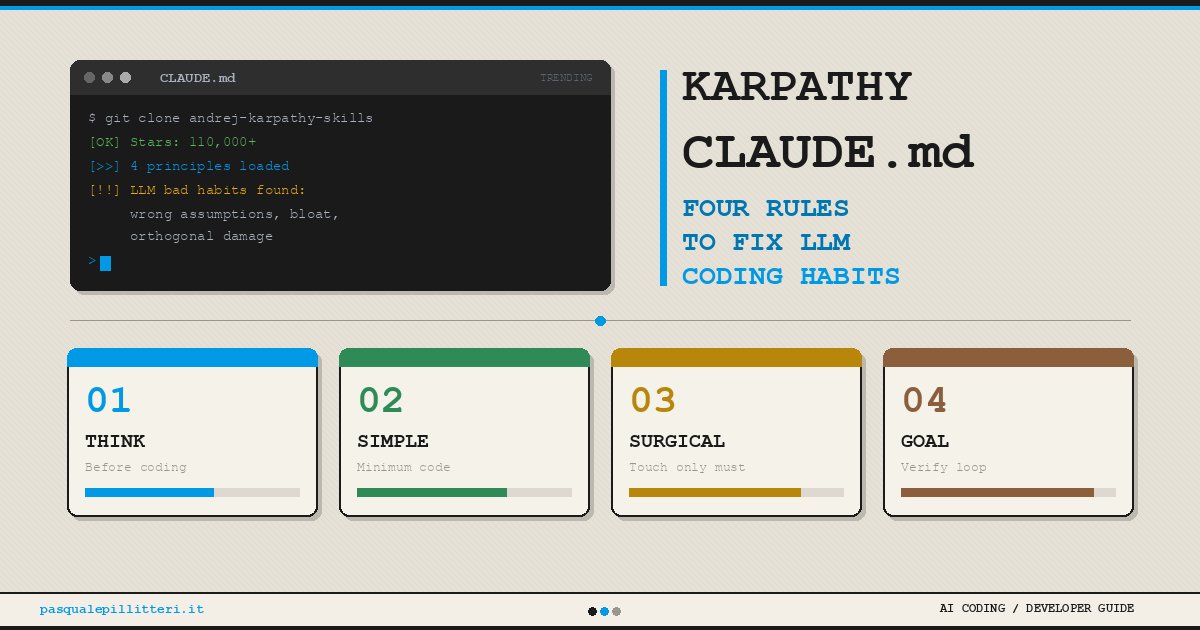
The setup most devs missed
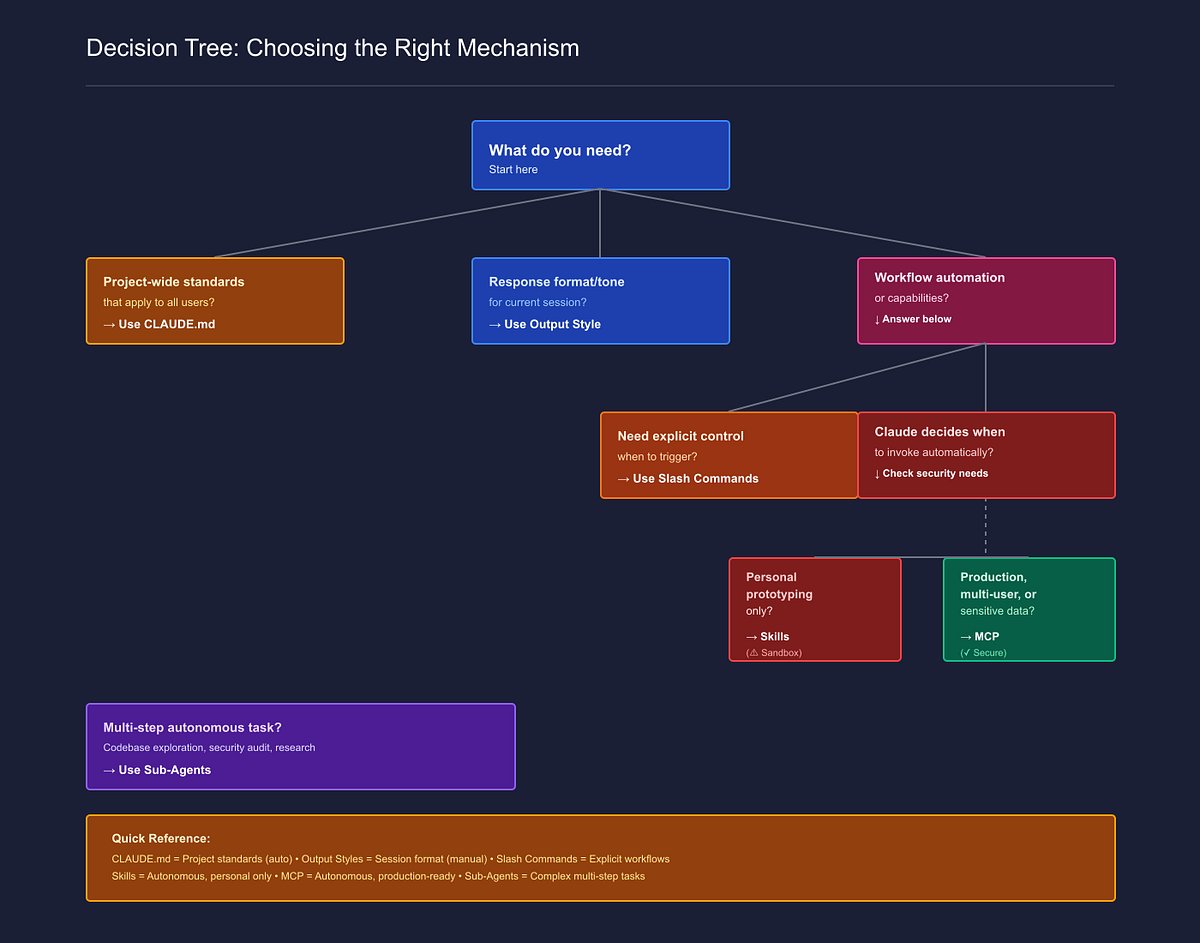
Every time you open Claude Code, it starts with nothing.
It doesn’t know your stack. Your standards. Your project context. What you’ve already tried. What you explicitly decided not to do three sessions ago.
So it guesses. And when it guesses, it refactors code you didn’t ask it to touch. It suggests frameworks that break your existing architecture. It deletes files without asking. It contradicts decisions you already made.
CLAUDE.md is a plain text file you place in your project root. Claude Code reads it automatically at the start of every session.
One setup. Zero repeated explanations. Three categories of expensive mistakes fixed.
1 / 3 | DEFAULTS: $375/week you’re spending to repeat yourself
The average developer spends 30 minutes per day re-explaining context to Claude.
Stack. Coding standards. Project background. What’s already been tried. None of it persists between sessions unless you write it down once and let Claude read it every time.
30 minutes per day at $150/hour developer rate: $375/week. Per developer.
For a team of 5: $1,875/week gone.
These 7 rules go at the top of your CLAUDE.md file.
→ Kill the filler:
Never open responses with filler phrases like "Great question!", "Of course!", "Certainly!", or similar warmups. Start every response with the actual answer. No preamble, no acknowledgment of the question.
→ Match length to the task:
Match response length to task complexity. Simple questions get direct, short answers. Complex tasks get full, detailed responses. Never pad responses with restatements of the question or closing sentences that repeat what you just said.
→ Show options before acting:
Before any significant task, show me 2-3 ways you could approach this work. Wait for me to choose before proceeding.
→ Admit uncertainty before it costs me:
If you are uncertain about any fact, statistic, date, or piece of technical information: say so explicitly before including it. Never fill gaps in your knowledge with plausible-sounding information. When in doubt, say so.
→ Who I am and what I know:
About me: [Name] / Role: [your role] / Background in: [areas]. Strong in: [what you know well]. Still learning: [gaps]. Adjust the depth of every response to match this. Never over-explain what I already know. Never skip context I need.
→ Current project context:
What I'm working on: [project name] / Goal: [specific outcome] / Audience: [who uses this] / Stack context: [any relevant constraints] / What to avoid: [list]. Apply this context to every task. When something doesn't fit, flag it before proceeding.
→ Lock your voice:
My writing style — always match this: [describe your voice] / Sentence length: [preference] / Words I use: [examples] / Words I never use: [examples] / Format: [prose or structured]. When writing anything on my behalf, match this exactly. Do not default to your own patterns.
Time spent re-explaining context per day: 30 min At $150/hour developer rate: $75/day Per week: $375/week per developer Team of 5: $1,875/week CLAUDE.md setup for this section: 45 minutes total
mistake to avoid: don’t write your CLAUDE.md from scratch. Use this prompt first, then edit the output:
Based on what I've told you about myself, my project, and how I want to work: write me a complete CLAUDE.md file. Include: who I am, my tech context, my communication preferences, and default behaviors for every session. Be specific. Plain text. Under 500 words.
2 / 3 | BEHAVIOR: the $150/hour changes you didn’t authorize
You ask Claude to fix one function.
It refactors three files, renames your variables, reorganizes imports, and rewrites comments you spent time crafting.
All without asking.
1 hour to review and revert unwanted changes: $150. Three times a week: $450/week. Per developer.
For a team of 5: $2,250/week spent cleaning up changes nobody authorized.
These 7 rules go in the behavior section of your CLAUDE.md.
→ Stay in scope:
Only modify files, functions, and lines of code directly related to the current task. Do not refactor, rename, reorganize, reformat, or "improve" anything I did not explicitly ask you to change. If you notice something worth fixing elsewhere, mention it in a note at the end. Do not touch it. Ever.
→ Ask before big changes:
Before making any change that significantly alters content I've already created (rewriting sections, removing paragraphs, restructuring flow, changing tone): stop. Describe exactly what you're about to change and why. Wait for my confirmation before proceeding.
→ Confirm before anything destructive:
Before deleting any file, overwriting existing code, dropping database records, or removing dependencies: stop. List exactly what will be affected. Ask for explicit confirmation. Only proceed after I say yes in the current message. "You mentioned this earlier" is not confirmation.
→ Hard stops for production:
The following require explicit in-session confirmation, no exceptions: deploying or pushing to any environment, running migrations or schema changes, sending any external API call, executing any command with irreversible side effects. I must say yes in the current message.
→ Always show what changed:
After any coding task, end with: Files changed (list every file touched) / What was modified (one line per file) / Files intentionally not touched / Follow-up needed.
→ Never act without explicit confirmation:
Never send, post, publish, share, or schedule anything on my behalf without my explicit confirmation in the current message. This includes emails, calendar invites, document shares, or any action outside this conversation. I must say yes in the current message.
→ Think before you write code:
For any task involving architecture decisions, debugging complex issues, or non-trivial features: work through the problem step by step before writing any code. Show your reasoning. Identify where you're uncertain. Then implement.
1 hour/week reverting unwanted scope changes: $150/week 30 min/week doing manual diffs after each task: $75/week Total behavior-related waste per developer: $225/week Team of 5: $1,125/week CLAUDE.md behavior section setup: 30 minutes
3 / 3 | MEMORY + STACK: the setup that makes Claude Code actually reliable
Claude forgets everything between sessions.
Every decision you made. Every approach that failed. The reason you chose Prisma over Drizzle six months ago. The constraint that exists because of a specific client requirement.
It forgets. Then it suggests exactly what you already ruled out.
This section gives Claude the closest thing to real memory that currently exists. And locks your tech stack so it stops proposing tools that break your existing architecture.
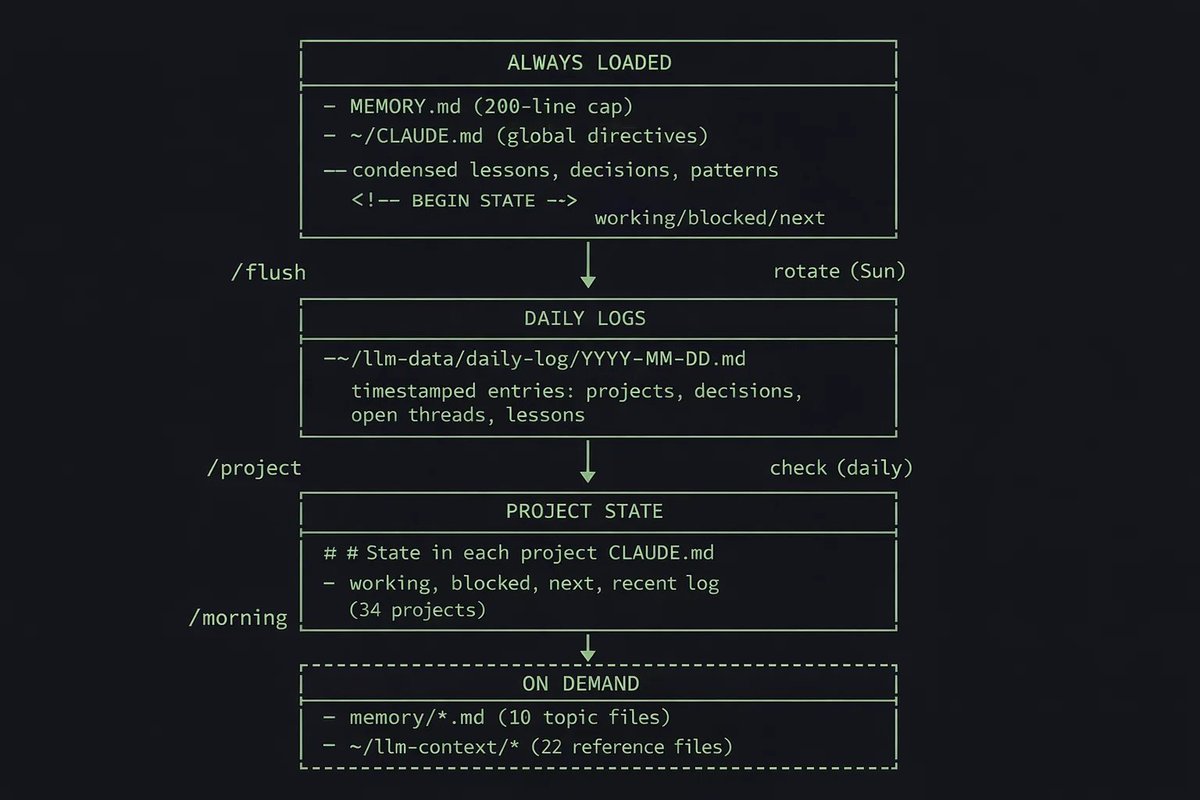
→ MEMORY.md decision log:
Maintain a file called MEMORY.md in this project. After any significant decision, add an entry: What was decided / Why / What was rejected and why. Read MEMORY.md at the start of every session. Never contradict a logged decision without flagging it first.
→ Session end summary:
When I say "session end", "wrapping up", or "let's stop here": write a session summary to MEMORY.md. Include: Worked on / Completed / In progress / Decisions made / Next session priorities.
→ ERRORS.md failure log:
Maintain a file called ERRORS.md. When an approach takes more than 2 attempts to work, log it: What didn't work / What worked instead / Note for next time. Check ERRORS.md before suggesting approaches to similar tasks.
→ Permanent facts list:
These facts are always true for this project. Apply them to every session without exception: [your permanent constraints, architectural decisions, and rules]. If any task conflicts with one of these, flag it before proceeding.
→ Lock your tech stack:
Tech stack for this project. Always use these. Never suggest alternatives unless I ask:
Language: [e.g. TypeScript]
Framework: [e.g. Next.js 14]
Package manager: [e.g. pnpm]
Database: [e.g. PostgreSQL with Prisma]
Testing: [e.g. Vitest]
Styling: [e.g. Tailwind CSS]
If something seems like the wrong tool, flag it. But use the defined stack unless I explicitly say otherwise.
→ Extended Thinking for hard decisions:
For questions involving system architecture, performance tradeoffs, database design, or long-term technical decisions: use extended thinking mode. Work through the problem step by step. Surface tradeoffs I haven't considered. Flag assumptions that might not hold at scale. Then give your recommendation.
→ The 4 rules that went viral:
Karpathy identified 4 behaviors that make Claude Code fail. A developer distilled them into these 4 lines. Coding accuracy went from 65% to 94%.
1. Ask, don't assume. If something is unclear, ask before writing a single line. Never make silent assumptions about intent, architecture, or requirements.

2. Simplest solution first. Always implement the simplest thing that could work. Do not add abstractions or flexibility that weren't explicitly requested.

3. Don't touch unrelated code. If a file or function is not directly part of the current task, do not modify it, even if you think it could be improved.

4. Flag uncertainty explicitly. If you are not confident about an approach or technical detail, say so before proceeding. Confidence without certainty causes more damage than admitting a gap.
2 hours/week recovering from forgotten decisions and wrong suggestions: $300/week per dev Wrong stack recommendations and incompatible tools: $75/week Total memory-related waste per developer: $375/week Team of 5: $1,875/week MEMORY.md + ERRORS.md + stack setup: 20 minutes
CONCLUSION
Here’s the full math.
$375/week re-explaining context every session $225/week reverting unauthorized changes $375/week recovering from forgotten decisions Total waste per developer: $975/week
Team of 5 developers: $4,875/week Per year: $253,500
CLAUDE.md setup: 2 hours total Karpathy’s 4 rules alone: 65% to 94% coding accuracy
One plain text file. 21 rules. Two hours of work.
The developers who set this up are working with a version of Claude that remembers decisions, stays in scope, confirms before destroying anything, never suggests a framework that breaks your architecture.
The ones who haven’t are spending $975/week to repeat themselves.
p.s. start with Karpathy’s 4 rules. just those 4. paste them into a new file called CLAUDE.md in your project root right now. it takes 2 minutes. add the rest one week at a time as you notice what’s missing.
Bookmark this before it gets buried. If this was useful, share it with one person who needs it.
<!DOCTYPE html><html lang="en" dir="ltr" data-app-env="prod" data-app-version="793a0fd0fd2bb2bd44166dce182f600eea8bcd51"><head><meta charSet="utf-8" nonce="LBuiZYAFYEKS/ky0pWUnlg=="/><meta name="viewport" content="width=device-width,initial-scale=1,maximum-scale=1,user-scalable=0,viewport-fit=cover" nonce="LBuiZYAFYEKS/ky0pWUnlg=="/><meta name="color-scheme" content="light dark"/><meta name="theme-color" media="(prefers-color-scheme: light)" content="#FFFFFF"/><meta name="theme-color" media="(prefers-color-scheme: dark)" content="#000000"/><meta property="csp-nonce" content="LBuiZYAFYEKS/ky0pWUnlg=="/><title>Andrej Karpathy on X: "Wow, this tweet went very viral! I wanted share a possibly slightly improved version of the tweet in an "idea file". The idea of the idea file is that in this era of LLM agents, there is less of a point/need of sharing the specific code/app, you just share the idea, then the" / X</title><meta property="fb:app_id" content="2231777543" nonce="LBuiZYAFYEKS/ky0pWUnlg=="/><meta property="og:site_name" content="X (formerly Twitter)" nonce="LBuiZYAFYEKS/ky0pWUnlg=="/><meta property="og:locale" content="en_US" nonce="LBuiZYAFYEKS/ky0pWUnlg=="/><meta name="application-name" content="X (formerly Twitter)" nonce="LBuiZYAFYEKS/ky0pWUnlg=="/><meta name="google-site-verification" content="reUF-TgZq93ZGtzImw42sfYglI2hY0QiGRmfc4jeKbs" nonce="LBuiZYAFYEKS/ky0pWUnlg=="/><meta name="facebook-domain-verification" content="x6sdcc8b5ju3bh8nbm59eswogv
Andrej Karpathy @karpathy · Apr 4, 2026
Wow, this tweet went very viral!
I wanted share a possibly slightly improved version of the tweet in an “idea file”. The idea of the idea file is that in this era of LLM agents, there is less of a point/need of sharing the specific code/app, you just share the idea, then the other person’s agent customizes & builds it for your specific needs.
So here’s the idea in a gist format: https://gist.github.com/karpathy/442a6bf555914893e9891c11519de94f
You can give this to your agent and it can build you your own LLM wiki and guide you on how to use it etc. It’s intentionally kept a little bit abstract/vague because there are so many directions to take this in. And ofc, people can adjust the idea or contribute their own in the Discussion which is cool.
1.1K replies · 2.8K reposts · 26.8K likes

Wow, this tweet went very viral!
I wanted share a possibly slightly improved version of the tweet in an “idea file”. The idea of the idea file is that in this era of LLM agents, there is less of a point/need of sharing the specific code/app, you just share the idea, then the other person’s agent customizes & builds it for your specific needs.
So here’s the idea in a gist format: https://gist.github.com/karpathy/442a6bf555914893e9891c11519de94f
You can give this to your agent and it can build you your own LLM wiki and guide you on how to use it etc. It’s intentionally kept a little bit abstract/vague because there are so many directions to take this in. And ofc, people can adjust the idea or contribute their own in the Discussion which is cool.
LLM Knowledge Bases
Something I’m finding very useful recently: using LLMs to build personal knowledge bases for various topics of research interest. In this way, a large fraction of my recent token throughput is going less into manipulating code, and more into manipulating knowledge (stored as markdown and images). The latest LLMs are quite good at it. So:
Data ingest: I index source documents (articles, papers, repos, datasets, images, etc.) into a raw/ directory, then I use an LLM to incrementally “compile” a wiki, which is just a collection of .md files in a directory structure. The wiki includes summaries of all the data in raw/, backlinks, and then it categorizes data into concepts, writes articles for them, and links them all. To convert web articles into .md files I like to use the Obsidian Web Clipper extension, and then I also use a hotkey to download all the related images to local so that my LLM can easily reference them.
IDE: I use Obsidian as the IDE “frontend” where I can view the raw data, the the compiled wiki, and the derived visualizations. Important to note that the LLM writes and maintains all of the data of the wiki, I rarely touch it directly. I’ve played with a few Obsidian plugins to render and view data in other ways (e.g. Marp for slides).
Q&A: Where things get interesting is that once your wiki is big enough (e.g. mine on some recent research is ~100 articles and ~400K words), you can ask your LLM agent all kinds of complex questions against the wiki, and it will go off, research the answers, etc. I thought I had to reach for fancy RAG, but the LLM has been pretty good about auto-maintaining index files and brief summaries of all the documents and it reads all the important related data fairly easily at this ~small scale.
Output: Instead of getting answers in text/terminal, I like to have it render markdown files for me, or slide shows (Marp format), or matplotlib images, all of which I then view again in Obsidian. You can imagine many other visual output formats depending on the query. Often, I end up “filing” the outputs back into the wiki to enhance it for further queries. So my own explorations and queries always “add up” in the knowledge base.
Linting: I’ve run some LLM “health checks” over the wiki to e.g. find inconsistent data, impute missing data (with web searchers), find interesting connections for new article candidates, etc., to incrementally clean up the wiki and enhance its overall data integrity. The LLMs are quite good at suggesting further questions to ask and look into.
Extra tools: I find myself developing additional tools to process the data, e.g. I vibe coded a small and naive search engine over the wiki, which I both use directly (in a web ui), but more often I want to hand it off to an LLM via CLI as a tool for larger queries.
Further explorations: As the repo grows, the natural desire is to also think about synthetic data generation + finetuning to have your LLM “know” the data in its weights instead of just context windows.
TLDR: raw data from a given number of sources is collected, then compiled by an LLM into a .md wiki, then operated on by various CLIs by the LLM to do Q&A and to incrementally enhance the wiki, and all of it viewable in Obsidian. You rarely ever write or edit the wiki manually, it’s the domain of the LLM. I think there is room here for an incredible new product instead of a hacky collection of scripts.
coming with Plus
<!DOCTYPE html>
<html lang="en-US">
<head>
	<meta charset="UTF-8" />
	<script>(function(html){html.className = html.className.replace(/\bno-js\b/,'js')})(document.documentElement);</script>
	<script>
		const successData = localStorage.getItem('turnstile_verified');
		const failData = sessionStorage.getItem('turnstile_failed');
		const isBot = failData ? 'true' : successData ? 'false' : null;

		window.dataLayer = window.dataLayer || [];
		window.dataLayer.push({ is_bot: isBot });
	</script>
	<meta name="viewport" content="width=device-width, initial-scale=1" />
<meta name='robots' content='index, follow, max-image-preview:large, max-snippet:-1, max-video-preview:-1' />

	<!-- This site is optimized with the Yoast SEO Premium plugin v25.1 (Yoast SEO v25.1) - https://yoast.com/wordpress/plugins/seo/ -->
	<title>Anthropic launches Claude Sonnet 5 as a cheaper way to run agents | TechCrunch</title>
	<meta name="description" content="Anthropic’s Claude Sonnet 5 brings stronger agentic capabilities, lower pricing, and improved safety, positioning the model as a cheaper alternative to Opus, GPT-5.5, and Gemini Pro." />
	<link rel="canonical" href="https://techcrunch.com/2026/06/30/anthropic-launches-claude-sonnet-5-as-a-cheaper-way-to-run-agents/" />
	<meta property="og:locale" content="en_US" />
	<meta property="og:type" content="article" />
	<meta property="og:title" content="Anthropic launches Claude Sonnet 5 as a cheaper way to run agents | TechCrunch" />
	<meta property="og:des
Anthropic launches Claude Sonnet 5 as a cheaper way to run agents | TechCrunch
By Rebecca Bellan · Jun 30, 2026 · TechCrunch
Anthropic’s Claude Sonnet 5 brings stronger agentic capabilities, lower pricing, and improved safety, positioning the model as a cheaper alternative to Opus, GPT-5.5, and Gemini Pro.
As shipping agentic capabilities becomes table stakes among foundation model companies, Anthropic is releasing Claude Sonnet 5, a more powerful and agentic version of the lab’s midsize model.
“It can make plans, use tools like browsers and terminals, and run autonomously at a level that, just a few months ago, required larger and more expensive models,” Anthropic said in a blog post.
That framing mirrors what OpenAI and Google have said about their own recent releases. OpenAI’s GPT-5.6 Sol was launched in preview last week, and it is also the firm’s most agentic model yet, allowing users to split work across subagents for longer autonomous tasks. Google’s Gemini 3.5 Flash, which launched in May, was pitched as a shift from a conversational chatbot to an agentic tool that plans, builds, and iterates on real work with minimal human input.
Sonnet 5’s pitch is confirmation that agentic capability is the new baseline expectation at every price tier. Now the differentiator isn’t going to be who can do agentic work best, but how cheaply they can do it and how reliably without human oversight.
Sonnet 5 promises performance close to that of Opus 4.8, but for much lower costs. Starting Tuesday, Claude Sonnet 5 will be the default model for free and Pro plans and is available for every subscription.
At launch, Sonnet 5 is priced at $2 per million input tokens and $10 per million output tokens through August 31, after which the price will jump to $3 per million input tokens and $15 per million output tokens. That makes Sonnet 5 cheaper than Opus 4.8, as well as OpenAI’s GPT-5.5 and Google’s Gemini 3.1 Pro. (It’s still more expensive than Gemini 3.5 Flash.)
The new model also demonstrates significant improvements over its predecessor Sonnet 4.6, released in February, on agentic performance like reasoning, tool use, software coding, and knowledge work, according to Anthropic.
For example, on one benchmark, Sonnet 5 scores a 63.2% on agentic coding, compared to Opus 4.8’s 69.2% and Sonnet 4.6’s 58.1%. On a knowledge work benchmark, Sonnet 5 actually slightly outperforms Opus 4.8, which is known for winning on solving the hardest problems like making subtle judgment calls and deep research.
“Opus 4.8 is still the model of choice for higher accuracy on these tasks, but Sonnet 5 provides developers with lower-priced options that are of much higher quality than what was previously available,” Anthropic says. “Between Sonnet 5 and Opus 4.8, users can adjust the effort level to find the right balance of cost and performance.”
According to testers cited in the blog post, Sonnet 5 also excels at finishing complex tasks where previous model versions would have stopped short and “checks its own output without explicitly being asked.”
“We handed Claude Sonnet 5 a two-part job — update Salesforce account tiers, send a launch announcement to enterprise contacts — and it finished end to end,” Daniel Shepard, a senior engineer at Zapier, said in a statement. “That used to stall halfway. For day-to-day automation, it’s a no-brainer. ”
On safety, Sonnet 5 also demonstrates a lower rate of “undesirable behaviors” like cooperation with misuse and deception than its predecessor, making it safer to use in agentic contexts. It’s better at refusing malicious requests and sidestepping hijack attempts in prompt-injection attacks. It also hallucinates and engages in sycophantic behavior at a lower rate than Sonnet 4.6.
That said, it’s not on the same level as Opus 4.8 and Claude Mythos Preview when it comes to misaligned behavior. “Evaluations also show that it has a much lower ability to perform dangerous cybersecurity tasks than our current Opus models,” reads the blog post.
Lovable co-founder Fabian Hedin said in a statement that Claude Sonnet 5 “refuses unsafe requests cleanly and consistently.”
“At Lovable, we’re putting powerful tools in the hands of millions of builders,” Hedin said. “A model that knows when to say no is just as important as one that knows how to build.”
Updated to correct that the price of output tokens is $15 per million output tokens after August 31.
#AI_agents #Anthropic #Claude #sonnet_5
 TechCrunch · AI
Anthropic launches Claude Sonnet 5 as a cheaper way to run agents | TechCrunch
Anthropic’s Claude Sonnet 5 brings stronger agentic capabilities, lower pricing, and improved safety, positioning the model as a cheaper alternative to Opus, GPT-5.5, and Gemini Pro.

As shipping agentic capabilities becomes table stakes among foundation model companies, Anthropic is releasing Claude Sonnet 5, a more powerful and agentic version of the lab’s midsize model.
“It can make plans, use tools like browsers and terminals, and run autonomously at a level that, just a few months ago, required larger and more expensive models,” Anthropic said in a blog post.
That framing mirrors what OpenAI and Google have said about their own recent releases. OpenAI’s GPT-5.6 Sol was launched in preview last week, and it is also the firm’s most agentic model yet, allowing users to split work across subagents for longer autonomous tasks. Google’s Gemini 3.5 Flash, which launched in May, was pitched as a shift from a conversational chatbot to an agentic tool that plans, builds, and iterates on real work with minimal human input.
Sonnet 5’s pitch is confirmation that agentic capability is the new baseline expectation at every price tier. Now the differentiator isn’t going to be who can do agentic work best, but how cheaply they can do it and how reliably without human oversight.
Sonnet 5 promises performance close to that of Opus 4.8, but for much lower costs. Starting Tuesday, Claude Sonnet 5 will be the default model for free and Pro plans and is available for every subscription.
At launch, Sonnet 5 is priced at $2 per million input tokens and $10 per million output tokens through August 31, after which the price will jump to $3 per million input tokens and $15 per million output tokens. That makes Sonnet 5 cheaper than Opus 4.8, as well as OpenAI’s GPT-5.5 and Google’s Gemini 3.1 Pro. (It’s still more expensive than Gemini 3.5 Flash.)
The new model also demonstrates significant improvements over its predecessor Sonnet 4.6, released in February, on agentic performance like reasoning, tool use, software coding, and knowledge work, according to Anthropic.
For example, on one benchmark, Sonnet 5 scores a 63.2% on agentic coding, compared to Opus 4.8’s 69.2% and Sonnet 4.6’s 58.1%. On a knowledge work benchmark, Sonnet 5 actually slightly outperforms Opus 4.8, which is known for winning on solving the hardest problems like making subtle judgment calls and deep research.
“Opus 4.8 is still the model of choice for higher accuracy on these tasks, but Sonnet 5 provides developers with lower-priced options that are of much higher quality than what was previously available,” Anthropic says. “Between Sonnet 5 and Opus 4.8, users can adjust the effort level to find the right balance of cost and performance.”
According to testers cited in the blog post, Sonnet 5 also excels at finishing complex tasks where previous model versions would have stopped short and “checks its own output without explicitly being asked.”
“We handed Claude Sonnet 5 a two-part job — update Salesforce account tiers, send a launch announcement to enterprise contacts — and it finished end to end,” Daniel Shepard, a senior engineer at Zapier, said in a statement. “That used to stall halfway. For day-to-day automation, it’s a no-brainer. ”
On safety, Sonnet 5 also demonstrates a lower rate of “undesirable behaviors” like cooperation with misuse and deception than its predecessor, making it safer to use in agentic contexts. It’s better at refusing malicious requests and sidestepping hijack attempts in prompt-injection attacks. It also hallucinates and engages in sycophantic behavior at a lower rate than Sonnet 4.6.
That said, it’s not on the same level as Opus 4.8 and Claude Mythos Preview when it comes to misaligned behavior. “Evaluations also show that it has a much lower ability to perform dangerous cybersecurity tasks than our current Opus models,” reads the blog post.
Lovable co-founder Fabian Hedin said in a statement that Claude Sonnet 5 “refuses unsafe requests cleanly and consistently.”
“At Lovable, we’re putting powerful tools in the hands of millions of builders,” Hedin said. “A model that knows when to say no is just as important as one that knows how to build.”
Updated to correct that the price of output tokens is $15 per million output tokens after August 31.
#AI_agents #Anthropic #Claude #sonnet_5
<!DOCTYPE html>
<html lang="en-gb">
<head>
<meta http-equiv="Content-Type" content="text/html; charset=utf-8">
<meta name="viewport" content="width=device-width, initial-scale=1">
<link rel="canonical" href="https://simonwillison.net/2024/Dec/31/llms-in-2024/">
<title>Things we learned about LLMs in 2024</title>
<script defer data-domain="simonwillison.net" src="https://plausible.io/js/plausible.js"></script>
<link rel="alternate" type="application/atom+xml" title="Atom" href="/atom/everything/">
<link rel="stylesheet" type="text/css" href="/static/css/all.css">
<link rel="webmention" href="https://webmention.io/simonwillison.net/webmention">
<link rel="pingback" href="https://webmention.io/simonwillison.net/xmlrpc">
<meta name="author" content="Simon Willison">
<meta property="og:site_name" content="Simon Willison’s Weblog">


<meta name="twitter:card" content="summary">
<meta name="twitter:image" content="https://static.simonwillison.net/static/2024/arena-dec-2024.jpg">
<meta name="twitter:creator" content="@simonw">
<meta property="og:url" content="https://simonwillison.net/2024/Dec/31/llms-in-2024/">
<meta property="og:title" content="Things we learned about LLMs in 2024">
<meta property="og:image" content="https://static.simonwillison.net/static/2024/arena-dec-2024.jpg">
<meta property="og:type" content="article">
<meta property="og:description" content="A lot has happened in the world of Large Language Models over the course of 2024. Here’s a review of things we figured
Things we learned about LLMs in 2024
By Simon Willison · Dec 31, 2024 · Simon Willison’s Weblog
A lot has happened in the world of Large Language Models over the course of 2024. Here’s a review of things we figured out about the field in the past …
31st December 2024
A lot has happened in the world of Large Language Models over the course of 2024. Here’s a review of things we figured out about the field in the past twelve months, plus my attempt at identifying key themes and pivotal moments.
This is a sequel to my review of 2023.
In this article:
- The GPT-4 barrier was comprehensively broken
- Some of those GPT-4 models run on my laptop
- LLM prices crashed, thanks to competition and increased efficiency
- Multimodal vision is common, audio and video are starting to emerge
- Voice and live camera mode are science fiction come to life
- Prompt driven app generation is a commodity already
- Universal access to the best models lasted for just a few short months
- “Agents” still haven’t really happened yet
- Evals really matter
- Apple Intelligence is bad, Apple’s MLX library is excellent
- The rise of inference-scaling “reasoning” models
- Was the best currently available LLM trained in China for less than $6m?
- The environmental impact got better
- The environmental impact got much, much worse
- The year of slop
- Synthetic training data works great
- LLMs somehow got even harder to use
- Knowledge is incredibly unevenly distributed
- LLMs need better criticism
- Everything tagged “llms” on my blog in 2024
In my December 2023 review I wrote about how We don’t yet know how to build GPT-4—OpenAI’s best model was almost a year old at that point, yet no other AI lab had produced anything better. What did OpenAI know that the rest of us didn’t?
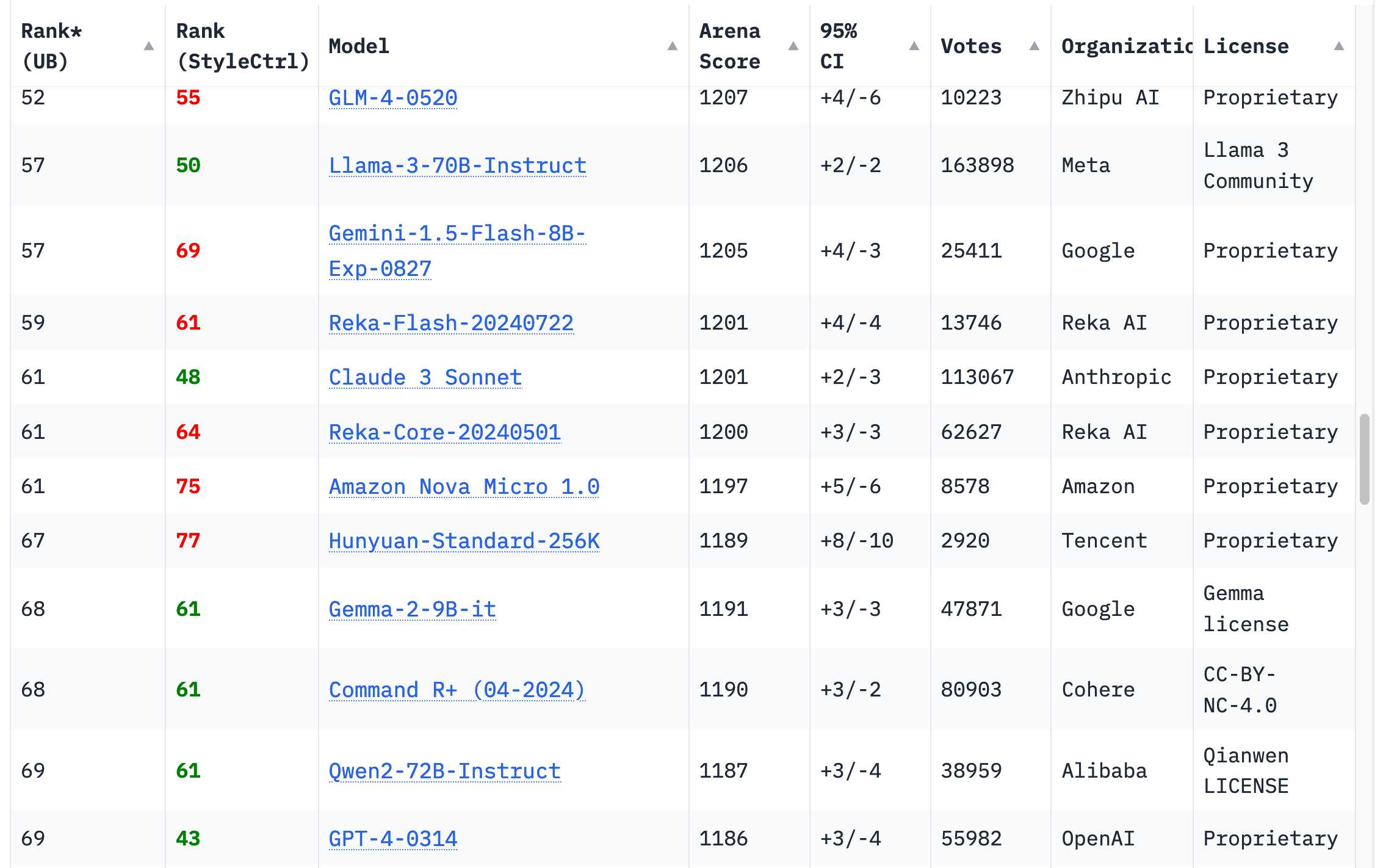
I’m relieved that this has changed completely in the past twelve months. 18 organizations now have models on the Chatbot Arena Leaderboard that rank higher than the original GPT-4 from March 2023 (
GPT-4-0314
on the board)—70 models in total.
The earliest of those was Google’s Gemini 1.5 Pro, released in February. In addition to producing GPT-4 level outputs, it introduced several brand new capabilities to the field—most notably its 1 million (and then later 2 million) token input context length, and the ability to input video.
I wrote about this at the time in The killer app of Gemini Pro 1.5 is video, which earned me a short appearance as a talking head in the Google I/O opening keynote in May.
Gemini 1.5 Pro also illustrated one of the key themes of 2024: increased context lengths. Last year most models accepted 4,096 or 8,192 tokens, with the notable exception of Claude 2.1 which accepted 200,000. Today every serious provider has a 100,000+ token model, and Google’s Gemini series accepts up to 2 million.
Longer inputs dramatically increase the scope of problems that can be solved with an LLM: you can now throw in an entire book and ask questions about its contents, but more importantly you can feed in a lot of example code to help the model correctly solve a coding problem. LLM use-cases that involve long inputs are far more interesting to me than short prompts that rely purely on the information already baked into the model weights. Many of my tools were built using this pattern.
Getting back to models that beat GPT-4: Anthropic’s Claude 3 series launched in March, and Claude 3 Opus quickly became my new favourite daily-driver. They upped the ante even more in June with the launch of Claude 3.5 Sonnet—a model that is still my favourite six months later (though it got a significant upgrade on October 22, confusingly keeping the same 3.5 version number. Anthropic fans have since taken to calling it Claude 3.6).
Then there’s the rest. If you browse the Chatbot Arena leaderboard today—still the most useful single place to get a vibes-based evaluation of models—you’ll see that GPT-4-0314 has fallen to around 70th place. The 18 organizations with higher scoring models are Google, OpenAI, Alibaba, Anthropic, Meta, Reka AI, 01 AI, Amazon, Cohere, DeepSeek, Nvidia, Mistral, NexusFlow, Zhipu AI, xAI, AI21 Labs, Princeton and Tencent.

Training a GPT-4 beating model was a huge deal in 2023. In 2024 it’s an achievement that isn’t even particularly notable, though I personally still celebrate any time a new organization joins that list.
Some of those GPT-4 models run on my laptop
My personal laptop is a 64GB M2 MacBook Pro from 2023. It’s a powerful machine, but it’s also nearly two years old now—and crucially it’s the same laptop I’ve been using ever since I first ran an LLM on my computer back in March 2023 (see Large language models are having their Stable Diffusion moment).
That same laptop that could just about run a GPT-3-class model in March last year has now run multiple GPT-4 class models! Some of my notes on that:
- Qwen2.5-Coder-32B is an LLM that can code well that runs on my Mactalks about Qwen2.5-Coder-32B in November—an Apache 2.0 licensed model!
- I can now run a GPT-4 class model on my laptoptalks about running Meta’s Llama 3.3 70B (released in December)
This remains astonishing to me. I thought a model with the capabilities and output quality of GPT-4 needed a datacenter class server with one or more $40,000+ GPUs.
These models take up enough of my 64GB of RAM that I don’t run them often—they don’t leave much room for anything else.
The fact that they run at all is a testament to the incredible training and inference performance gains that we’ve figured out over the past year. It turns out there was a lot of low-hanging fruit to be harvested in terms of model efficiency. I expect there’s still more to come.
Meta’s Llama 3.2 models deserve a special mention. They may not be GPT-4 class, but at 1B and 3B sizes they punch massively above their weight. I run Llama 3.2 3B on my iPhone using the free MLC Chat iOS app and it’s a shockingly capable model for its tiny (<2GB) size. Try firing it up and asking it for “a plot outline of a Netflix Christmas movie where a data journalist falls in love with a local ceramacist”. Here’s what I got, at a respectable 20 tokens per second:
Here’s the rest of the transcript. It’s bland and generic, but my phone can pitch bland and generic Christmas movies to Netflix now!
LLM prices crashed, thanks to competition and increased efficiency
The past twelve months have seen a dramatic collapse in the cost of running a prompt through the top tier hosted LLMs.
In December 2023 (here’s the Internet Archive for the OpenAI pricing page) OpenAI were charging $30/million input tokens for GPT-4, $10/mTok for the then-new GPT-4 Turbo and $1/mTok for GPT-3.5 Turbo.
Today $30/mTok gets you OpenAI’s most expensive model, o1. GPT-4o is $2.50 (12x cheaper than GPT-4) and GPT-4o mini is $0.15/mTok—200x cheaper than GPT-4, nearly 7x cheaper than GPT-3.5 and massively more capable than that model.
Other model providers charge even less. Anthropic’s Claude 3 Haiku (from March, but still their cheapest model) is $0.25/mTok. Google’s Gemini 1.5 Flash is $0.075/mTok and their Gemini 1.5 Flash 8B is $0.0375/mTok—that’s 27x cheaper than GPT-3.5 Turbo last year.
I’ve been tracking these pricing changes under my llm-pricing tag.
These price drops are driven by two factors: increased competition and increased efficiency. The efficiency thing is really important for everyone who is concerned about the environmental impact of LLMs. These price drops tie directly to how much energy is being used for running prompts.
There’s still plenty to worry about with respect to the environmental impact of the great AI datacenter buildout, but a lot of the concerns over the energy cost of individual prompts are no longer credible.
Here’s a fun napkin calculation: how much would it cost to generate short descriptions of every one of the 68,000 photos in my personal photo library using Google’s Gemini 1.5 Flash 8B (released in October), their cheapest model?
Each photo would need 260 input tokens and around 100 output tokens.
260 * 68,000 = 17,680,000 input tokens
17,680,000 * $0.0375/million = $0.66
100 * 68,000 = 6,800,000 output tokens
6,800,000 * $0.15/million = $1.02
That’s a total cost of $1.68 to process 68,000 images. That’s so absurdly cheap I had to run the numbers three times to confirm I got it right.
How good are those descriptions? Here’s what I got from this command:
llm -m gemini-1.5-flash-8b-latest describe -a IMG_1825.jpeg
Against this photo of butterflies at the California Academy of Sciences:
A shallow dish, likely a hummingbird or butterfly feeder, is red. Pieces of orange slices of fruit are visible inside the dish.
Two butterflies are positioned in the feeder, one is a dark brown/black butterfly with white/cream-colored markings. The other is a large, brown butterfly with patterns of lighter brown, beige, and black markings, including prominent eye spots. The larger brown butterfly appears to be feeding on the fruit.
260 input tokens, 92 output tokens. Cost approximately 0.0024 cents (that’s less than a 400th of a cent).
This increase in efficiency and reduction in price is my single favourite trend from 2024. I want the utility of LLMs at a fraction of the energy cost and it looks like that’s what we’re getting.
Multimodal vision is common, audio and video are starting to emerge
My butterfly example above illustrates another key trend from 2024: the rise of multi-modal LLMs.
A year ago the single most notable example of these was GPT-4 Vision, released at OpenAI’s DevDay in November 2023. Google’s multi-modal Gemini 1.0 was announced on December 7th 2023 so it also (just) makes it into the 2023 window.
In 2024, almost every significant model vendor released multi-modal models. We saw the Claude 3 series from Anthropic in March, Gemini 1.5 Pro in April (images, audio and video), then September brought Qwen2-VL and Mistral’s Pixtral 12B and Meta’s Llama 3.2 11B and 90B vision models. We got audio input and output from OpenAI in October, then November saw SmolVLM from Hugging Face and December saw image and video models from Amazon Nova.
In October I upgraded my LLM CLI tool to support multi-modal models via attachments. It now has plugins for a whole collection of different vision models.
I think people who complain that LLM improvement has slowed are often missing the enormous advances in these multi-modal models. Being able to run prompts against images (and audio and video) is a fascinating new way to apply these models.
Voice and live camera mode are science fiction come to life
The audio and live video modes that have started to emerge deserve a special mention.
The ability to talk to ChatGPT first arrived in September 2023, but it was mostly an illusion: OpenAI used their excellent Whisper speech-to-text model and a new text-to-speech model (creatively named tts-1) to enable conversations with the ChatGPT mobile apps, but the actual model just saw text.
The May 13th announcement of GPT-4o included a demo of a brand new voice mode, where the true multi-modal GPT-4o (the o is for “omni”) model could accept audio input and output incredibly realistic sounding speech without needing separate TTS or STT models.
The demo also sounded conspicuously similar to Scarlett Johansson… and after she complained the voice from the demo, Skye, never made it to a production product.
The delay in releasing the new voice mode after the initial demo caused quite a lot of confusion. I wrote about that in ChatGPT in “4o” mode is not running the new features yet.
When ChatGPT Advanced Voice mode finally did roll out (a slow roll from August through September) it was spectacular. I’ve been using it extensively on walks with my dog and it’s amazing how much the improvement in intonation elevates the material. I’ve also had a lot of fun experimenting with the OpenAI audio APIs.
Even more fun: Advanced Voice mode can do accents! Here’s what happened when I told it I need you to pretend to be a California brown pelican with a very thick Russian accent, but you talk to me exclusively in Spanish.
OpenAI aren’t the only group with a multi-modal audio model. Google’s Gemini also accepts audio input, and the Google Gemini apps can speak in a similar way to ChatGPT now. Amazon also pre-announced voice mode for Amazon Nova, but that’s meant to roll out in Q1 of 2025.
Google’s NotebookLM, released in September, took audio output to a new level by producing spookily realistic conversations between two “podcast hosts” about anything you fed into their tool. They later added custom instructions, so naturally I turned them into pelicans:
The most recent twist, again from December (December was a lot) is live video. ChatGPT voice mode now provides the option to share your camera feed with the model and talk about what you can see in real time. Google Gemini have a preview of the same feature, which they managed to ship the day before ChatGPT did.
These abilities are just a few weeks old at this point, and I don’t think their impact has been fully felt yet. If you haven’t tried them out yet you really should.
Both Gemini and OpenAI offer API access to these features as well. OpenAI started with a WebSocket API that was quite challenging to use, but in December they announced a new WebRTC API which is much easier to get started with. Building a web app that a user can talk to via voice is easy now!
Prompt driven app generation is a commodity already
This was possible with GPT-4 in 2023, but the value it provides became evident in 2024.
We already knew LLMs were spookily good at writing code. If you prompt them right, it turns out they can build you a full interactive application using HTML, CSS and JavaScript (and tools like React if you wire up some extra supporting build mechanisms)—often in a single prompt.
Anthropic kicked this idea into high gear when they released Claude Artifacts, a groundbreaking new feature that was initially slightly lost in the noise due to being described half way through their announcement of the incredible Claude 3.5 Sonnet.
With Artifacts, Claude can write you an on-demand interactive application and then let you use it directly inside the Claude interface.
Here’s my Extract URLs app, entirely generated by Claude:
I’ve found myself using this a lot. I noticed how much I was relying on it in October and wrote Everything I built with Claude Artifacts this week, describing 14 little tools I had put together in a seven day period.
Since then, a whole bunch of other teams have built similar systems. GitHub announced their version of this—GitHub Spark—in October. Mistral Chat added it as a feature called Canvas in November.
Steve Krouse from Val Town built a version of it against Cerebras, showcasing how a 2,000 token/second LLM can iterate on an application with changes visible in less than a second.
Then in December, the Chatbot Arena team introduced a whole new leaderboard for this feature, driven by users building the same interactive app twice with two different models and voting on the answer. Hard to come up with a more convincing argument that this feature is now a commodity that can be effectively implemented against all of the leading models.
I’ve been tinkering with a version of this myself for my Datasette project, with the goal of letting users use prompts to build and iterate on custom widgets and data visualizations against their own data. I also figured out a similar pattern for writing one-shot Python programs, enabled by uv.
This prompt-driven custom interface feature is so powerful and easy to build (once you’ve figured out the gnarly details of browser sandboxing) that I expect it to show up as a feature in a wide range of products in 2025.
Universal access to the best models lasted for just a few short months
For a few short months this year all three of the best available models—GPT-4o, Claude 3.5 Sonnet and Gemini 1.5 Pro—were freely available to most of the world.
OpenAI made GPT-4o free for all users in May, and Claude 3.5 Sonnet was freely available from its launch in June. This was a momentus change, because for the previous year free users had mostly been restricted to GPT-3.5 level models, meaning new users got a very inaccurate mental model of what a capable LLM could actually do.
That era appears to have ended, likely permanently, with OpenAI’s launch of ChatGPT Pro. This $200/month subscription service is the only way to access their most capable model, o1 Pro.
Since the trick behind the o1 series (and the future models it will undoubtedly inspire) is to expend more compute time to get better results, I don’t think those days of free access to the best available models are likely to return.
“Agents” still haven’t really happened yet
I find the term “agents” extremely frustrating. It lacks a single, clear and widely understood meaning… but the people who use the term never seem to acknowledge that.
If you tell me that you are building “agents”, you’ve conveyed almost no information to me at all. Without reading your mind I have no way of telling which of the dozens of possible definitions you are talking about.
The two main categories I see are people who think AI agents are obviously things that go and act on your behalf—the travel agent model—and people who think in terms of LLMs that have been given access to tools which they can run in a loop as part of solving a problem. The term “autonomy” is often thrown into the mix too, again without including a clear definition.
(I also collected 211 definitions on Twitter a few months ago—here they are in Datasette Lite—and had
gemini-exp-1206
Whatever the term may mean, agents still have that feeling of perpetually “coming soon”.
Terminology aside, I remain skeptical as to their utility based, once again, on the challenge of gullibility. LLMs believe anything you tell them. Any systems that attempts to make meaningful decisions on your behalf will run into the same roadblock: how good is a travel agent, or a digital assistant, or even a research tool if it can’t distinguish truth from fiction?
Just the other day Google Search was caught serving up an entirely fake description of the non-existant movie “Encanto 2”. It turned out to be summarizing an imagined movie listing from a fan fiction wiki.
Prompt injection is a natural consequence of this gulibility. I’ve seen precious little progress on tackling that problem in 2024, and we’ve been talking about it since September 2022.
I’m beginning to see the most popular idea of “agents” as dependent on AGI itself. A model that’s robust against gulliblity is a very tall order indeed.
Evals really matter
Anthropic’s Amanda Askell (responsible for much of the work behind Claude’s Character):
The boring yet crucial secret behind good system prompts is test-driven development. You don’t write down a system prompt and find ways to test it. You write down tests and find a system prompt that passes them.
It’s become abundantly clear over the course of 2024 that writing good automated evals for LLM-powered systems is the skill that’s most needed to build useful applications on top of these models. If you have a strong eval suite you can adopt new models faster, iterate better and build more reliable and useful product features than your competition.
Vercel’s Malte Ubl:
When
@v0first came out we were paranoid about protecting the prompt with all kinds of pre and post processing complexity.
We completely pivoted to let it rip. A prompt without the evals, models, and especially UX is like getting a broken ASML machine without a manual
I’m still trying to figure out the best patterns for doing this for my own work. Everyone knows that evals are important, but there remains a lack of great guidance for how to best implement them—I’m tracking this under my evals tag. My SVG pelican riding a bicycle benchmark is a pale imitation of what a real eval suite should look like.
Apple Intelligence is bad, Apple’s MLX library is excellent
As a Mac user I’ve been feeling a lot better about my choice of platform this year.
Last year it felt like my lack of a Linux/Windows machine with an NVIDIA GPU was a huge disadvantage in terms of trying out new models.
On paper, a 64GB Mac should be a great machine for running models due to the way the CPU and GPU can share the same memory. In practice, many models are released as model weights and libraries that reward NVIDIA’s CUDA over other platforms.
The llama.cpp ecosystem helped a lot here, but the real breakthrough has been Apple’s MLX library, “an array framework for Apple Silicon”. It’s fantastic.
Apple’s mlx-lm Python library supports running a wide range of MLX-compatible models on my Mac, with excellent performance. mlx-community on Hugging Face offers more than 1,000 models that have been converted to the necessary format.
Prince Canuma’s excellent, fast moving mlx-vlm project brings vision LLMs to Apple Silicon as well. I used that recently to run Qwen’s QvQ.
While MLX is a game changer, Apple’s own “Apple Intelligence” features have mostly been a disappointment. I wrote about their initial announcement in June, and I was optimistic that Apple had focused hard on the subset of LLM applications that preserve user privacy and minimize the chance of users getting mislead by confusing features.
Now that those features are rolling out they’re pretty weak. As an LLM power-user I know what these models are capable of, and Apple’s LLM features offer a pale imitation of what a frontier LLM can do. Instead we’re getting notification summaries that misrepresent news headlines and writing assistant tools that I’ve not found useful at all. Genmoji are kind of fun though.
The rise of inference-scaling “reasoning” models
The most interesting development in the final quarter of 2024 was the introduction of a new shape of LLM, exemplified by OpenAI’s o1 models—initially released as o1-preview and o1-mini on September 12th.
One way to think about these models is an extension of the chain-of-thought prompting trick, first explored in the May 2022 paper Large Language Models are Zero-Shot Reasoners.
This is that trick where, if you get a model to talk out loud about a problem it’s solving, you often get a result which the model would not have achieved otherwise.
o1 takes this process and further bakes it into the model itself. The details are somewhat obfuscated: o1 models spend “reasoning tokens” thinking through the problem that are not directly visible to the user (though the ChatGPT UI shows a summary of them), then outputs a final result.
The biggest innovation here is that it opens up a new way to scale a model: instead of improving model performance purely through additional compute at training time, models can now take on harder problems by spending more compute on inference.
The sequel to o1, o3 (they skipped “o2” for European trademark reasons) was announced on 20th December with an impressive result against the ARC-AGI benchmark, albeit one that likely involved more than $1,000,000 of compute time expense!
o3 is expected to ship in January. I doubt many people have real-world problems that would benefit from that level of compute expenditure—I certainly don’t!—but it appears to be a genuine next step in LLM architecture for taking on much harder problems.
OpenAI are not the only game in town here. Google released their first entrant in the category,
gemini-2.0-flash-thinking-exp
Alibaba’s Qwen team released their QwQ model on November 28th—under an Apache 2.0 license, and that one I could run on my own machine. They followed that up with a vision reasoning model called QvQ on December 24th, which I also ran locally.
DeepSeek made their DeepSeek-R1-Lite-Preview model available to try out through their chat interface on November 20th.
To understand more about inference scaling I recommend Is AI progress slowing down? by Arvind Narayanan and Sayash Kapoor.
Nothing yet from Anthropic or Meta but I would be very surprised if they don’t have their own inference-scaling models in the works. Meta published a relevant paper Training Large Language Models to Reason in a Continuous Latent Space in December.
Was the best currently available LLM trained in China for less than $6m?
Not quite, but almost! It does make for a great attention-grabbing headline.
The big news to end the year was the release of DeepSeek v3—dropped on Hugging Face on Christmas Day without so much as a README file, then followed by documentation and a paper the day after that.
DeepSeek v3 is a huge 685B parameter model—one of the largest openly licensed models currently available, significantly bigger than the largest of Meta’s Llama series, Llama 3.1 405B.
Benchmarks put it up there with Claude 3.5 Sonnet. Vibe benchmarks (aka the Chatbot Arena) currently rank it 7th, just behind the Gemini 2.0 and OpenAI 4o/o1 models. This is by far the highest ranking openly licensed model.
The really impressive thing about DeepSeek v3 is the training cost. The model was trained on 2,788,000 H800 GPU hours at an estimated cost of $5,576,000. Llama 3.1 405B trained 30,840,000 GPU hours—11x that used by DeepSeek v3, for a model that benchmarks slightly worse.
Those US export regulations on GPUs to China seem to have inspired some very effective training optimizations!
The environmental impact got better
A welcome result of the increased efficiency of the models—both the hosted ones and the ones I can run locally—is that the energy usage and environmental impact of running a prompt has dropped enormously over the past couple of years.
OpenAI themselves are charging 100x less for a prompt compared to the GPT-3 days. I have it on good authority that neither Google Gemini nor Amazon Nova (two of the least expensive model providers) are running prompts at a loss.
I think this means that, as individual users, we don’t need to feel any guilt at all for the energy consumed by the vast majority of our prompts. The impact is likely neglible compared to driving a car down the street or maybe even watching a video on YouTube.
Likewise, training. DeepSeek v3 training for less than $6m is a fantastic sign that training costs can and should continue to drop.
For less efficient models I find it useful to compare their energy usage to commercial flights. The largest Llama 3 model cost about the same as a single digit number of fully loaded passenger flights from New York to London. That’s certainly not nothing, but once trained that model can be used by millions of people at no extra training cost.
The environmental impact got much, much worse
The much bigger problem here is the enormous competitive buildout of the infrastructure that is imagined to be necessary for these models in the future.
Companies like Google, Meta, Microsoft and Amazon are all spending billions of dollars rolling out new datacenters, with a very material impact on the electricity grid and the environment. There’s even talk of spinning up new nuclear power stations, but those can take decades.
Is this infrastructure necessary? DeepSeek v3’s $6m training cost and the continued crash in LLM prices might hint that it’s not. But would you want to be the big tech executive that argued NOT to build out this infrastructure only to be proven wrong in a few years’ time?
An interesting point of comparison here could be the way railways rolled out around the world in the 1800s. Constructing these required enormous investments and had a massive environmental impact, and many of the lines that were built turned out to be unnecessary—sometimes multiple lines from different companies serving the exact same routes!
The resulting bubbles contributed to several financial crashes, see Wikipedia for Panic of 1873, Panic of 1893, Panic of 1901 and the UK’s Railway Mania. They left us with a lot of useful infrastructure and a great deal of bankruptcies and environmental damage.
The year of slop
2024 was the year that the word “slop” became a term of art. I wrote about this in May, expanding on this tweet by @deepfates:
Watching in real time as “slop” becomes a term of art. the way that “spam” became the term for unwanted emails, “slop” is going in the dictionary as the term for unwanted AI generated content
I expanded that definition a tiny bit to this:
Slop describes AI-generated content that is both unrequested and unreviewed.
I ended up getting quoted talking about slop in both the Guardian and the NY Times. Here’s what I said in the NY TImes:
Society needs concise ways to talk about modern A.I. — both the positives and the negatives. ‘Ignore that email, it’s spam,’ and ‘Ignore that article, it’s slop,’ are both useful lessons.
I love the term “slop” because it so succinctly captures one of the ways we should not be using generative AI!
Slop was even in the running for Oxford Word of the Year 2024, but it lost to brain rot.
Synthetic training data works great
An idea that surprisingly seems to have stuck in the public consciousness is that of “model collapse”. This was first described in the paper The Curse of Recursion: Training on Generated Data Makes Models Forget in May 2023, and repeated in Nature in July 2024 with the more eye-catching headline AI models collapse when trained on recursively generated data.
The idea is seductive: as the internet floods with AI-generated slop the models themselves will degenerate, feeding on their own output in a way that leads to their inevitable demise!
That’s clearly not happening. Instead, we are seeing AI labs increasingly train on synthetic content—deliberately creating artificial data to help steer their models in the right way.
One of the best descriptions I’ve seen of this comes from the Phi-4 technical report, which included this:
Synthetic data as a substantial component of pretraining is becoming increasingly common, and the Phi series of models has consistently emphasized the importance of synthetic data. Rather than serving as a cheap substitute for organic data, synthetic data has several direct advantages over organic data.
Structured and Gradual Learning. In organic datasets, the relationship between tokens is often complex and indirect. Many reasoning steps may be required to connect the current token to the next, making it challenging for the model to learn effectively from next-token prediction. By contrast, each token generated by a language model is by definition predicted by the preceding tokens, making it easier for a model to follow the resulting reasoning patterns.
Another common technique is to use larger models to help create training data for their smaller, cheaper alternatives—a trick used by an increasing number of labs. DeepSeek v3 used “reasoning” data created by DeepSeek-R1. Meta’s Llama 3.3 70B fine-tuning used over 25M synthetically generated examples.
Careful design of the training data that goes into an LLM appears to be the entire game for creating these models. The days of just grabbing a full scrape of the web and indiscriminately dumping it into a training run are long gone.
LLMs somehow got even harder to use
A drum I’ve been banging for a while is that LLMs are power-user tools—they’re chainsaws disguised as kitchen knives. They look deceptively simple to use—how hard can it be to type messages to a chatbot?—but in reality you need a huge depth of both understanding and experience to make the most of them and avoid their many pitfalls.
If anything, this problem got worse in 2024.
We’ve built computer systems you can talk to in human language, that will answer your questions and usually get them right! … depending on the question, and how you ask it, and whether it’s accurately reflected in the undocumented and secret training set.
The number of available systems has exploded. Different systems have different tools they can apply to your problems—like Python and JavaScript and web search and image generation and maybe even database lookups… so you’d better understand what those tools are, what they can do and how to tell if the LLM used them or not.
Did you know ChatGPT has two entirely different ways of running Python now?
Want to build a Claude Artifact that talks to an external API? You’d better understand CSP and CORS HTTP headers first.
The models may have got more capable, but most of the limitations remained the same. OpenAI’s o1 may finally be able to (mostly) count the Rs in strawberry, but its abilities are still limited by its nature as an LLM and the constraints placed on it by the harness it’s running in. o1 can’t run web searches or use Code Interpreter, but GPT-4o can—both in that same ChatGPT UI. (o1 will pretend to do those things if you ask it to, a regression to the URL hallucinations bug from early 2023).
What are we doing about this? Not much. Most users are thrown in at the deep end. The default LLM chat UI is like taking brand new computer users, dropping them into a Linux terminal and expecting them to figure it all out.
Meanwhile, it’s increasingly common for end users to develop wildly inaccurate mental models of how these things work and what they are capable of. I’ve seen so many examples of people trying to win an argument with a screenshot from ChatGPT—an inherently ludicrous proposition, given the inherent unreliability of these models crossed with the fact that you can get them to say anything if you prompt them right.
There’s a flipside to this too: a lot of better informed people have sworn off LLMs entirely because they can’t see how anyone could benefit from a tool with so many flaws. The key skill in getting the most out of LLMs is learning to work with tech that is both inherently unreliable and incredibly powerful at the same time. This is a decidedly non-obvious skill to acquire!
There is so much space for helpful education content here, but we need to do do a lot better than outsourcing it all to AI grifters with bombastic Twitter threads.
Knowledge is incredibly unevenly distributed
Most people have heard of ChatGPT by now. How many have heard of Claude?
The knowledge gap between the people who actively follow this stuff and the 99% of the population who do not is vast.
The pace of change doesn’t help either. In just the past month we’ve seen general availability of live interfaces where you can point your phone’s camera at something and talk about it with your voice… and optionally have it pretend to be Santa. Most self-certified nerds haven’t even tried that yet.
Given the ongoing (and potential) impact on society that this technology has, I don’t think the size of this gap is healthy. I’d like to see a lot more effort put into improving this.
LLMs need better criticism
A lot of people absolutely hate this stuff. In some of the spaces I hang out (Mastodon, Bluesky, Lobste.rs, even Hacker News on occasion) even suggesting that “LLMs are useful” can be enough to kick off a huge fight.
I get it. There are plenty of reasons to dislike this technology—the environmental impact, the (lack of) ethics of the training data, the lack of reliability, the negative applications, the potential impact on people’s jobs.
LLMs absolutely warrant criticism. We need to be talking through these problems, finding ways to mitigate them and helping people learn how to use these tools responsibly in ways where the positive applications outweigh the negative.
I like people who are skeptical of this stuff. The hype has been deafening for more than two years now, and there are enormous quantities of snake oil and misinformation out there. A lot of very bad decisions are being made based on that hype. Being critical is a virtue.
If we want people with decision-making authority to make good decisions about how to apply these tools we first need to acknowledge that there ARE good applications, and then help explain how to put those into practice while avoiding the many unintiutive traps.
(If you still don’t think there are any good applications at all I’m not sure why you made it to this point in the article!)
I think telling people that this whole field is environmentally catastrophic plagiarism machines that constantly make things up is doing those people a disservice, no matter how much truth that represents. There is genuine value to be had here, but getting to that value is unintuitive and needs guidance.
Those of us who understand this stuff have a duty to help everyone else figure it out.
Everything tagged “llms” on my blog in 2024
Because I undoubtedly missed a whole bunch of things, here’s every long-form post I wrote in 2024 that I tagged with llms:
- January
- February
- March
- April
- May
- June
- July
- August
- 6th: Weeknotes: a staging environment, a Datasette alpha and a bunch of new LLMs
- 8th: django-http-debug, a new Django app mostly written by Claude
- 23rd: Claude’s API now supports CORS requests, enabling client-side applications
- 26th: Building a tool showing how Gemini Pro can return bounding boxes for objects in images
- 6th:
- September
- 6th: Calling LLMs from client-side JavaScript, converting PDFs to HTML + weeknotes
- 10th: Notes from my appearance on the Software Misadventures Podcast
- 12th: Notes on OpenAI’s new o1 chain-of-thought models
- 20th: Notes on using LLMs for code
- 29th: NotebookLM’s automatically generated podcasts are surprisingly effective
- 30th: Weeknotes: Three podcasts, two trips and a new plugin system
- 6th:
- October
- 1st: OpenAI DevDay 2024 live blog
- 2nd: OpenAI DevDay: Let’s build developer tools, not digital God
- 15th: ChatGPT will happily write you a thinly disguised horoscope
- 17th: Video scraping: extracting JSON data from a 35 second screen capture for less than 1/10th of a cent
- 18th: Experimenting with audio input and output for the OpenAI Chat Completion API
- 19th: Running Llama 3.2 Vision and Phi-3.5 Vision on a Mac with mistral.rs
- 21st: Everything I built with Claude Artifacts this week
- 22nd: Initial explorations of Anthropic’s new Computer Use capability
- 24th: Notes on the new Claude analysis JavaScript code execution tool
- 27th: Run a prompt to generate and execute jq programs using llm-jq
- 29th: You can now run prompts against images, audio and video in your terminal using LLM
- 30th: W̶e̶e̶k̶n̶o̶t̶e̶s̶ Monthnotes for October
- 1st:
- November
- 4th: Claude 3.5 Haiku
- 7th: Project: VERDAD—tracking misinformation in radio broadcasts using Gemini 1.5
- 12th: Qwen2.5-Coder-32B is an LLM that can code well that runs on my Mac
- 19th: Notes from Bing Chat—Our First Encounter With Manipulative AI
- 25th: Ask questions of SQLite databases and CSV/JSON files in your terminal
- 4th:
- December
- 4th: First impressions of the new Amazon Nova LLMs (via a new llm-bedrock plugin)
- 7th: Prompts.js
- 9th: I can now run a GPT-4 class model on my laptop
- 10th: ChatGPT Canvas can make API requests now, but it’s complicated
- 11th: Gemini 2.0 Flash: An outstanding multi-modal LLM with a sci-fi streaming mode
- 19th: Building Python tools with a one-shot prompt using uv run and Claude Projects
- 19th: Gemini 2.0 Flash “Thinking mode”
- 20th: December in LLMs has been a lot
- 20th: Live blog: the 12th day of OpenAI—“Early evals for OpenAI o3”
- 24th: Trying out QvQ—Qwen’s new visual reasoning model
- 31st: Things we learned about LLMs in 2024
- 4th:
(This list generated using Django SQL Dashboard with a SQL query written for me by Claude.)
#tools #llm-pricing_tag #evals_tag #SVG_pelican_riding_a_bicycle_benchmark #slop #llms #google_414 #ai_2 #095 #openai_425 #generative-ai_1 #852 #local-llms_159 #llms_1 #820 #anthropic_302 #gemini_191 #meta_37 #llm-reasoning_98 #long-context_20 #ai-energy-usage_17 #coding-agents_214
Things we learned about LLMs in 2024
A lot has happened in the world of Large Language Models over the course of 2024. Here’s a review of things we figured out about the field in the past …
31st December 2024
A lot has happened in the world of Large Language Models over the course of 2024. Here’s a review of things we figured out about the field in the past twelve months, plus my attempt at identifying key themes and pivotal moments.
This is a sequel to my review of 2023.
In this article:
- The GPT-4 barrier was comprehensively broken
- Some of those GPT-4 models run on my laptop
- LLM prices crashed, thanks to competition and increased efficiency
- Multimodal vision is common, audio and video are starting to emerge
- Voice and live camera mode are science fiction come to life
- Prompt driven app generation is a commodity already
- Universal access to the best models lasted for just a few short months
- “Agents” still haven’t really happened yet
- Evals really matter
- Apple Intelligence is bad, Apple’s MLX library is excellent
- The rise of inference-scaling “reasoning” models
- Was the best currently available LLM trained in China for less than $6m?
- The environmental impact got better
- The environmental impact got much, much worse
- The year of slop
- Synthetic training data works great
- LLMs somehow got even harder to use
- Knowledge is incredibly unevenly distributed
- LLMs need better criticism
- Everything tagged “llms” on my blog in 2024
In my December 2023 review I wrote about how We don’t yet know how to build GPT-4—OpenAI’s best model was almost a year old at that point, yet no other AI lab had produced anything better. What did OpenAI know that the rest of us didn’t?
I’m relieved that this has changed completely in the past twelve months. 18 organizations now have models on the Chatbot Arena Leaderboard that rank higher than the original GPT-4 from March 2023 (
GPT-4-0314
on the board)—70 models in total.
The earliest of those was Google’s Gemini 1.5 Pro, released in February. In addition to producing GPT-4 level outputs, it introduced several brand new capabilities to the field—most notably its 1 million (and then later 2 million) token input context length, and the ability to input video.
I wrote about this at the time in The killer app of Gemini Pro 1.5 is video, which earned me a short appearance as a talking head in the Google I/O opening keynote in May.
Gemini 1.5 Pro also illustrated one of the key themes of 2024: increased context lengths. Last year most models accepted 4,096 or 8,192 tokens, with the notable exception of Claude 2.1 which accepted 200,000. Today every serious provider has a 100,000+ token model, and Google’s Gemini series accepts up to 2 million.
Longer inputs dramatically increase the scope of problems that can be solved with an LLM: you can now throw in an entire book and ask questions about its contents, but more importantly you can feed in a lot of example code to help the model correctly solve a coding problem. LLM use-cases that involve long inputs are far more interesting to me than short prompts that rely purely on the information already baked into the model weights. Many of my tools were built using this pattern.
Getting back to models that beat GPT-4: Anthropic’s Claude 3 series launched in March, and Claude 3 Opus quickly became my new favourite daily-driver. They upped the ante even more in June with the launch of Claude 3.5 Sonnet—a model that is still my favourite six months later (though it got a significant upgrade on October 22, confusingly keeping the same 3.5 version number. Anthropic fans have since taken to calling it Claude 3.6).
Then there’s the rest. If you browse the Chatbot Arena leaderboard today—still the most useful single place to get a vibes-based evaluation of models—you’ll see that GPT-4-0314 has fallen to around 70th place. The 18 organizations with higher scoring models are Google, OpenAI, Alibaba, Anthropic, Meta, Reka AI, 01 AI, Amazon, Cohere, DeepSeek, Nvidia, Mistral, NexusFlow, Zhipu AI, xAI, AI21 Labs, Princeton and Tencent.
Training a GPT-4 beating model was a huge deal in 2023. In 2024 it’s an achievement that isn’t even particularly notable, though I personally still celebrate any time a new organization joins that list.
Some of those GPT-4 models run on my laptop
My personal laptop is a 64GB M2 MacBook Pro from 2023. It’s a powerful machine, but it’s also nearly two years old now—and crucially it’s the same laptop I’ve been using ever since I first ran an LLM on my computer back in March 2023 (see Large language models are having their Stable Diffusion moment).
That same laptop that could just about run a GPT-3-class model in March last year has now run multiple GPT-4 class models! Some of my notes on that:
- Qwen2.5-Coder-32B is an LLM that can code well that runs on my Mactalks about Qwen2.5-Coder-32B in November—an Apache 2.0 licensed model!
- I can now run a GPT-4 class model on my laptoptalks about running Meta’s Llama 3.3 70B (released in December)
This remains astonishing to me. I thought a model with the capabilities and output quality of GPT-4 needed a datacenter class server with one or more $40,000+ GPUs.
These models take up enough of my 64GB of RAM that I don’t run them often—they don’t leave much room for anything else.
The fact that they run at all is a testament to the incredible training and inference performance gains that we’ve figured out over the past year. It turns out there was a lot of low-hanging fruit to be harvested in terms of model efficiency. I expect there’s still more to come.
Meta’s Llama 3.2 models deserve a special mention. They may not be GPT-4 class, but at 1B and 3B sizes they punch massively above their weight. I run Llama 3.2 3B on my iPhone using the free MLC Chat iOS app and it’s a shockingly capable model for its tiny (<2GB) size. Try firing it up and asking it for “a plot outline of a Netflix Christmas movie where a data journalist falls in love with a local ceramacist”. Here’s what I got, at a respectable 20 tokens per second:
![MLC Chat: Llama - [System] Ready to chat. a plot outline of a Netflix Christmas movie where a data journalist falls in love with a local ceramacist. Show as Markdown is turned on. Here's a plot outline for a Netflix Christmas movie: Title: "Love in the Clay" Plot Outline: We meet our protagonist, JESSICA, a data journalist who has just returned to her hometown of Willow Creek, a small, charming town nestled in the snow-covered mountains. She's back to work on a story about the town's history and the effects of gentrification on the local community.](/compare/media/c7aad35d646e.jpg)
Here’s the rest of the transcript. It’s bland and generic, but my phone can pitch bland and generic Christmas movies to Netflix now!
LLM prices crashed, thanks to competition and increased efficiency
The past twelve months have seen a dramatic collapse in the cost of running a prompt through the top tier hosted LLMs.
In December 2023 (here’s the Internet Archive for the OpenAI pricing page) OpenAI were charging $30/million input tokens for GPT-4, $10/mTok for the then-new GPT-4 Turbo and $1/mTok for GPT-3.5 Turbo.
Today $30/mTok gets you OpenAI’s most expensive model, o1. GPT-4o is $2.50 (12x cheaper than GPT-4) and GPT-4o mini is $0.15/mTok—200x cheaper than GPT-4, nearly 7x cheaper than GPT-3.5 and massively more capable than that model.
Other model providers charge even less. Anthropic’s Claude 3 Haiku (from March, but still their cheapest model) is $0.25/mTok. Google’s Gemini 1.5 Flash is $0.075/mTok and their Gemini 1.5 Flash 8B is $0.0375/mTok—that’s 27x cheaper than GPT-3.5 Turbo last year.
I’ve been tracking these pricing changes under my llm-pricing tag.
These price drops are driven by two factors: increased competition and increased efficiency. The efficiency thing is really important for everyone who is concerned about the environmental impact of LLMs. These price drops tie directly to how much energy is being used for running prompts.
There’s still plenty to worry about with respect to the environmental impact of the great AI datacenter buildout, but a lot of the concerns over the energy cost of individual prompts are no longer credible.
Here’s a fun napkin calculation: how much would it cost to generate short descriptions of every one of the 68,000 photos in my personal photo library using Google’s Gemini 1.5 Flash 8B (released in October), their cheapest model?
Each photo would need 260 input tokens and around 100 output tokens.
260 * 68,000 = 17,680,000 input tokens
17,680,000 * $0.0375/million = $0.66
100 * 68,000 = 6,800,000 output tokens
6,800,000 * $0.15/million = $1.02
That’s a total cost of $1.68 to process 68,000 images. That’s so absurdly cheap I had to run the numbers three times to confirm I got it right.
How good are those descriptions? Here’s what I got from this command:
llm -m gemini-1.5-flash-8b-latest describe -a IMG_1825.jpeg
Against this photo of butterflies at the California Academy of Sciences:

A shallow dish, likely a hummingbird or butterfly feeder, is red. Pieces of orange slices of fruit are visible inside the dish.
Two butterflies are positioned in the feeder, one is a dark brown/black butterfly with white/cream-colored markings. The other is a large, brown butterfly with patterns of lighter brown, beige, and black markings, including prominent eye spots. The larger brown butterfly appears to be feeding on the fruit.
260 input tokens, 92 output tokens. Cost approximately 0.0024 cents (that’s less than a 400th of a cent).
This increase in efficiency and reduction in price is my single favourite trend from 2024. I want the utility of LLMs at a fraction of the energy cost and it looks like that’s what we’re getting.
Multimodal vision is common, audio and video are starting to emerge
My butterfly example above illustrates another key trend from 2024: the rise of multi-modal LLMs.
A year ago the single most notable example of these was GPT-4 Vision, released at OpenAI’s DevDay in November 2023. Google’s multi-modal Gemini 1.0 was announced on December 7th 2023 so it also (just) makes it into the 2023 window.
In 2024, almost every significant model vendor released multi-modal models. We saw the Claude 3 series from Anthropic in March, Gemini 1.5 Pro in April (images, audio and video), then September brought Qwen2-VL and Mistral’s Pixtral 12B and Meta’s Llama 3.2 11B and 90B vision models. We got audio input and output from OpenAI in October, then November saw SmolVLM from Hugging Face and December saw image and video models from Amazon Nova.
In October I upgraded my LLM CLI tool to support multi-modal models via attachments. It now has plugins for a whole collection of different vision models.
I think people who complain that LLM improvement has slowed are often missing the enormous advances in these multi-modal models. Being able to run prompts against images (and audio and video) is a fascinating new way to apply these models.
Voice and live camera mode are science fiction come to life
The audio and live video modes that have started to emerge deserve a special mention.
The ability to talk to ChatGPT first arrived in September 2023, but it was mostly an illusion: OpenAI used their excellent Whisper speech-to-text model and a new text-to-speech model (creatively named tts-1) to enable conversations with the ChatGPT mobile apps, but the actual model just saw text.
The May 13th announcement of GPT-4o included a demo of a brand new voice mode, where the true multi-modal GPT-4o (the o is for “omni”) model could accept audio input and output incredibly realistic sounding speech without needing separate TTS or STT models.
The demo also sounded conspicuously similar to Scarlett Johansson… and after she complained the voice from the demo, Skye, never made it to a production product.
The delay in releasing the new voice mode after the initial demo caused quite a lot of confusion. I wrote about that in ChatGPT in “4o” mode is not running the new features yet.
When ChatGPT Advanced Voice mode finally did roll out (a slow roll from August through September) it was spectacular. I’ve been using it extensively on walks with my dog and it’s amazing how much the improvement in intonation elevates the material. I’ve also had a lot of fun experimenting with the OpenAI audio APIs.
Even more fun: Advanced Voice mode can do accents! Here’s what happened when I told it I need you to pretend to be a California brown pelican with a very thick Russian accent, but you talk to me exclusively in Spanish.
OpenAI aren’t the only group with a multi-modal audio model. Google’s Gemini also accepts audio input, and the Google Gemini apps can speak in a similar way to ChatGPT now. Amazon also pre-announced voice mode for Amazon Nova, but that’s meant to roll out in Q1 of 2025.
Google’s NotebookLM, released in September, took audio output to a new level by producing spookily realistic conversations between two “podcast hosts” about anything you fed into their tool. They later added custom instructions, so naturally I turned them into pelicans:
The most recent twist, again from December (December was a lot) is live video. ChatGPT voice mode now provides the option to share your camera feed with the model and talk about what you can see in real time. Google Gemini have a preview of the same feature, which they managed to ship the day before ChatGPT did.
These abilities are just a few weeks old at this point, and I don’t think their impact has been fully felt yet. If you haven’t tried them out yet you really should.
Both Gemini and OpenAI offer API access to these features as well. OpenAI started with a WebSocket API that was quite challenging to use, but in December they announced a new WebRTC API which is much easier to get started with. Building a web app that a user can talk to via voice is easy now!
Prompt driven app generation is a commodity already
This was possible with GPT-4 in 2023, but the value it provides became evident in 2024.
We already knew LLMs were spookily good at writing code. If you prompt them right, it turns out they can build you a full interactive application using HTML, CSS and JavaScript (and tools like React if you wire up some extra supporting build mechanisms)—often in a single prompt.
Anthropic kicked this idea into high gear when they released Claude Artifacts, a groundbreaking new feature that was initially slightly lost in the noise due to being described half way through their announcement of the incredible Claude 3.5 Sonnet.
With Artifacts, Claude can write you an on-demand interactive application and then let you use it directly inside the Claude interface.
Here’s my Extract URLs app, entirely generated by Claude:
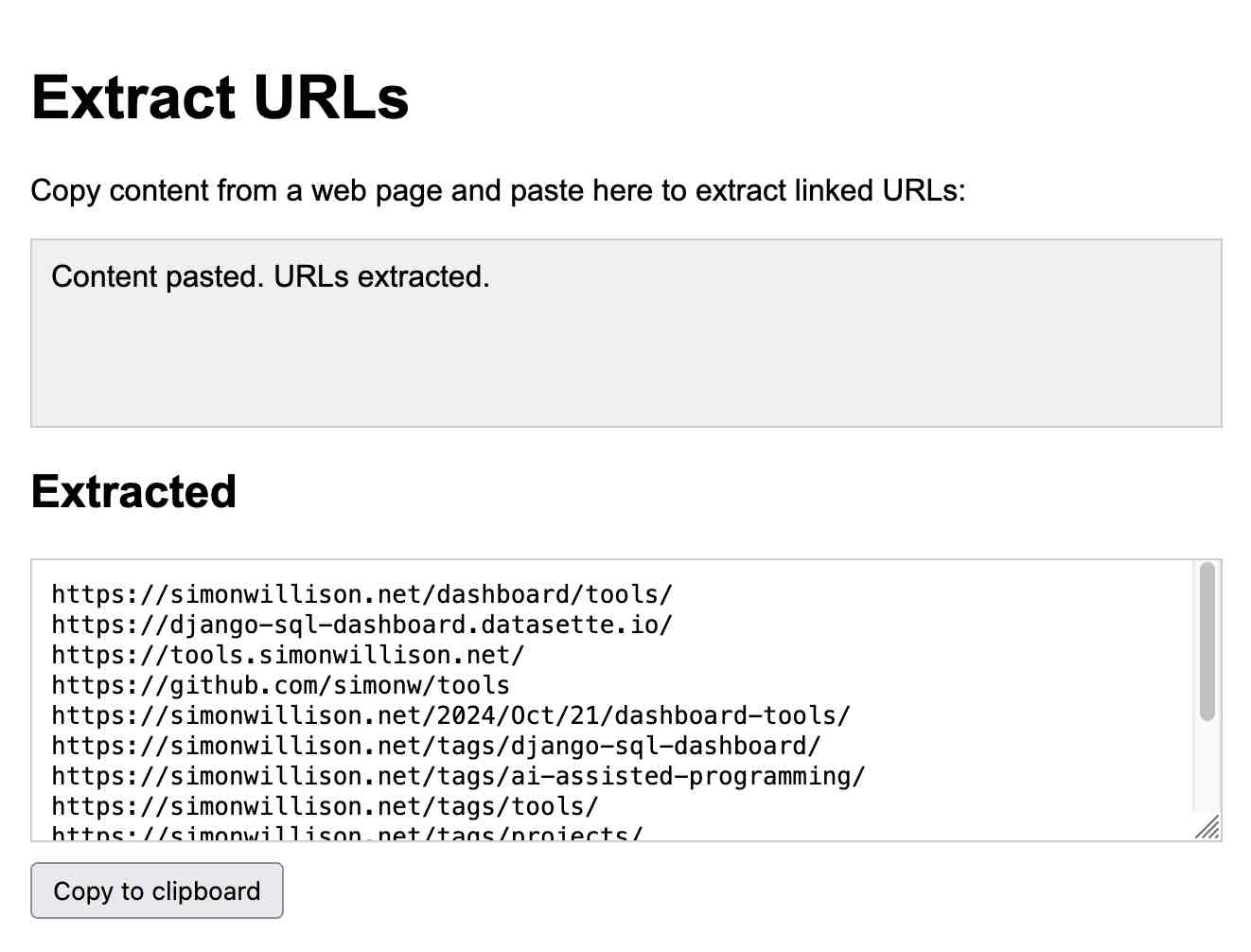
I’ve found myself using this a lot. I noticed how much I was relying on it in October and wrote Everything I built with Claude Artifacts this week, describing 14 little tools I had put together in a seven day period.
Since then, a whole bunch of other teams have built similar systems. GitHub announced their version of this—GitHub Spark—in October. Mistral Chat added it as a feature called Canvas in November.
Steve Krouse from Val Town built a version of it against Cerebras, showcasing how a 2,000 token/second LLM can iterate on an application with changes visible in less than a second.
Then in December, the Chatbot Arena team introduced a whole new leaderboard for this feature, driven by users building the same interactive app twice with two different models and voting on the answer. Hard to come up with a more convincing argument that this feature is now a commodity that can be effectively implemented against all of the leading models.
I’ve been tinkering with a version of this myself for my Datasette project, with the goal of letting users use prompts to build and iterate on custom widgets and data visualizations against their own data. I also figured out a similar pattern for writing one-shot Python programs, enabled by uv.
This prompt-driven custom interface feature is so powerful and easy to build (once you’ve figured out the gnarly details of browser sandboxing) that I expect it to show up as a feature in a wide range of products in 2025.
Universal access to the best models lasted for just a few short months
For a few short months this year all three of the best available models—GPT-4o, Claude 3.5 Sonnet and Gemini 1.5 Pro—were freely available to most of the world.
OpenAI made GPT-4o free for all users in May, and Claude 3.5 Sonnet was freely available from its launch in June. This was a momentus change, because for the previous year free users had mostly been restricted to GPT-3.5 level models, meaning new users got a very inaccurate mental model of what a capable LLM could actually do.
That era appears to have ended, likely permanently, with OpenAI’s launch of ChatGPT Pro. This $200/month subscription service is the only way to access their most capable model, o1 Pro.
Since the trick behind the o1 series (and the future models it will undoubtedly inspire) is to expend more compute time to get better results, I don’t think those days of free access to the best available models are likely to return.
“Agents” still haven’t really happened yet
I find the term “agents” extremely frustrating. It lacks a single, clear and widely understood meaning… but the people who use the term never seem to acknowledge that.
If you tell me that you are building “agents”, you’ve conveyed almost no information to me at all. Without reading your mind I have no way of telling which of the dozens of possible definitions you are talking about.
The two main categories I see are people who think AI agents are obviously things that go and act on your behalf—the travel agent model—and people who think in terms of LLMs that have been given access to tools which they can run in a loop as part of solving a problem. The term “autonomy” is often thrown into the mix too, again without including a clear definition.
(I also collected 211 definitions on Twitter a few months ago—here they are in Datasette Lite—and had
gemini-exp-1206
Whatever the term may mean, agents still have that feeling of perpetually “coming soon”.
Terminology aside, I remain skeptical as to their utility based, once again, on the challenge of gullibility. LLMs believe anything you tell them. Any systems that attempts to make meaningful decisions on your behalf will run into the same roadblock: how good is a travel agent, or a digital assistant, or even a research tool if it can’t distinguish truth from fiction?
Just the other day Google Search was caught serving up an entirely fake description of the non-existant movie “Encanto 2”. It turned out to be summarizing an imagined movie listing from a fan fiction wiki.
Prompt injection is a natural consequence of this gulibility. I’ve seen precious little progress on tackling that problem in 2024, and we’ve been talking about it since September 2022.
I’m beginning to see the most popular idea of “agents” as dependent on AGI itself. A model that’s robust against gulliblity is a very tall order indeed.
Evals really matter
Anthropic’s Amanda Askell (responsible for much of the work behind Claude’s Character):
The boring yet crucial secret behind good system prompts is test-driven development. You don’t write down a system prompt and find ways to test it. You write down tests and find a system prompt that passes them.
It’s become abundantly clear over the course of 2024 that writing good automated evals for LLM-powered systems is the skill that’s most needed to build useful applications on top of these models. If you have a strong eval suite you can adopt new models faster, iterate better and build more reliable and useful product features than your competition.
Vercel’s Malte Ubl:
When
@v0first came out we were paranoid about protecting the prompt with all kinds of pre and post processing complexity.
We completely pivoted to let it rip. A prompt without the evals, models, and especially UX is like getting a broken ASML machine without a manual
I’m still trying to figure out the best patterns for doing this for my own work. Everyone knows that evals are important, but there remains a lack of great guidance for how to best implement them—I’m tracking this under my evals tag. My SVG pelican riding a bicycle benchmark is a pale imitation of what a real eval suite should look like.
Apple Intelligence is bad, Apple’s MLX library is excellent
As a Mac user I’ve been feeling a lot better about my choice of platform this year.
Last year it felt like my lack of a Linux/Windows machine with an NVIDIA GPU was a huge disadvantage in terms of trying out new models.
On paper, a 64GB Mac should be a great machine for running models due to the way the CPU and GPU can share the same memory. In practice, many models are released as model weights and libraries that reward NVIDIA’s CUDA over other platforms.
The llama.cpp ecosystem helped a lot here, but the real breakthrough has been Apple’s MLX library, “an array framework for Apple Silicon”. It’s fantastic.
Apple’s mlx-lm Python library supports running a wide range of MLX-compatible models on my Mac, with excellent performance. mlx-community on Hugging Face offers more than 1,000 models that have been converted to the necessary format.
Prince Canuma’s excellent, fast moving mlx-vlm project brings vision LLMs to Apple Silicon as well. I used that recently to run Qwen’s QvQ.
While MLX is a game changer, Apple’s own “Apple Intelligence” features have mostly been a disappointment. I wrote about their initial announcement in June, and I was optimistic that Apple had focused hard on the subset of LLM applications that preserve user privacy and minimize the chance of users getting mislead by confusing features.
Now that those features are rolling out they’re pretty weak. As an LLM power-user I know what these models are capable of, and Apple’s LLM features offer a pale imitation of what a frontier LLM can do. Instead we’re getting notification summaries that misrepresent news headlines and writing assistant tools that I’ve not found useful at all. Genmoji are kind of fun though.
The rise of inference-scaling “reasoning” models
The most interesting development in the final quarter of 2024 was the introduction of a new shape of LLM, exemplified by OpenAI’s o1 models—initially released as o1-preview and o1-mini on September 12th.
One way to think about these models is an extension of the chain-of-thought prompting trick, first explored in the May 2022 paper Large Language Models are Zero-Shot Reasoners.
This is that trick where, if you get a model to talk out loud about a problem it’s solving, you often get a result which the model would not have achieved otherwise.
o1 takes this process and further bakes it into the model itself. The details are somewhat obfuscated: o1 models spend “reasoning tokens” thinking through the problem that are not directly visible to the user (though the ChatGPT UI shows a summary of them), then outputs a final result.
The biggest innovation here is that it opens up a new way to scale a model: instead of improving model performance purely through additional compute at training time, models can now take on harder problems by spending more compute on inference.
The sequel to o1, o3 (they skipped “o2” for European trademark reasons) was announced on 20th December with an impressive result against the ARC-AGI benchmark, albeit one that likely involved more than $1,000,000 of compute time expense!
o3 is expected to ship in January. I doubt many people have real-world problems that would benefit from that level of compute expenditure—I certainly don’t!—but it appears to be a genuine next step in LLM architecture for taking on much harder problems.
OpenAI are not the only game in town here. Google released their first entrant in the category,
gemini-2.0-flash-thinking-exp
Alibaba’s Qwen team released their QwQ model on November 28th—under an Apache 2.0 license, and that one I could run on my own machine. They followed that up with a vision reasoning model called QvQ on December 24th, which I also ran locally.
DeepSeek made their DeepSeek-R1-Lite-Preview model available to try out through their chat interface on November 20th.
To understand more about inference scaling I recommend Is AI progress slowing down? by Arvind Narayanan and Sayash Kapoor.
Nothing yet from Anthropic or Meta but I would be very surprised if they don’t have their own inference-scaling models in the works. Meta published a relevant paper Training Large Language Models to Reason in a Continuous Latent Space in December.
Was the best currently available LLM trained in China for less than $6m?
Not quite, but almost! It does make for a great attention-grabbing headline.
The big news to end the year was the release of DeepSeek v3—dropped on Hugging Face on Christmas Day without so much as a README file, then followed by documentation and a paper the day after that.
DeepSeek v3 is a huge 685B parameter model—one of the largest openly licensed models currently available, significantly bigger than the largest of Meta’s Llama series, Llama 3.1 405B.
Benchmarks put it up there with Claude 3.5 Sonnet. Vibe benchmarks (aka the Chatbot Arena) currently rank it 7th, just behind the Gemini 2.0 and OpenAI 4o/o1 models. This is by far the highest ranking openly licensed model.
The really impressive thing about DeepSeek v3 is the training cost. The model was trained on 2,788,000 H800 GPU hours at an estimated cost of $5,576,000. Llama 3.1 405B trained 30,840,000 GPU hours—11x that used by DeepSeek v3, for a model that benchmarks slightly worse.
Those US export regulations on GPUs to China seem to have inspired some very effective training optimizations!
The environmental impact got better
A welcome result of the increased efficiency of the models—both the hosted ones and the ones I can run locally—is that the energy usage and environmental impact of running a prompt has dropped enormously over the past couple of years.
OpenAI themselves are charging 100x less for a prompt compared to the GPT-3 days. I have it on good authority that neither Google Gemini nor Amazon Nova (two of the least expensive model providers) are running prompts at a loss.
I think this means that, as individual users, we don’t need to feel any guilt at all for the energy consumed by the vast majority of our prompts. The impact is likely neglible compared to driving a car down the street or maybe even watching a video on YouTube.
Likewise, training. DeepSeek v3 training for less than $6m is a fantastic sign that training costs can and should continue to drop.
For less efficient models I find it useful to compare their energy usage to commercial flights. The largest Llama 3 model cost about the same as a single digit number of fully loaded passenger flights from New York to London. That’s certainly not nothing, but once trained that model can be used by millions of people at no extra training cost.
The environmental impact got much, much worse
The much bigger problem here is the enormous competitive buildout of the infrastructure that is imagined to be necessary for these models in the future.
Companies like Google, Meta, Microsoft and Amazon are all spending billions of dollars rolling out new datacenters, with a very material impact on the electricity grid and the environment. There’s even talk of spinning up new nuclear power stations, but those can take decades.
Is this infrastructure necessary? DeepSeek v3’s $6m training cost and the continued crash in LLM prices might hint that it’s not. But would you want to be the big tech executive that argued NOT to build out this infrastructure only to be proven wrong in a few years’ time?
An interesting point of comparison here could be the way railways rolled out around the world in the 1800s. Constructing these required enormous investments and had a massive environmental impact, and many of the lines that were built turned out to be unnecessary—sometimes multiple lines from different companies serving the exact same routes!
The resulting bubbles contributed to several financial crashes, see Wikipedia for Panic of 1873, Panic of 1893, Panic of 1901 and the UK’s Railway Mania. They left us with a lot of useful infrastructure and a great deal of bankruptcies and environmental damage.
The year of slop
2024 was the year that the word “slop” became a term of art. I wrote about this in May, expanding on this tweet by @deepfates:
Watching in real time as “slop” becomes a term of art. the way that “spam” became the term for unwanted emails, “slop” is going in the dictionary as the term for unwanted AI generated content
I expanded that definition a tiny bit to this:
Slop describes AI-generated content that is both unrequested and unreviewed.
I ended up getting quoted talking about slop in both the Guardian and the NY Times. Here’s what I said in the NY TImes:
Society needs concise ways to talk about modern A.I. — both the positives and the negatives. ‘Ignore that email, it’s spam,’ and ‘Ignore that article, it’s slop,’ are both useful lessons.
I love the term “slop” because it so succinctly captures one of the ways we should not be using generative AI!
Slop was even in the running for Oxford Word of the Year 2024, but it lost to brain rot.
Synthetic training data works great
An idea that surprisingly seems to have stuck in the public consciousness is that of “model collapse”. This was first described in the paper The Curse of Recursion: Training on Generated Data Makes Models Forget in May 2023, and repeated in Nature in July 2024 with the more eye-catching headline AI models collapse when trained on recursively generated data.
The idea is seductive: as the internet floods with AI-generated slop the models themselves will degenerate, feeding on their own output in a way that leads to their inevitable demise!
That’s clearly not happening. Instead, we are seeing AI labs increasingly train on synthetic content—deliberately creating artificial data to help steer their models in the right way.
One of the best descriptions I’ve seen of this comes from the Phi-4 technical report, which included this:
Synthetic data as a substantial component of pretraining is becoming increasingly common, and the Phi series of models has consistently emphasized the importance of synthetic data. Rather than serving as a cheap substitute for organic data, synthetic data has several direct advantages over organic data.
Structured and Gradual Learning. In organic datasets, the relationship between tokens is often complex and indirect. Many reasoning steps may be required to connect the current token to the next, making it challenging for the model to learn effectively from next-token prediction. By contrast, each token generated by a language model is by definition predicted by the preceding tokens, making it easier for a model to follow the resulting reasoning patterns.
Another common technique is to use larger models to help create training data for their smaller, cheaper alternatives—a trick used by an increasing number of labs. DeepSeek v3 used “reasoning” data created by DeepSeek-R1. Meta’s Llama 3.3 70B fine-tuning used over 25M synthetically generated examples.
Careful design of the training data that goes into an LLM appears to be the entire game for creating these models. The days of just grabbing a full scrape of the web and indiscriminately dumping it into a training run are long gone.
LLMs somehow got even harder to use
A drum I’ve been banging for a while is that LLMs are power-user tools—they’re chainsaws disguised as kitchen knives. They look deceptively simple to use—how hard can it be to type messages to a chatbot?—but in reality you need a huge depth of both understanding and experience to make the most of them and avoid their many pitfalls.
If anything, this problem got worse in 2024.
We’ve built computer systems you can talk to in human language, that will answer your questions and usually get them right! … depending on the question, and how you ask it, and whether it’s accurately reflected in the undocumented and secret training set.
The number of available systems has exploded. Different systems have different tools they can apply to your problems—like Python and JavaScript and web search and image generation and maybe even database lookups… so you’d better understand what those tools are, what they can do and how to tell if the LLM used them or not.
Did you know ChatGPT has two entirely different ways of running Python now?
Want to build a Claude Artifact that talks to an external API? You’d better understand CSP and CORS HTTP headers first.
The models may have got more capable, but most of the limitations remained the same. OpenAI’s o1 may finally be able to (mostly) count the Rs in strawberry, but its abilities are still limited by its nature as an LLM and the constraints placed on it by the harness it’s running in. o1 can’t run web searches or use Code Interpreter, but GPT-4o can—both in that same ChatGPT UI. (o1 will pretend to do those things if you ask it to, a regression to the URL hallucinations bug from early 2023).
What are we doing about this? Not much. Most users are thrown in at the deep end. The default LLM chat UI is like taking brand new computer users, dropping them into a Linux terminal and expecting them to figure it all out.
Meanwhile, it’s increasingly common for end users to develop wildly inaccurate mental models of how these things work and what they are capable of. I’ve seen so many examples of people trying to win an argument with a screenshot from ChatGPT—an inherently ludicrous proposition, given the inherent unreliability of these models crossed with the fact that you can get them to say anything if you prompt them right.
There’s a flipside to this too: a lot of better informed people have sworn off LLMs entirely because they can’t see how anyone could benefit from a tool with so many flaws. The key skill in getting the most out of LLMs is learning to work with tech that is both inherently unreliable and incredibly powerful at the same time. This is a decidedly non-obvious skill to acquire!
There is so much space for helpful education content here, but we need to do do a lot better than outsourcing it all to AI grifters with bombastic Twitter threads.
Knowledge is incredibly unevenly distributed
Most people have heard of ChatGPT by now. How many have heard of Claude?
The knowledge gap between the people who actively follow this stuff and the 99% of the population who do not is vast.
The pace of change doesn’t help either. In just the past month we’ve seen general availability of live interfaces where you can point your phone’s camera at something and talk about it with your voice… and optionally have it pretend to be Santa. Most self-certified nerds haven’t even tried that yet.
Given the ongoing (and potential) impact on society that this technology has, I don’t think the size of this gap is healthy. I’d like to see a lot more effort put into improving this.
LLMs need better criticism
A lot of people absolutely hate this stuff. In some of the spaces I hang out (Mastodon, Bluesky, Lobste.rs, even Hacker News on occasion) even suggesting that “LLMs are useful” can be enough to kick off a huge fight.
I get it. There are plenty of reasons to dislike this technology—the environmental impact, the (lack of) ethics of the training data, the lack of reliability, the negative applications, the potential impact on people’s jobs.
LLMs absolutely warrant criticism. We need to be talking through these problems, finding ways to mitigate them and helping people learn how to use these tools responsibly in ways where the positive applications outweigh the negative.
I like people who are skeptical of this stuff. The hype has been deafening for more than two years now, and there are enormous quantities of snake oil and misinformation out there. A lot of very bad decisions are being made based on that hype. Being critical is a virtue.
If we want people with decision-making authority to make good decisions about how to apply these tools we first need to acknowledge that there ARE good applications, and then help explain how to put those into practice while avoiding the many unintiutive traps.
(If you still don’t think there are any good applications at all I’m not sure why you made it to this point in the article!)
I think telling people that this whole field is environmentally catastrophic plagiarism machines that constantly make things up is doing those people a disservice, no matter how much truth that represents. There is genuine value to be had here, but getting to that value is unintuitive and needs guidance.
Those of us who understand this stuff have a duty to help everyone else figure it out.
Everything tagged “llms” on my blog in 2024
Because I undoubtedly missed a whole bunch of things, here’s every long-form post I wrote in 2024 that I tagged with llms:
- January
- February
- March
- April
- May
- June
- July
- August
- 6th: Weeknotes: a staging environment, a Datasette alpha and a bunch of new LLMs
- 8th: django-http-debug, a new Django app mostly written by Claude
- 23rd: Claude’s API now supports CORS requests, enabling client-side applications
- 26th: Building a tool showing how Gemini Pro can return bounding boxes for objects in images
- 6th:
- September
- 6th: Calling LLMs from client-side JavaScript, converting PDFs to HTML + weeknotes
- 10th: Notes from my appearance on the Software Misadventures Podcast
- 12th: Notes on OpenAI’s new o1 chain-of-thought models
- 20th: Notes on using LLMs for code
- 29th: NotebookLM’s automatically generated podcasts are surprisingly effective
- 30th: Weeknotes: Three podcasts, two trips and a new plugin system
- 6th:
- October
- 1st: OpenAI DevDay 2024 live blog
- 2nd: OpenAI DevDay: Let’s build developer tools, not digital God
- 15th: ChatGPT will happily write you a thinly disguised horoscope
- 17th: Video scraping: extracting JSON data from a 35 second screen capture for less than 1/10th of a cent
- 18th: Experimenting with audio input and output for the OpenAI Chat Completion API
- 19th: Running Llama 3.2 Vision and Phi-3.5 Vision on a Mac with mistral.rs
- 21st: Everything I built with Claude Artifacts this week
- 22nd: Initial explorations of Anthropic’s new Computer Use capability
- 24th: Notes on the new Claude analysis JavaScript code execution tool
- 27th: Run a prompt to generate and execute jq programs using llm-jq
- 29th: You can now run prompts against images, audio and video in your terminal using LLM
- 30th: W̶e̶e̶k̶n̶o̶t̶e̶s̶ Monthnotes for October
- 1st:
- November
- 4th: Claude 3.5 Haiku
- 7th: Project: VERDAD—tracking misinformation in radio broadcasts using Gemini 1.5
- 12th: Qwen2.5-Coder-32B is an LLM that can code well that runs on my Mac
- 19th: Notes from Bing Chat—Our First Encounter With Manipulative AI
- 25th: Ask questions of SQLite databases and CSV/JSON files in your terminal
- 4th:
- December
- 4th: First impressions of the new Amazon Nova LLMs (via a new llm-bedrock plugin)
- 7th: Prompts.js
- 9th: I can now run a GPT-4 class model on my laptop
- 10th: ChatGPT Canvas can make API requests now, but it’s complicated
- 11th: Gemini 2.0 Flash: An outstanding multi-modal LLM with a sci-fi streaming mode
- 19th: Building Python tools with a one-shot prompt using uv run and Claude Projects
- 19th: Gemini 2.0 Flash “Thinking mode”
- 20th: December in LLMs has been a lot
- 20th: Live blog: the 12th day of OpenAI—“Early evals for OpenAI o3”
- 24th: Trying out QvQ—Qwen’s new visual reasoning model
- 31st: Things we learned about LLMs in 2024
- 4th:
(This list generated using Django SQL Dashboard with a SQL query written for me by Claude.)
#tools #llm-pricing_tag #evals_tag #SVG_pelican_riding_a_bicycle_benchmark #slop #llms #google_414 #ai_2 #095 #openai_425 #generative-ai_1 #852 #local-llms_159 #llms_1 #820 #anthropic_302 #gemini_191 #meta_37 #llm-reasoning_98 #long-context_20 #ai-energy-usage_17 #coding-agents_214
  <!DOCTYPE html>
  <html lang="en">
    <head>
      <meta charset="UTF-8" />
      <meta name="viewport" content="width=device-width, initial-scale=1.0" />
      <link href="https://www.redditstatic.com/shreddit/assets/favicon/64x64.png" rel="icon shortcut" sizes="64x64" />
      <title>Reddit - Please wait for verification</title>
      <script nonce="d96fcc45-8f5c-4c8c-a07f-6e4922b47361">
        document.addEventListener("DOMContentLoaded",async function(){var e=document.forms[0],n=(e.onsubmit=function(t){return new URLSearchParams(document.location.search).forEach((e,n)=>t.target.appendChild(Object.assign(document.createElement("input"),{name:n,type:"hidden",value:e}))),!0},await(async e=>e+e)("e530330488388216"));e.elements.namedItem("solution").value=n,e.requestSubmit()},{once:!0});
      </script>
      <style>
        main{align-items:center;display:flex;height:100vh;isolation:isolate;justify-content:center;position:relative;width:100vw}main:before{animation:scaleout 1.5s infinite ease-in-out;background-color:#d93900;border-radius:100%;content:'';height:8rem;opacity:.75;position:absolute;width:8rem}.logo{align-items:center;display:flex;fill:currentColor;font-size:4rem;justify-content:center;z-index:1}.logo svg{fill:currentColor;height:8rem;width:auto}@keyframes scaleout{0%{transform:scale(1)}100%{transform:scale(1.5);opacity:0}}.snoo-cls-1{fill:url(#snoo-radial-gragient) white}.snoo-cls-1,.snoo-cls-2,.snoo-cls-3,.snoo-cls-4,.snoo-cls-5,.snoo-cls-6,.snoo-cls-7,.snoo
My Second Brain Playbook
r/PKMS · u/andrewmarder · Jun 19, 2026 · Method
50 points · 21 comments
I recently read Building a Second Brain: A Proven Method to Organize Your Digital Life and Unlock Your Creative Potential by Tiago Forte. It was pretty good! But one thing that was missing for me was a clear operating procedure for how to interact with my second brain. This post outlines how I use my second brain.
☀️ Daily (morning). Start each day by asking: What do I want to accomplish today?
🌙 Daily (evening). End each day by asking: Did I accomplish today’s goal? Capture any ideas that will help tomorrow.
💡 In the moment. When a thought or to-do pops up, capture it in my second brain and stay focused on the task at hand.
🗓️ Weekly. Block out thirty minutes to process my inbox, organize notes, review active projects, and check that my areas of responsibility are getting attention.
🚀 When starting a new project. Create a project file with the goal and target completion date.
📚 After finishing a book or article. Add a resource entry with key takeaways and any quotes that might be useful in the future.
⏱️ Ongoing. Add time estimates to to-dos and track how long things actually take. That feedback will help me estimate more accurately.
I’d love to hear your thoughts!
Comments
Base captures top-level comments only (21 total comments). Khiip Plus expands every reply into the complete nested tree.
u/bobiq_ai You skip the takeaway step because you’ve set it up as a separate chore that starts after you’re already done and checked out. That’s a timing problem, not a discipline one.
Catch the takeaway when you react, not after. A line makes you stop, so you highlight it and add one sentence on why it hit you or what it connects to. That sentence is the takeaway, and it’s cheap because you’re still in the moment.
Automating raw capture won’t rescue this. Highlights and screen grabs aren’t takeaways, the synthesis is, and it doesn’t survive being deferred. Sit down to summarize a whole book later and the context that made each bit matter is already gone.
u/Emergency_Lemon_8659 I find whenever I finish a book or article, im rarely doing the necessary step of recording the key takeaways.
Is this a discipline issue? Should I try to find ways to automated?
Would be great to know how you’re managing that part.
u/secondgamedev Hey I am trying to understand PKMS myself is it a knowledge base like Wiki? Or is it a workflow management tool like Jira?
u/WillGreenAI Obsidian + claude code for me has worked like a treat. I have a complete Personal OS, I run my business using obsidian and my personal life. It tracks my gym workouts, runs, finances, books and then I have Agent employees that run my business from inside obsidian. I’ve grown so much frmo it
u/Mark_Considus Love that! But there does appear to be one part missing, when do you delete?
From your post, your weekly slot is all processing and organising, nothing about throwing anything away. To my mind, that’s the part that keeps a second brain usable instead of just big. Capturing is cheap and it never stops, so without a regular clear-out you end up with a beautifully organised pile you can’t see through. In that weekly 30 minutes I’d spend a chunk asking one thing of the older notes, would I miss this if it were gone, and binning whatever can’t answer yes.
The review is also where the real value lives, not the capture. Logging takeaways from a book is good, but they only do anything if something drags you back past them later. Same for the ideas you catch in the moment. A note you never return to did its job when it exited your head, everything past that is only worth keeping if you’ll actually revisit it.
I think there’s small tweak, that will make a big difference. Make “what can I delete” a standing line in the weekly review, right next to “what needs attention”.
u/New_Dentist6983 ever thought about using screenpipe to capture the raw stuff before it turns into notes??
u/Senhor_Lasanha I use the “PARA” system (with stuff I added), and recently I partially adopted a documentation structure proposal from Google called OKF. It helped me organize and share knowledge from my vault with LLMs.
u/h4yfans if you ever want the playbook to live in fewer apps, a few that keep notes, tasks and projects on one surface: amplenote, tana, and memrynote (disclosure, i build that last one) for the “a project file whose lines are the actual tasks and dates” flow your routine basically describes. obsidian plus the tasks/dataview plugins gets you there too if you like assembling it. your procedure is tool-agnostic and good, it’ll just survive longer with fewer seams between the steps.
My Second Brain Playbook
Method
I recently read Building a Second Brain: A Proven Method to Organize Your Digital Life and Unlock Your Creative Potential by Tiago Forte. It was pretty good! But one thing that was missing for me was a clear operating procedure for how to interact with my second brain. This post outlines how I use my second brain.
☀️ Daily (morning). Start each day by asking: What do I want to accomplish today?
🌙 Daily (evening). End each day by asking: Did I accomplish today’s goal? Capture any ideas that will help tomorrow.
💡 In the moment. When a thought or to-do pops up, capture it in my second brain and stay focused on the task at hand.
🗓️ Weekly. Block out thirty minutes to process my inbox, organize notes, review active projects, and check that my areas of responsibility are getting attention.
🚀 When starting a new project. Create a project file with the goal and target completion date.
📚 After finishing a book or article. Add a resource entry with key takeaways and any quotes that might be useful in the future.
⏱️ Ongoing. Add time estimates to to-dos and track how long things actually take. That feedback will help me estimate more accurately.
I’d love to hear your thoughts!
Comments
u/bobiq_ai · 8 · Jun 20, 2026
You skip the takeaway step because you’ve set it up as a separate chore that starts after you’re already done and checked out. That’s a timing problem, not a discipline one.
Catch the takeaway when you react, not after. A line makes you stop, so you highlight it and add one sentence on why it hit you or what it connects to. That sentence is the takeaway, and it’s cheap because you’re still in the moment.
Automating raw capture won’t rescue this. Highlights and screen grabs aren’t takeaways, the synthesis is, and it doesn’t survive being deferred. Sit down to summarize a whole book later and the context that made each bit matter is already gone.
u/andrewmarder · OP · 3 · Jun 20, 2026
Great tip, writing down why I was motivated to highlight part of a book will be much easier in the moment when it’s fresh, if I wait until after I’ve finished the book then it becomes much harder.
u/Fuzzy-Radio6153 · 1 · Jun 22, 2026
True 👍
u/Emergency_Lemon_8659 · 5 · Jun 19, 2026
I find whenever I finish a book or article, im rarely doing the necessary step of recording the key takeaways.
Is this a discipline issue? Should I try to find ways to automated?
Would be great to know how you’re managing that part.
u/andrewmarder · OP · 1 · Jun 19, 2026
I’m also struggling with that step. In the past, I found it helpful to write public book reviews on Goodreads. Overall, I do think it’s about getting into the habit. My other plan is to export highlights from my kindle into my second brain but I haven’t been doing that yet.
u/secondgamedev · 2 · Jun 19, 2026
Hey I am trying to understand PKMS myself is it a knowledge base like Wiki? Or is it a workflow management tool like Jira?
u/LowkeyHooligan · 3 · Jun 19, 2026
It is whatever system works best for you personally to manage whatever knowledge that is important to you. That could be knowledge about yourself (e.g. your skills, habit tracker, journal of your thoughts) or external knowledge (you read an article/watch a video and want to remember some or all of it, you want to record some kind of facts/statistics from the world, a bird sighting journal, whatever).
The idea of PKMS is pretty vague. There’s no one singular system, you can adopt multiple ones: physical bullet journal notebook, PARA email inbox, Johnny.Decimal for files on your computer. PKMS is more like a state of mind, but best manifested by having some sort of structured system. Which may involve using a particular tool, but it’s never about the tool, it’s about the system.
u/andrewmarder · OP · 2 · Jun 19, 2026
I think it can be whatever you want. Personally, I probably lean more towards task management than knowledge building.
u/WillGreenAI · 2 · Jun 22, 2026
Obsidian + claude code for me has worked like a treat. I have a complete Personal OS, I run my business using obsidian and my personal life. It tracks my gym workouts, runs, finances, books and then I have Agent employees that run my business from inside obsidian. I’ve grown so much frmo it
u/Mark_Considus · 2 · Jul 3, 2026
Love that! But there does appear to be one part missing, when do you delete?
From your post, your weekly slot is all processing and organising, nothing about throwing anything away. To my mind, that’s the part that keeps a second brain usable instead of just big. Capturing is cheap and it never stops, so without a regular clear-out you end up with a beautifully organised pile you can’t see through. In that weekly 30 minutes I’d spend a chunk asking one thing of the older notes, would I miss this if it were gone, and binning whatever can’t answer yes.
The review is also where the real value lives, not the capture. Logging takeaways from a book is good, but they only do anything if something drags you back past them later. Same for the ideas you catch in the moment. A note you never return to did its job when it exited your head, everything past that is only worth keeping if you’ll actually revisit it.
I think there’s small tweak, that will make a big difference. Make “what can I delete” a standing line in the weekly review, right next to “what needs attention”.
u/andrewmarder · OP · 2 · Jul 3, 2026
Great insight, thanks!
u/New_Dentist6983 · 1 · Jun 19, 2026
ever thought about using screenpipe to capture the raw stuff before it turns into notes??
u/Senhor_Lasanha · 1 · Jun 22, 2026
I use the “PARA” system (with stuff I added), and recently I partially adopted a documentation structure proposal from Google called OKF. It helped me organize and share knowledge from my vault with LLMs.
u/looktwise · 1 · Jun 22, 2026
could you write more details about the OKF-adaption? Thanks!
u/Senhor_Lasanha · 1 · Jun 22, 2026
here: How the Open Knowledge Format can improve data sharing | Google Cloud Blog
it’s made for coding documentarion, but the way i see it, it is a good start for those who area struggling with standardization. I read the spec document (here), and took some of the ideas.
The yaml frontmatter and the index.md thing, I thing are the ones with most impact.
u/h4yfans · 1 · Jun 23, 2026
if you ever want the playbook to live in fewer apps, a few that keep notes, tasks and projects on one surface: amplenote, tana, and memrynote (disclosure, i build that last one) for the “a project file whose lines are the actual tasks and dates” flow your routine basically describes. obsidian plus the tasks/dataview plugins gets you there too if you like assembling it. your procedure is tool-agnostic and good, it’ll just survive longer with fewer seams between the steps.
u/andrewmarder · OP · 1 · Jun 23, 2026
Hi Kaan, memrynote looks nice! Right now I’m using org mode. In the past, I’ve also used Obsidian and Super Productivity.
  <!DOCTYPE html>
  <html lang="en">
    <head>
      <meta charset="UTF-8" />
      <meta name="viewport" content="width=device-width, initial-scale=1.0" />
      <link href="https://www.redditstatic.com/shreddit/assets/favicon/64x64.png" rel="icon shortcut" sizes="64x64" />
      <title>Reddit - Please wait for verification</title>
      <script nonce="28b4213b-1c34-45f4-88fb-611573f97c80">
        document.addEventListener("DOMContentLoaded",async function(){var e=document.forms[0],n=(e.onsubmit=function(t){return new URLSearchParams(document.location.search).forEach((e,n)=>t.target.appendChild(Object.assign(document.createElement("input"),{name:n,type:"hidden",value:e}))),!0},await(async e=>e+e)("f39f8120e7aa6d11"));e.elements.namedItem("solution").value=n,e.requestSubmit()},{once:!0});
      </script>
      <style>
        main{align-items:center;display:flex;height:100vh;isolation:isolate;justify-content:center;position:relative;width:100vw}main:before{animation:scaleout 1.5s infinite ease-in-out;background-color:#d93900;border-radius:100%;content:'';height:8rem;opacity:.75;position:absolute;width:8rem}.logo{align-items:center;display:flex;fill:currentColor;font-size:4rem;justify-content:center;z-index:1}.logo svg{fill:currentColor;height:8rem;width:auto}@keyframes scaleout{0%{transform:scale(1)}100%{transform:scale(1.5);opacity:0}}.snoo-cls-1{fill:url(#snoo-radial-gragient) white}.snoo-cls-1,.snoo-cls-2,.snoo-cls-3,.snoo-cls-4,.snoo-cls-5,.snoo-cls-6,.snoo-cls-7,.snoo
Otterly: A local-first Markdown editor built in Rust (Tauri) + Svelte
r/PKMS · u/ajkdrag_ · Feb 24, 2026 · Other
34 points · 8 comments
Hi everyone, I’ve spent the last few months building Otterly, a local-first WYSIWYG markdown note-taking app. I know the world probably doesn’t need “yet another” markdown editor, but I wanted to build something that felt lightweight and gave me a real-world excuse to dive into Rust (Tauri 2.0 which is lightweight compared to Electron apps such as VSCode, Obsidian etc) and Svelte 5. I tried to architect this well and follow some good code hygiene and SWE patterns.
The project is open source (and I did use a lot of AI assistance for this. Folks at r/rust were mad that i didn’t mention about AI assistance, although there’s AGENTS.md in the repo, but yeah, so here we go). It isn’t trying to be an “Obsidian killer” at all. I love Obsidian and used it a lot, it’s just that i wanted to try my hand at building something similar, minimal, fast and low on RAM. I am not aiming to feature bloat it, but definitely would love some ideas, feature requests. If you have a moment to look at the product, I would love some feedback and stars.
Thanks!
Link: https://github.com/ajkdrag/otterly
Comments
Base captures top-level comments only (8 total comments). Khiip Plus expands every reply into the complete nested tree.
u/Cold_Cow_1285 This is exactly how people should promote a project like this.
Like, don’t pretend that you’ve built something that is going to blow all alternative solutions out of the water. Don’t pretend you’ve invented the wheel. You built something for yourself, partly to learn, you presumably learned a ton while doing it, that is freakin awesome, it presumably works well for you, that is freakin awesome as well.
Gave you a star, looks cool.
u/ml-research Thanks for open-sourcing it!
Personally, the following are must-haves for me:
- Outline
- Inline (
$) and block ($$) math equations
But it looks promising, especially for a newborn open-source project!
u/kaizer1c I was just thinking the world needed something like this - a rust based markdown editor that I could use to open the files in my Obsidian vault. I will try it out. Thank you for building and sharing!
u/Educational_Web7123 Awesome piece of software, clean, fast, small, no bloat, no AI, no calendar, enough powefull to do it in best way! nothing what can distract me from taking notes, ideas etc… aaaannnndddd open source :) Many thanks for that !
Otterly: A local-first Markdown editor built in Rust (Tauri) + Svelte
Other
Hi everyone, I’ve spent the last few months building Otterly, a local-first WYSIWYG markdown note-taking app. I know the world probably doesn’t need “yet another” markdown editor, but I wanted to build something that felt lightweight and gave me a real-world excuse to dive into Rust (Tauri 2.0 which is lightweight compared to Electron apps such as VSCode, Obsidian etc) and Svelte 5. I tried to architect this well and follow some good code hygiene and SWE patterns.
The project is open source (and I did use a lot of AI assistance for this. Folks at r/rust were mad that i didn’t mention about AI assistance, although there’s AGENTS.md in the repo, but yeah, so here we go). It isn’t trying to be an “Obsidian killer” at all. I love Obsidian and used it a lot, it’s just that i wanted to try my hand at building something similar, minimal, fast and low on RAM. I am not aiming to feature bloat it, but definitely would love some ideas, feature requests. If you have a moment to look at the product, I would love some feedback and stars.
Thanks!
Link: https://github.com/ajkdrag/otterly
Comments
u/Cold_Cow_1285 · 7 · Feb 25, 2026
This is exactly how people should promote a project like this.
Like, don’t pretend that you’ve built something that is going to blow all alternative solutions out of the water. Don’t pretend you’ve invented the wheel. You built something for yourself, partly to learn, you presumably learned a ton while doing it, that is freakin awesome, it presumably works well for you, that is freakin awesome as well.
Gave you a star, looks cool.
u/ajkdrag_ · OP · 3 · Feb 25, 2026
Thanks :) Would be great if you could try it out and provide feedback on any UX improvements, feature requests, etc
u/ml-research · 3 · Feb 24, 2026
Thanks for open-sourcing it!
Personally, the following are must-haves for me:
- Outline
- Inline (
$) and block ($$) math equationsBut it looks promising, especially for a newborn open-source project!
u/ajkdrag_ · OP · 2 · Feb 24, 2026
awesome. Those 2 are also something in my roadmap! Feel free to open issue(s) for any further feature requests or UX improvements
u/kaizer1c · 2 · Feb 25, 2026
I was just thinking the world needed something like this - a rust based markdown editor that I could use to open the files in my Obsidian vault. I will try it out. Thank you for building and sharing!
u/ajkdrag_ · OP · 3 · Feb 25, 2026
sure. Let me know your experience so far. Feel free to open issues and feature requests :)
u/Educational_Web7123 · 1 · Mar 6, 2026
Awesome piece of software, clean, fast, small, no bloat, no AI, no calendar, enough powefull to do it in best way!
nothing what can distract me from taking notes, ideas etc…
aaaannnndddd open source :)
Many thanks for that !
u/ajkdrag_ · OP · 1 · Mar 6, 2026
Glad that you liked it. Make sure to create GitHub issue in-case you come across any. The primary goal is to have a great UX, especially the editor and search experience.
  <!DOCTYPE html>
  <html lang="en">
    <head>
      <meta charset="UTF-8" />
      <meta name="viewport" content="width=device-width, initial-scale=1.0" />
      <link href="https://www.redditstatic.com/shreddit/assets/favicon/64x64.png" rel="icon shortcut" sizes="64x64" />
      <title>Reddit - Please wait for verification</title>
      <script nonce="8b461615-22bf-4b89-9b31-daddcd540911">
        document.addEventListener("DOMContentLoaded",async function(){var e=document.forms[0],n=(e.onsubmit=function(t){return new URLSearchParams(document.location.search).forEach((e,n)=>t.target.appendChild(Object.assign(document.createElement("input"),{name:n,type:"hidden",value:e}))),!0},await(async e=>e+e)("a29827092bcb5f78"));e.elements.namedItem("solution").value=n,e.requestSubmit()},{once:!0});
      </script>
      <style>
        main{align-items:center;display:flex;height:100vh;isolation:isolate;justify-content:center;position:relative;width:100vw}main:before{animation:scaleout 1.5s infinite ease-in-out;background-color:#d93900;border-radius:100%;content:'';height:8rem;opacity:.75;position:absolute;width:8rem}.logo{align-items:center;display:flex;fill:currentColor;font-size:4rem;justify-content:center;z-index:1}.logo svg{fill:currentColor;height:8rem;width:auto}@keyframes scaleout{0%{transform:scale(1)}100%{transform:scale(1.5);opacity:0}}.snoo-cls-1{fill:url(#snoo-radial-gragient) white}.snoo-cls-1,.snoo-cls-2,.snoo-cls-3,.snoo-cls-4,.snoo-cls-5,.snoo-cls-6,.snoo-cls-7,.snoo
This is my 4yo vault, AMA
r/ObsidianMD · u/Magical_cat_girl · Jun 26, 2026 · showcase
1,530 points · 235 comments
Comments
Base captures top-level comments only (235 total comments). Khiip Plus expands every reply into the complete nested tree.
u/EnigmaParadoxRose What subjects did you write in it?
u/wells68 Where is the ventilation port on your Death Star?
Or did Luke already nail it and those red areas are are eruptions?
u/PhilosopherEmperor How is it colorful?
u/agrophobe Do you do passes to recategorize notes afterwards or leave them be in time?
u/zacgarbos Finally a vault that looks like mine lmao, an jumbled chaotic meatball
u/ntn8888 do you have to type in your notes, or use a pad and ocr system? thanks
u/aatmagya I started using Obsdian like 15 days ago and it’d be awesome if you could answer these questions-
- What does a note look like when you write one that you know will be useful later?
- When you look at your vault honestly, what percentage of your notes are storage versus actual thinking?
- How do you organize your notes? Do you use properties/tags/folders/wikilinks?
u/Dangerous-Company954 This looks really cool, I wish to make my own vault this big in CompSci one day, which field do you study/work in that made you have this many notes ?
u/airyrice What’s the folder structure like in your vault?
u/quelling No questions. Just wanted to tell you it looks beautiful and like a solar system. ❤️
u/AndrewAE86 This awesome! I like see how it interconnected. Is there a method you followed, like Zettelkasten or the PARA/Second brain? or what sort of workflow you do to for deciding what links to be created or which folder to put the files. I recently stumbled on Zetellkasten and interest about this and that’s how I found out about this Obsidian Note.
u/Life_Door_2166 Can you share an excerpt from one of your favourite entiries? (As long it doesn’t reveal private info)
I have a big obsidian graph over journaling over 6 months and it’s gotten pretty huge but I only write about daily entries and about people. The interconnections is nice to see!
But i usually have trouble with writing about anything else, like ideas and stuff, thinking they’d become less relevant anyway
u/Express-Point-4884 do you ever just dwell and wander throughout it?
u/PiratesOfTheArctic Could you tell me if possible what plugins you’ve found useful?
u/rosietheamazon Insert “It’s art!” gif
u/Charming-Big-8112 Una pregunta: ¿el objetivo de tu vault es encontrar información rápido o descubrir conexiones nuevas entre ideas? Me parece que son dos formas muy distintas de usar Obsidian.
u/Sad-Confusion-616 the whole universe
u/PotentiallySillyQ My god… it’s full of stars!
u/XxAtroyxX How’s the performance and folder size?
u/Crafty_Ball_8285 Does having a visualization help you in terms of productivity ?
u/iwilldoitalltomorrow How do have you kept it organized? Linting process?
u/JigglyBobblyWobbly This makes me think that someone needs to code a plugin for obsidian that spits out your vault as a galaxy for stellaris. Maybe via this plugin: https://steamcommunity.com/workshop/filedetails/?id=3532904115
hmmm, maybe one day i’ll get round to it.
u/NotAF0e Do you use your vault to track fleeting or quickly removable stuff e.g. tasks in Google tasks? If so is your approach to remove a note after completed or to mark it as completed?
u/arcade-MC I see a lot of beginners guide on obsidian. None of them answer my big question: HOW do I consistently build something in it? Even I wish to write everything about me as well. Family trees, ideas, studies, memory palace stuff, everything. I wish! But whenever I get started, I get overwhelmed and then I exit the app 😮💨😭
u/Droezan How do you find a specific note or subject? Do you use categories and bases?
u/dih_lover456 Do you find that you’re always thinking of ways and trying to link notes together like I do 😭
u/Flashy-Bandicoot889 Congrats, this must be a proud moment for you.
u/lunedelily How do your family tree notes work? I’ve been wanting to organize mine as well but haven’t found a great method yet
u/MasterAcct2020 Have you tried to get one of the ai agents to do the heavy work for that? For some reason they are saying I have to write everything myself but I thought they gather the various pieces of information from emails, messages, ai chats on topics that requires further research, notes in various apps used like Apple Notes, etc.
I thought having an ai assistant would be a perfect solution
u/AnonymousFredo You mentioned grocery list. You keep every grocery list you ever made in the last 4 yrs?
u/shokk Why is it staring back and asking where Aragorn is?
u/happyhahn Are links better than tags? If so, why?
u/kamadojim How much of the info in your vault do you actually use?
u/Overall-Fortune-6092 Do you ever delete things or plan to delete a chunk of those notes due to it being outdated / not used anymore or do you prefer an accumulation with an aspect of leaving all of it for history/memory purposes? I read that you are having performance issues on mobile so will that affect this decision?
u/Yamcha2020 whoa
u/Desperate-Data-3747 note count?
u/supa_lou Was it worth it?
u/CthulhusPetals Looks pretty cool, like a picture of your thoughts. But I don’t understand why the map is useful. Do you look at the cluster regions and gain some insight on something?
u/Nomadic_Artificer That’s an entire galaxy man!
I was going to Silo certain facets of my life, but damn that looks cool
u/Global_Complaint8713 Damm.
u/Vectan I thought you were supposed to create a second brain, not a second universe.
That looks amazing.
u/meothfulmode I’d love to see an example of a note. Your notes are far more interlinked than my own – sounds like you force yourself to make links. How quickly are you able to make those connections? I find many of my notes are forgotten shortly after i write them.
u/nelsci The vault worker!
u/LilleSang What a beauty :)
u/migglegrob i appreciate you saying “just write” and your willingly abandoning multiple organizational systems as you went. another example that a pragmatic forward movement that avoids preciousness is the key.
i’m interested in your capture workflows, and how the system is built to accommodate different intake contexts? can you elaborate on how you “feed” your different areas, and what those access points look like? like quick capture vs focused work, idea vs shopping list, or mobile vs desktop?
i guess i’m looking for the mechanics of input, and how you landed on whatever they are? do you use web clipper, something like apple shortcuts to launch new notes, or obsidian templates? and how did you organize those things?
u/K-realB Beautiful🙌🏽
u/davidvkimball Just based on seeing your replies to comments here, you seem like a very fun person. Cheers.
u/Aggressive_Mark3772 does it really help or give insight to see the formation like this or do you think its a hype? I mean it looks cool and i am just starting. But do you ever go in this view and look at it to form new connections? How much does it help in an academic or personal way to connect them like this?
u/Ekkarrie It’s so beautiful
u/kimhamlinwrites Beautiful!
u/tdi You apparently can write stuff but how do you read it ? do you come back to topics what is your method here v
u/Fether1337 Is obsidian slower now due to the quantity of files?
u/jamiedefined Very impressive, wow!
I’ve been trying to embrace Obsidian for a couple of years, but every time I start using it I immediately overthink it and abandon it completely.
I’m not a researcher, reader, or scholar. I’m just a normal guy who wants to jot down ideas, thoughts, journal entries, and capture moments. The problem is I don’t know how to write the note in such a way that the links are meaningful and organic.
For example: let’s say I went to Starbucks today and tried a new iced coffee that I loved and wanted to remember for next time . What would that note look like in your vault? How would you title it tag it and link it ?
Hopefully your insight will help me understand the underlying simplicity that I’m missing.
u/NudnikGadfly I’m truly fascinated, especially as someone who’s recently starting to get into Obsidian. Do you have any pro tips or suggestions for noobs like me?
u/Proof_Repeat_9632 This is inspiring. How do you take notes? Do you follow any systems? And for personal reflection - how often you do that?
u/Ok-Answer5178 👀👀
u/PeteSwitch Just started using Obsidian for work, and trying to get my head around the MOC process and how and why notes link to one.
Also, are you graphing everything there (tags, attachments +) or just Notes ?
u/WillShattuck Why? How do you use it? I’ve tried for years and can’t figure it out.
u/Exotic_Calendar5284 Im interested to build an OS on top of this data
u/Puzzleheaded-Ad8016 what’s the green section?
u/Failed_Alarm Do you have notes about Magical Cats?
u/fakeclown Thought this was you 4 yrs old’s vault. Lol.
u/HarworkingStudent When will my father come back?
u/RedGriffins Do you use claude or any LLM over this vault? I’m wondering how much tokens will Claude consume to understand the full vault
u/Far_Newspaper5331 Is this a Stellaris?
u/NeatOhBanditO If you stare at the photo it starts to move
u/meathack My god, it’s full of stars!
u/LunarFrost007 What did you do with this much notes? Is it just keep as record for bookkeeping?
u/FuckYouAndroidUsers How to prevent lag while opening graph
u/Ok_Outside6541 Do you actually use grid view for anythinf useful? I see a lot of praising about this feature by Obsidian users, but I have never used it once despite having used the software a lot
u/Frequent_Switch_3265 How do you sync everything? Are you using OneDrive/icloud? Your own NAS? Do you ever use obsidian on your phone? Do you store all notes locally on all of your devices?
u/Shieldxx Is your kid a genius?
u/The-Nice-Writer Do you think God’s hiding because He, too, lives in fear of what He’s created?
u/Freshgreentea I thought this is your 4 year old son/daughter vault, and I wonder what kind of prodigy do you grow.
u/Magical_cat_girl In case anyone wants more info, I wrote a detailed breakdown including a quick vault tour here: https://www.reddit.com/r/ObsidianMD/s/XyHCglKVoj
u/ScippyOne Visto che lo usi molto per la salute come associ un esame a una data? Come riesci a vedere un elenco temporale degli esami fatti o a vedere ad esempio tutti gli esami di un certo anno? E se aggiungi un tipo di esame come lo leghi a quelli della stessa tipologia già fatti se ad esempio non ricordi il nome che gli avevi dato? In altre parole con che modo e regole colleghi le cose fra di loro per evitare dieci nomi diversi che uniscono la stessa cosa?
u/multipleparadox I read this as « this is my 4 years old’s AMA », thinking you recorded every questions of your 4yo kid 🤣 I was amazed for half a second
u/Diareha-gobbler Looks like bacteria bruh
u/rowland007 Looks like a petri dish growing bacteria
u/jinnvk Impressive! How much time on average do you spend on the app?
u/Pika_Sonic Since Obsidian offers so much personalization, I often ask others these same questions:
- What’s your Surface level Folder Structure?
- What are your Go-to/ can’t live w/o community plugins and why?
- Do you incorporate AI for any purpose in your note making?
- Any tips or workaround that YOU have found out on your own that made your life a lot easier in Obsidian.
u/CalebDR1029
- How?
u/RobinzonKruzoe Do you ever feel the fear of losing it?
u/toubar_ Looks great!
Curious, have you tinkered around with AI tooling like Karpathy’s LLM Wiki or the new shiny object from Google Open Knowledge Format? How was your experience if you did?
Thanks :)
u/Viz-1 Any noticeable / prominent benefits over time that you’ve realized?
u/Hellbat570592 I’ll sound really naive but I have just started using obsidian, I still haven’t fully understood how this is useful. Isn’t this simply another note taker, most of the thoughts are individual, what’s the point of connecting them? And once you reach to your level inst it extremely difficult to look back at this? I haven’t fully understood the purpose of this apart from a cool looking graph.
Pardon my ignorance
u/AlarmedLevel4582 Hey, just curious, roughly how much storage does your Vault use?
u/tengu53 Beautiful knowledge graph. Do you use any AI (like the LLM wiki concept, etc.) to organize your notes?
u/vseth__ Have you added each of these notes individually or have you used an LLM to add notes for you as you work with it?
u/CrimsonshadeLP I am new to obsidian. 2 Questions
- How do you do these preety colors?
- Do you have a folder structure in your vault? Like do you try to still sort it a bit or just have all kind of files in one place?
u/FiberglassFlowers Newbie here but why are you connecting everything? Is there a need to do that? Or does it work like mind maps? Also is there a practical reason?
u/Fit-Economics2493 How do you make sure you have a good and active recall, given that you have such a large vault?
u/Indoor-Cat4986 What is the green dot in the bottom right that isn’t connected to anything else
u/Silas_Undead AMA?
u/GrimLeeper How do you get usefulness out of this
u/GooseWithAnAxe This does look pretty but useless. Are you one of those people taking notes about taking notes?
u/InternationalNooker performative note-taking
This is my 4yo vault, AMA
showcase
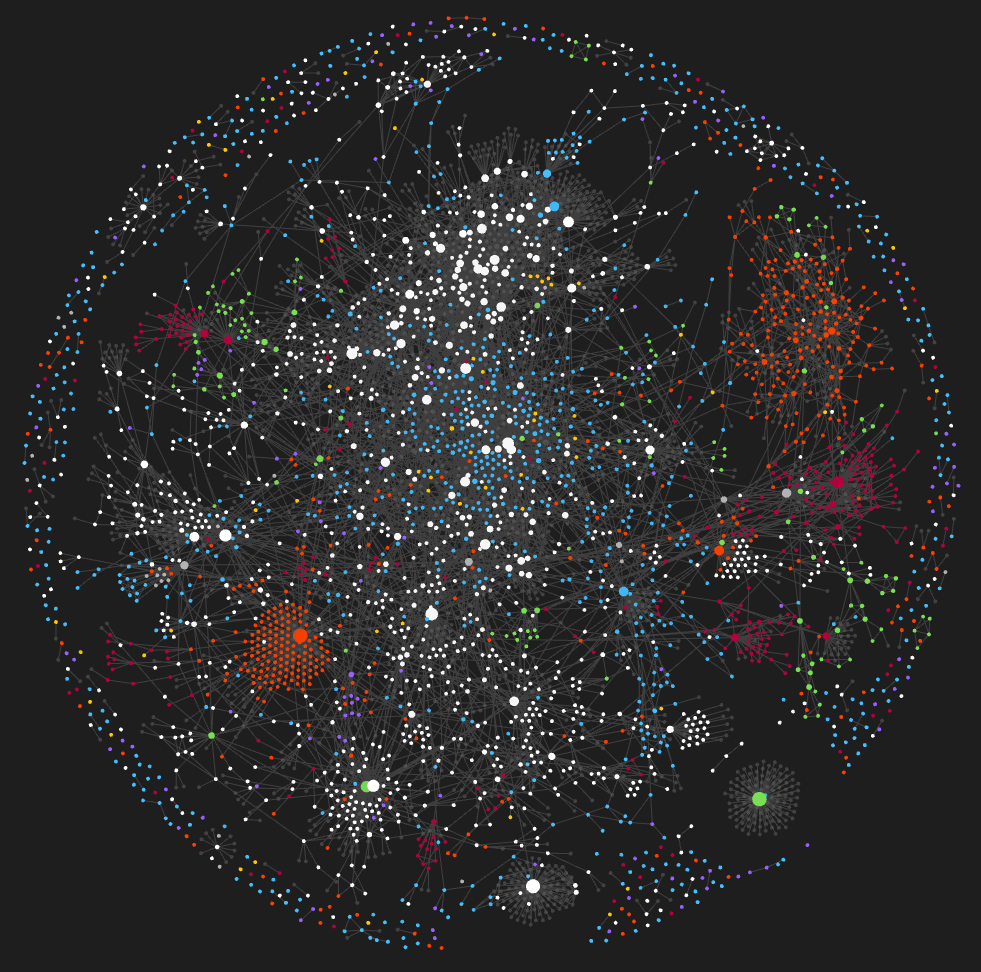
Comments
u/EnigmaParadoxRose · 86 · Jun 26, 2026
What subjects did you write in it?
u/Magical_cat_girl · OP · 174 · Jun 26, 2026
Huge variety! Let’s see, based on folder structure:
- Personal: Lots of health notes, also life tracking/organization things like packing lists
- Ideas: Just jot down any story/product/art/joke/etc idea that comes to mind. Quick capture mostly but sometimes it turns into a project!
- Nonfiction: combination of commonplace book and personal research wiki. Lots of health stuff, psychology, neuroscience, philosophy, productivity, random interesting things
- “Tasks”: grocery list, MOCs, other salient one-off personal notes
- Projects: project planning (design mostly, I mentioned in another comment I am making an app), meeting notes etc for freelance clients, some random fiction and nonfiction writing
- People: mostly family tree stuff
- Wins and compliments: self-explanatory, useful boost if I’m feeling down
- Memories and dreams: stuff I want to remember
I am a big believer in jotting stuff down when it comes to mind as a way of building creative skills over time! Can always be interlinked later.
u/DueWallaby1716 · 22 · Jun 26, 2026
How do you shuffle between actually reading about it and then jotting it down? What is the most important tip that you have when it comes to deciding what to joy down? Cause I end up putting the entire thing in, which is pointless
u/Magical_cat_girl · OP · 42 · Jun 26, 2026
I try to follow the idea of “atomic” notes and force myself to break down into smaller chunks if I want a lot of something. One of the big breakthroughs for me was deciding to always add at least one substantive link in almost every research note at time of writing (e.g. includes my opinion about HOW the note is connected not just that it is… but it can be very short still, like “this is partly because of [[link]]”). This makes notes a lot more valuable off the bat and forces you to filter out based on what connects.
I would also say don’t stress if it isn’t perfect, if it turns out to be important later you can always edit it!
u/DueWallaby1716 · 6 · Jun 26, 2026
Do you create higher level topics that you attach the nodes to? What if you don’t have relevant information to link it to?
Also the first question in my previous comment. Feels like I need to spend 2x the amount of time to know/learn something. Often times I wouldn’t come back to that note. What makes something worth noting down?
u/Magical_cat_girl · OP · 4 · Jun 26, 2026
I will often go back and create a MOC for topics that come up frequently. So I have a MOC for child development, for example, and one for interesting language and wordplay. It is pretty rare for something to be completely disconnected from everything in my vault, but if so I would just leave it an orphan and link it later.
I mean I would say that is almost more of a feature than a bug… if you were forced to think about it, then you are more likely to remember it and not even need the note. I think it is really a judgement call based on experience and experimentation, but I really just note down what tugs at my interest in the moment.
u/Alternative-Cry-1597 · 2 · Jun 26, 2026
Ideas: Just jot down any story/product/art/joke/etc idea that comes to mind. Quick capture mostly but sometimes it turns into a project!
How do you resurface quick capture stuff? Do you have a workflow to look at those notes periodically?
u/Magical_cat_girl · OP · 2 · Jun 26, 2026
I have a MOC that organizes them by category. But truthfully, I will only ever get to maybe 1% of it to actually execute so it is more about the act of capturing itself, which I believes trains creativity like a muscle.
u/Epic-Gamer-69420 · 2 · Jun 26, 2026
I’m similar where I use one vault for everything. I recently had the same idea to implement a family tree. I’d love to hear more about that
u/AntiqueConflict5295 · 2 · Jul 2, 2026
Thank you 💆🏻♂️🙏🏻
u/Mean-System-1028 · 3 · Jun 26, 2026
* Do you encrypt or protect anyhow the personal stuff, especially health etc?
* Do you use LLMs over API or local models to organize it for you?
* Do you sync it with cloud or any personal server?
* Do you have a way to access it from a phone?
u/Magical_cat_girl · OP · 6 · Jun 26, 2026
No encryption. No LLMs just yet although I use them for coding for a personal project, just haven’t prioritized it and am apprehensive about using it on something so personal. I pay for obsidian sync and that is linked to my phone so a lot of my quick jotting happens from there.
u/Mean-System-1028 · 3 · Jun 26, 2026
Thanks! I agree, that is exactly why I was wondering. I would like to have analysis on health data etc and tried also local models, but gap between the level of insight you can get is still wide.
u/Magical_cat_girl · OP · 5 · Jun 26, 2026
Honestly, I find that a combination of needing to pay attention enough to write stuff down frequently, then being able to skim back through backlinks to confirm a hypothesis, was enough to make use of my “natural intelligence” over time. Most of my health tracking was from before LLMs were even a thing and it was still super helpful to me. I made common symptoms into notes, like [[headache]], as well as common fixes or potential causes to see what was helping or hurting.
u/wells68 · 115 · Jun 26, 2026
Where is the ventilation port on your Death Star?
Or did Luke already nail it and those red areas are are eruptions?
u/Magical_cat_girl · OP · 49 · Jun 26, 2026
Unfortunately it’s full to the brim with hot air. No escape.
u/wells68 · 11 · Jun 26, 2026
Uh-oh! Hmmm, how about uninstalling a plugin. The hot air might escape through the hole left by the removed plug?
P.S. Thanks for having a sense of humor. It really is a good-looking vault!
u/Nickmorgan19457 · 7 · Jun 26, 2026
Those red spot are actually Bothans
u/williamshatnersvoice · 5 · Jun 26, 2026
You can’t see them from this perspective. They are only 2 meters long … about the size of a womp rat.
u/wells68 · 3 · Jun 26, 2026
2 meters! We could send a whole crew through that, if only we could spot one.
u/PhilosopherEmperor · 22 · Jun 26, 2026
How is it colorful?
u/Magical_cat_girl · OP · 34 · Jun 26, 2026
Graph view > settings button > filters. Personally I group into folders and set a color for each folder. IIRC you have to set it up fresh on every device if you use Obsidian Sync.
u/lasnir · 3 · Jun 26, 2026
Can you give an example of your folder structure? Do you nest folders in folders frequently?
u/Magical_cat_girl · OP · 1 · Jun 26, 2026
I almost never use subfolders. Rough folder structure breakdown here: https://www.reddit.com/r/ObsidianMD/comments/1ufwaok/comment/otvct5a/?utm_source=share&utm_medium=web3x&utm_name=web3xcss&utm_term=1&utm_content=share_button
u/vic-the_son_god · 2 · Jun 27, 2026
I dont use folders. I guess I can filter and color based on classification property
u/Sacrificial-Toenail · 3 · Jun 27, 2026
I like to imagine you have an equally impressive vault and somehow haven’t discovered color coding yet
u/agrophobe · 13 · Jun 26, 2026
Do you do passes to recategorize notes afterwards or leave them be in time?
u/Magical_cat_girl · OP · 22 · Jun 26, 2026
Depends what you mean by recategorize… There are definitely buried remnants of old organizational systems that I have abandoned that are pretty much just left there. When I fully switched from tags to links I did spend quite a while, in separate chunks, updating all the old tags via find and replace. I do sometimes do “gardening” sessions where I link unlinked notes.
u/Fun_Excitement_3515 · 18 · Jun 26, 2026
“Gardening” session is brilliant. As a horticulturist who is now studying psych science and using Obsidian to hold all the ideas and overlaps between my study, personal writing, research, etc, cannot tell you how much I’m gonna steal this and turn it into a dedicated time block in my calendar. TYSM OP ✨
u/Magical_cat_girl · OP · 10 · Jun 26, 2026
Wow I’m so glad that was helpful! It is genuinely so fun/relaxing for me, enjoy! Being able to tap through a rabbit hole of interconnected notes across domains is super satisfying.
u/agrophobe · 5 · Jun 26, 2026
Good catch. Garden it is
u/zacgarbos · 12 · Jun 26, 2026
Finally a vault that looks like mine lmao, an jumbled chaotic meatball
u/Magical_cat_girl · OP · 8 · Jun 26, 2026
Lol yup… all the unlinked notes on the outside form an aura of chaos
u/ntn8888 · 7 · Jun 26, 2026
do you have to type in your notes, or use a pad and ocr system? thanks
u/Magical_cat_girl · OP · 10 · Jun 26, 2026
I mostly type them in. However, I do have a Kindle Scribe I use specifically for journaling where I can send the notes to Obsidian, because I like the handwriting aspect for personal reflection. A bit of a funky workaround, but I use Scribe’s built in handwriting-to-text send-to-email functionality, then use an AI-written script to download the notes to the corresponding vault folder. I do have to trigger it manually but you could probably set it up to be automated.
u/shokk · 3 · Jun 26, 2026
How is the handwriting recognition on the Scribe? I have really bad handwriting and I tried Rocketbook for a while; it was mediocre. In the same vein I recently tried sending an image of my handwriting to Claude and it was flawless, but that’s $$$ for tokens.
u/Magical_cat_girl · OP · 3 · Jun 26, 2026
Not perfect but pretty good! My handwriting is hard for humans to read but not atrocious, and it gets it maybe 95+% right or so? Formatting like line breaks is a struggle.
u/shokk · 2 · Jun 26, 2026
I even had a little note written diagonally after a line, as three words on top of each other. It got that too as text after the original line.
u/never_username · 2 · Jun 28, 2026
Interesting. I have been journaling and using evernote’s image AI transcribe feature. I want to move to obsidian but haven’t found a good way to have inage-to-text yet.
u/Hunter-of-Sound · 2 · Jul 2, 2026
I had this going too with my scribe! In my daily had a callout section that would link to one note that has all journal’s text with year month day headers, then pull it in by it’s header. [[JournalPages#DaysDate]]. But preparing the vault to be LLM friendly eventually thinking I’ll just go to a folder with a note for each Journal. Would love to automate the scribe process a little more and get back to it. Like where there’s a folder with the images of the Journal itself linking into a converted text of it where you can read the text or call out box the images or both etc. How did you do it?
u/Magical_cat_girl · OP · 1 · Jul 3, 2026
Basically how I had it set up was that I could write what folder I wanted it sent to at the top, with a fallback for where most journal entries go, and then I could specify what I wanted the title to be. The script reviews my emails, looking for emails from the kindle scribe email address, and then scrapes the content from the link inside. It routes it to the correct folder and creates a new note there with the corresponding title. I can then format and link as needed manually. Personally I would also recommend the individual journal entry notes just for ease of use, too!
u/aatmagya · 7 · Jun 26, 2026
I started using Obsdian like 15 days ago and it’d be awesome if you could answer these questions-
- What does a note look like when you write one that you know will be useful later?
- When you look at your vault honestly, what percentage of your notes are storage versus actual thinking?
- How do you organize your notes? Do you use properties/tags/folders/wikilinks?
u/Magical_cat_girl · OP · 3 · Jun 26, 2026
- I would say that I really don’t know if most notes will be useful later unless they’re for life maintenance/projects. I have certain habits that help but on some level I can’t predict what I will need. Comment on linking philosophy here that helps me make research notes more helpful: https://www.reddit.com/r/ObsidianMD/comments/1ufwaok/comment/otvlk0f/?utm_source=share&utm_medium=mweb3x&utm_name=mweb3xcss&utm_term=2&utm_content=share_button
- maybe 60/40ish? Depends on your definition of actual thinking. That orange cluster, for example, is all ideas which could be considered storage, but realistically I will never execute on more than 1% of them so it is more about the action of capturing the idea when it comes up. Such a huge variety throughout the vault it can be hard to categorize cleanly I would say.
- broad folder categories, MOCs for either functional groupings or subject matter guides, file naming for easy chronological and alphabetical sorting w/ project codes (ABCD YYYY-MM-DD), lots and lots and lots of linking. Linking does most of the work.
u/aatmagya · 2 · Jun 26, 2026
I see. Thanks for sharing
u/Dangerous-Company954 · 5 · Jun 26, 2026
This looks really cool, I wish to make my own vault this big in CompSci one day, which field do you study/work in that made you have this many notes ?
u/Magical_cat_girl · OP · 13 · Jun 26, 2026
This isn’t just one field/subject, this is pretty much everything from my whole life. I work in design and am currently developing an app, so different projects have their own obsidian organization. Lots of personal health notes. And a lot of miscellaneous research about things that are interesting to me. Occasional random projects like a family tree sprinkled in.
u/Dangerous-Company954 · 4 · Jun 26, 2026
That’s really cool, I wish you the best of luck on your app (and other projects) :3
u/Magical_cat_girl · OP · 3 · Jun 26, 2026
Thanks, good luck with the CompSci stuff!
u/airyrice · 4 · Jun 26, 2026
What’s the folder structure like in your vault?
u/Magical_cat_girl · OP · 4 · Jun 26, 2026
Posted about the folder subjects here: https://www.reddit.com/r/ObsidianMD/comments/1ufwaok/comment/otvct5a/?utm_source=share&utm_medium=web3x&utm_name=web3xcss&utm_term=1&utm_content=share_button
I also use some organizational conventions like dates in YYYY-MM-DD order to make notes chronological, as well as project codes like ABCD YYYY-MM-DD to group projects together.
u/quelling · 3 · Jun 26, 2026
No questions. Just wanted to tell you it looks beautiful and like a solar system. ❤️
u/Magical_cat_girl · OP · 2 · Jun 26, 2026
Aw thank you!
u/AndrewAE86 · 3 · Jun 26, 2026
This awesome! I like see how it interconnected.
Is there a method you followed, like Zettelkasten or the PARA/Second brain? or what sort of workflow you do to for deciding what links to be created or which folder to put the files.
I recently stumbled on Zetellkasten and interest about this and that’s how I found out about this Obsidian Note.
u/Magical_cat_girl · OP · 1 · Jun 26, 2026
Took inspiration from zettel a bit but it is really a random amalgamation of tips I learned online and ways my brain works. I’ve elaborated in a few comments throughout the thread, let’s see… Organization: https://www.reddit.com/r/ObsidianMD/comments/1ufwaok/comment/otvltmi/?utm_source=share&utm_medium=mweb3x&utm_name=mweb3xcss&utm_term=2&utm_content=share_button
Folder structure: https://www.reddit.com/r/ObsidianMD/comments/1ufwaok/comment/otvct5a/?utm_source=share&utm_medium=mweb3x&utm_name=mweb3xcss&utm_term=2&utm_content=share_button File naming: https://www.reddit.com/r/ObsidianMD/comments/1ufwaok/comment/otvheba/?utm_source=share&utm_medium=mweb3x&utm_name=mweb3xcss&utm_term=2&utm_content=share_button
Linking philosophy: https://www.reddit.com/r/ObsidianMD/comments/1ufwaok/comment/otvlk0f/?utm_source=share&utm_medium=mweb3x&utm_name=mweb3xcss&utm_term=2&utm_content=share_button
u/Life_Door_2166 · 3 · Jun 26, 2026
Can you share an excerpt from one of your favourite entiries? (As long it doesn’t reveal private info)
I have a big obsidian graph over journaling over 6 months and it’s gotten pretty huge but I only write about daily entries and about people. The interconnections is nice to see!
But i usually have trouble with writing about anything else, like ideas and stuff, thinking they’d become less relevant anyway
u/Magical_cat_girl · OP · 1 · Jun 26, 2026
Let’s see, here’s a random personal musing.
Title: Life is a sculpture you chip away at every day to reveal its shape
Body: Opposite to [[ James Clear ]]'s ideas that you build with habits [[ The benefits of habits compound to shape what kind of person you become ]].More about how you never get a certain time back-- like each day is a topological layer of a cake you can only decide the shape of once. In line with his idea that [[ You’ll never have more time ahead of you than right now ]].
u/Life_Door_2166 · 2 · Jun 26, 2026
Damn! I’m assuming each of the [[.]] wikilinks are ideas of their own! Profound!
u/Magical_cat_girl · OP · 1 · Jun 26, 2026
Yep, the ones linked are mostly quotes from others. The interlinking can make for some really cool connections!
u/Express-Point-4884 · 3 · Jun 26, 2026
do you ever just dwell and wander throughout it?
u/Magical_cat_girl · OP · 3 · Jun 26, 2026
Absolutely! It is very fun to do so. It’s interlinked enough that some threads you can follow quite a long ways, it’s fascinating honestly.
u/PiratesOfTheArctic · 3 · Jun 26, 2026
Could you tell me if possible what plugins you’ve found useful?
u/Magical_cat_girl · OP · 1 · Jun 26, 2026
Let’s see. I don’t use a lot of plugins. Core plugins I use canvas and templates. I’m a huge proponent of Omnisearch, it is way better than built-in search, that would be my #1 rec. Advanced Tables is kinda helpful but still a bit funky, if I really need to use a spreadsheet I just go for excel or google sheets. I mostly only used Advanced Tables for time tracking so that it can be in the same place as my client meeting notes. Kindle Highlights is alright if you want to sync highlights from kindle reads, but it puts them all in one note which I didn’t love.
There are some plugins that are fun to play with but not really long-term useful for me, but I think those are mostly on desktop and not synced so I can’t really tell you what those are right now.
u/rosietheamazon · 3 · Jun 26, 2026
Insert “It’s art!” gif
u/Charming-Big-8112 · 3 · Jun 26, 2026
Una pregunta: ¿el objetivo de tu vault es encontrar información rápido o descubrir conexiones nuevas entre ideas? Me parece que son dos formas muy distintas de usar Obsidian.
u/Magical_cat_girl · OP · 4 · Jun 26, 2026
For me it’s a combination of both! Finding information rapidly applies to life organization, project notes, and a few research reference things (supplement interactions, for example). Discovering new connections applies to general research/learning notes and some personal notes. There’s also a third category, which is notes that writing them is the whole point-- brain dumping stuff I am unlikely to ever come back to but is worth writing down like random ideas.
u/Charming-Big-8112 · 2 · Jun 26, 2026
Tiene mucho sentido. Una última curiosidad: después de cuatro años, ¿sigues reorganizando el vault de vez en cuando o ya has llegado a una estructura que apenas cambia?
u/Magical_cat_girl · OP · 4 · Jun 26, 2026
Most of the majoral structural things have either stayed the same or evolved gradually. For the most part, if I added/changed structures I left the old stuff alone and just built around it. The one exception is when I switched from tags to links-- I don’t use any tags any more so I spent a while search-and-replacing a chunk every time I touched the vault and eventually got it all switched over.
This has been fun to wake up my Spanish brain again, didn’t realize I could still read it! Not even going to try to write or speak it, haha…
u/Sad-Confusion-616 · 2 · Jun 26, 2026
the whole universe
u/PotentiallySillyQ · 2 · Jun 26, 2026
My god… it’s full of stars!
u/XxAtroyxX · 2 · Jun 26, 2026
How’s the performance and folder size?
u/Magical_cat_girl · OP · 3 · Jun 26, 2026
Folder size is fine I think, markdown is so light. However I use obsidian sync and recently mobile has been… rough, to say the least. I have actually been meaning to go in and filter out a bunch of stuff so it doesn’t try to sync/load everything on my phone all the time.
u/Crafty_Ball_8285 · 2 · Jun 26, 2026
Does having a visualization help you in terms of productivity ?
u/Magical_cat_girl · OP · 2 · Jun 26, 2026
Not really, no, but it is fun. Occasionally I will see interesting proximity-based connections, especially in the personal and research categories that are more organically interlinked vs. rigidly organized.
u/iwilldoitalltomorrow · 2 · Jun 26, 2026
How do have you kept it organized? Linting process?
u/Magical_cat_girl · OP · 2 · Jun 26, 2026
Multiple layers of organization. Broad folders, MOCs, file naming conventions (dates and sometimes project codes), links. Definitely lots and lots of links. I would also recommend the omnisearch plugin over built-in search, for times when stuff is not as well organized.
u/JigglyBobblyWobbly · 2 · Jun 26, 2026
This makes me think that someone needs to code a plugin for obsidian that spits out your vault as a galaxy for stellaris. Maybe via this plugin: https://steamcommunity.com/workshop/filedetails/?id=3532904115
hmmm, maybe one day i’ll get round to it.
u/NotAF0e · 2 · Jun 26, 2026
Do you use your vault to track fleeting or quickly removable stuff e.g. tasks in Google tasks? If so is your approach to remove a note after completed or to mark it as completed?
u/Magical_cat_girl · OP · 2 · Jun 26, 2026
I do not use it for tasks specifically these days, but I did once set up a GTD system inside and experiment with that for a while. Honestly part of the issue at the time was just life/work overlap and not wanting to have my personal vault synced to a company device.
Fleeting stuff-- jotting down ideas, reflection/journalling/venting. I do have a monthly life check-in template that I use but that truly becomes a reference for later. I am also ironically building a productivity app for moms/sahms because nothing meets my needs currently… using obsidian to plan feature architecture, keep track of bugs, etc…
u/arcade-MC · 2 · Jun 26, 2026
I see a lot of beginners guide on obsidian. None of them answer my big question: HOW do I consistently build something in it? Even I wish to write everything about me as well. Family trees, ideas, studies, memory palace stuff, everything. I wish! But whenever I get started, I get overwhelmed and then I exit the app 😮💨😭
u/Magical_cat_girl · OP · 3 · Jun 26, 2026
Just write!!! Ignore all the plugins and organization systems and nonsense. If all you did was write and then link notes together, it would still be awesome. When you get to the point when you need a specific new piece of functionality, you can come up with a template or search for a plugin or whatever, but to start with just keep it super basic. Maybe a couple general folders at most.
u/Droezan · 2 · Jun 26, 2026
How do you find a specific note or subject? Do you use categories and bases?
u/Magical_cat_girl · OP · 1 · Jun 26, 2026
I use MOCs for common topics when I have enough notes that I want to stay organized. For productive notes I use file naming and project codes so that sorting alphabetically puts things in a useful order, or keep super common notes in a smaller folder, or sort by recently edited. Otherwise mostly search, specifically the omnisearch plugin. On desktop there are a few drop-in notes I may occasionally go to from the graph view because I know roughly where they sit relative to everything else.
u/dih_lover456 · 2 · Jun 26, 2026
Do you find that you’re always thinking of ways and trying to link notes together like I do 😭
u/Magical_cat_girl · OP · 2 · Jun 26, 2026
Yeah it’s fun! Maybe not as much these days because I have a kid now so it’s not as top of mind as it once was, but it can be pretty addictive…
u/Flashy-Bandicoot889 · 2 · Jun 26, 2026
Congrats, this must be a proud moment for you.
u/Magical_cat_girl · OP · 1 · Jun 26, 2026
I am literally blown away that anyone is interested, let alone this many people! This was very spur of the moment and in hindsight I probably shouldn’t have posted so close to my bedtime, lol
u/lunedelily · 2 · Jun 26, 2026
How do your family tree notes work? I’ve been wanting to organize mine as well but haven’t found a great method yet
u/Magical_cat_girl · OP · 1 · Jun 26, 2026
Every person is a note with a loose structure including relationship links to close family and other general notes like on family history. It’s all organized visually in a canvas. A tad unwieldy but not awful.
u/MasterAcct2020 · 2 · Jun 26, 2026
Have you tried to get one of the ai agents to do the heavy work for that? For some reason they are saying I have to write everything myself but I thought they gather the various pieces of information from emails, messages, ai chats on topics that requires further research, notes in various apps used like Apple Notes, etc.
I thought having an ai assistant would be a perfect solution
u/Magical_cat_girl · OP · 1 · Jun 26, 2026
I have not personally, I might experiment with it but I consider it to be a relatively personal thing so I’m hesitant. And I currently use my Claude subscription for coding a project I’m working on so I have other priorities for my tokens.
u/AnonymousFredo · 2 · Jun 26, 2026
You mentioned grocery list. You keep every grocery list you ever made in the last 4 yrs?
u/Magical_cat_girl · OP · 1 · Jun 26, 2026
No haha I actually just save over it every week. But it is nice because I have a meal idea MOC that is linked, also a costco inventory list note that is linked so I dont forget anything on monthly costco run planning.
u/shokk · 2 · Jun 26, 2026
Why is it staring back and asking where Aragorn is?
u/Magical_cat_girl · OP · 2 · Jun 26, 2026
When you stare into the abyss, the abyss stares back at you
u/happyhahn · 2 · Jun 26, 2026
Are links better than tags? If so, why?
u/Magical_cat_girl · OP · 1 · Jun 26, 2026
1,000% better IMO. Links are more dynamic, less restrictive, and force you to actually think about how things are related instead of vomiting tags into the note randomly. It means I have fewer things to keep track of because ypu don’t need to know what’s a link and what’s a tag. Plus it’s fun to tunnel around the whole vault using links alone, or skim through a whole list of backlinks on a densely connected topics.
u/happyhahn · 2 · Jun 26, 2026
What are your top tips with links?
u/Magical_cat_girl · OP · 2 · Jun 26, 2026
Let’s see.
- if you think it should be a tag, probably just make it a link in 99% of cases.
- always try to link to at least one thing at time of note capture so you don’t have any orphans, force the note to earn its spot, and think through how it’s interconnected from the get-go
- if linking to notes instead of tag-style topics, always make the link substantive. So instead of “related to [[link]],” try “one of the causes of this is [[link]]” or “contrast with [[link]] which takes XYZ perspective instead”
u/kamadojim · 2 · Jun 26, 2026
How much of the info in your vault do you actually use?
u/Magical_cat_girl · OP · 2 · Jun 26, 2026
Notes I touch on a regular basis? Not all that many. Notes I touch at least occasionally? Probably more than you’d expect. But of course plenty of those notes are either outdated, like notes for freelance clients I no longer work with, or writing them was the point, like a journal entry.
But for the research and commonplace book type stuff, unless I’m just not interested in the topic at all anymore, I at least have a chance to encounter it when I’m making connections to new notes. And I find that I remember a lot of the information in the notes without rereading them because I have processed them in an interconnected way to learn them in the first place.
u/Overall-Fortune-6092 · 2 · Jun 26, 2026
Do you ever delete things or plan to delete a chunk of those notes due to it being outdated / not used anymore or do you prefer an accumulation with an aspect of leaving all of it for history/memory purposes? I read that you are having performance issues on mobile so will that affect this decision?
u/Magical_cat_girl · OP · 1 · Jun 26, 2026
No I never delete things, it seems like a lot of work for not very much benefit, and I like the history/archive aspect. I will probably just stop syncing the full vault to my phone once I get around to it, it’s very snappy on my laptop or desktop.
u/Yamcha2020 · 2 · Jun 26, 2026
whoa
u/Desperate-Data-3747 · 2 · Jun 26, 2026
note count?
u/Magical_cat_girl · OP · 1 · Jun 26, 2026
Just checked. 3,252. Yowza!
u/supa_lou · 2 · Jun 26, 2026
Was it worth it?
u/Magical_cat_girl · OP · 1 · Jun 26, 2026
100%! I love Obsidian and unironically may never use another note-taking software again.
u/CthulhusPetals · 2 · Jun 26, 2026
Looks pretty cool, like a picture of your thoughts. But I don’t understand why the map is useful. Do you look at the cluster regions and gain some insight on something?
u/Magical_cat_girl · OP · 1 · Jun 26, 2026
For the most part it’s not, it’s just for fun. I do sometimes notice general connections, and it is helpful for finding orphaned notes to link up.
u/Nomadic_Artificer · 2 · Jun 26, 2026
That’s an entire galaxy man!
I was going to Silo certain facets of my life, but damn that looks cool
u/Magical_cat_girl · OP · 2 · Jun 27, 2026
I’d recommend against it honestly even beyond the cool factor! You’d be surprised at how many random connections you can make between domains.
u/Nomadic_Artificer · 2 · Jun 27, 2026
is it just .MD files in your vault? or do you also include other files like pdfs, svgs, and the like?
u/Magical_cat_girl · OP · 2 · Jun 27, 2026
Mostly .md and sometimes .canvas. Occasional PNGs or JPGs, but it is like 20 out of 3,000+ files.
u/Nomadic_Artificer · 2 · Jun 27, 2026
Okay, cool! Do you also use a dashboard?
u/Magical_cat_girl · OP · 2 · Jun 27, 2026
Nope, I’m pretty basic. I do have a Map of Content MOC but honestly I just know how the vault is shaped and where important stuff is, or roughly what it’s called to search for it.
u/Global_Complaint8713 · 2 · Jun 26, 2026
Damm.
u/Vectan · 2 · Jun 27, 2026
I thought you were supposed to create a second brain, not a second universe.
That looks amazing.
u/Magical_cat_girl · OP · 1 · Jun 27, 2026
Aw thank you!
u/meothfulmode · 2 · Jun 27, 2026
I’d love to see an example of a note. Your notes are far more interlinked than my own – sounds like you force yourself to make links. How quickly are you able to make those connections? I find many of my notes are forgotten shortly after i write them.
u/Magical_cat_girl · OP · 1 · Jun 27, 2026
I will find a few examples to paste. Forcing myself to link them is part of the thing that helps me remember them later, actually. However I will say I have a pretty good memory in general. A lot of times I may not come up with something right away though and just search on some of the topics to find a likely connection candidate.
Title: “A healthy mind is an editing mind”
Body: "A healthy mind is an editing mind, an organ that manages to sieve, from thousands of stray, dramatic, disconcerting, or horrifying thoughts, those particular ideas and sensations that actively need to be entertained in order for us to direct our lives effectively.
This issue is pervasive today, as observed by [[[James Clear](James Clear)]] by saying [[[The most invisible form of wasted time is doing a good job on an unimportant task](The most invisible form of wasted time is doing a good job on an unimportant task)]]
Moreover, [[[A well-functioning mind recognizes the futility and cruelty of constantly finding fault with its own nature](A well-functioning mind recognizes the futility and cruelty of constantly finding fault with its own nature)]]
Quote by [[[Alan de Botton](Alan de Botton)]]"
Title: “neurons” (this one has a gazillion backlinks to it as you can imagine)
Body: "Specialized units in a [[brain]] or [[[Neural Network](Neural Network)]] that receive or transmit electrical information
Input comes from [[dendrites]] and output passes by way of [[axons]] through connections called [[synapses]]
Neurons can only have one axon
Consume a lot of energy but can’t store high energy compounds, so having high levels of [[[vitamin B1](vitamin B1)]] is important
**Title: “**Life is a sculpture you chip away at every day to reveal its shape” (this one is an original thought)
Body: "Opposite to [[[James Clear](James Clear)]]'s ideas that you build with habits [[[The benefits of habits compound to shape what kind of person you become](The benefits of habits compound to shape what kind of person you become)]]
More about how you never get a certain time back-- like each day is a topological layer of a cake you can only decide the shape of once. In line with his idea that [[[You’ll never have more time ahead of you than right now](You’ll never have more time ahead of you than right now)"]]
u/nelsci · 2 · Jun 27, 2026
The vault worker!
u/LilleSang · 2 · Jun 27, 2026
What a beauty :)
u/migglegrob · 2 · Jun 27, 2026
i appreciate you saying “just write” and your willingly abandoning multiple organizational systems as you went. another example that a pragmatic forward movement that avoids preciousness is the key.
i’m interested in your capture workflows, and how the system is built to accommodate different intake contexts? can you elaborate on how you “feed” your different areas, and what those access points look like? like quick capture vs focused work, idea vs shopping list, or mobile vs desktop?
i guess i’m looking for the mechanics of input, and how you landed on whatever they are? do you use web clipper, something like apple shortcuts to launch new notes, or obsidian templates? and how did you organize those things?
u/Magical_cat_girl · OP · 2 · Jun 27, 2026
Once again super basic. A lot of regular old copy-pasting. Truthfully part of my simplicity is that part of my professional skillset is UX design and I have very little patience for unnecessary friction or poorly thought out interactions, so I have played with lots of plugins that never really stuck.
I definitely do more quick capture on mobile and actual reading/thinking/writing on an actual computer. It is actually a pretty big friction point when I read something interesting on my phone that I want to add, because I kinda hate how my phone handles copy/paste especially now that the screen is older and a bit touchy (I really regret switching from Plus One to a regular Samsung). But I wouldn’t trade having my vault on my phone for anything because so much of my life is on there.
One interesting workflow I use specifically for journalling is Kindle Scribe > built-in convert to text and email > script to download from my email into my vault. That lets me get the benefits of manual handwriting but still save the content in my vault.
I have like three templates, but plenty of notes that are a bit template-y and I never reused them enough to pull them out. The big one is a monthly life audit for things like budget at a glance and notes on different areas (house, health, kid, etc)
u/K-realB · 2 · Jun 27, 2026
Beautiful🙌🏽
u/davidvkimball · 2 · Jun 28, 2026
Just based on seeing your replies to comments here, you seem like a very fun person. Cheers.
u/Magical_cat_girl · OP · 1 · Jun 28, 2026
Aw shucks, thank you!
u/Aggressive_Mark3772 · 2 · Jun 28, 2026
does it really help or give insight to see the formation like this or do you think its a hype? I mean it looks cool and i am just starting. But do you ever go in this view and look at it to form new connections? How much does it help in an academic or personal way to connect them like this?
u/Magical_cat_girl · OP · 1 · Jun 28, 2026
The connections themselves inside the notes help immensely, it is truly like a personal wikipedia. The graph itself is mostly for fun, although I do sometimes use it for something like finding orphaned notes to link.
u/Ekkarrie · 2 · Jun 28, 2026
It’s so beautiful
u/kimhamlinwrites · 2 · Jun 29, 2026
Beautiful!
u/tdi · 2 · Jun 29, 2026
You apparently can write stuff but how do you read it ? do you come back to topics what is your method here v
u/Magical_cat_girl · OP · 1 · Jun 29, 2026
A lot of times I drop in to somewhere either via search or via a MOC, but for the most part once I’m approx where I want to be in the vault I can tap or click around for a while to browse. It’s interlinke enough to be a pretty smooth experience.
u/Fether1337 · 2 · Jun 29, 2026
Is obsidian slower now due to the quantity of files?
u/Magical_cat_girl · OP · 1 · Jun 29, 2026
No, it’s very snappy! It takes a sec to load on my phone because of sync but that is absolutely solvable I just haven’t gotten around to tinkering with it.
u/jamiedefined · 2 · Jun 30, 2026
Very impressive, wow!
I’ve been trying to embrace Obsidian for a couple of years, but every time I start using it I immediately overthink it and abandon it completely.
I’m not a researcher, reader, or scholar. I’m just a normal guy who wants to jot down ideas, thoughts, journal entries, and capture moments. The problem is I don’t know how to write the note in such a way that the links are meaningful and organic.
For example: let’s say I went to Starbucks today and tried a new iced coffee that I loved and wanted to remember for next time . What would that note look like in your vault? How would you title it tag it and link it ?
Hopefully your insight will help me understand the underlying simplicity that I’m missing.
u/Magical_cat_girl · OP · 1 · Jun 30, 2026
It depends a lot on how your brain works. Personally I would probably title the note the name of the drink (or for more moment-style, “YYYY-MM-DD tried name of drink”), maybe jot down what I liked about it inside and mention Starbucks so that’s keyword searchable, then make a note called “favorite drinks” with a Starbucks header and plop a link to the drink note inside. Adjust details based on level of coffee fanaticism, of course. Maybe if you have other things you’re interested in about coffee, like health effects or flavor varieties, you add an inline link to a coffee note, like “This new [[coffee]] had perfect summer vibes” or whatever, and then you can get to and from the coffee note from there.
u/NudnikGadfly · 2 · Jun 30, 2026
I’m truly fascinated, especially as someone who’s recently starting to get into Obsidian. Do you have any pro tips or suggestions for noobs like me?
u/Magical_cat_girl · OP · 1 · Jun 30, 2026
I made a follow-up post where I elaborated a lot on my approach, so you can check it out here if you’re interested in further details! https://www.reddit.com/r/ObsidianMD/s/E81zN2Zxr6
u/Proof_Repeat_9632 · 2 · Jul 1, 2026
This is inspiring. How do you take notes? Do you follow any systems? And for personal reflection - how often you do that?
u/Magical_cat_girl · OP · 2 · Jul 1, 2026
The answer to a lot of that is it varies depending on the topic/goal and just where I’m at in my life. I don’t rigidly follow some outside system but I’d say I’ve evolved multiple subsystems within the vault based on my needs and preferences. Personal reflection has very much been on different cadences throughout the years, these days I have a monthly life check-in template that I’m liking a lot.
u/Proof_Repeat_9632 · 2 · Jul 1, 2026
Do you mind sharing the monthly check-in template or is that asking too much?
u/Magical_cat_girl · OP · 1 · Jul 1, 2026
No problem! Scrubbed some stuff that is a bit specific to me, but here’s the general idea:
Monthly Check-In
Previous: [[link to last month’s check-in]]
Next: [[link to next month’s check-in when it gets made]]Spending Review
Total spent:
Month-to-month expenses: (this subtracts out stuff that was either saved toward or came up unexpectedly
Total income:
Base income: (subtracts freelance income and such)Absolute cash flow:
Month-to-month cash flow:
Base income month-to-month cash flow:Parenting
- Wins
- Challenges
- Opportunities
- To-Dos
Health
- Wins
- Challenges
- Opportunities
- To-Dos
Finances
- Wins
- Challenges
- Opportunities
- To-Dos
House
- Wins
- Challenges
- Opportunities
- To-Dos
Lifestyle
- Wins
- Challenges
- Opportunities
- To-Dos
u/Proof_Repeat_9632 · 2 · Jul 2, 2026
Thank you for your generosity
u/Ok-Answer5178 · 2 · Jul 2, 2026
👀👀
u/PeteSwitch · 2 · Jul 2, 2026
Just started using Obsidian for work, and trying to get my head around the MOC process and how and why notes link to one.
Also, are you graphing everything there (tags, attachments +) or just Notes ?
u/Magical_cat_girl · OP · 1 · Jul 2, 2026
I’m graphing everything but I don’t actually use tags. For MOCs, I found it helpful to think of it as a table of contents for a group of related notes, so you can really come up with any slice that is useful to you. I have some MOCs that are for specific projects and include links to all the notes for scope, planning, brainstorming, or meeting notes. I have some MOCs for functional categories like a life management MOC or an Ideas MOC. And I have some MOCs for commonly occurring subjects where I want to be able to group or gather a bunch of different research style notes all in one place. So one that is mainly for fun is I have an “Interesting Language and Wordplay MOC” that can be fun to browse and includes links to notes like Zeugma, Malaphor, Dysphemism, rebracketing, and some ideas my husband or I have come up with like Schroezinger. So it is mostly just obscure language trivia but I have enough notes about that I wanna be able to find them all in one place! Some are more “practical” than that though.
u/WillShattuck · 2 · Jun 26, 2026
Why? How do you use it? I’ve tried for years and can’t figure it out.
u/Magical_cat_girl · OP · 2 · Jun 26, 2026
It has evolved a lot over the years and encompasses a lot of different things. I don’t use a lot of fancy tools, I have a few plugins I like but mostly just brain dumping within a light organizational framework and occasional organization/cleanup sessions. See my comment on subject matter here: https://www.reddit.com/r/ObsidianMD/comments/1ufwaok/comment/otvct5a/?utm_source=share&utm_medium=web3x&utm_name=web3xcss&utm_term=1&utm_content=share_button
It is a combination of commonplace book, personal research wiki, health diary, life organizational tool, and work organizational/planning tool.
u/WillShattuck · 3 · Jun 26, 2026
Ahh. Thanks. I think I went too hard on plugins to make it do “all the things”. Thanks!
u/Magical_cat_girl · OP · 1 · Jun 26, 2026
Ooh yep, I am very much an “I have a hammer so everything is a nail” person, 90% of the functionality is links. Good luck with your vault!
u/Exotic_Calendar5284 · 1 · Jun 26, 2026
Im interested to build an OS on top of this data
u/shokk · 2 · Jun 26, 2026
If you’re using Claude, I can’t recommend enough the ICOR myPKA system as the OS.
u/Exotic_Calendar5284 · 2 · Jun 26, 2026
Thanks appreciated
u/Puzzleheaded-Ad8016 · 1 · Jun 26, 2026
what’s the green section?
u/Magical_cat_girl · OP · 1 · Jun 26, 2026
That is the “People” folder. Mostly family tree stuff.
u/Failed_Alarm · 1 · Jun 26, 2026
Do you have notes about Magical Cats?
u/Magical_cat_girl · OP · 1 · Jun 26, 2026
Unfortunately no. Taking petitions for research subjects if you know of any
u/Failed_Alarm · 2 · Jun 26, 2026
😄
u/fakeclown · 1 · Jun 26, 2026
Thought this was you 4 yrs old’s vault. Lol.
u/Magical_cat_girl · OP · 2 · Jun 26, 2026
His name? Albert Einstein.
I considered that for a moment because I’m in a lot of parenting subs but honestly this was super spur of the moment and I didn’t expect half this engagement.
u/HarworkingStudent · 1 · Jun 26, 2026
When will my father come back?
u/Magical_cat_girl · OP · 1 · Jun 26, 2026
Reply hazy, ask again
u/RedGriffins · 1 · Jun 26, 2026
Do you use claude or any LLM over this vault? I’m wondering how much tokens will Claude consume to understand the full vault
u/Magical_cat_girl · OP · 2 · Jun 26, 2026
No, I do not. However judging by working with it in a codebase, you would want to have a pretty robust Claude.MD set up before even trying if you want it to be even a bit efficient, haha
u/Far_Newspaper5331 · 1 · Jun 26, 2026
Is this a Stellaris?
u/NeatOhBanditO · 1 · Jun 26, 2026
If you stare at the photo it starts to move
u/Magical_cat_girl · OP · 1 · Jun 26, 2026
Obsidian = mushrooms
u/meathack · 1 · Jun 26, 2026
My god, it’s full of stars!
u/LunarFrost007 · 1 · Jun 26, 2026
What did you do with this much notes? Is it just keep as record for bookkeeping?
u/Magical_cat_girl · OP · 1 · Jun 26, 2026
A lot of different things! Plenty of functional productive things like meeting notes, project planning, writing drafts, life maintenance records, etc. Some of it is either a personal research wiki or a commonplace book. Some of it is personal health notes I can look back through if I need to refresh myself on a particular topic (chronic headaches, ugh). Some of it was more about the capturing in the first place and doesnt for the most part need to get referenced afterward.
u/FuckYouAndroidUsers · 1 · Jun 26, 2026
How to prevent lag while opening graph
u/Magical_cat_girl · OP · 1 · Jun 26, 2026
No clue haha, mine is fine on laptop or desktop though. D efinitely never open it on mobile and never, ever, ever click the button that plays how it was formed from start to finish.
u/Ok_Outside6541 · 1 · Jun 26, 2026
Do you actually use grid view for anythinf useful? I see a lot of praising about this feature by Obsidian users, but I have never used it once despite having used the software a lot
u/Magical_cat_girl · OP · 1 · Jun 26, 2026
Not a ton, although I do find it fun. It can be useful for finding orphan notes to link, dropping into a few commonly interlinked notes, or noticing spatial connections on highly interlinked notes. But I wouldn’t call it very integral to the workflow at all, even though it was an initial hook for me to try the software.
u/Frequent_Switch_3265 · 1 · Jun 26, 2026
How do you sync everything? Are you using OneDrive/icloud? Your own NAS? Do you ever use obsidian on your phone? Do you store all notes locally on all of your devices?
u/Magical_cat_girl · OP · 1 · Jun 26, 2026
I pay for Obsidian Sync. Yes I use obsidian on my phone, super useful for quick capture or reference (like my grocery list, which is linked to a meal ideas MOC). I do store locally across all devices but I’m probably going to reduce my phone storage soon to try to speed it up.
u/Shieldxx · 1 · Jun 26, 2026
Is your kid a genius?
u/Magical_cat_girl · OP · 1 · Jun 26, 2026
The vault is four years old (actually probably older I did not check very closely), I actually have a kid but he’s too young to even read lmao
u/Shieldxx · 1 · Jun 26, 2026
I was trying to be fun but it didnt land 😅I wonder do you use AI for organization, parsing, brain dumps or everything manually?
u/Magical_cat_girl · OP · 1 · Jun 26, 2026
Lol sorry, internet humor is tough. Everything manual! Might experiment with AI one day but honestly it feels a little personal for that? So maybe never.
u/The-Nice-Writer · 1 · Jun 26, 2026
Do you think God’s hiding because He, too, lives in fear of what He’s created?
u/Magical_cat_girl · OP · 2 · Jun 26, 2026
Hmmmmmm… seems occam’s razor unlikely that even the most f’ed up human things could scare an omnipotent all-powerful deity. Maybe he had to recharge his introvert batteries and will check back in after a few billion more years?
u/The-Nice-Writer · 2 · Jun 27, 2026
I mean, William of Ockham was a smart guy, but I’d go with Steve Buscemi on this one all the same.
u/Magical_cat_girl · OP · 2 · Jun 27, 2026
Yeah, Buscemi could probably take ol’ Bill in a fight, totally reasonable
u/Freshgreentea · 1 · Jun 26, 2026
I thought this is your 4 year old son/daughter vault, and I wonder what kind of prodigy do you grow.
u/Magical_cat_girl · OP · 1 · Jun 26, 2026
In case anyone wants more info, I wrote a detailed breakdown including a quick vault tour here: https://www.reddit.com/r/ObsidianMD/s/XyHCglKVoj
u/ScippyOne · 1 · Jun 26, 2026
Visto che lo usi molto per la salute come associ un esame a una data? Come riesci a vedere un elenco temporale degli esami fatti o a vedere ad esempio tutti gli esami di un certo anno? E se aggiungi un tipo di esame come lo leghi a quelli della stessa tipologia già fatti se ad esempio non ricordi il nome che gli avevi dato? In altre parole con che modo e regole colleghi le cose fra di loro per evitare dieci nomi diversi che uniscono la stessa cosa?
u/Magical_cat_girl · OP · 1 · Jun 26, 2026
Used google translate for this…
I use a date convention in anything temporal that is YYYY-MM-DD so I can easily search/filter/sort by date.
In general, I heavily interlink things so that individual naming consistency isn’t important. So I will have a note for something like “headaches” or “magnesium” that is mostly just an empty topic where I can skim through backlinks.
If there’s something I want to organize more formally, I create a MOC with whatever structure/grouping and use it to list all the notes on the subject.
Does that answer your question?
u/multipleparadox · 1 · Jun 26, 2026
I read this as « this is my 4 years old’s AMA », thinking you recorded every questions of your 4yo kid 🤣 I was amazed for half a second
u/Magical_cat_girl · OP · 1 · Jun 27, 2026
Lol!
u/Diareha-gobbler · 1 · Jun 27, 2026
Looks like bacteria bruh
u/rowland007 · 1 · Jun 27, 2026
Looks like a petri dish growing bacteria
u/jinnvk · 1 · Jun 27, 2026
Impressive! How much time on average do you spend on the app?
u/Magical_cat_girl · OP · 1 · Jun 27, 2026
It has varied widely throughout the years… these days I’m not adding to the research/commonplace book very frequently, but I’m touching the project planning stuff a lot when working on my app. Hard to give a clear estimate!
u/Pika_Sonic · 1 · Jun 27, 2026
Since Obsidian offers so much personalization, I often ask others these same questions:
- What’s your Surface level Folder Structure?
- What are your Go-to/ can’t live w/o community plugins and why?
- Do you incorporate AI for any purpose in your note making?
- Any tips or workaround that YOU have found out on your own that made your life a lot easier in Obsidian.
u/Magical_cat_girl · OP · 1 · Jun 27, 2026
I do very little customization actually, in contrast to a lot of what I see here…
- Commented about this here: https://www.reddit.com/r/ObsidianMD/comments/1ufwaok/comment/otvct5a/?utm_source=share&utm_medium=mweb3x&utm_name=mweb3xcss&utm_term=2&utm_content=share_button
- Truly the only one I couldn’t live without is Omnisearch, because the built in search is so rough and I need to be able to find things I can’t remember the exact name of.
- Nope, all manual
- Nothing too crazy that came specifically from me and not picked up somewhere online over the years… I am a fan of using alphabetical sort to my advantage, whether it’s putting project codes/abbreviations at the beginning of file names so they all get grouped together, specific date formatting at the beginning of note titles, or appending v1 v2 etc to notes with the same title that are different drafts
u/CalebDR1029 · 1 · Jun 27, 2026
- How?
u/Magical_cat_girl · OP · 1 · Jun 27, 2026
You’re going to have to be more specific haha.
u/RobinzonKruzoe · 1 · Jun 27, 2026
Do you ever feel the fear of losing it?
u/toubar_ · 1 · Jun 27, 2026
Looks great!
Curious, have you tinkered around with AI tooling like Karpathy’s LLM Wiki or the new shiny object from Google Open Knowledge Format? How was your experience if you did?
Thanks :)
u/Magical_cat_girl · OP · 1 · Jun 27, 2026
Nope! I’m making an app and use all my Claude tokens on that every week… and honestly I consider my Obsidian to be pretty personal, and AI writing bothers me, so I would be pretty hesitant to use AI on it except in very specific and limited capacities. I might explore it at some point but it hasn’t been a priority.
u/Viz-1 · 1 · Jun 27, 2026
Any noticeable / prominent benefits over time that you’ve realized?
u/Magical_cat_girl · OP · 1 · Jun 28, 2026
Lots of different things in different areas, not necessarily all at once but at different times in my life.
- health-- dealt with some pretty rough issues for a while that are thankfully way better today, and the combination of the attention to detail to note stuff down plus the volume of interconnected data helped me spot patterns very effectively to help improve my symptoms/figure out what was causing them.
- ideas-- I absolutely find I am more creative/have more ideas if I’m consistent about noting them down right when I think of them.
- research-- doesn’t happen all the time but I sometimes want to know something I am confident is in my vault and it is way easier to get from there than from Google/more custom to my use case
- life-- having an archive of all the random logistical stuff so I don’t need to go independently look up things like when my house was built or track down an old packing list, it’s all easy to find.
- commonplace book/quote type stuff-- I think that kind of content is more likely to get integrated into my actual life/worldview if I spend time thinking about it and linking it vs just reading it somewhere
u/Hellbat570592 · 1 · Jun 28, 2026
I’ll sound really naive but I have just started using obsidian, I still haven’t fully understood how this is useful. Isn’t this simply another note taker, most of the thoughts are individual, what’s the point of connecting them? And once you reach to your level inst it extremely difficult to look back at this? I haven’t fully understood the purpose of this apart from a cool looking graph.
Pardon my ignorance
u/Magical_cat_girl · OP · 1 · Jun 28, 2026
I would say that the advantage of Obsidian is that you have a personal wikipedia. Like you know how finding things in an encyclopedia is annoying because you have to flip back and forth to find where things are, read the index or whatever? And then computer file systems kind of improve that because you have folders and basic search, but you still have to name the folders well and search doesn’t return content in the files. Obsidian takes it a step further and makes it easy to get where you’re going because there are multiple paths to get there, many right at your fingertips.
u/AlarmedLevel4582 · 1 · Jun 28, 2026
Hey, just curious, roughly how much storage does your Vault use?
u/Magical_cat_girl · OP · 1 · Jun 28, 2026
Just checked, looks like 65 mb
u/tengu53 · 1 · Jun 29, 2026
Beautiful knowledge graph. Do you use any AI (like the LLM wiki concept, etc.) to organize your notes?
u/vseth__ · 1 · Jun 30, 2026
Have you added each of these notes individually or have you used an LLM to add notes for you as you work with it?
u/CrimsonshadeLP · 1 · Jul 1, 2026
I am new to obsidian.
2 Questions
- How do you do these preety colors?
- Do you have a folder structure in your vault? Like do you try to still sort it a bit or just have all kind of files in one place?
u/Magical_cat_girl · OP · 1 · Jul 1, 2026
Actually kinda one question, ironically! Each of the colors is a folder-- I have just under 10 folders so there is some loose grouping but inside those broad categories everything is all dumped in together. You access the filters from the graph view settings.
u/FiberglassFlowers · 1 · Jul 2, 2026
Newbie here but why are you connecting everything? Is there a need to do that? Or does it work like mind maps? Also is there a practical reason?
u/Magical_cat_girl · OP · 1 · Jul 2, 2026
The connections are the organizational and navigational structure! It’s more or less the core idea of obsidian and it’s much more fluid and flexible than folders. Like having your own personal wikipedia. I hardly ever even open my vault without navigating between notes by way of at least a link or two.
u/Fit-Economics2493 · 1 · Jul 2, 2026
How do you make sure you have a good and active recall, given that you have such a large vault?
u/Magical_cat_girl · OP · 1 · Jul 2, 2026
It’s a combination of different things, I’m very much not a purist with how I use it.
- some of the notes the value was in the capture and I don’t feel the need to look at them again except in very rare cases
- some of the notes I specifically only need to know THAT they exist not what is in them (e.g. reference things like supplement interactions or when our house was built)
- For everything else, I find that practicing good linking actually makes the difference. Linking notes in a way that forces me to think about them and how they interact with other information (not just tossing links in there for the sake of it) slows me down enough and creates a strong enough impression that I am more likely to remember the information in the first place. Then I tend to run into important/relevant/interconnected notes again when linking other new notes or when reviewing something, so then I get reinforcement of those memories whenever that happens. If something is truly not that interconnected I don’t stress about forgetting it.
u/Indoor-Cat4986 · 1 · Jul 2, 2026
What is the green dot in the bottom right that isn’t connected to anything else
u/Magical_cat_girl · OP · 1 · Jul 3, 2026
It’s connected to a lot of notes that haven’t been created yet. That’s my family tree canvas-- because I’m viewing it from canvas instead of clicking into the notes, they don’t count as being created.
u/Silas_Undead · 1 · Jun 26, 2026
AMA?
u/youneek · 4 · Jun 26, 2026
Ask me anything
u/Silas_Undead · 4 · Jun 26, 2026
Ooohh. Thank you 🤣
u/SauerK3aut · 4 · Jun 26, 2026
Wie hoch kannst du springen ?
u/Silas_Undead · 4 · Jun 26, 2026
Higher on a trampoline
u/SauerK3aut · 1 · Jun 26, 2026
Beaaaa
u/GrimLeeper · 1 · Jun 26, 2026
How do you get usefulness out of this
u/GooseWithAnAxe · 1 · Jun 29, 2026
This does look pretty but useless. Are you one of those people taking notes about taking notes?
u/Magical_cat_girl · OP · 1 · Jun 29, 2026
The graph isn’t the point, it’s just for fun. I can’t exactly screenshot all 3,000+ notes and publish them here… but no, I would say I maybe have 3 total notes about notetaking in the whole vault, and those are from when I first started so I was learning about zettel etc. for the first time.
u/InternationalNooker · -5 · Jun 26, 2026
performative note-taking
u/Magical_cat_girl · OP · 6 · Jun 26, 2026
Ah yes, invested four entire years of my life for 7s of Reddit fame. Couldn’t possibly be any other value in anything written in there.
u/Prasath9711 · 3 · Jun 26, 2026
Leave it , it’s pointless to do those for showing it here . You just posted your experience.
  <!DOCTYPE html>
  <html lang="en">
    <head>
      <meta charset="UTF-8" />
      <meta name="viewport" content="width=device-width, initial-scale=1.0" />
      <link href="https://www.redditstatic.com/shreddit/assets/favicon/64x64.png" rel="icon shortcut" sizes="64x64" />
      <title>Reddit - Please wait for verification</title>
      <script nonce="2d4d94fd-4a90-4b2c-8a32-d32940b3666a">
        document.addEventListener("DOMContentLoaded",async function(){var e=document.forms[0],n=(e.onsubmit=function(t){return new URLSearchParams(document.location.search).forEach((e,n)=>t.target.appendChild(Object.assign(document.createElement("input"),{name:n,type:"hidden",value:e}))),!0},await(async e=>e+e)("fa6e4386986364f9"));e.elements.namedItem("solution").value=n,e.requestSubmit()},{once:!0});
      </script>
      <style>
        main{align-items:center;display:flex;height:100vh;isolation:isolate;justify-content:center;position:relative;width:100vw}main:before{animation:scaleout 1.5s infinite ease-in-out;background-color:#d93900;border-radius:100%;content:'';height:8rem;opacity:.75;position:absolute;width:8rem}.logo{align-items:center;display:flex;fill:currentColor;font-size:4rem;justify-content:center;z-index:1}.logo svg{fill:currentColor;height:8rem;width:auto}@keyframes scaleout{0%{transform:scale(1)}100%{transform:scale(1.5);opacity:0}}.snoo-cls-1{fill:url(#snoo-radial-gragient) white}.snoo-cls-1,.snoo-cls-2,.snoo-cls-3,.snoo-cls-4,.snoo-cls-5,.snoo-cls-6,.snoo-cls-7,.snoo
Obsidian helped me so much. Sharing vault setup
r/ObsidianMD · u/CindersAnd_ashes · Apr 19, 2026 · showcase
1,708 points · 180 comments
Not sure if this is the right flair, I’m not a developer, let me know if it is wrong.
I’m a neurodivergent high school student who struggles to stay organised, Obsidian really helped me get through the year. Mainly I used it to keep on top of my due assignments and build an easily-referencable note system for subjects like Latin which require me to constantly reference clean notes of grammar, vocab and translations.
I’d say the main/best features of the vault would be:
- Task priority system, which works with the homepage, the Kanban board is separated by subject and each ‘card’ is one to-do item. I assign each item a priority (#A, #B, #C) and the homepage sorts this for me using dataview.
- Homepage, what I need to do in order of priority is easily seen at a glance as soon as I open Obsidian.
I also made ‘dailies’ and ‘reminders’ callouts on the homepage so whenever I open Obsidian I easily remember what I must not forget to do! This helped me maintain routine and consistency – which was very helpful for language studies where I needed to practice vocab and translation often.
- Flashcards, I have almost 1000 of them. I used the Spaced Repetition plugin. For each category (I group by subject - e.g. Latin, History, and from there I have sub-categories) of flashcards I make a single note and write my flashcards in it. Then I tag the note with, #Category/Subcategory/Note-name (e.g. #HistoryFlashcards/AncientGreece/Oligarchies)
- Daily note system and templates. I actually think this is the thing that helped me the most, but I have put it last on the list because it’s not anything special really. I made a template for daily notes that looks like what you can see in image 5. What I wrote in it ranges from a full journal entry and venting to simple checklists, but I tried to write something under “To-Do Next” so I would have an idea of what tasks to complete the next day. I would make sure that the first thing I did when opening Obsidian was make a new daily note.
Unfortunately I have not had the motivation to maintain the vault this year so my notes have not been growing.
The vault isn’t really anything super fancy, but it helped me stay focused and motivated. I hoped this might have helped someone. If you have questions about the CSS or plugins lmk.
Edit: wow, i did not expect this sub to be so interested haha, i went to sleep directly after posting, i will get around to everyone’s comments!
Edit 2:
Plugins, CSS and Theme
Theme: Typewriter (i love this so much)
Plugins: Home tab, Templater, Templates (core obsidian plugin), Kanban, Reminder, Spaced Repetition, Tasks, Calendar, Style Settings, Dataview (though it’s not really needed as Tasks has the ability to query. But useful if you want to automatically query links into your homepage)
CSS: dashboard++, MCL multi column, hide properties, Cyan Voxel’s coloured sidebar items.
Since many people are asking I am making it into a downloadable vault and because some of the CSS snippets are harder to find or have been modified by me.
How to make the dashboard
- the MCL CSS snippet multi-column – I used callouts and this snippet for the to-do section
- the dashboard snippet which allows you to create sections and links on your homepage for different areas of your vault
- the home tab plugin which causes the search bar
- The Tasks plugin to query the to-do list from my kanban board.
For the daily notes system, the Templates and Daily Notes core Obsidian plugins, and the community plugin Templater specifically for the properties that link to the next day and previous day’s note. For Flashcards, the Spaced Repetition Plugin.
Download
https://drive.google.com/drive/folders/1HnT2oIltJMFMEEFxyEtUlgPtAYn2EIjN?usp=drive_link
Click the name of the folder “School Vault Template” and download the whole thing.
Comments
Base captures top-level comments only (180 total comments). Khiip Plus expands every reply into the complete nested tree.
u/circlethispoint That homepage is dope. How did you make it? Is it a plugin?
u/ChrisL64Squares This would be a genuinely useful setup to share as a downloadable vault!
u/yinonj Give yourself more credit! You have created something that helps you, on your own. Nothing can compete with that! And the whole project seems very good…!
u/CindersAnd_ashes Also want to add that the task queries on the homepage make it so that tasks disappear when they are done, reducing clutter. The ones i have checked in the screenshot are “in progress”. So basically you are only going to see what you need to worry about
u/FeedbackOk328 High school English teacher here.
This could be a longshot, but I’d suggest showing this to a couple of your teachers and asking them if it could be submitted in place of any of your coursework this year . Id consider taking this as a submission in place of several of my multimedia projects that require students to organize information for some academic purpose from a novel we read!
u/Express_Onion_623 Your obsidian is too pretty, mine looks like a cave with shelves and may be a robo to put things in place. Can you tell me what you did to make it look like that? you can drop the info in DM, and thanks in advance.
u/alpha_tard Please share setup!!
u/jmissing I really like your: “VERB task” scheme. That’s something practical that I can take into all areas of my life immediately
u/bharles_cabbage Amazing!!! And fab aesthetic
u/hyunshin09 how do you get the deck?
u/IndigoBroker Very nice.
u/Jamesisonfire21 Beautiful set up!
u/DelusionPandemic How did you get the Search bar set up on your homepage ?
u/Quirky_Sympathy_8330 Wow! Can you share more on how you made this?
u/cxswanson you should have laid out your plugin selection as well here. what did you use for colored columns?
u/dpucane How did you learn to do this? Did you use guides or just figure it out by asking obsidian?
u/Dependent-Cheek2398 Wait this is awesome, you made obsidian to your own search engine
u/omnergy Looking very organised and on point for your needs. Would be good if you were to share your setup, the folks are kindly asking… Thanks.
Remindme! 12 hours
u/RutabagaOk522 Now this is the type of maxxing im looking for.
u/Mister_Ennui Super nice!
u/RazorThought Very impressive.
u/RwyAhead This is really clever. Thanks for sharing
I hope you can provide some Guidance on how you created it.
u/Ok-Reach-4230 Wow!! Thank you for sharing your amazing system. It is something I can only aspire to at this point. I have saved your post for future reference.
u/Scrung3 Are you in high school? You’ll definitely get far if you’re already this familiar with Obsidian this early on.
u/sunevinearth How did you make the different columns? They’re so pretty
u/redroofrusted Looks great! Love it!
u/redjazzman Bro this is amazing! Tell us all your secrets!! 😍
u/fireflyhaven20 I need this!
u/frostthejack What calendar plugin is that
u/PushLimit Really cool! Will add the homepage to my setup
u/merlinuwe Minimal theme?
u/mutierend Please share the vault!
RemindMe! 3 days
u/airyrice What exactly is your workflow for managing tasks? Because I’ve tried the Tasks plugin, I’ve tried TaskNotes, but all of that was just so damn repulsive to me and I ended up switching to something like Todoist instead, but now I’m wondering if I should give obsidian a chance again
u/James_Mamsy I can’t imagine where I would be today if I had half this organization in high school.
Keep this mentality dude, you will go far.
u/More_Tune_7628 As a fellow Latin learner, I am especially fond of your setup here. Absolutely incredible.
u/InnovativeBureaucrat Are you going to high school at Harvard or Oxford? (Joking)
I loved Latin in high school and I was decent at it, but this looks so advanced. Cicero was my classroom name.
I wonder how you’ll grow using this system. It looks very smart, but I’m curious how it will grow with you. I think it would make for a great future post to describe your journey.
u/AkidIguess This might be a silly question, but how did you separate your tasks into different categories (history, latin, etc.)?
u/Far_Jeweler1975 This is amazing!!!
u/Inner-Emu-6596 Just wanted to say, amazing job and Thanks for sharing …
u/PurpleSpeech8334 Hello,
This looks amazing, I also use Obisidan for all my notes, I have done a lot less tinkering than you. I just use the Maple theme with the Style Settings plugin to make a few changes. My notes aren’t organised anywhere near as yours, I recently started using tags and having a standardised naming scheme which really helped.
I use the app TickTick for my todo lists since it works really well cross-platform especially on Android and WearOS, so I only use Obsidian for my notes, so I have a different vault for each different topic / subject that I write about.
How did you get the colourful boxes of text in the final screenshot, I would love to implement something similar in my setup?
u/balancedchaos I envy people whose brains work this well. My brain is in 20 different directions at any given moment. lol
u/Humble-Protection-98 OP, how did you make highlights of different colors & how did you make those Notion-style callout highlight boxes with emojis?
u/Glum_Ad9992 This homepage is really good, I’ve learned a lot
u/kulturharc Incredibly useful. Thanks!
u/scottdetweiler Thank you for this!
u/kenysg how did you manage to make the previos/next daiily notes properties? everytime i try to set them up with templater i get a clickable calendar instead T_T
u/kaiserpathos Hey u/CindersAnd_ashes – thanks again for the CSS / plugin list, and your example vault – you made something really special, so I thought I would share a screen shot of my current fork implementation of it. Thanks again! My Vault
u/ovay Thanks for sharing!
u/Confident-Sport2412 Davanti a questa configurazione, non sono più convinta che Notion sia la migliore soluzione.
u/Hungry_Dot_1542 Looks amazing!
u/Zealousideal-Pop4819 Remindme! 12 hours
u/Error-Frequent Remind me! 2 weeks
u/thepinkcheesecake Remindme! 2 days
u/Kawaoski what’s the theme?
u/sammythecoin What plugins?
u/OutrageousDeer494 RemindMe! 3 days
u/scottdetweiler Remindme! 3 days
u/blaired79 RemindMe! 3 days
u/drjammus RemindMe! 3 days
u/TickledGreenEmi Are those callouts the default style for typewriter? I’m having difficulty finding a theme where I like the callout abur these look nice :)
u/memberunaware would you be willing to share your flashcards? especially for eng lang?
u/shadowemperor01 Can u tell in a little more detail how u make and use flashcards?
u/retrosenescent How did you make it so pretty and colorful???
u/TecEgg Which fonts are you using?
u/PrimusOptimum This is amazing! Newbie question: How can I apply this to one of my existing vaults without losing existing notes? Thanks in advance!
u/asGotonTopofAunty i am surprised they are making you analyse that nothingburger address from albanese
u/Ok_Subject_3471 Great setup. Anyone know how I go about incorporating some sections of the vault like the task priority system into my own, without downloading the whole vault . Can’t seem to figure it out. Thanks
u/Terian2310 is it possible to save posts like in instagram or tiktok? Because I really like what was shown here and would like to implement it myself but do not have time at the moment but would like to come back to it?
u/Inevitable_Ear_7932 Hi I am new to obsidian sorry if this is a dumb question… but I downloaded the drive and extracted it but how do i get your vault into my obsidian?
u/BUYING_AND_RENTING quelqu’un a une app pour connecter OBSIDIAN NOTION et REMARKABLE ?
u/Extension-Machine602 Would you say that the obsidian tasks plugin is better that tick tick?
u/Bulky_Use2580 Wow! Looks awesome, OP!!
u/duncanMKZ I’ve used Obsidian for years, so I feel like an idiot asking this, but my left sidebar has acquired a second pane that wasn’t there before. I now have the usual Obsidian sidebar pane, with icons for magnifying glass, folder, bookmarks and longform, and above it a new (to me) pane with a file list, and a gridlike “Views” icon in the top left. I think I might have dragged something or clicked some key combination to make this new pane appear, but I don’t know how. I can reduce the size of this pane, but can’t find a way to get rid of it. Any suggestions?
Obsidian helped me so much. Sharing vault setup
showcase
Not sure if this is the right flair, I’m not a developer, let me know if it is wrong.
I’m a neurodivergent high school student who struggles to stay organised, Obsidian really helped me get through the year. Mainly I used it to keep on top of my due assignments and build an easily-referencable note system for subjects like Latin which require me to constantly reference clean notes of grammar, vocab and translations.
I’d say the main/best features of the vault would be:
- Task priority system, which works with the homepage, the Kanban board is separated by subject and each ‘card’ is one to-do item. I assign each item a priority (#A, #B, #C) and the homepage sorts this for me using dataview.
- Homepage, what I need to do in order of priority is easily seen at a glance as soon as I open Obsidian.
I also made ‘dailies’ and ‘reminders’ callouts on the homepage so whenever I open Obsidian I easily remember what I must not forget to do! This helped me maintain routine and consistency – which was very helpful for language studies where I needed to practice vocab and translation often.
- Flashcards, I have almost 1000 of them. I used the Spaced Repetition plugin. For each category (I group by subject - e.g. Latin, History, and from there I have sub-categories) of flashcards I make a single note and write my flashcards in it. Then I tag the note with, #Category/Subcategory/Note-name (e.g. #HistoryFlashcards/AncientGreece/Oligarchies)
- Daily note system and templates. I actually think this is the thing that helped me the most, but I have put it last on the list because it’s not anything special really. I made a template for daily notes that looks like what you can see in image 5. What I wrote in it ranges from a full journal entry and venting to simple checklists, but I tried to write something under “To-Do Next” so I would have an idea of what tasks to complete the next day. I would make sure that the first thing I did when opening Obsidian was make a new daily note.
Unfortunately I have not had the motivation to maintain the vault this year so my notes have not been growing.
The vault isn’t really anything super fancy, but it helped me stay focused and motivated. I hoped this might have helped someone. If you have questions about the CSS or plugins lmk.
Edit: wow, i did not expect this sub to be so interested haha, i went to sleep directly after posting, i will get around to everyone’s comments!
Edit 2:
Plugins, CSS and Theme
Theme: Typewriter (i love this so much)
Plugins: Home tab, Templater, Templates (core obsidian plugin), Kanban, Reminder, Spaced Repetition, Tasks, Calendar, Style Settings, Dataview (though it’s not really needed as Tasks has the ability to query. But useful if you want to automatically query links into your homepage)
CSS: dashboard++, MCL multi column, hide properties, Cyan Voxel’s coloured sidebar items.
Since many people are asking I am making it into a downloadable vault and because some of the CSS snippets are harder to find or have been modified by me.
How to make the dashboard
- the MCL CSS snippet multi-column – I used callouts and this snippet for the to-do section
- the dashboard snippet which allows you to create sections and links on your homepage for different areas of your vault
- the home tab plugin which causes the search bar
- The Tasks plugin to query the to-do list from my kanban board.
For the daily notes system, the Templates and Daily Notes core Obsidian plugins, and the community plugin Templater specifically for the properties that link to the next day and previous day’s note. For Flashcards, the Spaced Repetition Plugin.
Download
https://drive.google.com/drive/folders/1HnT2oIltJMFMEEFxyEtUlgPtAYn2EIjN?usp=drive_link
Click the name of the folder “School Vault Template” and download the whole thing.
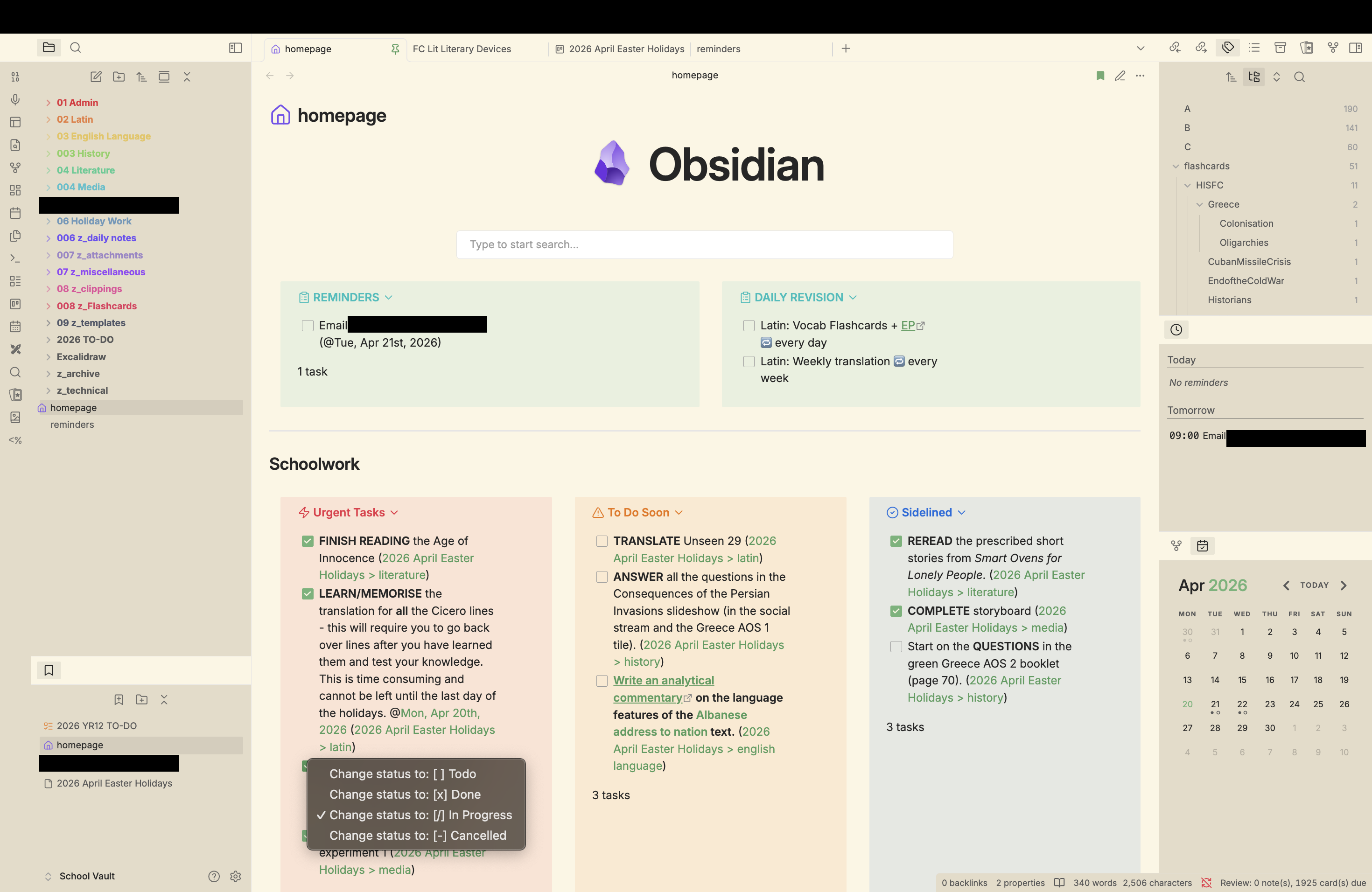
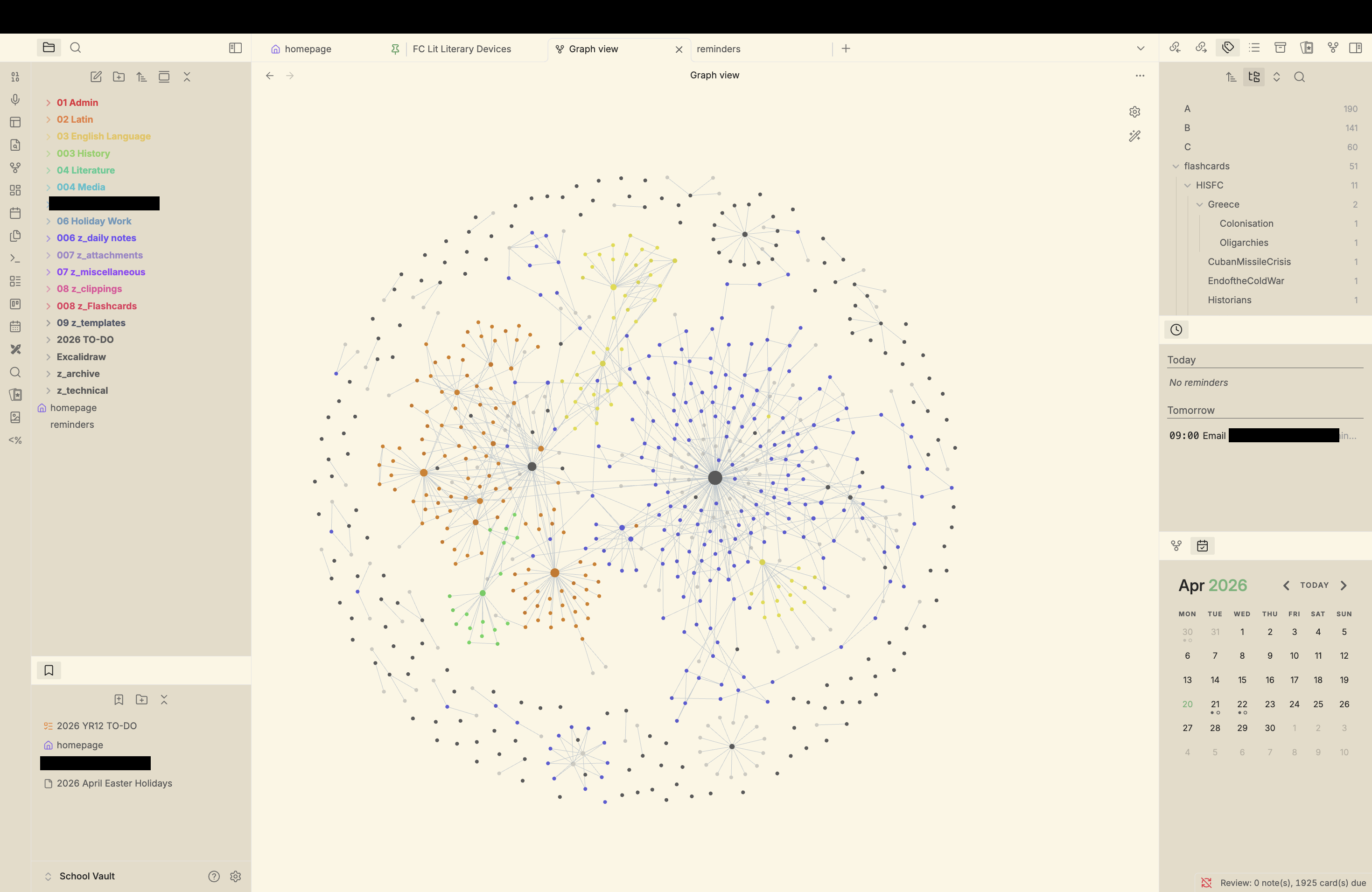
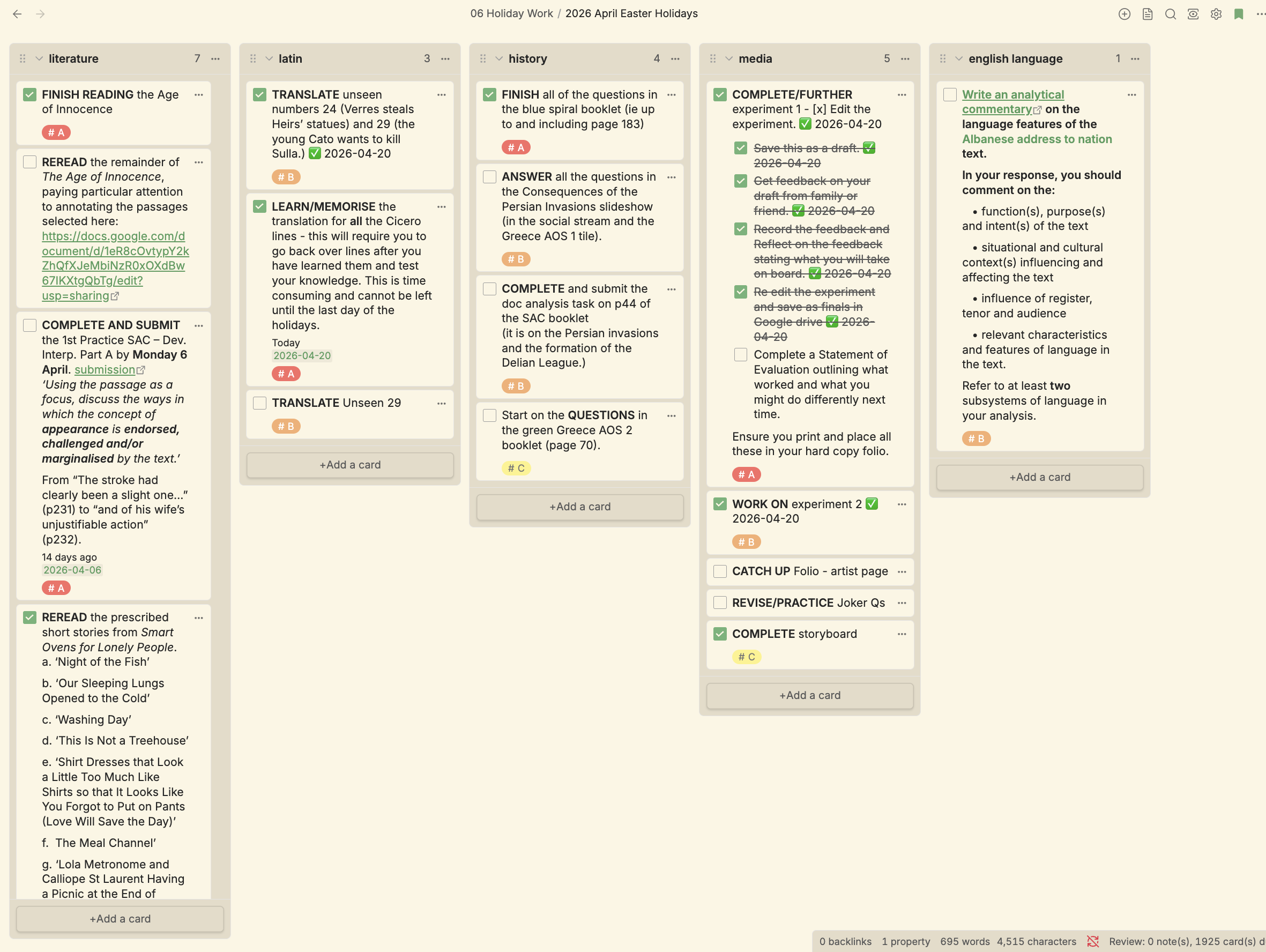
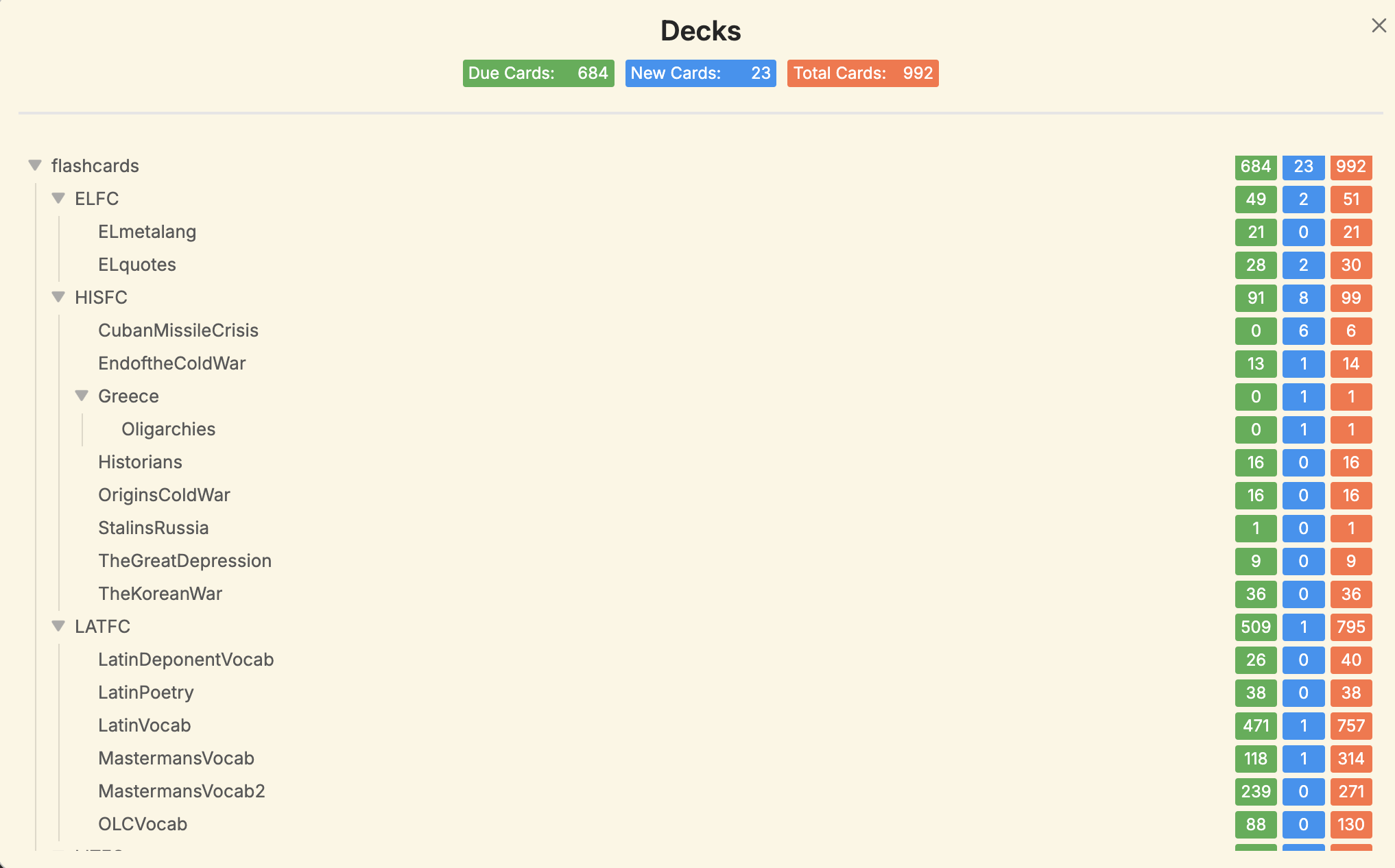
Comments
u/circlethispoint · 58 · Apr 19, 2026
That homepage is dope. How did you make it? Is it a plugin?
u/CindersAnd_ashes · OP · 32 · Apr 20, 2026
A combination of CSS and plugins!
- the MCL CSS snippet multi-column – I used callouts and this snippet for the to-do section
- the dashboard snippet which allows you to create sections and links on your homepage for different areas of your vault
- the home tab plugin which causes the search bar
- Tasks plugin to query all the tasks into each column from the Kanban board
u/curved_chili · 2 · May 18, 2026
Sorry to bother you but I just cannot understand how you can edit the home tab, for me only the search bar appears and no editable place.
edit: i managed it: the home tab plugin is not just a “homepage”, but you can “extract” its searchbar into your homepage (using the homepage plugin) with this code:
```search-bar
show recent files
u/PurpleSpeech8334 · 0 · Apr 20, 2026
RemindMe! 1 hour
u/9DockS9 · 9 · Apr 19, 2026
Interested too !
u/ChrisL64Squares · 35 · Apr 19, 2026
This would be a genuinely useful setup to share as a downloadable vault!
u/CindersAnd_ashes · OP · 21 · Apr 20, 2026
Since many people are asking I will let you know once I have it up!
u/fx-82MS · 3 · Apr 20, 2026
I would like that too if possible.
u/CindersAnd_ashes · OP · 14 · Apr 20, 2026
https://drive.google.com/drive/folders/1HnT2oIltJMFMEEFxyEtUlgPtAYn2EIjN?usp=drive_link
Let me know if it 's janky
u/MalikDK · 2 · Apr 23, 2026
I am completely new to obsedian. Do I just copy paste the codes from den Google drive into my obsedian vault, or how does it work?
Sorry if it is a stupid question
u/CindersAnd_ashes · OP · 2 · Apr 24, 2026
for CSS snippets you would need to download those files and put them into your vault’s CSS folder. You can find that in Settings > Appearance > Scroll down and click the folder icon in the css section.
For plugins, turn on Community Plugins and download themWithin the vault you can write code blocks to query items such as for Tasks (look at the documentation for that plugin)
u/MalikDK · 2 · Apr 24, 2026
Thank you so much!
u/yinonj · 20 · Apr 19, 2026
Give yourself more credit! You have created something that helps you, on your own. Nothing can compete with that! And the whole project seems very good…!
u/CindersAnd_ashes · OP · 4 · Apr 20, 2026
Thank you! It took a lot of tinkering, but now it really feels like a supplementary me-brain to help my actual brain.
u/kaiserpathos · 6 · Apr 20, 2026
+1 well-done! I have ADHD and use my own Obsidian setup in a similar way, but I’ll be damned if I’m not looking at replacing my “Home Tab Note” with this epic home page setup you’ve got going here. Very nice! Also thx for the spaced repetition plugin tip, looking at that now as well!
u/CindersAnd_ashes · OP · 18 · Apr 19, 2026
Also want to add that the task queries on the homepage make it so that tasks disappear when they are done, reducing clutter. The ones i have checked in the screenshot are “in progress”. So basically you are only going to see what you need to worry about
u/FeedbackOk328 · 12 · Apr 19, 2026
High school English teacher here.
This could be a longshot, but I’d suggest showing this to a couple of your teachers and asking them if it could be submitted in place of any of your coursework this year . Id consider taking this as a submission in place of several of my multimedia projects that require students to organize information for some academic purpose from a novel we read!
u/CindersAnd_ashes · OP · 8 · Apr 20, 2026
I would love to, my school is quite strict however on the curriculum and criteria we have to hit, and it is my final year , so I doubt any of the teachers would take it as a formal submission. I do happen to be the editor of our student newsletter. I’d consider sharing this via the newsletter or another way to help students who may struggle to stay organised!
u/FeedbackOk328 · 2 · Apr 20, 2026
Excellent idea. Share the newsletter link if you publish! I’m going to start an AI for educators newsletter soon. Props to you for your involvement in that!
u/Express_Onion_623 · 6 · Apr 19, 2026
Your obsidian is too pretty, mine looks like a cave with shelves and may be a robo to put things in place. Can you tell me what you did to make it look like that? you can drop the info in DM, and thanks in advance.
u/alpha_tard · 5 · Apr 19, 2026
Please share setup!!
u/CindersAnd_ashes · OP · 3 · Apr 20, 2026
https://drive.google.com/drive/folders/1HnT2oIltJMFMEEFxyEtUlgPtAYn2EIjN?usp=drive_link
I’ve updated the post with a list of plugins and css if you want to implement it into an existing vault
u/jmissing · 4 · Apr 19, 2026
I really like your: “VERB task” scheme. That’s something practical that I can take into all areas of my life immediately
u/CindersAnd_ashes · OP · 2 · Apr 20, 2026
Yep, it works because it drives me to action and catches my attention instead of overwhelming!
u/bharles_cabbage · 3 · Apr 19, 2026
Amazing!!! And fab aesthetic
u/CindersAnd_ashes · OP · 1 · Apr 20, 2026
Thank you!
u/hyunshin09 · 3 · Apr 19, 2026
how do you get the deck?
u/CindersAnd_ashes · OP · 4 · Apr 20, 2026
I used the Spaced Repetition plugin for flashcards. I sort decks and subdecks via tags instead of folders, and one note = one deck of flashcards. By nesting tags, the UI also shows how each deck is nested. The “Tag Wrangler” plugin is useful for sorting tags in a tag pane through drag and drop
https://stephenmwangi.com/obsidian-spaced-repetition/
E.g. I want to memorise quotes on a certain historical event. I would create a a new note called “Quotes - Cold War”; tag it with “#flashcards/HISFC/QuotesColdWar” and “QuotesColdWar” would appear in the decks UI.
I can also make other flashcard notes within that History deck, by tagging it “#flashcards/HISFC/AncientGreece” et cetera
u/CindersAnd_ashes · OP · 1 · Apr 20, 2026
Are you referring to the flashcards or the homepage?
u/hyunshin09 · 1 · Apr 23, 2026
same! hehe how? I use the Anapuccin before but I deleted my account and creating a new one now
u/IndigoBroker · 4 · Apr 19, 2026
Very nice.
u/CindersAnd_ashes · OP · 1 · Apr 20, 2026
Thank you!
u/Jamesisonfire21 · 4 · Apr 19, 2026
Beautiful set up!
u/CindersAnd_ashes · OP · 2 · Apr 20, 2026
Thanks! It took a lot of tinkering, but now it really feels like a supplementary me-brain to help my actual brain.
u/DelusionPandemic · 3 · Apr 19, 2026
How did you get the Search bar set up on your homepage ?
u/TheJoeCoastie · 2 · Apr 19, 2026
I was just thinking the same thing.
u/sunevinearth · 2 · Apr 19, 2026
I think its the plugging home tab
u/CindersAnd_ashes · OP · 1 · Apr 20, 2026
Home tab plugin
u/Quirky_Sympathy_8330 · 3 · Apr 19, 2026
Wow! Can you share more on how you made this?
u/CindersAnd_ashes · OP · 3 · Apr 20, 2026
https://drive.google.com/drive/folders/1HnT2oIltJMFMEEFxyEtUlgPtAYn2EIjN?usp=drive_link
u/Quirky_Sympathy_8330 · 2 · Apr 20, 2026
Thank you for this!!!
u/CindersAnd_ashes · OP · 2 · Apr 20, 2026
Since many people are asking, I will probably make a downloadable vault instead of explaining every element. I will let you know once it’s done!
But for the homepage, I used a combination of:
- the MCL CSS snippet multi-column – I used callouts and this snippet for the to-do section
- the dashboard snippet which allows you to create sections and links on your homepage for different areas of your vault
- the home tab plugin which causes the search bar
Functionality wise, I used the Tasks plugin to query the to-do list from my kanban board.
For the daily notes system, the Templates core Obsidian plugin and the community plugin Templater specifically for the properties that link to the next day and previous day’s note. For Flashcards, the Spaced Repetition Plugin has been a lifesaver.
u/cxswanson · 3 · Apr 19, 2026
you should have laid out your plugin selection as well here. what did you use for colored columns?
u/CindersAnd_ashes · OP · 2 · Apr 20, 2026
I had laid out a few of the main plugins in the text body of the post but for some reason, it didn’t save along with my explanation of the homepage and task system… and I woke up this morning to find the post had gotten quite a few replies!
I used the MCL CSS snippet multi-column. Each column is simply a callout so you can customise the colour depending on what callout you want.
Plugins: Home tab, Templater, Templates (core obsidian plugin), Kanban, Reminder, Spaced Repetition, Tasks, Calendar, Style Settings
CSS: dashboard++, MCL multi column, hide properties, Cyan Voxel’s coloured sidebar items.
I am making it a downloadable vault so if you want I can let you know, since some of the CSS snippets is harder to find.
u/cxswanson · 2 · Apr 20, 2026
no worries there. and yeah, that would be awesome… would love a closer look. great breakdown and excellent share all-in-all. thanks!
u/CindersAnd_ashes · OP · 2 · Apr 20, 2026
https://drive.google.com/drive/folders/1HnT2oIltJMFMEEFxyEtUlgPtAYn2EIjN?usp=drive_link
u/cxswanson · 2 · Apr 20, 2026
what a gentleman 🍻
u/dpucane · 3 · Apr 19, 2026
How did you learn to do this? Did you use guides or just figure it out by asking obsidian?
u/CindersAnd_ashes · OP · 3 · Apr 20, 2026
I watched a few tutorials, but I didn’t like the final result of any of them so I combined what I learned from different tutorials, also googled around, and tinkered with some CSS myself (mainly Cyan Voxel’s coloured sidebar items), to try and get this result.
Honestly if I was to make another vault like this it would take a lot less tinkering because I learned a lot. Especially about how my brain works and is structured.
u/Dependent-Cheek2398 · 3 · Apr 19, 2026
Wait this is awesome, you made obsidian to your own search engine
u/CindersAnd_ashes · OP · 3 · Apr 20, 2026
Thank you! Yes, basically, I always name my notes something I can remember, and be sure to link it to something so I can find it later and remember what is related to it… like a domino effect.
The search engine thing on the homepage was made using the home tab plugin.
u/omnergy · 3 · Apr 19, 2026
Looking very organised and on point for your needs. Would be good if you were to share your setup, the folks are kindly asking… Thanks.
Remindme! 12 hours
u/CindersAnd_ashes · OP · 3 · Apr 20, 2026
Here you go https://drive.google.com/drive/folders/1HnT2oIltJMFMEEFxyEtUlgPtAYn2EIjN?usp=drive_link
I have updated my post with explanations if you want to implement the set up into an existing vault.
u/RemindMeBot · 2 · Apr 19, 2026
I will be messaging you in 12 hours on 2026-04-20 08:09:52 UTC to remind you of this link
8 OTHERS CLICKED THIS LINK to send a PM to also be reminded and to reduce spam.
^(Parent commenter can ) ^(delete this message to hide from others.)
^(Info) ^(Custom) ^(Your Reminders) ^(Feedback)
u/RutabagaOk522 · 3 · Apr 19, 2026
Now this is the type of maxxing im looking for.
u/CindersAnd_ashes · OP · 1 · Apr 20, 2026
Hehe
u/RutabagaOk522 · 1 · Apr 22, 2026
Do you have github? Im more than happy to help setup, contribute, update and maintain the project for free because DUH. You deserve all the best!! The fact that youre still in highschool blows my mind. Incredible job.
u/Mister_Ennui · 3 · Apr 19, 2026
Super nice!
u/CindersAnd_ashes · OP · 1 · Apr 20, 2026
Thanks!
u/RazorThought · 3 · Apr 19, 2026
Very impressive.
u/CindersAnd_ashes · OP · 1 · Apr 20, 2026
Thanks!
u/RwyAhead · 3 · Apr 19, 2026
This is really clever. Thanks for sharing
I hope you can provide some Guidance on how you created it.
u/CindersAnd_ashes · OP · 2 · Apr 20, 2026
Hello, I’ve updated my post with explanations.
https://drive.google.com/drive/folders/1HnT2oIltJMFMEEFxyEtUlgPtAYn2EIjN?usp=drive_link
If you want to download it here it is
u/Ok-Reach-4230 · 3 · Apr 20, 2026
Wow!! Thank you for sharing your amazing system. It is something I can only aspire to at this point. I have saved your post for future reference.
u/CindersAnd_ashes · OP · 3 · Apr 20, 2026
I’m glad you found it useful!
u/Scrung3 · 3 · Apr 20, 2026
Are you in high school? You’ll definitely get far if you’re already this familiar with Obsidian this early on.
u/CindersAnd_ashes · OP · 2 · Apr 21, 2026
Yeah I am a year 12 student, my familiarity with Obsidian was borne from an obsession to making a wiki for my novel which I transferred over to school, lol
u/sunevinearth · 2 · Apr 19, 2026
How did you make the different columns? They’re so pretty
u/CindersAnd_ashes · OP · 1 · Apr 20, 2026
I used the MCL CSS snippet multi-column! Each column is simply a callout so you can customise the colour depending on what callout you want or theme you have (this can be even further customised in style settings plugin or CSS)
u/redroofrusted · 2 · Apr 19, 2026
Looks great! Love it!
u/CindersAnd_ashes · OP · 1 · Apr 20, 2026
Thank you!
u/redjazzman · 2 · Apr 19, 2026
Bro this is amazing! Tell us all your secrets!! 😍
u/CindersAnd_ashes · OP · 3 · Apr 20, 2026
Updated my post!
u/fireflyhaven20 · 2 · Apr 19, 2026
I need this!
u/CindersAnd_ashes · OP · 3 · Apr 20, 2026
I’m making it a downloadable so I will let you know :]
u/fireflyhaven20 · 2 · Apr 20, 2026
Awesome!! Thank you!
u/CindersAnd_ashes · OP · 3 · Apr 20, 2026
https://drive.google.com/drive/folders/1HnT2oIltJMFMEEFxyEtUlgPtAYn2EIjN?usp=drive_link
u/frostthejack · 2 · Apr 19, 2026
What calendar plugin is that
u/CindersAnd_ashes · OP · 2 · Apr 20, 2026
This plugin: https://github.com/liamcain/obsidian-calendar-plugin
I use it so I can easily see my daily notes and whether I have completed my tasks.
u/frostthejack · 1 · Apr 20, 2026
That’s what I’ve been using but it tells me its no longer supported.
u/CindersAnd_ashes · OP · 3 · Apr 20, 2026
Have you tried checking for updates?
u/PushLimit · 2 · Apr 19, 2026
Really cool! Will add the homepage to my setup
u/merlinuwe · 2 · Apr 19, 2026
Minimal theme?
u/CindersAnd_ashes · OP · 1 · Apr 20, 2026
The lesser known Typewriter theme!
u/mutierend · 2 · Apr 20, 2026
Please share the vault!
RemindMe! 3 days
u/CindersAnd_ashes · OP · 1 · Apr 20, 2026
https://drive.google.com/drive/folders/1HnT2oIltJMFMEEFxyEtUlgPtAYn2EIjN?usp=drive_link
u/airyrice · 2 · Apr 20, 2026
What exactly is your workflow for managing tasks? Because I’ve tried the Tasks plugin, I’ve tried TaskNotes, but all of that was just so damn repulsive to me and I ended up switching to something like Todoist instead, but now I’m wondering if I should give obsidian a chance again
u/CindersAnd_ashes · OP · 1 · Apr 20, 2026
My workflow is essentially:
- Write down any new tasks into the Kanban board, grouped by subject, visually sorted by priority (red #A, orange B , yellow C). The Kanban settings lets me set the colour of the tags.
- Reference the homepage, where my tasks have been queried and summarised via the Tasks plugin, so i can clearly compare urgent tasks vs things that can wait, and decide a course of action.
- Open my daily notes and write down 2-3 I will focus on in my study session. This tricks me into thinking it’s more manageable.
- Satisfyingly check off daily notes and the tasks on the homepage after I have completed them.
I try to keep it balanced between simple and bespoke. Honestly I only use Tasks for its querying capability and the “in progress” status (I work on a lot of projects that are stuck in “in progress” for many months)
I think Obsidian is powerful for customising to one’s very specific needs, probably why it works for many neurodivergent people. When people say they Obsidian hasn’t worked it might be because the haven’t customised it to their vision. My vault is essentially a Frankenstein of specific bits of different plugins and CSS.
But do what works for you!
u/James_Mamsy · 2 · Apr 20, 2026
I can’t imagine where I would be today if I had half this organization in high school.
Keep this mentality dude, you will go far.
u/CindersAnd_ashes · OP · 1 · Apr 20, 2026
Thank you! I haven’t been very organised or motivated this year but the support on this post is giving me spark.
u/More_Tune_7628 · 2 · Apr 20, 2026
As a fellow Latin learner, I am especially fond of your setup here. Absolutely incredible.
u/CindersAnd_ashes · OP · 2 · Apr 20, 2026
Thank you!! It took a lot of effort but it feeds into the effort I put in the future also!
u/Vivid-Beginning-2433 · 2 · Apr 20, 2026
It absolutely will pay dividends in the future. Mate, this is very impressive. It’s made me realise how little I’m utilising Obsidian! I’m going to follow you to keep an eye on if you release the downloadable vault!
u/CindersAnd_ashes · OP · 3 · Apr 20, 2026
Thanks!! Obsidian’s strength is customisability to specific needs i think! https://drive.google.com/drive/folders/1HnT2oIltJMFMEEFxyEtUlgPtAYn2EIjN?usp=drive_link
u/Vivid-Beginning-2433 · 2 · Apr 20, 2026
Cheers buddy!
u/InnovativeBureaucrat · 2 · Apr 20, 2026
Are you going to high school at Harvard or Oxford? (Joking)
I loved Latin in high school and I was decent at it, but this looks so advanced. Cicero was my classroom name.
I wonder how you’ll grow using this system. It looks very smart, but I’m curious how it will grow with you. I think it would make for a great future post to describe your journey.
u/CindersAnd_ashes · OP · 1 · Apr 20, 2026
Haha, my dream was once to go to Oxford! My grades say nuh-uh though.
We are studying Virgil and Cicero! This vault and extensive handwritten notes was useful for hammering grammar and vocab into my head, but it started to have diminishing returns the more I learned (especially memorising vocab through pure rote - after over 1500, some of which I haven’t flashcarded in Obsidian, it simply doesn’t work anymore), so I have transitioned to reading, translating, and reciting from figures I need to be familiar with as my main practice.
My classmates are a lot smarter than me though, so I have a lot of catching up to do.
I might make a post mid year as a motivational milestone, for others and myself!
u/AkidIguess · 2 · Apr 20, 2026
This might be a silly question, but how did you separate your tasks into different categories (history, latin, etc.)?
u/CindersAnd_ashes · OP · 1 · Apr 20, 2026
On the Kanban board (using Kanban plugin) I have a separate list for each subject, I usually keep this note pinned. But I always put my tasks all into this one kanban.
On the homepage unfortunately I don’t separate them into subjects beacuse I easily remember what subject each task belongs to and I find it just clutters the space. However, you can see in green each task links back to the Kanban>subject
u/Far_Jeweler1975 · 2 · Apr 20, 2026
This is amazing!!!
u/CindersAnd_ashes · OP · 1 · Apr 20, 2026
THank you :]
u/Inner-Emu-6596 · 2 · Apr 20, 2026
Just wanted to say, amazing job and Thanks for sharing …
u/CindersAnd_ashes · OP · 1 · Apr 20, 2026
Thank you, no problem :]
u/PurpleSpeech8334 · 2 · Apr 20, 2026
Hello,
This looks amazing, I also use Obisidan for all my notes, I have done a lot less tinkering than you. I just use the Maple theme with the Style Settings plugin to make a few changes. My notes aren’t organised anywhere near as yours, I recently started using tags and having a standardised naming scheme which really helped.
I use the app TickTick for my todo lists since it works really well cross-platform especially on Android and WearOS, so I only use Obsidian for my notes, so I have a different vault for each different topic / subject that I write about.
How did you get the colourful boxes of text in the final screenshot, I would love to implement something similar in my setup?
u/CindersAnd_ashes · OP · 1 · Apr 20, 2026
Thank you!
I like having it all in one vault because my studies are pretty interdisciplinary (mainly humanities) so it helps me to connect different concepts together.
The coloured boxes are callouts, a native feature of Obsidian https://obsidian.md/help/callouts
u/PurpleSpeech8334 · 2 · Apr 20, 2026
I see why you like multiple vaults, my notes cover a very broad range of topics so I like to keep mine seperate.
I knew you could do callouts, but I wasn’t aware you could do all that customisation. Thank you.
u/balancedchaos · 2 · Apr 20, 2026
I envy people whose brains work this well. My brain is in 20 different directions at any given moment. lol
u/CindersAnd_ashes · OP · 2 · Apr 20, 2026
I wish mine worked this well right now, haha… it seems to come and go. But if I get a project like this I become obsessive.
u/Humble-Protection-98 · 2 · Apr 20, 2026
OP, how did you make highlights of different colors & how did you make those Notion-style callout highlight boxes with emojis?
u/JorgeGodoy · 3 · Apr 20, 2026
If I got what you’re asking about, these look like standard callouts. https://obsidian.md/help/callouts
u/Glum_Ad9992 · 2 · Apr 20, 2026
This homepage is really good, I’ve learned a lot
u/CindersAnd_ashes · OP · 1 · Apr 20, 2026
Thank you, I’m glad
u/kulturharc · 2 · Apr 20, 2026
Incredibly useful. Thanks!
u/CindersAnd_ashes · OP · 1 · Apr 21, 2026
:]
u/scottdetweiler · 2 · Apr 21, 2026
Thank you for this!
u/kenysg · 2 · Apr 21, 2026
how did you manage to make the previos/next daiily notes properties? everytime i try to set them up with templater i get a clickable calendar instead T_T
u/CindersAnd_ashes · OP · 1 · Apr 21, 2026
In your daily note template make the text properties next day and previous day. For ‘next day’ set the property to
[[<% tp.date.tomorrow("YYYY-MM-DD") %>]]and for previous day [[<% tp.date.yesterday("YYYY-MM-DD") %>]]Turn on “Enable folder templates” in Templater settings and set the folder to “daily notes” and the template to your daily note template
Turn on ‘Trigger Templater on new file creation’ in Templater settings
Now whenever you make a new daily note it should automatically replace the time templates with the actual date.
u/kenysg · 1 · Apr 21, 2026
thanks so much!
u/kaiserpathos · 2 · Apr 26, 2026
Hey u/CindersAnd_ashes – thanks again for the CSS / plugin list, and your example vault – you made something really special, so I thought I would share a screen shot of my current fork implementation of it. Thanks again!
My Vault
u/CindersAnd_ashes · OP · 2 · Apr 26, 2026
Sick vault!!! Glad you found my stuff useful!
u/elcalvo75 · 1 · Apr 29, 2026
love this one as well ! can you share your vault ? or give some hints how you set up the left side… bloody awesome
u/ovay · 2 · Apr 29, 2026
Thanks for sharing!
u/CindersAnd_ashes · OP · 1 · Apr 30, 2026
:)
u/Confident-Sport2412 · 2 · May 7, 2026
Davanti a questa configurazione, non sono più convinta che Notion sia la migliore soluzione.
u/Hungry_Dot_1542 · 1 · Apr 19, 2026
Looks amazing!
u/Zealousideal-Pop4819 · 1 · Apr 19, 2026
Remindme! 12 hours
u/Error-Frequent · 1 · Apr 19, 2026
Remind me! 2 weeks
u/thepinkcheesecake · 1 · Apr 19, 2026
Remindme! 2 days
u/Kawaoski · 1 · Apr 20, 2026
what’s the theme?
u/CindersAnd_ashes · OP · 2 · Apr 20, 2026
Typewriter
u/sammythecoin · 1 · Apr 20, 2026
What plugins?
u/CindersAnd_ashes · OP · 2 · Apr 20, 2026
Plugins: Home tab, Templater, Templates (core obsidian plugin), Kanban, Reminder, Spaced Repetition, Tasks, Calendar, Style Settings
CSS: dashboard++, MCL multi column, hide properties, Cyan Voxel’s coloured sidebar items.
u/OutrageousDeer494 · 1 · Apr 20, 2026
RemindMe! 3 days
u/scottdetweiler · 1 · Apr 20, 2026
Remindme! 3 days
u/blaired79 · 1 · Apr 20, 2026
RemindMe! 3 days
u/drjammus · 1 · Apr 20, 2026
RemindMe! 3 days
u/TickledGreenEmi · 1 · Apr 20, 2026
Are those callouts the default style for typewriter? I’m having difficulty finding a theme where I like the callout abur these look nice :)
u/CindersAnd_ashes · OP · 2 · Apr 21, 2026
They are just the default obsidian callouts, don’t need any theme
I think you can further customise the style of callout with style settings as well
u/memberunaware · 1 · Apr 20, 2026
would you be willing to share your flashcards? especially for eng lang?
u/CindersAnd_ashes · OP · 2 · Apr 21, 2026
Are you a VCE student?
I’m a little busy atm but I will get around to sharing it!
u/shadowemperor01 · 1 · Apr 21, 2026
Can u tell in a little more detail how u make and use flashcards?
u/CindersAnd_ashes · OP · 2 · Apr 21, 2026
https://github.com/st3v3nmw/obsidian-spaced-repetition You can read up on the plugin’s documentation here. In the vault template I shared in the post I’ve also included some simplified instructions
I’ll just copy paste what I said in another comment regarding flashcards for language learning:
Flashcards are great for vocab, because you have to make your own and that contributes to active recall itself. The flashcard plugin Spaced Repetition basically gives you three options Easy Medium and Hard, increasing time between sessions of review depending on how proficient you are at that particular flashcard. (You can read up on combating the forgetting curve, and the Spaced Repetition plugin for how to use it)
But after a certain amount of flashcards, learning by rote simply doesn’t work anymore and you need to just practice translation or speech.
For me, I made a lot of vocab lists that I print out and randomly jab my finger at a random vocab, its gender and declension, and test if i can recall it.
Obsidian is great for linking grammatical concepts and rules between each other. You can customise your notes to lay out your information in a pretty and organised way that is easily understandable and referenceable.
However I use it to learn a dead language that is not spoken and rather written so maybe it is different for living languages. But you can also record voice and insert it into a note
u/retrosenescent · 1 · Apr 22, 2026
How did you make it so pretty and colorful???
u/TecEgg · 1 · Apr 22, 2026
Which fonts are you using?
u/CindersAnd_ashes · OP · 2 · Apr 22, 2026
Just inter
u/PrimusOptimum · 1 · Apr 22, 2026
This is amazing!
Newbie question: How can I apply this to one of my existing vaults without losing existing notes?
Thanks in advance!
u/CindersAnd_ashes · OP · 2 · Apr 22, 2026
Thanks. Check my other comments or examine the vault template i made, they kinda explain how to implement it
u/PrimusOptimum · 2 · Apr 24, 2026
Thank you
u/asGotonTopofAunty · 1 · Apr 23, 2026
i am surprised they are making you analyse that nothingburger address from albanese
u/CindersAnd_ashes · OP · 2 · Apr 23, 2026
Probably because it was so controversial, the language use was interesting. But ngl eng lang has never been a strong subject of mine so it was a little boring to me
u/Ok_Subject_3471 · 1 · Apr 23, 2026
Great setup. Anyone know how I go about incorporating some sections of the vault like the task priority system into my own, without downloading the whole vault . Can’t seem to figure it out. Thanks
u/CindersAnd_ashes · OP · 1 · Apr 24, 2026
With the Kanban plugin you can configure the tags to have colour. Simply tag each task with a priority (#A, #B, #C). Then on your dashboard make 3 columns with the multi-column MCL snippet and, with the Tasks plugin query the following:
```tasks
not done
description includes /pathname to Kanban/to-do note
description includes #A (or #B, #C etc - priority tag)
u/Terian2310 · 1 · Apr 25, 2026
is it possible to save posts like in instagram or tiktok? Because I really like what was shown here and would like to implement it myself but do not have time at the moment but would like to come back to it?
u/CindersAnd_ashes · OP · 3 · Apr 25, 2026
Press the three dots next to the post’s title and click ‘save’
u/Inevitable_Ear_7932 · 1 · Apr 26, 2026
Hi I am new to obsidian sorry if this is a dumb question… but I downloaded the drive and extracted it but how do i get your vault into my obsidian?
u/CindersAnd_ashes · OP · 1 · Apr 27, 2026
When you open Obsidian click ‘open folder as a vault’ and then find your folder within file explorer
u/BUYING_AND_RENTING · 1 · May 11, 2026
quelqu’un a une app pour connecter OBSIDIAN NOTION et REMARKABLE ?
u/Extension-Machine602 · 1 · May 18, 2026
Would you say that the obsidian tasks plugin is better that tick tick?
u/Bulky_Use2580 · 1 · May 20, 2026
Wow! Looks awesome, OP!!
u/CindersAnd_ashes · OP · 1 · May 20, 2026
Thx!
u/duncanMKZ · 1 · Jun 4, 2026
I’ve used Obsidian for years, so I feel like an idiot asking this, but my left sidebar has acquired a second pane that wasn’t there before. I now have the usual Obsidian sidebar pane, with icons for magnifying glass, folder, bookmarks and longform, and above it a new (to me) pane with a file list, and a gridlike “Views” icon in the top left. I think I might have dragged something or clicked some key combination to make this new pane appear, but I don’t know how. I can reduce the size of this pane, but can’t find a way to get rid of it. Any suggestions?
capture queued
<!DOCTYPE html><html style="font-size: 62.5%;font-family: Roboto, Arial, sans-serif;" lang="en-GB" darker-dark-theme darker-dark-theme-deprecate system-icons color-version="v2_0" typography typography-spacing><head><script data-id="_gd" nonce="TrUtKIIE1_7_itkDeAXIXw">window.WIZ_global_data = {"AfY8Hf":false,"FL1an":false,"HiPsbb":0,"MUE6Ne":"youtube_web","MuJWjd":false,"UUFaWc":"%.@.null,1000,2]","cfb2h":"youtube.web-front-end-critical_20260629.07_p0","fPDxwd":[],"hsFLT":"%.@.null,10,3]","iCzhFc":false,"nQyAE":{},"oxN3nb":{"1":false,"0":false,"610401301":false,"899588437":false,"772657768":true,"513659523":false,"568333945":true,"1331761403":false,"651175828":false,"722764542":false,"748402145":false,"748402146":false,"748402147":true,"861377723":false,"861377724":false,"869336903":false,"882674507":false,"869336904":false,"869336905":false,"919444824":false,"931468047":false,"928875398":false,"683749201":false},"u4g7r":"%.@.null,1,3]","xnI9P":false,"xwAfE":true,"yFnxrf":2486};</script><meta http-equiv="origin-trial" content="ApvK67ociHgr2egd6c2ZjrfPuRs8BHcvSggogIOPQNH7GJ3cVlyJ1NOq/COCdj0+zxskqHt9HgLLETc8qqD+vwsAAABteyJvcmlnaW4iOiJodHRwczovL3lvdXR1YmUuY29tOjQ0MyIsImZlYXR1cmUiOiJQcml2YWN5U2FuZGJveEFkc0FQSXMiLCJleHBpcnkiOjE2OTUxNjc5OTksImlzU3ViZG9tYWluIjp0cnVlfQ=="/><meta name="apple-itunes-app" content="app-id=544007664, app-argument=https://www.youtube.com/watch?v=AogwEfWZVds&referring_app=com.apple.mobilesafari-smartbanner, affiliate-data=ct=smart_app_banner_polymer&
Second Brain with Claude Code x Obsidian (Andrej Kaparthy method pt 2)
NextWork · Apr 24, 2026 · 1:10:41
3.5K views · 68 likes
Get the full step-by-step project guide here: https://learn.nextwork.org/projects/ai-second-brain-claude-code-2?utm_source=youtube
Project 1 is here: https://learn.nextwork.org/projects/ai-second-brain-claude-code?utm_source=youtube
Welcome to the Automate Your AI Second Brain project!
Turn your Obsidian vault into a daily operating system with Claude Code.
What you’ll learn today:
🔐 A private GitHub repository backing up your vault with automatic syncing via the Obsidian Git plugin. 🔌 MCP Connectors linking Claude Code to your everyday tools like Google Calendar, Linear, and Notion. 🔄 A /pull-sources slash command that auto-ingests Claude Code sessions, Gmail, and Granola transcripts straight into your vault. ☀️ /briefing and /debrief slash commands that generate a personalized morning brief from your wiki, calendar, and priorities, then capture your day each evening.
TIMESTAMPS 00:00:00 - Welcome to this project! 02:59 - Step #1: Get Your Vault Ready 09:24 - Step #2: Back Up and Connect Your Tools 26:14 - Step #3: Auto-Ingest Your Sources 38:48 - Step #4: Create Your Priorities Document 44:38 - Step #5: Build and Run Your Daily Loop 1:00:42 - Secret Mission 1:08:37 - Before you go: Clean Up Your Resources 1:09:59 - Mission Accomplished!
#claudecode #obsidian #nextwork #learnwithnextwork
Want to join our community? https://community.nextwork.org/
Chapters
- [0:00] Welcome to this project!
- [2:59] Step #1: Get Your Vault Ready
- [9:24] Step #2: Back Up and Connect Your Tools
- [26:14] Step #3: Auto-Ingest Your Sources
- [38:48] Step #4: Create Your Priorities Document
- [44:38] Step #5: Build and Run Your Daily Loop
- [1:00:42] Secret Mission
- [1:08:37] Before you go: Clean Up Your Resources
- [1:09:59] Mission Accomplished!
Transcript
Now, if your social media is anything like mine, you’re seeing all of these people building Claude Code and Obsidian second brains. Now, this became extremely popular because of this man, Andre Kaparthy, who was one of the early OpenAI researchers. He put out this methodology on GitHub on how to create your own LLM knowledge base, became super popular, and a bunch of people started trying it out saying that it was absolutely life-changing. Now, me, I’ve been using a second brain in Notion for about the last year. So, I wanted to try this out. So, last week I built a part one of this project series where I built a second brain with Claude Code and Obsidian, and we went through and we actually created exactly what you see right here. Now, I got a lot of comments, feedback, people being like, “Oh, how can I improve this? What are some other things that I can do here?” So, me, I wanted to experiment on the second brain see if it was actually useful cuz I think there’s a lot of people on social media who just put this out and then they say it’s life-changing, the best thing ever, but they never actually use it. So, I wanted to see if this is actually useful and something that I can actually get value out of. Um and then hopefully you guys can get value out of and build things for yourself as well. So, in this project, we are not going to be using the terminal cuz that was one of the most common things that I got. We’re going to be using the Claude Code desktop UI, which is very, very nice. We’re also going to be looking at different things like routines so that we can schedule tasks to run in the cloud instead of leaving our laptop on the whole time. We’re going to look at token efficiency, and we’re going to just make our second brain a lot better. And let’s the end if we actually build something that is worthwhile. This is only going to take about an hour to do. Uh I’d recommend doing part one of the project series if you haven’t, but you can actually do part one within this step-by-step guide as well. You don’t have to have any experience, and by the end of this project, you’re going to have a private GitHub repo that’s going to back up your uh all of the work that you’re doing, and it’s going to plug into Obsidian. We’re going to use MCP connectors, which are going to connect different tools, so things like Google Calendar, Linear, Notion, Slack, all of these different areas going to connect into your brain so that you can run these pull sources and auto ingest all the information that you want. You’re going to learn how to customize that. You’re going to learn how to also create some briefing commands and debrief commands so you will get an entire automated schedule of your day, and at the end of the day, you’ll run through what you’ve actually done so that you can adjust things and tick things off as you go. Now, the most important part in this project, or the part that I think is most valuable, is actually the power of cloud routines. This is something that was released by Anthropic like about a week ago now, I’d say, maybe a week and a half. And what this is going to let you do is run daily tasks in the cloud so you don’t have to keep your laptop on, and actually get these things to run anytime that you want. Now, this is a free project. You can get this entire guide for free. I’ll leave it in the link down below. But, all you need is a Claude Pro or Claude Max subscription. So, let’s go ahead and get started with this project. As you can So, let’s go ahead and do step one here, and that is getting our vault ready. So, in the first part of the project, we did the project in our terminal. In this part, we’re going to connect in all of these MCP connectors to calendar, chat, docs, all these different different areas. And by the end of this step, we’re actually going to be in the same part uh that we were in part one, but we’re going to be connected in with those MCPs. So, in this step, I am setting up Claude Code desktop, uh and I’m also going to bring in part one of the vault, and scaffold a new Claude MD file with four {slash} commands. Then, I’m going to verify that everything works, and this will get me to the point where I should have been if I had done part one. There we go. So, let’s go ahead done here, and and in case you’ve never done a Next.js project before, as you do the project right here, just click this documentation button, and you actually see all of your work getting live added in, and this is very, very useful because you can showcase your work to recruiters or to your friends or anyone else who wants to do this. Now, I have actually already installed Claude desktop, which you see right here. But, in case you haven’t, you can click this tab right here, and it’ll run you through all the steps that you need to be able to install Claude desktop. Now, I have, so I’m going to go here, and I’m going to make sure that I go into this this code tab right here. Now, the code tab is one that I was already selected in. Yours might look something like this. Don’t worry. Click this tab right here. Those two little What are they called? I don’t know. I always call them crocodiles. The crocodiles, and you’ll see something that looks like this. Now, the first thing I’m going to do, I’m running Opus 4.7. I’m just going to change this to Sonnet 4.6. Sonnet 4.6 is going to be more than powerful enough to handle what we’re going to do in this project, and we don’t want you spending too many credits. Uh of course, if you’re on a Claude Pro or Max plan, you’re not going to be charged anything for every usage that you have, but you may run into sessions session limits. Uh but, in this project, we’re actually going to show you how to optimize your token efficiency as well. So, that is something we’re going to do as well. So, let’s go back to the guide here. I’m going to scroll down. We’re running this in the desktop because so many people spam me saying they didn’t want to use the terminal. So, >> [laughter] >> that’s the reason we’re doing this in the desktop. It is also a lot easier to use uh this interface as well. Now, again, I have already done part one of this project, but if you’re starting from scratch, you can do a really quick version over here, and this is going to walk you through the Obsidian setup. But, I have completed part one, so I’m going to make sure that I follow these steps right here. We’re going to set local as our environment, and we’re going to navigate to our second brain folder, which is in our documents. So, I can go into local here. That’s exactly what we want. And I’m going to go to the second brain folder. I’ve already done this, obviously, but I’m going to go into here, go documents, and this is the second brain that I want to open up, and this is from our last project. So, you should see something that looks like this, and make sure you deselect work tree. Uh work tree is going to create an isolated copy of this repo, and that’s not what we want. We want to be working on the main branch here. So, let’s go back to the project guide. We will scroll down here once it loads, and we’re going to set the permissions to ask permissions. Uh you can either set it to ask or auto accept um the edits. I like to set it to uh to ask permissions at first if I’m trying to understand something new that I’m doing. In this case, I’ve already done this project, so I’m going to leave this as auto edits um or accept edits. But, if you have ask permissions, it’ll always ask you to uh for permission essentially before Claude goes ahead and does things. So, let’s scroll down here. I’m going to take a screenshot of the second brain vault, and we’re going to put this in here. So, go into here. I’m going to take a screenshot of this, and then I’m going to drag the screenshot into here, hit done, and you will see the screenshot populating in here looking beautiful, which is nice. Now, let’s scroll down here. Let’s verify that everything is working. So, last check whether you bought your part one vault or scaffolded a new one, and we’re going to run these four {slash} commands. Now, these are slash commands we created last time. So, we’re going to go ahead into here. We’re going to say list the commands available in this vault and summarize the Claude MD in one paragraph each. So, I’m going to hit done here. Now, let’s see what Claude is doing here. All right, looking beautiful. Yep, this is looking right. I already actually have these commands in here, which I don’t want. I’m going to say, “Can you please delete the {slash} briefing and the {slash} debrief commands uh and the {slash} pull resources so that I just have the first four commands as this is where I want to start the project.” Nice. Of course, when you’re doing demos like this live, things like this are going to happen, but I want to get to the exact same point that everyone is at so that we can all do this together. Now, it might take some time to do this, so I’ll join you back when it’s all done. All right, so it’s all looking done now. I’m actually going to just rerun this right here, and I will go into a new session. So, I can just go up to the top left just here, click new session, and I’m going to run this again. Hopefully, we’ve got the right thing. So, 1 2 3 4, that is perfect. These are the four things we want. Ingest is going to process new files from raw into wiki pages. We’ve got answer questions by synthesizing wiki content, health checks for broken links, orphans, and stale pages plus contradictions, and then log, which is kind of like a log of all the things that we’re doing. So, this is perfect. This is exactly what we want. I’m going to go back into here. I’m going to scroll down, and we can see these four commands right here, which is nice. So, I can go ahead, and I can take a screenshot of this, and I’m going to paste it into this box here. And now it says, “Which four {slash} commands are you carrying into the rest of the part two, and what is each one for?” I’m carrying in {slash} ingest, {slash} query, {slash} lint, and {slash} log. Amazing. So, let’s go ahead. Yeah, and that brings us onto step two. All right, so in step two, what we’re going to do is back up and connect our tools. Now, our vault is loaded with {slash} ingest, and it stitched your raw materials into a proper wiki. Now, this is obviously something we did in part one. If you haven’t, make sure you go up and you do that. But, beautiful. Uh this is what we want, but everything is still living on our laptop. Now, Claude still only knows what is inside that folder. So, next we’re going to give our second brain a home on the internet. We’re going to use GitHub to do this, and we’re going to automate this as well. We’re going to use a plugin with Obsidian to auto sync every 10 minutes in the background so that uh GitHub and our Obsidian are always in sync. And then lastly, we’re going to wire at least one MCP connector so Claude can read our calendar, chats, or docs. So, in this step, I’m going to create a private GitHub repo to push our vault to. I’m also going to connect our Obsidian uh plugin so that we can auto sync every 10 minutes, and I will connect my Google Calendar MCP. Beautiful. Let’s go ahead and hit done here. And now we’re going to do we’re going to check uh if we have Git installed. If you don’t, let’s actually go into the Claude desktop version right here. Let’s see what I’ve never actually done this. But, uh I’ve always used the terminal, but you can see that you can run to terminal commands in this UI, which is beautiful. So, our Git version is this right here. That’s exactly what we want. So, we have Git installed. If you don’t, make sure to click this, and you can go ahead and do this. Now, next we’re going to add in uh username. This is a username for our GitHub account. Um if you don’t have a GitHub account installed, you’re going to make sure that you create one as well, which you can do in here. Um but, make sure that you have a GitHub account created. I have already set this up, but essentially all I would do here is go username, and I’d put in my GitHub username, which is minimus7, and then I would put my user email, which is maximus@next.org. Now, the reason we do this is because Git is going to attach a name and email to every commit or save that we make to this vault, and it’s going to show who made the change. So, even if we’re on a solo repo, it’s still good practice to do that. But, now what we’re going to do is go ahead and create a repo. So, let’s go to GitHub right here. I’m going to open up this. I’m going to choose myself as an owner cuz I’m in a few different organizations, and I’m going to name this second brain. Perfect. Now, let’s go back to the guide right here. Description, my AI second brain vault synced with Claude code. That’s beautiful. And we’re going to actually change this to private. We don’t want people to see this. We’re not going to add in a read me or a get ignore or anything like that, and we’re going to go ahead and create our repository here. Now, let’s go back to the guide. We’ll scroll down a bit. And now that the empty remote repository is waiting, swing back to your terminal and add in a get ignore, and push your first commit. So, before the first commit, tell get which files to skip. Some files inside your vault are specific device specific noise that would only cause merge conflicts across machines. So, let’s go to our terminal. We’re going to CD into documents in our second brain folder. And I have never actually done this. I actually did this firstly in the terminal, but I’m kind of interested to see if this works. So, it’s going to Oh my gosh. Let’s go. Such a clean UI. I think the future is going to be very little terminals, to be honest. Same with this. I wonder what will happen if we run this command. So, we’re opening up our get ignore now. Perfect. This is exactly what we want to see in here. So, if we go back to the guide right now, um you can see that it is already pasted in these right here. Um if you’re not seeing that, just copy this, and I think this is also because I had a get ignore running. And you want to press command save to make sure that we save this or control S if you’re on Windows. We’re going to save that file right there. And essentially what we’re excluding is this workspace JSON from Obsidian, and then the mobile JSON. So, we’re going to save your personal Obsidian layout and like which notes are open, how your panes are arranged, and where your cursor is. So, that is specific to our device and that we’re on, so syncing it would just override our layout every single time that we switch machines. So, we don’t want to do that. We don’t want to save all of these random things that we don’t need to do every time that we’re on a different machine. Now, lastly, we also included trash in our get ignore, and this is Obsidian’s recycling bin for deleted notes. We don’t want to push our deleted notes. We want to delete them forever, so that makes sense. Now, let’s go initialize your vault as a Git repo and make your first commit. So, in our terminal, we’re going to go ahead and do this. I’m going to go into here. I’m going to go get commit. So, we’re initializing, we’re adding, and then we’re committing. So, I will allow this. And that is beautiful. Amazing. Now, let’s scroll down here. And we can do this. So, go back to your second brain repo on GitHub and copy the commands or push and um for this right here. And if you’ve already initialized the repo in a previous project or you’ve done this um before, then this is going to help you out right here. Um if not, you’re completely fine. So, let’s go ahead and run this right now. And we’re going to run these commands. This is the remote origin. Perfect. It’s all looking beautiful. This is exactly what we want to see. Push successfully. Branch main is now tracking the right branch that we want. That is beautiful. So, let’s go scroll down here, and we’re going to go back to GitHub here, and if I hit this refresh button, you should see all of these files. How magical. Let’s go ahead and take a screenshot of this, and I’m going to go back into here, and I’m going to paste this into this box right now. Now, what we’re going to do is set up an auto sync with Obsidian Git. So, pushing once is nice, but pushing every 10 minutes forever without thinking about it, that is a pretty cool thing to do. Now, this is what uh the Obsidian Git plugin does. So, let’s go ahead and do that. So, we’re going to go into Obsidian now. I’m going to open this up. Obsidian. And we’re going to go to this toggle window right here. I’m going to click into settings, and I actually already have this installed, but I’m going to show you how to do it. Go to community plugins right here. I’ll delete it so that I don’t have it installed. And now, we want to go to this browse tab right here. We’re going to go type in Git. Click on that, and then install Git. Now, we’re not actually done here. We need to click enable, and this is going to enable us uh to connect to the GitHub repo that we want. So, let’s go back to the project guide here. We will scroll down, and we are up to here. We’ve enabled it. Now, we want to go ahead and change some settings. So, we’re going to go to the settings tab. We’re going to set up auto commit and sync interval to every 10 minutes, and we’re going to also going to choose auto commit and sync after file edits, and also pull on startup. Plus push and commit on sync. A lot of things. Don’t worry if you didn’t catch that. We will do it slowly. So, you can go settings right here. If you didn’t know how to do that, and you’re lost on this page, just go back into settings, go to Git, and then we need to enable a few things here. So, let’s scroll up. We will scroll down a little bit. What am I looking for? Wait. Let’s go back to the project guide. Even I forgot. We want to have uh settings Git, and then we want auto commit and sync interval. So, let’s look at that. Auto commit and sync interval. Where is it? I just had this before. That’s so interesting. Give me 1 second. I’m just going to have a look. Oh, it wasn’t working because I have disabled on this device, so it’s going to take a little bit of time. I will uh I’ll join you back when this is all set up. Okay. So, now it’s looking a bit better. This is what we want. So, we want to enable this. That’s the first one we want. And we’re going to do auto commit after 10 uh 10 minutes right there. That’s what we want. We will also auto pull interval. Let’s go 10 minutes as well. We don’t need to uh sync on stage files. Commit messages is fine. Let’s scroll down here. We want to pull on startup, so every time that we uh open up Obsidian, it’s going to pull from our vault. And push and commit on sync. That’s beautiful. Pull and commit on sync. That’s what we want as well. So, if we run these sync commands, it will all work with our GitHub repo, which is beautiful. So, that’s all we need. We’ll go back to the project guide right here. We’re going to scroll down, and we will go into this section right here, which is uh running our own get commit and sync. So, if we go command P, that’s going to open up this command palette, and we can go and get com um commit. Oh, maybe I need to restart this um because it hasn’t pulled in the latest changes. Yeah, so if your if yours isn’t coming up with get commit and sync there, often one of the things I find is that you need to run you need to essentially close the application and run it again. So, restart it. So, I’m going to go shift P right here. You can see get commit and sync is at the top. And I will run this here. There’s nothing that we actually need to change right now. Um but if we go to our GitHub repo, because what it’s done is it’s pushed and pulled on sync when I opened it up again, you can see that we’ve made those changes. So, let’s go to our repo. And you can see there was a commit 6 minutes ago, which is exactly when this happened, which is beautiful. Um let’s double-check. Nice. There we go. So, it was like 6 minutes ago. I don’t think that actually happened 6 minutes ago. It happened 1 minute ago, which is what we wanted. So, we can see our commit is in there once we refreshed our page, and we can go back to the project guide right here. If you don’t see a commit on GitHub, you can click this tab right here, and there’s a few different things that you can run through. But, it can be a little bit frustrating when you haven’t closed your Obsidian and then restarted it again, cuz you’re not going to see those changes. Now, let’s take a screenshot of that commit right here. I’m going to go screenshot this. I will go into here and click done. And then we will add in our connectors now. So, our vault is versioned and safe, and we’re going to let Claude we’re going to now give Claude a window into the world outside of our vault. And this is where MCP connectors are super super important. If you’re wondering what MCP is, it stands for model context protocol. And essentially, I like to think about it as a way for AI tools a a simple workflow for them to connect to other AI tools. Kind of like we have HTTPS for the internet. It’s a standard. It’s a framework for the internet to essentially people know the rules of websites. What this is doing, it’s it’s allowing AI tools to know the rules so that they can connect with other AI tools. So, we’re going to go to Claude desktop. We’re going to click the plus and we’re going to select a MCP connectors in here. Let’s go to Claude desktop. We’ll click this plus and we’re going to go connectors. And we will go add connectors. So, what do we want to add in here? The question to that is what do you want to have in your second brain? Do you want to have Google Calendar in here? Do you want to have linear? Do you want to have Slack? You can add in whatever you want. And in this case, I’m going to add in Google Calendar. And you may see that mine doesn’t have a plus yet because I’ve already added this in, but I can go into here. I’ll disconnect it. I’ll remove it so that I can show you guys how to do it. You’re going to go connect and it’s going to go ahead and connect you to your Google Calendar. Now, you’ll see that mine comes up with an error there, cuz it’s already done this before and I can see Google Calendar is already enabled here. But, there’s all these different tools that I have as MCPs that I don’t use in my second brain that I use for other things here. Um but let’s say I want Google Calendar, linear, Notion. Maybe my Gmail, too. These are things that I would probably want in my second brain to give it context. Now, we can go back to the project guide right here. We’re going to uh have different settings and that we can actually control. So, in our Google Calendar, if I wanted to give it access to only certain things, I could go into connectors. I could go to manage connectors here. I’ll go to Google Calendar. And there’s some things that I I’ve I’ve given Claude the MCP connector always the ability to read use read-only tools, but things like creating calendar events, deleting calendar events, responding or updating, I need approval. So, uh the MCP tooling will stop and it will ask me for approval before it actually goes ahead and does these things. Now, we can go ahead, we can customize all of these different things for our Gmail, Google, linear, whatever you want. Take your time here. Look through all of the settings so that you can get to a place where you’re actually happy with the accessibility that you’ve given these tools. So, let’s go back to customize here. I will go back to the project guide and I will scroll down to here. Now, I will copy this in and I’m going to go to the Claude desktop session that I have running here in Claude code. I’m going to go what meetings do I have today? And you’re going to watch the MCP tool get called here. So, let’s see. Using tool search, and you can see it’s actually searching for events in my calendar. Uh and it’s using that Google Calendar MCP. Now, I can see that I have five meetings right now. It’s actually currently 3:20 p.m., so I’m missing my one-on-one with my boss, which is kind of bad, but she’s outside and I think she’s going to be cool with it because I’m trying to record this project for you guys. So, you can see that now I have my Google Calendar synced to my Claude account, which is crazy cool, right? Now, we will go back to the project guide because this is just the start. This is literally just the start of the things that we can do. So, I’m going to take a screenshot of Claude code desktop running and we will answer the question as well. So, Claude code going to be able to do this. Beautiful. I will paste this into here. And I connected my Google Calendar to Claude and pulled in my meetings for the day. Now, of course, like I said, you can pull in all of these different resources. You can add in your Notion. You can add in your linear. You can add in your Google Calendar. The more things you add in, the more context you will use. And we will show you how to optimize and make this efficient, but it is something worth noting that if you’re building a second brain and you are building it with a lot of different connectors, it is going to be expensive to run. It’s going to use up a lot of tokens and it may be something that you are cautious about. Um but again, we can always customize things and I think the the purpose of this project is to teach you how to do these things so that you can go ahead and customize them yourself. Now, this actually brings us on to step project. Now, in step three, what we’re going to do is auto ingest our sources. So, obviously it is tough to do this manually, and now we have our vault backed up. We can also reach our different tools with MCP connectors. But right now, the reach is read-only. Every briefing still starts with a cold vault unless you drop a fresh note from raw yourself. Now, this is exactly what the copy-paste version of this of of essentially creating a second brain would look like. We don’t want this. We want to automate it. So, let’s run a slash command here that is going to capture from our real sources on demand and ingest them using the slash ingest command. Now, that is what takes our wiki from something you maintain to something that maintains itself, which is beautiful. That’s what we want, right? So, in this step, what are we doing? I’m building a pull sources command that is going to capture Claude code sessions. It’s going to pull in different tools that I wanted. And we’re also going to look at uh triaging the pull sources captured by skimming the one-liner headings and deleting anything that doesn’t belong in our wiki so that we don’t waste tokens. Then we’ll run a slash ingest command on the ones that we want and confirm new materials that are going to flow into our wiki. Remember, our wiki is where the information that we want to query will live. So, firstly, how much does it cost to do this step? Both the pull and the slash are going to run through our Claude subscriptions. They’re not an API bill. So, they spend against your limit. You may run into session limits depending on how much you’re trying to pull in, but I think it’s good to actually understand that so that you can see what this is going to look like for you moving forward. Now, I’m on a max plan, so I’m not going to run into these issues, but if you’re on a pro plan, you may. So, pull sources is light. It’s mostly going to read local files and then MCP data. Um if you are running a large MCP port, it may actually require a lot of tokens. Ingest is going to be heavier. This is going to read every file in raw. It’s going to dedupe it. What a weird word. Cross-reference and write new wiki pages. Expect it to eat a noticeable chunk of your daily quota when you first run it because it’s going to be expensive. So, let’s go ahead and build our pull sources. Slash commands are just uh files that live in our commands folder within Claude. So, we’re going to write one to spell out where to look, what to write, and how to hand off to slash ingest. So, before we write the prompt, let’s skim the sources you’re starting starting with so we know what command is reaching to. And we can add more later as well. So, let’s pull what we will read, not what’s available. Every file your command pulls becomes a flat a file that slash ingest processes. So, wiki page it might create in any context a future slash briefing might read. The default posture here is selective, which is not greedy, but when you set up each source below, pick a realistic volume cap and name what to skip. Widing the net is later easy on. Shrinking a bloated wiki is harder. So, let’s go ahead and do this. Rather than filling in the placeholders yourself in the prompt below, ask Claude to interview you about the sources, and then we can do that as well. So, let’s go ahead. We’ll copy this into Claude and and go into our desktop and we will paste this in. Now, what this is going to do is it’s first going to interview us on different things and different questions that we have within here. So, we’ll see here additional sources beyond Claude code Claude code sessions, which will always be source one. Which one of these do you want to pull from? So, again, if you don’t want Claude’s code sessions in your second brain, you don’t need to have that in you can tell Claude this and that’s the way that I’ve set up this project so that you can customize it yourself. So, I’m going to say I actually just want to have my calendar in here um and Claude code as well. I don’t want anything else at the moment. You know what? Yeah, I think that’s good for now. I don’t want too much in here. I’m going to leave it pretty bare-bones and over time I will add to things if I want that um or not. What to pull? Just today’s events, a rolling window. Um I think it actually makes sense cuz I’m going to do this daily. I just want today’s events cuz I’m going to do this daily. Uh max number of events I’m not going to have that many meetings in a day, so it can just be the amount that are in a day. Uh only events where I have I am an attendee. Uh That’s fine. I don’t really care about this, only my calendar. And let’s Yeah, you can leave public holidays and that kind of stuff. I’m happy with that naming convention. And the extra front matter keys uh let’s just leave it as you suggest. Beautiful. So, it’s going to ask us questions. Just make sure you take your time to fill these in. I’m going to go ahead and do this and it will uh be building something in the background here, which is what we want. So, I’ll update you when we are done here. Amazing. So, this is looking good now. And this is Yep, this is exactly what I want. Cool. All good. Now, Claude is going to go ahead and it’s going to create the file here. You can see it is creating a commands folder. Let’s go ahead and allow that. And it is creating the MD file for our command that we want. Again, might take a little bit of time, but I’ll join you back when it’s all done. Amazing. Claude has already finished and it has created this file here. If we click into here, we can see the file that it’s created. It’s going to have detailed instructions on what the slash command is going to do. And we will go uh we’ll actually take a screenshot of this. Beautiful. And we’ll go back to the project guide. Scroll down. And I will go get that from my desktop. Oh, no. This is embarrassing. You’re going to see my thousand screenshots. Anyway, we go which source are you most excited to auto ingest and what would you add in the add your own source here block first? Now, the most uh the source I’m most excited about is Google Calendar. For now, I want to keep things simple. Uh eventually, I will add in probably Linear because that is where we have all of our tasks as a team and I want to be able to keep up to date and also update Linear from my second brain. Amazing. Let’s go ahead done here. We’re going to scroll down and run {slash} pull resources and verify. So, running the command end to end is where the second brain is going to capture itself uh and the story is going to stop being theoretical. So, you might want to see the new files land in {slash} raw uh and then watch the ingest turn them into real pages. So, thing with Claude code uh and any desktop application really is that we need to close this before we can run this again. So, I’m going to go out of here. I’ll type in Claude. And now, when we go to the code tab, we should be able to type in uh the command that we need to run, which is pull sources, if you haven’t seen it before. Going to run pull sources here and this is going to allow us to be able to pull in our sources. So, we can go ahead, hit enter. It’s going to take some time. May take around an estimate Let’s say two to three minutes, depending on how many sources you have. But what it’s going to do is it’s going to find the last seven days for calendar cuz that’s what we put our instructions in as and we will go from there. So, I’m going to hit uh always allow here and I’ll join back with you once this is done. All right. We’re looking like Claude is cooked, which is nice. And you can see this note here. Before running {slash} ingest, let’s have a look at these uh files that we have in the Obsidian repo. So, let’s go into here. Go into raw because this is where our files are going to live. We’ve just pulled in these sources. They’re raw right now. We want them to be ingested into our wiki. So, let’s go into here. I’m going to go into calendar. And as we talked about, this is only going to pull in my calendar events for today. So, I have my one-on-one with Amber, which is my boss. I’m sorry, Amber. We’ve got lunch. We’ve got town hall. Um we’ve got two of them actually today. And then a weekly demo and retro, which is in 22 minutes, so I need to get this done really fast. So, we’ve got our four different sources right here. And that’s what we want. Let’s say I want to delete one. I don’t want to have this in here. I am actually going to go ahead and delete this town hall. Uh and I have these four meetings in here. Again, if you did this with other things like your Claude exports or your um maybe you did it with your granola meetings or your Linear issues, these are all things you could do as well. Um but for this, I’m going to going to show you how to do this with the calendar and then you can pull in more resources as you go as well. So, I will scroll into here and I’m going to go down. We have in our settings right here, which is beautiful. That’s what we want. We want the files to look like this as well, um which we saw. And then we’re going to look at uh deleting what we need. I’ve just gone ahead. I’ve deleted what I wanted to. And now we can go ahead and run ingest. And ingest, what is that going to do? Ingest is going to we need tokens, right? To to ingest everything that we have deleted in this raw file. Um not everything we’ve deleted, everything that remains in this raw file. So, if you don’t do this, then running ingest is going to convert everything in these files into our wiki and we don’t want to do that. So, I’m going to go into here. I’m going to run ingest. Make sure you’re going to say run ingest on just the calendar files. {slash} ingest on just the calendar files in raw. Beautiful. Uh obviously, if I wanted to, I could run this on everything, but in here, I just want to do this so I can show you guys the example of what this looks like. So, now again, it might take a little bit of time, so I’m just going to leave it for now and I will join back with you once it’s done. So, you can see that right now what it’s doing is ingesting the calendar files. It’s then going to update the person pages. So, it’s probably going to be updating Amber’s files, which we saw. That’s my boss. And then all of the other files that I’m in, people like Maya or Krishna, people in the team, it’s going to update this with those people as well so that we can connect all of these different meetings to different people. Again, this is where this the power of a second brain really starts to come in. And now it’s going to update the index um and it’s going to actually log in something as well into our log.md file. So, let’s wait for that to do that. Might take a little bit of time. So, now we can see a summary of what it’s done. Four source summary pages created, the four meetings that I that we just saw. And it’s also updated two people’s pages, one with a recurring cadence for Amber and then also Maya as well. And we can go back to the project guide here. I’m going to scroll down and I’m going to take a photo, sorry, of this right here. Let’s take a photo. Add it in here and we will hit done. So, our vault is now going to capture itself on your terms and you can run this whenever you want uh so that you don’t have to manually be doing this all the time, ingesting uh essentially going to these different sources, exporting it out daily, ingesting it like that. You can run this manually um without actually having to do it by hand. So, the good thing about this as well is that you can delete the sources that you don’t want so that you don’t ingest them and then don’t use too many tokens up. But this leads us on to step four. And in step four, we’re going to create our priorities.md. Now, the vault captures itself now, but Claude code sessions, inbox threads, and meeting transcripts and more all flow into raw on demand. So, when you run that command, pull sources, and ingest promotes them into wiki. But a vault full of context is still not a vault that knows what you actually care about. So, if you ask Claude code for a morning briefing right now, it would pull in every single event, which is not what we want. We don’t want all these bits of context in here cuz it’s going to be really crowded for our week. So, now, uh AI second brain, what does it need? It needs a steering wheel. It needs something to actually give it direction. So, a place that our real priorities are for the week. So, in this step, we’re going to create a priorities.md with five sections and we’re going to give Claude a clean way to separate deadlines from long-term responsibilities in the background. So, in this step I’m creating a priorities.md folder that is going to give context to what is actually important for me, so that when I run my briefings it is something that I care about. Go ahead and I’m going to hit enter there. Scroll down. We’re going to open Claude code desktop with our second brain vault, and we’re going to paste this prompt into our chat. So, I’m going to actually run a new session here. Make sure that we have second brain selected, work tree off. I’m going to paste this in, and it’s going to create a priorities.md at the vault root, so next to the Claude MD files, and it’s going to ask us some questions. So, it says, “What projects are you working on at the moment?” I am working on making sure that Next Work has 15% week-on-week growth every single week of our user base. Uh and we are doing this for the entirety of the year. In terms of areas, uh I am across content creation. I also in my personal life uh have finances to take care of, plus fitness, uh and I’m also working across the team. So, I have team management in there. Resources. Mainly looking at uh What do I look at the most? The best place to to learn in the world. learn.nextwork.org is the resource that I use basically to learn everything. So, that’s what I do, and then the key people I work with are Amber, John, Maya, Pano, Krishna, and Natasha. I’m also going to say in here, “I don’t want you to put anything that would be private information in my daily brief, uh because I’m running this demo for a YouTube video.” Nice. So, this is just going to give a priorities document, so when we run our commands later on, it knows exactly what we should be looking after, uh and I don’t want you to see anything private, because then I will get fired. I don’t want to get fired. Anyway, it’s going to take some time to do this, and I’ll join back with you when it’s all done. Great. So, now our priorities.md file is created right here. I can click into this, and we can see what it looks like. First thing it’s going to say at the top is, “Edit this file weekly.” Our priorities are going to change every single week, so this file is something that we want to look at every single week. Now, project that is ongoing for me is the 15% growth. We’ve been hitting that, which is good, but our content engine is also a project that uh is going to probably change as we hire more people. I have different areas, I have resources, and I have people in here as well, just for context when we run the next parts of our uh of the project right here. So, take a screenshot here. I’m going to scroll down, and I’m going to pop this into here. Now, let’s go ahead and answer this question. My most specific priority is the 15% week-on-week growth. We have to hit that as a team. Uh and the specificity matters because we don’t want Claude to go ahead and look at everything. We want it to be specific with what it’s looking for, so it doesn’t overload its context window and then charge us too much money, so we’ll be broke. >> [sighs] >> Let’s go ahead, hit done here. And we’re going to update our Claude MD file to reference priorities now. So, uh at the moment, if we go to our folder right here, you can see the Claude MD file. Um That’s kind of awkward. I didn’t delete this. You can see our Claude MD file doesn’t reference priorities right now. >> [laughter] >> Yeah. Let’s go ahead, delete these, so that I’m on the same page as you. Let’s go copy this in. We’re going to go back to Claude code right here. Paste this in. Actually, always a good idea to start a new session, so that you’re clearing your context window. You’re not spending more and more each time that uh you don’t clear your context window, it is going to cost you more in terms of tokens to run the next prompt. So, make sure you get into that habit. If you’re doing a different task, make sure it is in a different session. But, what this is going to do is just update our Claude MD files. So, it’s super simple. Um hopefully it has done that now, which is beautiful. And we can go back to the project guide. We’ll scroll down, and oh my gosh, our files should look like that. Hopefully. So, if I go back to here, you can see that it’s back in here, which is beautiful. Uh isn’t that beautiful how things just sync up so beautifully? I said beautiful a lot of times there. Now, we see the files in here. We also see the tree diagram, and we can move on to step This is where we’re going to actually create our diagrams. And by diagrams, I mean our daily loop. I don’t know why I said diagrams. I’m pretty tired, guys. Anyway, we’re going to create I or we’re going to use our priorities.md uh which we need here to essentially create these two {slash} commands that we’re going to be running. Now, uh MCPs are connected up. Now, we need to lay the groundwork for our daily operating system. This is a morning {slash} command that hands you your day, and an evening {slash} command that captures what happened, and one full run end-to-end to actually prove that this works. So, in this step, I’m building two {slash} commands, one for the start of my day, and one for the end of my day to check in what I’ve done. And we will run this entirety loop-to-loop, so that we can uh get a simulation of what a day would look like. I’ll go ahead, I’ll hit done here, and we will move on to the next step. So, we’re going to build and test uh our {slash} briefing command here. And {slash} commands in Claude code are just markdown files living in the commands. When you type {slash} briefing, Claude code is going to read the matching briefing.md file that we create in commands, like we did just before for pull sources. And it’s going to run it as a prompt. So, we can spec this out exactly how we want. We’re going to open up Claude code, go to code the code tab, select the folders as we have before, and then we’re going to paste in this prompt. So, we already have this open. I’m going to run a new session here, paste in this prompt, and it’s going to check the priorities for my current focus, check today’s calendar, scan the log for the last three entries, gen- uh reads the wiki pages related to my active projects, and then it’s going to generate a brief with sections today’s schedule, active threads, priority reminders, and suggested actions. It’s going to append a timestamp uh entry to the wiki.log.md. And we can go ahead and run this. We also figure out a way to make this more effective, right? Because this Claude MD file where we’re running the commands in, uh we can go ahead and we can change those. We can make this completely specked out to exactly what you want. Now, it will take some time again, so I’ll see you back in a little bit. Great. So, we are all done here, but let’s go back to the project guide to check what we’re going to do next. This {slash} command uh is working the exact same way as what we’ve done before. Again, you might need to quit Claude desktop here. Like, if I go into Claude right now, and I run {slash} briefing, you’re not going to see it in the terminal, so we need to go ahead, quit Claude, run this up again, and now we should be able to hit {slash} briefing just like that. Let’s go back here just to double-check if we have to do anything, uh but we will go ahead and run this. Let’s go run {slash} briefing here. Now, this is what it’s going to do is it’s going to create a brief for our daily uh log. This is what we’re going to get at the start of the day, but again, like I said, we can change this up if we don’t like it. We can make this look a little bit different. So, let’s wait for it to do its thing, and hopefully it shouldn’t actually take too long. This should be a relatively small uh task to do. But, you can also take a look at the amount of tokens it’s going to use, so you can see what is efficient and what’s not. So, it’s run its course now, and you can see this is what our daily briefing would look like. You’ve got our calendar events right here. You’ve got our active threads, so what are we working on? What is What is things that we need to look into here? And then we’ve got priority reminders and suggested actions as well. So, if we go back into our log right here in Obsidian, we can see that hopefully this debrief should be in here as well. So, let’s go to our wiki. We’ll go to our log, and you can see that give it a second. It might take a little bit here. Uh if I search debrief. Let’s give it some time. Give it some time, guys. Let’s Obsidian do its thing. You can see that it’s actually run the log over here. Normally, I’d expect it to say {slash} debrief, so if I wanted to, I would change the way that this log is actually outputting, so that I know exactly what I’m doing here. Um but in this case, I don’t really actually care about seeing my {slash} debrief in here. Um I don’t need to to do this, but uh you could if you wanted to. Now, I will go ahead, and I’ll take a screenshot of the {slash} briefing command and the output that is generated. So, let’s go ahead, run this right here. I’ll paste this in, and I will hit done. It asks to build and test {slash} debrief. So, with building and testing our debrief, briefing is a one-shot read that’s going to uh hand you context. The {slash} debrief is a different command. So, it’s actually a conversation. It’s going to ask us a few short questions at the end of the day and we can actually go ahead and answer those questions and then /debrief is going to propose updates to other pages before we can make these changes. So, let’s go into our desktop code desktop and we’re going to paste in this command here. I’m going to start a new session here. Always get in that habit and I will go ahead and press enter here. And Claude is going to go ahead and it’s going to ask us some questions. This is going to simulate us having the end of the day uh and before we actually do that, it’s going to ask us some questions about this file right here. So, we can see here that our file is ready. It’s gone ahead and created this command file for us. So, here is the file right here. We can expand this out. We can read the different steps here, but it’s going to ask us these four questions. So, let’s go ahead. We’ll go back to the project guide here. We’ll scroll down a little bit. And we will quit Claude code as we normally do. And then we can run this debrief command right here. So, let’s go here. We’re going to quit. Going to open up Claude again. Oops. I mean, there we go. And now we can run /debrief. So, let’s go /debrief. Hit enter. And Claude is going to ask us some questions. So, let’s see. It’s going to first read the priorities.md. What did we accomplish today? Today I am filming a YouTube video. Finished the project on building a second brain. And I also looked at some data work. I updated some standards for the team for different asset flows and then also uh we worked on a team retro just now as well. Cool. So, that has been my day so far. Conversations that mattered the most were what we were going to do when we release a new feature next week that will allow students to create their own projects. We decided on how we want to market this and what this is going to look like. By the way, that’s a plug for new feature that’s coming out. You’ll be able to create your own projects. Anyway, that is something I probably shouldn’t have said on a YouTube video that is not going to be out uh that is going to be out before then. Anyway, that sounds like a significant decision. Did any priorities shift or surface today? Next week I will be on content for Monday and Tuesday to make sure that we are marketing this for the launch. So, that has changed. Uh previously I thought I’d be writing projects Monday, Tuesday, but we’ve changed over to this. So, now it’s going to go ahead and check the wiki index before writing the log entry. Uh so, it’s going ahead. It’s reading the index.md. It’s now writing an entry into our log.md. So, we’ll be able to check that over. And uh what is it saying here? New wiki page. You mentioned a feature students being able to create their own projects and the marketing strategy was decided for it. Sounds like substantial. Do you want me to create a wiki page for feature launch priority shift? Yep, let’s go ahead. Yes, you can create a wiki page for the feature launch. Call it learner generated content. And for priority shift that’s yeah, for for next week’s priorities uh I do want a priority shift for the learner generated content that will be released. Nice. Let’s go ahead and do that. Now, what this is doing is every day at the end of the day you will go through this file right here once you run /debrief and it will update your second brain to update all the things that have happened throughout the day and update all the different tasks that we’re working on so we always stay up to date with what we’re doing. And that’s exactly what we want. So, saying I’ll create the wiki page, update the index, and update priorities.md all at once. Beautiful. I’ll link them because they’re the same initiative. So, that’s that linking that we see on uh in Obsidian in the open graph. That is beautiful. Everyone loves that, eh? Everyone wants to Everyone just wants to see the Where is it? Everyone wants to see this right here. Wow. How stunning. Everyone wants that in their life. So, if we go here you’re back to here and we can see that three different files were created. So, we got uh priorities.md was updated. Uh LGC launch was updated um which is learner generated content. And then we have a learner generated content section as well. So, that is beautiful. We can go back to the project guide right here. And we can go and check the log.md file in Obsidian to check if anything has been updated. Uh obviously this can take some time as we noticed last time, but you’ll see that this beautiful debrief has been shipped in right here of all the things that we did and then key decisions for the day so we can always see a daily record of what we have done. To be honest, if I was to do this I would build this log or like my journal into its own section. Uh that’s what I want to do and that’s what I have been doing on my own second brain on Notion for the last year and a half. Uh I prefer to have a journal within a laptop because it it can help me index and query different ideas. Uh and my handwriting sucks. To be honest, that’s the main point. I can’t read my own handwriting. So, I have my journal on a machine. But we can go ahead and actually run this again. We can try the arguments feature and this is a bit of a faster way to do this. You may think, “Oh, that takes too long.” And that’s correct. So, what we can do is we can run /debrief. But we’re going to do this like this. So, we’re going to say /debrief and then we’re going to say these different things that we’ve done in the day. This is another way to run this so that we don’t need to go through all the questions. This is all we want to write today. And sometimes time and stuff, you know, little time big problems. Now, it’s going to go ahead and do the same thing. But we’ll see in log that it’s going to update with the changes that we made. It’s going to also update the uh relevant wiki pages as well. But it’s a lot faster. It’s going to probably use less tokens as well um because we know exactly what we’re getting out of this. So, let’s give it some time and we’ll let it do its thing. Okay, beautiful. It’s already done here. So, we can go into here and we will see that everything is in here. Beautiful. That’s exactly what we want. We’ve just added in a quick log of the day and that is our debrief. It’s also updated the relevant pages. We can go in here. We can take a screenshot of this. We can post it in here. We can also say I’d use quick mode when I don’t have much time and I can’t go through all of the questions and I know exactly what I have done that day. Uh sometimes I won’t want to use quick mode because I want to go into a bit more detail and update the different uh indexes in more clarity. With more clarity. Beautiful. And now let’s confirm everything is synced to GitHub. So, you’ve just written new entries to wiki log.md from both briefings and the debrief. Obsidian get plugin should be pushing those changes to our second brain repository automatically. So, let’s go back to GitHub. Right over here. I’m going to go to this repository. I’m going to refresh my page and some of these changes should be linking in here. But I can see that it hasn’t actually pushed those last changes as of yet. So, let’s go check that out in here. So, at the bottom here we can press this. Ooh, this is interesting. Let’s Let Let me troubleshoot this real quick and I’ll get back to you. I think honestly the reason this isn’t working right now is because we’ve set our interval for 10 minutes. But what I could do is actually just go ahead and quit Obsidian and then open it up again and because we did push and pull on open, you should see that in the right hand corner there where it will commit things. So, let’s go back to our vault here. Still not seeing any updates. Log should be updating which is kind of interesting to me that it’s not. I guess this is This is the fun part about live demos. Things like this are going to happen. So, let’s go ahead. We will start a new session here. I’m going to say Currently what would I need to do to get Obsidian to automatically ingest and push my changes from the log.md into GitHub? I’m kind of interested to to figure this out and I will let you know what we can do. So, honestly this is probably quite relevant. I I think most likely what I did do is just not follow the instructions and I didn’t even put push interval on. So, definitely need to do that. Um I’m going to run this. Go into settings. Go into get. And we’re going to make sure So, auto sync is every 10 minutes. Got auto commit after file edits. Auto pull every 10. Commit. Pull on startup. Push and get commit. Hmm. Interesting. I wonder if I was to run this? Okay, so I just fixed it. I just had one setting messed up and that was in Git. [clears throat] I should have had uh this switched off. I had this that was sent auto commit and sync only staged files, which if you’re not the smartest like me, you will only stage files that are committed or commit and sync if turned off all files are committed, which is actually what we wanted. So, now if we go to GitHub, we hit refresh, you can see that there is a commit that is made. Nice. Problem solving. Let’s go back to the project guide right here. I’m going to scroll back down to step five. Let’s keep going down here. And I think we’re almost at the end of step five actually. Take a screenshot of your Git um nice. We’ll do that. >> [snorts] >> Let’s take a screenshot of this right here. We will drag it into here and we’ll hit done. And that actually takes us to the secret mission. So, our daily operating system is live. Each morning we can run briefing. We can run a debrief at the end of the day. And in the secret mission, we’re going to do something pretty damn cool. So, let’s get into that. So, this part of the project I am actually most excited for and this is scheduling your briefing as a cloud routine. Now, your daily work loop works when you open Claude code and run {slash} briefing yourself. Now, this is fine as a prototype, but realistically we want to kind of automate this stuff, right? Like this is the whole reason we’re doing it. So, in the secret mission, you’re going to hand {slash} briefing over to cloud routines so I can set up a daily morning briefing for you. So, this project so I can get my morning briefing questions automatically done for me. Beautiful. So, let’s go in here. We’re going to set it up with the UI. So, we’re going to go into Claude code desktop. We’re going to go to routines and then we’re going to click remote and start creating our own session here. So, let’s go routines. We’re going to go into remote here or routines, sorry, and then click remote. And here we’re going to call this What are we going to call this? Second brain. Morning briefing. We’re going to add in this prompt here, which we’ll read over. So, this prompt is saying run the {slash} briefing {slash} command against this repository, read priorities.md, scan wiki login scan wiki {slash} log.md and read the wiki pages relevant to my active projects. It’s going to say generate this from today’s schedule. And then also show me the things that we those questions that we looked at before. Saying do not create a branch or pull request. This is a personal vault does not require a code review flow. Now, we need to select a repository, but most likely what you are actually seeing in here is something that says set up. So, let’s say I archive this. It’ll probably say set up over here. I’ve already set this up, so I’m going to see something slightly different to you. When I click set up like that, it’s going to refresh my page for me. I go back to routines, go back to remote. I’m going to have to put this in again. Uh morning briefing. And I’m pasting this in. Once you’ve set this up, if you’re a bit confused and you’re like, “What does this mean?” Go through this project guide. It’ll show you how to set it up with your GitHub account. We need to only allow access to the second brain repo. I mean, that’s just best security, but you can give it access to all repos if let’s say you only have one. Um but best security is just giving it access to only that one repo unless you want to connect to others. Now, we’re going to select our repo here. It’s going to look something like this. And we’re going to schedule in our task. So, I’m still using Sonnet right here. Uh if we go back to the guide, you will see the schedule button. We’re going to set it for 2 minutes past what the time is right now. So, right now for me it is 5:40 It’s 5:40 p.m. So, I’m going to set it to 5:42 p.m. Add the trigger. And I can give it access to certain tools. I actually only want this one to have access to my uh Gmail. I’ve synced in nothing else, so I don’t need all these different connectors for this task. So, it can just have access to my Google calendar and go from there. So, we can click create. And what you will see is we’ll wait a couple minutes for this to actually run. And we can click in here. It’s going to be active. It’s saying its next run is at 5:42 p.m. And it’s going to run the exact {slash} briefing that we needed from before and we’ll go ahead and see the results there. So, I’m going to wait a little bit and we will get into this shortly. In the meantime, we can actually just go ahead and we’ll take a screenshot of this. And we will paste this into our guide right here and hit done. And in case you’re wondering, where is this going to show up? Like if I’m not typing in {slash} briefing into Claude desktop, where is it going to show it? And where this is going to show is at the bottom of your log.md file. So, of course we can change the the structure, the formatting if you want. It just depends on the prompt that you give it. But for us, it’s going to be simple and it’s going to be in the log.md file. Again, you could do this in your daily journal if you wanted to. It’s up to you. But when you open Obsidian and the Obsidian plugin, it’s going to pull in the latest commit and you’re going to see the new briefing at the bottom of your log ready with your coffee or in my case probably a nice chai. So, what time is it? It’s 5:43, which means if we go back here, it should actually be running, which we can see right here. So, it’s going to take some time. It’s probably going to take I’d say at least 3 minutes to run this, kind of similar to the command or the terminal that we were looking at before. Not the terminal, the Claude code desktop view. So, it’s going to take some time and we can return here and have a look at the results. In the meantime, I’ll actually just show you what’s at the bottom of the Obsidian log right here. And that is the last thing that we saw. So, just keep an eye on this, remember this, and we’ll have a look at what actually pops up in a bit. So, now if we’re in GitHub, you can see that there was a commit 2 minutes ago, which is beautiful. And we can go into wiki. Then we will go into log and you can see at the bottom here this briefing actually ran. So, briefing ran, cycle two wraps tomorrow LGC beta. Exactly what we want. We want that briefing at the start of the day. Obviously, we’re not going to look at it in GitHub, right? We’re going to look at it in Obsidian. So, Obsidian is going to take about 10 minutes to sync this in, but obviously we’ve run it overnight. So, by the time we come here in the morning, we should see the latest changes here. Let’s go. So, we got cycle two wraps tomorrow with LGC beta live and editor pipeline. So, these are the things that I need to do. And we’re seeing it at the bottom of our log right here. So, we get that daily sort of task. Now, obviously I would kind of want this to look different. Probably want this to be in check boxes and want it to be a little bit more user-friendly so it looks nice. And we can change the the way that this lays out, the way this it looks, but it’s all in that prompt. We can change this in the prompt itself and this is why I wanted you to get the idea that you can change anything in this project to be the way that you want because it is your second brain. That’s what I want to get across the line. It is your second brain. And if we go back here, we can change the settings here so we can go into here. We can run this daily, so I’m going to run this at 8:00 a.m. my time. [snorts] Hit done. And I’m going to save it. If you’re running a Claude max plan, you’ll notice that you can run 15 daily runs. If you’re running a pro, I think it’s five. Um that is at the time of recording this video, but we can go from there. Now, I’m going to take a screenshot of this. I’m going to go back into [clears throat] the project and I will actually take I’m just going to take another one so it’s easier. Screenshot. I’ll paste this in and I’ll say morning habit will be I’ll check my Obsidian, go over my task for the day, make any adjustment as needed, and I will also go over my {slash} debrief at the end of the day so I can make sure that I’m not missing anything either. Now, we’ve gone ahead with switched it to the time that we actually want and we can clean up our resources. So, this is not the end of the project. If you want to, you can go ahead, you can delete your GitHub repository if you are not interested in this or you want to just clean that up, but obviously this is not going to cost you anything. Go ahead and delete your different routines here. So, what you would do, go double click on this or right click, hit delete routine. That would delete your routine right there. And if you wanted to delete your GitHub repository, you would go ahead, go up to settings in your repo, go down to the bottom here and delete this repo. And I don’t actually want to do this, but you would just press delete though. Now, the cool thing about next week projects is that at the end here, it will say The key tools I have used include Claude code desktop, Obsidian, and my own brain, which is great. Uh this project, I think it’s taken me about an hour, an hour and 15 minutes. Nice. And I did this project to learn how to upgrade my second brain. Additionally, I want to work on the formatting of this to see how useful it can be. Uh but honestly, I’m a little bit skeptical, maybe. Maybe I’m just old-fashioned. I can go ahead, scroll to the bottom, and now I can click this mission accomplished button, and I can share my documentation. At any point in the project, you can share your documentation, but here you can share it to LinkedIn, the community, so we have a community of learners all around the world where you can get help, feedback, ideas from, and share it to X, copy this live URL, you can download it as a readme, PNG, PDF, all these different formats. And it looks like this. It’s so beautiful. And you can change the theme to dark, light mode, all of these different different ones, and you can share this to anyone in the world. So, as always, leave a like, subscribe, do all that cool stuff, and I will join you in the next one. Peace.
Khiip kept the link to the original. Enable [media] download_videos to fetch the video file.
Watch at https://www.youtube.com/watch?v=AogwEfWZVds
Description
Get the full step-by-step project guide here: https://learn.nextwork.org/projects/ai-second-brain-claude-code-2?utm_source=youtube
Project 1 is here: https://learn.nextwork.org/projects/ai-second-brain-claude-code?utm_source=youtube
Welcome to the Automate Your AI Second Brain project!
Turn your Obsidian vault into a daily operating system with Claude Code.
What you’ll learn today:
🔐 A private GitHub repository backing up your vault with automatic syncing via the Obsidian Git plugin. 🔌 MCP Connectors linking Claude Code to your everyday tools like Google Calendar, Linear, and Notion. 🔄 A /pull-sources slash command that auto-ingests Claude Code sessions, Gmail, and Granola transcripts straight into your vault. ☀️ /briefing and /debrief slash commands that generate a personalized morning brief from your wiki, calendar, and priorities, then capture your day each evening.
TIMESTAMPS 00:00:00 - Welcome to this project! 02:59 - Step #1: Get Your Vault Ready 09:24 - Step #2: Back Up and Connect Your Tools 26:14 - Step #3: Auto-Ingest Your Sources 38:48 - Step #4: Create Your Priorities Document 44:38 - Step #5: Build and Run Your Daily Loop 1:00:42 - Secret Mission 1:08:37 - Before you go: Clean Up Your Resources 1:09:59 - Mission Accomplished!
#claudecode #obsidian #nextwork #learnwithnextwork
Want to join our community? https://community.nextwork.org/
Chapters
- 0:00 — Welcome to this project!
- 2:59 — Step #1: Get Your Vault Ready
- 9:24 — Step #2: Back Up and Connect Your Tools
- 26:14 — Step #3: Auto-Ingest Your Sources
- 38:48 — Step #4: Create Your Priorities Document
- 44:38 — Step #5: Build and Run Your Daily Loop
- 1:00:42 — Secret Mission
- 1:08:37 — Before you go: Clean Up Your Resources
- 1:09:59 — Mission Accomplished!
Transcript
Welcome to this project!
0:00 Now, if your social media is anything like mine, you’re seeing all of these people building Claude Code and Obsidian second brains. Now, this became extremely popular because of this man, Andre Kaparthy, who was one of the early OpenAI researchers. He put out this methodology on GitHub on how to create your own LLM knowledge base, became
0:18 super popular, and a bunch of people started trying it out saying that it was absolutely life-changing. Now, me, I’ve been using a second brain in Notion for about the last year. So, I wanted to try this out. So, last week I built a part one of this project series where I built a second brain with Claude Code and
0:35 Obsidian, and we went through and we actually created exactly what you see right here. Now, I got a lot of comments, feedback, people being like, “Oh, how can I improve this? What are some other things that I can do here?” So, me, I wanted to experiment on the second brain see if it was actually useful cuz I think there’s
0:53 a lot of people on social media who just put this out and then they say it’s life-changing, the best thing ever, but they never actually use it. So, I wanted to see if this is actually useful and something that I can actually get value out of. Um and then hopefully you guys can get value out of and build things for yourself as well. So, in this project, we are not going to be using the terminal cuz that was one of the
1:11 most common things that I got. We’re going to be using the Claude Code desktop UI, which is very, very nice. We’re also going to be looking at different things like routines so that we can schedule tasks to run in the cloud instead of leaving our laptop on the whole time. We’re going to look at token efficiency, and we’re going to just make our second brain a lot better.
1:29 And let’s the end if we actually build something that is worthwhile. This is only going to take about an hour to do. Uh I’d recommend doing part one of the project series if you haven’t, but you can actually do part one within this step-by-step guide as well. You don’t have to have any experience, and by the end of this project, you’re going to have a private GitHub repo that’s going to back up your uh all of the work that
1:48 you’re doing, and it’s going to plug into Obsidian. We’re going to use MCP connectors, which are going to connect different tools, so things like Google Calendar, Linear, Notion, Slack, all of these different areas going to connect into your brain so that you can run these pull sources and auto ingest all the information that
2:05 you want. You’re going to learn how to customize that. You’re going to learn how to also create some briefing commands and debrief commands so you will get an entire automated schedule of your day, and at the end of the day, you’ll run through what you’ve actually done so that you can adjust things and tick things off as you go. Now, the most important part in this project, or the
2:24 part that I think is most valuable, is actually the power of cloud routines. This is something that was released by Anthropic like about a week ago now, I’d say, maybe a week and a half. And what this is going to let you do is run daily tasks in the cloud so you don’t have to keep your laptop on, and actually get these things to run
2:42 anytime that you want. Now, this is a free project. You can get this entire guide for free. I’ll leave it in the link down below. But, all you need is a Claude Pro or Claude Max subscription. So, let’s go ahead and get started with this project. As you can
2:58 So, let’s go ahead and do step one here,
Step #1: Get Your Vault Ready
3:01 and that is getting our vault ready. So, in the first part of the project, we did the project in our terminal. In this part, we’re going to connect in all of these MCP connectors to calendar, chat, docs, all these different different areas. And by the end of this step, we’re actually going to be in the same part uh that we were in part one, but
3:18 we’re going to be connected in with those MCPs. So, in this step, I am setting up Claude Code desktop, uh and I’m also going to bring in part one of the vault, and scaffold a new Claude MD file with four {slash} commands. Then, I’m going to verify that
3:37 everything works, and this will get me to the point where I should have been if I had done part one. There we go. So, let’s go ahead done here, and and in case you’ve never done a Next.js project before, as you do the project right here, just click this documentation button, and you actually see all of your work getting live added in, and this is very, very useful
3:55 because you can showcase your work to recruiters or to your friends or anyone else who wants to do this. Now, I have actually already installed Claude desktop, which you see right here. But, in case you haven’t, you can click this tab right here, and it’ll run you through all the steps that you need to be able to install Claude desktop. Now,
4:14 I have, so I’m going to go here, and I’m going to make sure that I go into this this code tab right here. Now, the code tab is one that I was already selected in. Yours might look something like this. Don’t worry. Click this tab right here. Those two little What are they called? I don’t know. I always call them
4:31 crocodiles. The crocodiles, and you’ll see something that looks like this. Now, the first thing I’m going to do, I’m running Opus 4.7. I’m just going to change this to Sonnet 4.6. Sonnet 4.6 is going to be more than powerful enough to handle what we’re going to do in this project, and we don’t want you spending
4:48 too many credits. Uh of course, if you’re on a Claude Pro or Max plan, you’re not going to be charged anything for every usage that you have, but you may run into sessions session limits. Uh but, in this project, we’re actually going to show you how to optimize your token efficiency as well. So, that is something we’re going to do as well. So, let’s go back to the guide
5:06 here. I’m going to scroll down. We’re running this in the desktop because so many people spam me saying they didn’t want to use the terminal. So, >> [laughter] >> that’s the reason we’re doing this in the desktop. It is also a lot easier to use uh this interface as well. Now, again, I have already done part one of this project, but if you’re starting from
5:24 scratch, you can do a really quick version over here, and this is going to walk you through the Obsidian setup. But, I have completed part one, so I’m going to make sure that I follow these steps right here. We’re going to set local as our environment, and we’re going to navigate to our second brain folder, which is in our documents. So, I can go into local here.
5:43 That’s exactly what we want. And I’m going to go to the second brain folder. I’ve already done this, obviously, but I’m going to go into here, go documents, and this is the second brain that I want to open up, and this is from our last project. So, you should see something that looks like this, and make sure you deselect work tree. Uh work tree is
6:01 going to create an isolated copy of this repo, and that’s not what we want. We want to be working on the main branch here. So, let’s go back to the project guide. We will scroll down here once it loads, and we’re going to set the permissions to ask permissions. Uh you can either set it to ask or auto accept um the
6:19 edits. I like to set it to uh to ask permissions at first if I’m trying to understand something new that I’m doing. In this case, I’ve already done this project, so I’m going to leave this as auto edits um or accept edits. But, if you have ask permissions, it’ll always ask you to uh for permission essentially before Claude goes ahead and does
6:39 things. So, let’s scroll down here. I’m going to take a screenshot of the second brain vault, and we’re going to put this in here. So, go into here. I’m going to take a screenshot of this, and then I’m going to drag the screenshot into here, hit done, and you
6:56 will see the screenshot populating in here looking beautiful, which is nice. Now, let’s scroll down here. Let’s verify that everything is working. So, last check whether you bought your part one vault or scaffolded a new one, and we’re going to run these four {slash} commands. Now, these are slash
7:13 commands we created last time. So, we’re going to go ahead into here. We’re going to say list the commands available in this vault and summarize the Claude MD in one paragraph each. So, I’m going to hit done here. Now, let’s see what Claude is doing here. All right, looking beautiful.
7:32 Yep, this is looking right. I already actually have these commands in here, which I don’t want. I’m going to say, "Can you please delete the {slash} briefing and the {slash} debrief commands uh and the {slash} pull resources so that I just have the first four commands as this is where I want to start the
7:51 project." Nice. Of course, when you’re doing demos like this live, things like this are going to happen, but I want to get to the exact same point that everyone is at so that we can all do this together. Now, it might take some time to do this, so I’ll join you back when it’s all done. All right, so it’s all looking done now. I’m actually going to just
8:09 rerun this right here, and I will go into a new session. So, I can just go up to the top left just here, click new session, and I’m going to run this again. Hopefully, we’ve got the right thing. So, 1 2 3 4, that is perfect. These are the four things we want. Ingest is going to process new
8:26 files from raw into wiki pages. We’ve got answer questions by synthesizing wiki content, health checks for broken links, orphans, and stale pages plus contradictions, and then log, which is kind of like a log of all the things that we’re doing. So, this is perfect. This is exactly what we want.
8:44 I’m going to go back into here. I’m going to scroll down, and we can see these four commands right here, which is nice. So, I can go ahead, and I can take a screenshot of this, and I’m going to paste it into this box here. And now it says, "Which four {slash} commands are you carrying into the rest
9:02 of the part two, and what is each one for?" I’m carrying in {slash} ingest, {slash} query, {slash} lint, and {slash} log.
9:22 Amazing. So, let’s go ahead. Yeah, and
Step #2: Back Up and Connect Your Tools
9:24 that brings us onto step two. All right, so in step two, what we’re going to do is back up and connect our tools. Now, our vault is loaded with {slash} ingest, and it stitched your raw materials into a proper wiki. Now, this is obviously something we did in part one. If you
9:42 haven’t, make sure you go up and you do that. But, beautiful. Uh this is what we want, but everything is still living on our laptop. Now, Claude still only knows what is inside that folder. So, next we’re going to give our second brain a home on the internet. We’re going to use GitHub to do this, and we’re going to automate
9:59 this as well. We’re going to use a plugin with Obsidian to auto sync every 10 minutes in the background so that uh GitHub and our Obsidian are always in sync. And then lastly, we’re going to wire at least one MCP connector so Claude can read our calendar, chats, or docs. So, in this step, I’m
10:18 going to create a private GitHub repo to push our vault to. I’m also going to connect our Obsidian uh plugin so that we can auto sync every 10 minutes, and I will connect my Google Calendar MCP. Beautiful.
10:36 Let’s go ahead and hit done here. And now we’re going to do we’re going to check uh if we have Git installed. If you don’t, let’s actually go into the Claude desktop version right here. Let’s see what I’ve never actually done this. But, uh I’ve always used the terminal,
10:55 but you can see that you can run to terminal commands in this UI, which is beautiful. So, our Git version is this right here. That’s exactly what we want. So, we have Git installed. If you don’t, make sure to click this, and you can go ahead and do this. Now, next we’re going to add in uh username. This is a username for our
11:14 GitHub account. Um if you don’t have a GitHub account installed, you’re going to make sure that you create one as well, which you can do in here. Um but, make sure that you have a GitHub account created. I have already set this up, but essentially all I would do here is go username, and I’d put in my GitHub
11:31 username, which is minimus7, and then I would put my user email, which is maximus@next.org. Now, the reason we do this is because Git is going to attach a name and email to every commit or save that we make to this vault, and it’s going to show who made the change. So, even if we’re on a solo repo, it’s still good practice to
11:49 do that. But, now what we’re going to do is go ahead and create a repo. So, let’s go to GitHub right here. I’m going to open up this. I’m going to choose myself as an owner cuz I’m in a few different organizations, and I’m going to name this second brain. Perfect. Now, let’s go back to
12:11 the guide right here. Description, my AI second brain vault synced with Claude code. That’s beautiful. And we’re going to actually change this to private. We don’t want people to see this. We’re not going to add in a read me or a get ignore or anything like that, and we’re going to go ahead and
12:28 create our repository here. Now, let’s go back to the guide. We’ll scroll down a bit. And now that the empty remote repository is waiting, swing back to your terminal and add in a get ignore, and push your first commit. So, before the first commit, tell get
12:46 which files to skip. Some files inside your vault are specific device specific noise that would only cause merge conflicts across machines. So, let’s go to our terminal. We’re going to CD into documents in our second brain folder. And I have never actually done this. I
13:03 actually did this firstly in the terminal, but I’m kind of interested to see if this works. So, it’s going to Oh my gosh. Let’s go. Such a clean UI. I think the future is going to be very little terminals, to be honest. Same with this. I wonder what will happen if we run this command. So, we’re opening up our get
13:22 ignore now. Perfect. This is exactly what we want to see in here. So, if we go back to the guide right now, um you can see that it is already pasted in these right here. Um if you’re not seeing that, just copy this, and I think this is also because I had a get ignore running. And
13:41 you want to press command save to make sure that we save this or control S if you’re on Windows. We’re going to save that file right there. And essentially what we’re excluding is this workspace JSON from Obsidian, and then the mobile JSON. So, we’re going to save your personal Obsidian layout and
14:00 like which notes are open, how your panes are arranged, and where your cursor is. So, that is specific to our device and that we’re on, so syncing it would just override our layout every single time that we switch machines. So, we don’t want to do that. We don’t want to save all of these random things that we don’t need to do every time that we’re on a different machine.
14:17 Now, lastly, we also included trash in our get ignore, and this is Obsidian’s recycling bin for deleted notes. We don’t want to push our deleted notes. We want to delete them forever, so that makes sense. Now, let’s go initialize your vault as a Git repo and make your first commit. So,
14:36 in our terminal, we’re going to go ahead and do this. I’m going to go into here. I’m going to go get commit. So, we’re initializing, we’re adding, and then we’re committing. So, I will allow this. And that is beautiful. Amazing.
14:55 Now, let’s scroll down here. And we can do this. So, go back to your second brain repo on GitHub and copy the commands or push and um for this right here. And if you’ve already initialized the repo in a previous project or you’ve done this um before, then this is going to
15:13 help you out right here. Um if not, you’re completely fine. So, let’s go ahead and run this right now. And we’re going to run these commands. This is the remote origin. Perfect. It’s all looking beautiful.
15:32 This is exactly what we want to see. Push successfully. Branch main is now tracking the right branch that we want. That is beautiful. So, let’s go scroll down here, and we’re going to go back to GitHub here, and if I hit this refresh button, you should see
15:50 all of these files. How magical. Let’s go ahead and take a screenshot of this, and I’m going to go back into here, and I’m going to paste this into this box right now. Now, what we’re going to do
16:09 is set up an auto sync with Obsidian Git. So, pushing once is nice, but pushing every 10 minutes forever without thinking about it, that is a pretty cool thing to do. Now, this is what uh the Obsidian Git plugin does. So, let’s go ahead and do that. So, we’re going to go into
16:26 Obsidian now. I’m going to open this up. Obsidian. And we’re going to go to this toggle window right here. I’m going to click into settings, and I actually already have this installed, but I’m going to show you how to do it. Go to community plugins right here. I’ll
16:43 delete it so that I don’t have it installed. And now, we want to go to this browse tab right here. We’re going to go type in Git. Click on that, and then install Git. Now, we’re not actually done here. We need to click enable, and this is going
17:01 to enable us uh to connect to the GitHub repo that we want. So, let’s go back to the project guide here. We will scroll down, and we are up to here. We’ve enabled it. Now, we want to go ahead and change some settings. So, we’re going to go to the settings tab. We’re going to set up auto
17:20 commit and sync interval to every 10 minutes, and we’re going to also going to choose auto commit and sync after file edits, and also pull on startup. Plus push and commit on sync. A lot of things. Don’t worry if you didn’t catch that. We will do it slowly. So, you can go settings right here.
17:37 If you didn’t know how to do that, and you’re lost on this page, just go back into settings, go to Git, and then we need to enable a few things here. So, let’s scroll up. We will scroll down a little bit. What am I looking for? Wait. Let’s go back to the project
17:59 guide. Even I forgot. We want to have uh settings Git, and then we want auto commit and sync interval. So, let’s look at that. Auto commit and sync interval. Where is it? I just had this before.
18:18 That’s so interesting. Give me 1 second. I’m just going to have a look. Oh, it wasn’t working because I have disabled on this device, so it’s going to take a little bit of time. I will uh I’ll join you back when this is all set up. Okay. So, now it’s looking a bit better. This is what we want. So, we want to enable this. That’s the first
18:37 one we want. And we’re going to do auto commit after 10 uh 10 minutes right there. That’s what we want. We will also auto pull interval. Let’s go 10 minutes as well. We don’t need to uh sync on stage files. Commit messages is fine.
18:58 Let’s scroll down here. We want to pull on startup, so every time that we uh open up Obsidian, it’s going to pull from our vault. And push and commit on sync. That’s beautiful. Pull and commit on sync. That’s what we want as well. So, if we run these sync commands, it will all work with our GitHub
19:17 repo, which is beautiful. So, that’s all we need. We’ll go back to the project guide right here. We’re going to scroll down, and we will go into this section right here, which is uh running our own get commit and sync. So, if we go command P,
19:35 that’s going to open up this command palette, and we can go and get com um commit. Oh, maybe I need to restart this um because it hasn’t pulled in the latest changes. Yeah, so if your if yours isn’t coming
19:53 up with get commit and sync there, often one of the things I find is that you need to run you need to essentially close the application and run it again. So, restart it. So, I’m going to go shift P right here. You can see get commit and sync is at the top. And I will run this here. There’s nothing that we actually need to
20:10 change right now. Um but if we go to our GitHub repo, because what it’s done is it’s pushed and pulled on sync when I opened it up again, you can see that we’ve made those changes. So, let’s go to our repo. And you can see there was a commit 6 minutes ago, which is exactly when this
20:28 happened, which is beautiful. Um let’s double-check. Nice. There we go. So, it was like 6 minutes ago. I don’t think that actually happened 6 minutes ago. It happened 1 minute ago, which is what we wanted. So, we can see our commit is in there once we refreshed our page, and we can go back to the project guide right here.
20:47 If you don’t see a commit on GitHub, you can click this tab right here, and there’s a few different things that you can run through. But, it can be a little bit frustrating when you haven’t closed your Obsidian and then restarted it again, cuz you’re not going to see those changes. Now, let’s take a screenshot of that commit
21:05 right here. I’m going to go screenshot this. I will go into here and click done. And then we will add in our connectors now. So, our vault is versioned and
21:23 safe, and we’re going to let Claude we’re going to now give Claude a window into the world outside of our vault. And this is where MCP connectors are super super important. If you’re wondering what MCP is, it stands for model context protocol. And essentially, I like to think about it as a way for AI tools a a simple workflow for them to connect to
21:44 other AI tools. Kind of like we have HTTPS for the internet. It’s a standard. It’s a framework for the internet to essentially people know the rules of websites. What this is doing, it’s it’s allowing AI tools to know the rules so that they can connect with other AI tools.
22:02 So, we’re going to go to Claude desktop. We’re going to click the plus and we’re going to select a MCP connectors in here. Let’s go to Claude desktop. We’ll click this plus and we’re going to go connectors. And we will go add connectors. So, what do we want to add in here? The question to that is
22:20 what do you want to have in your second brain? Do you want to have Google Calendar in here? Do you want to have linear? Do you want to have Slack? You can add in whatever you want. And in this case, I’m going to add in Google Calendar. And you may see that mine doesn’t have a plus yet because I’ve already added this in, but I can go into here.
22:38 I’ll disconnect it. I’ll remove it so that I can show you guys how to do it. You’re going to go connect and it’s going to go ahead and connect you to your Google Calendar. Now, you’ll see that mine comes up with an error there, cuz it’s already done this before and I can see Google Calendar is already enabled here.
22:56 But, there’s all these different tools that I have as MCPs that I don’t use in my second brain that I use for other things here. Um but let’s say I want Google Calendar, linear, Notion. Maybe my Gmail, too. These are things that I would probably want in my second brain to give it context. Now, we can go back to the project guide
23:15 right here. We’re going to uh have different settings and that we can actually control. So, in our Google Calendar, if I wanted to give it access to only certain things, I could go into connectors. I could go to manage connectors here. I’ll go to Google Calendar.
23:32 And there’s some things that I I’ve I’ve given Claude the MCP connector always the ability to read use read-only tools, but things like creating calendar events, deleting calendar events, responding or updating, I need approval. So, uh the MCP tooling will stop and it
23:51 will ask me for approval before it actually goes ahead and does these things. Now, we can go ahead, we can customize all of these different things for our Gmail, Google, linear, whatever you want. Take your time here. Look through all of the settings so that you can get to a place where you’re actually happy with the accessibility
24:09 that you’ve given these tools. So, let’s go back to customize here. I will go back to the project guide and I will scroll down to here. Now, I will copy this in and I’m going to go to the Claude desktop session that I have running here in Claude code.
24:27 I’m going to go what meetings do I have today? And you’re going to watch the MCP tool get called here. So, let’s see. Using tool search, and you can see it’s actually searching for events in my calendar. Uh and it’s using that Google Calendar MCP. Now, I can see that I have five meetings right now. It’s actually
24:46 currently 3:20 p.m., so I’m missing my one-on-one with my boss, which is kind of bad, but she’s outside and I think she’s going to be cool with it because I’m trying to record this project for you guys. So, you can see that now I have my Google Calendar synced to my Claude account, which is crazy cool,
25:03 right? Now, we will go back to the project guide because this is just the start. This is literally just the start of the things that we can do. So, I’m going to take a screenshot of Claude code desktop running and we will answer the question as well. So, Claude code going to be able to do this. Beautiful.
25:22 I will paste this into here. And I connected my Google Calendar to Claude and pulled in my meetings for the day. Now, of course, like I said, you can pull in all of these different resources. You can add in your Notion.
25:39 You can add in your linear. You can add in your Google Calendar. The more things you add in, the more context you will use. And we will show you how to optimize and make this efficient, but it is something worth noting that if you’re building a second brain and you are building it with a lot of different connectors, it is going to be expensive
25:57 to run. It’s going to use up a lot of tokens and it may be something that you are cautious about. Um but again, we can always customize things and I think the the purpose of this project is to teach you how to do these things so that you can go ahead and customize them yourself.
Step #3: Auto-Ingest Your Sources
26:14 Now, this actually brings us on to step project. Now, in step three, what we’re going to do is auto ingest our sources. So, obviously it is tough to do this manually, and now we have our vault backed up. We can also reach our different tools with MCP connectors. But right now, the reach is read-only. Every briefing still starts with a cold vault
26:33 unless you drop a fresh note from raw yourself. Now, this is exactly what the copy-paste version of this of of essentially creating a second brain would look like. We don’t want this. We want to automate it. So, let’s run a slash command here that is going to capture from our real sources on demand and ingest them using
26:53 the slash ingest command. Now, that is what takes our wiki from something you maintain to something that maintains itself, which is beautiful. That’s what we want, right? So, in this step, what are we doing? I’m building a pull sources command that is going to
27:12 capture Claude code sessions. It’s going to pull in different tools that I wanted. And we’re also going to look at uh triaging the pull sources captured by skimming the one-liner headings and deleting anything that doesn’t belong in our wiki so that we don’t waste tokens. Then we’ll run a slash ingest command on
27:32 the ones that we want and confirm new materials that are going to flow into our wiki. Remember, our wiki is where the information that we want to query will live. So, firstly, how much does it cost to do this step? Both the pull and the
27:50 slash are going to run through our Claude subscriptions. They’re not an API bill. So, they spend against your limit. You may run into session limits depending on how much you’re trying to pull in, but I think it’s good to actually understand that so that you can see what this is going to look like for you moving forward. Now, I’m on a max plan, so I’m not going
28:07 to run into these issues, but if you’re on a pro plan, you may. So, pull sources is light. It’s mostly going to read local files and then MCP data. Um if you are running a large MCP port, it may actually require a lot of tokens. Ingest is going to be heavier. This is going to read every file in raw.
28:25 It’s going to dedupe it. What a weird word. Cross-reference and write new wiki pages. Expect it to eat a noticeable chunk of your daily quota when you first run it because it’s going to be expensive. So, let’s go ahead and build our pull sources.
28:43 Slash commands are just uh files that live in our commands folder within Claude. So, we’re going to write one to spell out where to look, what to write, and how to hand off to slash ingest. So, before we write the prompt, let’s skim the sources you’re starting starting with so we know what command is reaching to.
29:00 And we can add more later as well. So, let’s pull what we will read, not what’s available. Every file your command pulls becomes a flat a file that slash ingest processes. So, wiki page it might create in any context a future slash briefing might read. The default
29:19 posture here is selective, which is not greedy, but when you set up each source below, pick a realistic volume cap and name what to skip. Widing the net is later easy on. Shrinking a bloated wiki is harder. So, let’s go ahead and do this.
29:36 Rather than filling in the placeholders yourself in the prompt below, ask Claude to interview you about the sources, and then we can do that as well. So, let’s go ahead. We’ll copy this into Claude and and go into our desktop and we will paste this in. Now, what this is going to do is it’s
29:53 first going to interview us on different things and different questions that we have within here. So, we’ll see here additional sources beyond Claude code Claude code sessions, which will always be source one. Which one of these do you want to pull from? So, again, if you don’t want Claude’s code sessions in your second brain, you don’t need to have that in
30:12 you can tell Claude this and that’s the way that I’ve set up this project so that you can customize it yourself. So, I’m going to say I actually just want to have my calendar in here um and Claude code as well. I don’t want anything else at the moment. You know what?
30:31 Yeah, I think that’s good for now. I don’t want too much in here. I’m going to leave it pretty bare-bones and over time I will add to things if I want that um or not. What to pull? Just today’s events, a rolling window. Um I think it actually makes sense cuz I’m going to do this daily. I just want
30:49 today’s events cuz I’m going to do this daily. Uh max number of events I’m not going to have that many meetings in a day, so it can just be the amount that are in a day. Uh only events where I have I am an attendee. Uh
31:07 That’s fine. I don’t really care about this, only my calendar. And let’s Yeah, you can leave public holidays and that kind of stuff. I’m happy with that naming convention. And the extra front matter keys
31:25 uh let’s just leave it as you suggest. Beautiful. So, it’s going to ask us questions. Just make sure you take your time to fill these in. I’m going to go ahead and do this and it will uh be building something in the background here, which is what we want. So, I’ll update you when we are done
31:43 here. Amazing. So, this is looking good now. And this is Yep, this is exactly what I want. Cool. All good. Now, Claude is going to go ahead and it’s going to create the file here. You can see it is creating a commands
32:01 folder. Let’s go ahead and allow that. And it is creating the MD file for our command that we want. Again, might take a little bit of time, but I’ll join you back when it’s all done. Amazing. Claude has already finished and it has created this file here. If we
32:19 click into here, we can see the file that it’s created. It’s going to have detailed instructions on what the slash command is going to do. And we will go uh we’ll actually take a screenshot of this. Beautiful. And we’ll go back to the project guide.
32:38 Scroll down. And I will go get that from my desktop. Oh, no. This is embarrassing. You’re going to see my thousand screenshots. Anyway, we go which source are you most excited to auto ingest and what would you add in the add your own source here block first?
32:57 Now, the most uh the source I’m most excited about is Google Calendar. For now, I want to keep things simple. Uh eventually, I will add in probably Linear because that is where we have all of our tasks as a team and I want to be able to keep up to date and also update
33:15 Linear from my second brain. Amazing. Let’s go ahead done here. We’re going to scroll down and run {slash} pull resources and verify. So, running the command end to end is where the second brain is going to capture itself uh and the story is going to stop being theoretical. So, you might want to see
33:33 the new files land in {slash} raw uh and then watch the ingest turn them into real pages. So, thing with Claude code uh and any desktop application really is that we need to close this before we can run this again. So, I’m going to go out of here. I’ll type in Claude.
33:51 And now, when we go to the code tab, we should be able to type in uh the command that we need to run, which is pull sources, if you haven’t seen it before. Going to run pull sources here and this is going to allow us to be able to pull in our sources.
34:09 So, we can go ahead, hit enter. It’s going to take some time. May take around an estimate Let’s say two to three minutes, depending on how many sources you have. But what it’s going to do is it’s going to find the last seven days for calendar cuz that’s what we put our instructions in as and we will go from there. So, I’m going
34:27 to hit uh always allow here and I’ll join back with you once this is done. All right. We’re looking like Claude is cooked, which is nice. And you can see this note here. Before running {slash} ingest, let’s have a look at these uh files that we have in the Obsidian repo. So, let’s go into here.
34:46 Go into raw because this is where our files are going to live. We’ve just pulled in these sources. They’re raw right now. We want them to be ingested into our wiki. So, let’s go into here. I’m going to go into calendar. And as we talked about, this is only going to pull in my calendar events for today. So, I have my one-on-one with
35:04 Amber, which is my boss. I’m sorry, Amber. We’ve got lunch. We’ve got town hall. Um we’ve got two of them actually today. And then a weekly demo and retro, which is in 22 minutes, so I need to get this done really fast. So, we’ve got our four different sources right here. And that’s what we want. Let’s say I want to delete one. I don’t want to have
35:22 this in here. I am actually going to go ahead and delete this town hall. Uh and I have these four meetings in here. Again, if you did this with other things like your Claude exports or your um maybe you did it with your granola meetings or your Linear issues, these are all things you could do as well. Um but for this, I’m going to going to show
35:40 you how to do this with the calendar and then you can pull in more resources as you go as well. So, I will scroll into here and I’m going to go down. We have in our settings right here, which is beautiful. That’s what we want. We want the files to look like this as well,
35:58 um which we saw. And then we’re going to look at uh deleting what we need. I’ve just gone ahead. I’ve deleted what I wanted to. And now we can go ahead and run ingest. And ingest, what is that going to do? Ingest is going to we need tokens,
36:16 right? To to ingest everything that we have deleted in this raw file. Um not everything we’ve deleted, everything that remains in this raw file. So, if you don’t do this, then running ingest is going to convert everything in these files into our wiki and we don’t want to do that. So, I’m going to go into here. I’m going to run ingest. Make
36:34 sure you’re going to say run ingest on just the calendar files. {slash} ingest on just the calendar files in raw. Beautiful. Uh obviously, if I wanted to, I could run this on everything, but in here, I
36:52 just want to do this so I can show you guys the example of what this looks like. So, now again, it might take a little bit of time, so I’m just going to leave it for now and I will join back with you once it’s done. So, you can see that right now what it’s doing is ingesting the calendar files.
37:09 It’s then going to update the person pages. So, it’s probably going to be updating Amber’s files, which we saw. That’s my boss. And then all of the other files that I’m in, people like Maya or Krishna, people in the team, it’s going to update this with those people as well so that we can connect all of these different meetings
37:27 to different people. Again, this is where this the power of a second brain really starts to come in. And now it’s going to update the index um and it’s going to actually log in something as well into our log.md file. So, let’s wait for that to do that. Might take a little bit of time.
37:45 So, now we can see a summary of what it’s done. Four source summary pages created, the four meetings that I that we just saw. And it’s also updated two people’s pages, one with a recurring cadence for Amber and then also Maya as well.
38:01 And we can go back to the project guide here. I’m going to scroll down and I’m going to take a photo, sorry, of this right here. Let’s take a photo. Add it in here and we will hit done. So, our vault is now going to capture
38:18 itself on your terms and you can run this whenever you want uh so that you don’t have to manually be doing this all the time, ingesting uh essentially going to these different sources, exporting it out daily, ingesting it like that. You can run this manually um without actually having to do it
38:36 by hand. So, the good thing about this as well is that you can delete the sources that you don’t want so that you don’t ingest them and then don’t use too many tokens up.
Step #4: Create Your Priorities Document
38:48 But this leads us on to step four. And in step four, we’re going to create our priorities.md. Now, the vault captures itself now, but Claude code sessions, inbox threads, and meeting transcripts and more all flow into raw on demand. So, when you run that command, pull
39:06 sources, and ingest promotes them into wiki. But a vault full of context is still not a vault that knows what you actually care about. So, if you ask Claude code for a morning briefing right now, it would pull in every single event, which is not what we want. We don’t want all these bits of context in
39:23 here cuz it’s going to be really crowded for our week. So, now, uh AI second brain, what does it need? It needs a steering wheel. It needs something to actually give it direction. So, a place that our real priorities are for the week. So, in this step, we’re going to create a priorities.md with five sections and we’re going to give Claude
39:40 a clean way to separate deadlines from long-term responsibilities in the background. So, in this step I’m creating a priorities.md folder that is going to give context to what is actually important for me, so that when I run my briefings it is something that I care about. Go ahead and I’m going to hit
39:59 enter there. Scroll down. We’re going to open Claude code desktop with our second brain vault, and we’re going to paste this prompt into our chat. So, I’m going to actually run a new session here. Make sure that we have second brain selected, work tree off. I’m going to paste this in, and it’s going to create
40:17 a priorities.md at the vault root, so next to the Claude MD files, and it’s going to ask us some questions. So, it says, “What projects are you working on at the moment?” I am working on making sure that Next Work has 15% week-on-week growth every single week of our user base.
40:37 Uh and we are doing this for the entirety of the year. In terms of areas, uh I am across content creation. I also in my personal life uh have finances to take care of, plus fitness, uh and I’m also working across the team. So, I have team management in there.
40:56 Resources. Mainly looking at uh What do I look at the most? The best place to to learn in the world. learn.nextwork.org is the resource that I use basically to learn everything. So, that’s what I do, and then the key people I work with are Amber, John,
41:14 Maya, Pano, Krishna, and Natasha. I’m also going to say in here, “I don’t want you to put anything that would be private information in my daily brief, uh because I’m running this demo for a YouTube video.”
41:32 Nice. So, this is just going to give a priorities document, so when we run our commands later on, it knows exactly what we should be looking after, uh and I don’t want you to see anything private, because then I will get fired. I don’t want to get fired. Anyway, it’s going to take some time to do this, and
41:49 I’ll join back with you when it’s all done. Great. So, now our priorities.md file is created right here. I can click into this, and we can see what it looks like. First thing it’s going to say at the top is, “Edit this file weekly.” Our priorities are going to change every single week, so this file is something
42:07 that we want to look at every single week. Now, project that is ongoing for me is the 15% growth. We’ve been hitting that, which is good, but our content engine is also a project that uh is going to probably change as we hire more people.
42:23 I have different areas, I have resources, and I have people in here as well, just for context when we run the next parts of our uh of the project right here. So, take a screenshot here. I’m going to scroll down, and I’m going to pop this into here. Now, let’s go ahead
42:41 and answer this question. My most specific priority is the 15% week-on-week growth. We have to hit that as a team. Uh and the specificity matters because we don’t want Claude to go ahead and look at everything. We want it to be specific
42:59 with what it’s looking for, so it doesn’t overload its context window and then charge us too much money, so we’ll be broke. >> [sighs] >> Let’s go ahead, hit done here. And we’re going to update our Claude MD file to reference priorities now. So, uh at the moment, if we go to
43:18 our folder right here, you can see the Claude MD file. Um That’s kind of awkward. I didn’t delete this. You can see our Claude MD file doesn’t reference priorities right now. >> [laughter] >> Yeah. Let’s go ahead, delete these, so that I’m on the same page as you. Let’s
43:37 go copy this in. We’re going to go back to Claude code right here. Paste this in. Actually, always a good idea to start a new session, so that you’re clearing your context window. You’re not spending more and more each time that uh you don’t clear your context window, it is going to cost you more in terms of
43:53 tokens to run the next prompt. So, make sure you get into that habit. If you’re doing a different task, make sure it is in a different session. But, what this is going to do is just update our Claude MD files. So, it’s super simple. Um hopefully it has done that now, which is beautiful. And we can
44:11 go back to the project guide. We’ll scroll down, and oh my gosh, our files should look like that. Hopefully. So, if I go back to here, you can see that it’s back in here, which is beautiful. Uh isn’t that beautiful how things just sync up so beautifully? I said beautiful a lot of times there.
44:30 Now, we see the files in here. We also see the tree diagram, and we can move on to step This is where we’re going to
Step #5: Build and Run Your Daily Loop
44:38 actually create our diagrams. And by diagrams, I mean our daily loop. I don’t know why I said diagrams. I’m pretty tired, guys. Anyway, we’re going to create I or we’re going to use our priorities.md uh which we need here to essentially create these two {slash} commands that we’re
44:56 going to be running. Now, uh MCPs are connected up. Now, we need to lay the groundwork for our daily operating system. This is a morning {slash} command that hands you your day, and an evening {slash} command that captures what happened, and one full run end-to-end to actually prove that this works.
45:13 So, in this step, I’m building two {slash} commands, one for the start of my day, and one for the end of my day to check in what I’ve done. And we will run this entirety loop-to-loop, so that we can uh get a simulation of what a day would look like. I’ll go ahead, I’ll hit done here, and
45:31 we will move on to the next step. So, we’re going to build and test uh our {slash} briefing command here. And {slash} commands in Claude code are just markdown files living in the commands. When you type {slash} briefing, Claude code is going to read the matching briefing.md file that we create in commands, like we did just before for
45:50 pull sources. And it’s going to run it as a prompt. So, we can spec this out exactly how we want. We’re going to open up Claude code, go to code the code tab, select the folders as we have before, and then we’re going to paste in this prompt. So, we already have this open. I’m going to run a new session here, paste in this prompt, and
46:09 it’s going to check the priorities for my current focus, check today’s calendar, scan the log for the last three entries, gen- uh reads the wiki pages related to my active projects, and then it’s going to generate a brief with sections today’s schedule, active threads, priority reminders, and suggested actions. It’s going to append
46:28 a timestamp uh entry to the wiki.log.md. And we can go ahead and run this. We also figure out a way to make this more effective, right? Because this Claude MD file where we’re running the commands in, uh we can go ahead and we can change those. We can make this completely specked out
46:45 to exactly what you want. Now, it will take some time again, so I’ll see you back in a little bit. Great. So, we are all done here, but let’s go back to the project guide to check what we’re going to do next. This {slash} command uh is working the exact same way as what we’ve done before. Again, you might need to quit Claude
47:02 desktop here. Like, if I go into Claude right now, and I run {slash} briefing, you’re not going to see it in the terminal, so we need to go ahead, quit Claude, run this up again, and now we should be able to hit {slash} briefing just like that. Let’s go back here just to double-check if we have to
47:21 do anything, uh but we will go ahead and run this. Let’s go run {slash} briefing here. Now, this is what it’s going to do is it’s going to create a brief for our daily uh log. This is what we’re going to get at the start of the day, but again, like I said, we can change this up if we
47:39 don’t like it. We can make this look a little bit different. So, let’s wait for it to do its thing, and hopefully it shouldn’t actually take too long. This should be a relatively small uh task to do. But, you can also take a look at the amount of tokens it’s going to use, so you can see what is efficient and what’s
47:56 not. So, it’s run its course now, and you can see this is what our daily briefing would look like. You’ve got our calendar events right here. You’ve got our active threads, so what are we working on? What is What is things that we need to look into here? And then we’ve got priority reminders and suggested actions as well. So,
48:14 if we go back into our log right here in Obsidian, we can see that hopefully this debrief should be in here as well. So, let’s go to our wiki. We’ll go to our log, and you can see that give it a second. It might take a little bit here.
48:32 Uh if I search debrief. Let’s give it some time. Give it some time, guys. Let’s Obsidian do its thing. You can see that it’s actually run the log over here. Normally, I’d expect it to say {slash} debrief, so if I wanted
48:49 to, I would change the way that this log is actually outputting, so that I know exactly what I’m doing here. Um but in this case, I don’t really actually care about seeing my {slash} debrief in here. Um I don’t need to to do this, but uh you could if you wanted to. Now, I will go ahead, and I’ll take a
49:09 screenshot of the {slash} briefing command and the output that is generated. So, let’s go ahead, run this right here. I’ll paste this in, and I will hit done. It asks to build and test {slash} debrief. So, with building and testing our debrief,
49:26 briefing is a one-shot read that’s going to uh hand you context. The {slash} debrief is a different command. So, it’s actually a conversation. It’s going to ask us a few short questions at the end of the day and we can actually go ahead and answer those questions and then /debrief is going to propose updates to
49:44 other pages before we can make these changes. So, let’s go into our desktop code desktop and we’re going to paste in this command here. I’m going to start a new session here. Always get in that habit and I will go ahead and press enter here. And Claude is going to go ahead and it’s going to ask us some questions. This is going to simulate us having the end of
50:03 the day uh and before we actually do that, it’s going to ask us some questions about this file right here. So, we can see here that our file is ready. It’s gone ahead and created this command file for us. So, here is the file right here. We can expand this out.
50:21 We can read the different steps here, but it’s going to ask us these four questions. So, let’s go ahead. We’ll go back to the project guide here. We’ll scroll down a little bit. And we will quit Claude code as we normally do. And then we can run this debrief command right here. So, let’s go
50:38 here. We’re going to quit. Going to open up Claude again. Oops. I mean, there we go. And now we can run /debrief. So, let’s go /debrief. Hit enter. And Claude is going to ask us some
50:54 questions. So, let’s see. It’s going to first read the priorities.md. What did we accomplish today? Today I am filming a YouTube video. Finished the project on building a second brain. And I also looked at some data work. I updated some standards for the team
51:13 for different asset flows and then also uh we worked on a team retro just now as well. Cool. So, that has been my day so far. Conversations that mattered the most were what we were going to do when we
51:31 release a new feature next week that will allow students to create their own projects. We decided on how we want to market this and what this is going to look like. By the way, that’s a plug for new feature that’s coming out. You’ll be able to create your own projects.
51:49 Anyway, that is something I probably shouldn’t have said on a YouTube video that is not going to be out uh that is going to be out before then. Anyway, that sounds like a significant decision. Did any priorities shift or surface today? Next week I will be on content for Monday and Tuesday to make sure that we are marketing this for the launch.
52:08 So, that has changed. Uh previously I thought I’d be writing projects Monday, Tuesday, but we’ve changed over to this. So, now it’s going to go ahead and check the wiki index before writing the log entry. Uh so, it’s going ahead. It’s reading the index.md. It’s now writing an entry into our log.md. So, we’ll be able to
52:27 check that over. And uh what is it saying here? New wiki page. You mentioned a feature students being able to create their own projects and the marketing strategy was decided for it. Sounds like substantial. Do you want me to create a wiki page for feature launch priority shift? Yep, let’s go ahead. Yes, you can create a
52:46 wiki page for the feature launch. Call it learner generated content. And for priority shift that’s yeah, for for next week’s priorities uh I do want a priority shift for the learner generated content that will be released.
53:04 Nice. Let’s go ahead and do that. Now, what this is doing is every day at the end of the day you will go through this file right here once you run /debrief and it will update your second brain to update all the things that have happened throughout the day and update all the different tasks that
53:21 we’re working on so we always stay up to date with what we’re doing. And that’s exactly what we want. So, saying I’ll create the wiki page, update the index, and update priorities.md all at once. Beautiful. I’ll link them because they’re the same initiative. So, that’s that linking that
53:39 we see on uh in Obsidian in the open graph. That is beautiful. Everyone loves that, eh? Everyone wants to Everyone just wants to see the Where is it? Everyone wants to see this right here. Wow. How stunning. Everyone wants that in their life.
53:58 So, if we go here you’re back to here and we can see that three different files were created. So, we got uh priorities.md was updated. Uh LGC launch was updated um which is learner generated content. And then we have a learner generated content section as
54:15 well. So, that is beautiful. We can go back to the project guide right here. And we can go and check the log.md file in Obsidian to check if anything has been updated. Uh obviously this can take some time as we noticed last time, but you’ll see that this beautiful debrief
54:34 has been shipped in right here of all the things that we did and then key decisions for the day so we can always see a daily record of what we have done. To be honest, if I was to do this I would build this log or like my journal into its own section. Uh that’s what I want to do and that’s what I have
54:53 been doing on my own second brain on Notion for the last year and a half. Uh I prefer to have a journal within a laptop because it it can help me index and query different ideas. Uh and my handwriting sucks. To be honest, that’s the main point. I can’t read my own handwriting. So, I have my journal on a machine.
55:12 But we can go ahead and actually run this again. We can try the arguments feature and this is a bit of a faster way to do this. You may think, “Oh, that takes too long.” And that’s correct. So, what we can do is we can run /debrief. But we’re going to do this like this. So, we’re going to say /debrief and then
55:29 we’re going to say these different things that we’ve done in the day. This is another way to run this so that we don’t need to go through all the questions. This is all we want to write today. And sometimes time and stuff, you know, little time big problems. Now, it’s going to go ahead and do the same thing.
55:47 But we’ll see in log that it’s going to update with the changes that we made. It’s going to also update the uh relevant wiki pages as well. But it’s a lot faster. It’s going to probably use less tokens as well um because we know exactly what we’re getting out of this. So, let’s give it some time and we’ll
56:05 let it do its thing. Okay, beautiful. It’s already done here. So, we can go into here and we will see that everything is in here. Beautiful. That’s exactly what we want. We’ve just added in a quick log of the day and that is our debrief. It’s also updated the relevant pages. We can go in here.
56:24 We can take a screenshot of this. We can post it in here. We can also say I’d use quick mode when I don’t have much time and I can’t go through all of the questions and I know exactly what I have done that day.
56:42 Uh sometimes I won’t want to use quick mode because I want to go into a bit more detail and update the different uh indexes in more clarity. With more clarity. Beautiful. And now let’s confirm everything is synced to GitHub. So, you’ve just
56:59 written new entries to wiki log.md from both briefings and the debrief. Obsidian get plugin should be pushing those changes to our second brain repository automatically. So, let’s go back to GitHub. Right over here. I’m going to go to this repository.
57:17 I’m going to refresh my page and some of these changes should be linking in here. But I can see that it hasn’t actually pushed those last changes as of yet. So, let’s go check that out in here. So, at the bottom here we can press this. Ooh, this is interesting. Let’s Let Let me troubleshoot this real quick
57:36 and I’ll get back to you. I think honestly the reason this isn’t working right now is because we’ve set our interval for 10 minutes. But what I could do is actually just go ahead and quit Obsidian and then open it up again and because we did push and pull on open, you should see that in the right hand corner there
57:55 where it will commit things. So, let’s go back to our vault here. Still not seeing any updates. Log should be updating which is kind of interesting to me that it’s not. I guess this is
58:12 This is the fun part about live demos. Things like this are going to happen. So, let’s go ahead. We will start a new session here. I’m going to say Currently what would I need to do to get Obsidian to automatically ingest and push my changes from the
58:31 log.md into GitHub? I’m kind of interested to to figure this out and I will let you know what we can do. So, honestly this is probably quite relevant. I I
58:48 think most likely what I did do is just not follow the instructions and I didn’t even put push interval on. So, definitely need to do that. Um I’m going to run this. Go into settings. Go into get. And we’re going to make sure So, auto sync is every 10 minutes. Got
59:07 auto commit after file edits. Auto pull every 10. Commit. Pull on startup. Push and get commit. Hmm.
59:25 Interesting. I wonder if I was to run this? Okay, so I just fixed it. I just had one setting messed up
59:43 and that was in Git. [clears throat] I should have had uh this switched off. I had this that was sent auto commit and sync only staged files, which if you’re not the smartest like me, you will only stage files that are committed or commit and sync if turned off all files are
1:00:01 committed, which is actually what we wanted. So, now if we go to GitHub, we hit refresh, you can see that there is a commit that is made. Nice. Problem solving. Let’s go back to the project guide right here.
1:00:19 I’m going to scroll back down to step five. Let’s keep going down here. And I think we’re almost at the end of step five actually. Take a screenshot of your Git um nice. We’ll do that. >> [snorts] >> Let’s take a screenshot of this right here.
1:00:38 We will drag it into here and we’ll hit done.
Secret Mission
1:00:42 And that actually takes us to the secret mission. So, our daily operating system is live. Each morning we can run briefing. We can run a debrief at the end of the day. And in the secret mission, we’re going to do something pretty damn cool. So, let’s get into that. So, this part of the project I am actually most excited for and this is scheduling your briefing as
1:01:01 a cloud routine. Now, your daily work loop works when you open Claude code and run {slash} briefing yourself. Now, this is fine as a prototype, but realistically we want to kind of automate this stuff, right? Like this is the whole reason we’re doing it. So, in the secret mission, you’re going to hand {slash} briefing over to cloud routines so I can set up a daily morning
1:01:21 briefing for you. So, this project so I can get my morning briefing questions automatically done for me. Beautiful. So, let’s go in here. We’re going to set it up with the UI. So, we’re going to go into Claude code
1:01:39 desktop. We’re going to go to routines and then we’re going to click remote and start creating our own session here. So, let’s go routines. We’re going to go into remote here or routines, sorry, and then click remote. And here we’re going to call this What are we going to call this? Second brain.
1:01:57 Morning briefing. We’re going to add in this prompt here, which we’ll read over. So, this prompt is saying run the {slash} briefing {slash} command against this repository, read priorities.md, scan wiki login scan wiki {slash} log.md and read the wiki pages relevant to my
1:02:15 active projects. It’s going to say generate this from today’s schedule. And then also show me the things that we those questions that we looked at before. Saying do not create a branch or pull request. This is a personal vault does not require a code review flow. Now, we need to select a repository, but
1:02:33 most likely what you are actually seeing in here is something that says set up. So, let’s say I archive this. It’ll probably say set up over here. I’ve already set this up, so I’m going to see something slightly different to you. When I click set up like that, it’s going to refresh my page for me. I go back to routines, go back to remote. I’m
1:02:53 going to have to put this in again. Uh morning briefing. And I’m pasting this in. Once you’ve set this up, if you’re a bit confused and you’re like, “What does this mean?” Go through this project guide. It’ll show you how to set it up with your GitHub account. We need to only allow access to the second brain
1:03:12 repo. I mean, that’s just best security, but you can give it access to all repos if let’s say you only have one. Um but best security is just giving it access to only that one repo unless you want to connect to others. Now, we’re going to select our repo here. It’s going to look something like this. And we’re going to schedule in our task.
1:03:30 So, I’m still using Sonnet right here. Uh if we go back to the guide, you will see the schedule button. We’re going to set it for 2 minutes past what the time is right now. So, right now for me it is 5:40 It’s 5:40 p.m. So, I’m going to set it
1:03:49 to 5:42 p.m. Add the trigger. And I can give it access to certain tools. I actually only want this one to have access to my uh Gmail. I’ve synced in nothing else, so I don’t need all these different connectors for this task. So, it can just have access to my Google calendar
1:04:08 and go from there. So, we can click create. And what you will see is we’ll wait a couple minutes for this to actually run. And we can click in here. It’s going to be active. It’s saying its next run is at 5:42 p.m. And it’s going to run the exact {slash} briefing that we needed from before and we’ll go ahead
1:04:26 and see the results there. So, I’m going to wait a little bit and we will get into this shortly. In the meantime, we can actually just go ahead and we’ll take a screenshot of this. And we will paste this into our guide right here and hit done. And in case you’re wondering, where is this going to show up? Like if I’m not
1:04:44 typing in {slash} briefing into Claude desktop, where is it going to show it? And where this is going to show is at the bottom of your log.md file. So, of course we can change the the structure, the formatting if you want. It just depends on the prompt that you give it. But for us, it’s going to be simple and it’s going to be in the log.md file.
1:05:02 Again, you could do this in your daily journal if you wanted to. It’s up to you. But when you open Obsidian and the Obsidian plugin, it’s going to pull in the latest commit and you’re going to see the new briefing at the bottom of your log ready with your coffee or in my case probably a nice chai. So, what time is it? It’s 5:43, which means
1:05:23 if we go back here, it should actually be running, which we can see right here. So, it’s going to take some time. It’s probably going to take I’d say at least 3 minutes to run this, kind of similar to the command or the terminal that we were looking at before. Not the terminal, the Claude code desktop view. So, it’s going to take some time and we
1:05:40 can return here and have a look at the results. In the meantime, I’ll actually just show you what’s at the bottom of the Obsidian log right here. And that is the last thing that we saw. So, just keep an eye on this, remember this, and we’ll have a look at what actually pops up in a bit. So, now if we’re in GitHub, you can see that there was a commit 2
1:05:59 minutes ago, which is beautiful. And we can go into wiki. Then we will go into log and you can see at the bottom here this briefing actually ran. So, briefing ran, cycle two wraps tomorrow LGC beta. Exactly what we want. We want that briefing at the start of
1:06:19 the day. Obviously, we’re not going to look at it in GitHub, right? We’re going to look at it in Obsidian. So, Obsidian is going to take about 10 minutes to sync this in, but obviously we’ve run it overnight. So, by the time we come here in the morning, we should see the latest changes here.
1:06:37 Let’s go. So, we got cycle two wraps tomorrow with LGC beta live and editor pipeline. So, these are the things that I need to do. And we’re seeing it at the bottom of our log right here. So, we get that daily sort of task. Now, obviously I would kind of want this to look different. Probably want this to be in check boxes and want it to be
1:06:56 a little bit more user-friendly so it looks nice. And we can change the the way that this lays out, the way this it looks, but it’s all in that prompt. We can change this in the prompt itself and this is why I wanted you to get the idea that you can change anything in this project to be the way that you want because it
1:07:13 is your second brain. That’s what I want to get across the line. It is your second brain. And if we go back here, we can change the settings here so we can go into here. We can run this daily, so I’m going to run this at 8:00 a.m. my time. [snorts] Hit done.
1:07:31 And I’m going to save it. If you’re running a Claude max plan, you’ll notice that you can run 15 daily runs. If you’re running a pro, I think it’s five. Um that is at the time of recording this video, but we can go from there. Now, I’m going to take a screenshot of this.
1:07:50 I’m going to go back into [clears throat] the project and I will actually take I’m just going to take another one so it’s easier. Screenshot. I’ll paste this in and I’ll say
1:08:06 morning habit will be I’ll check my Obsidian, go over my task for the day, make any adjustment as needed, and I will also go over my {slash} debrief at the end of the day so I can make sure that I’m not missing anything
1:08:25 either. Now, we’ve gone ahead with switched it to the time that we actually want and we can clean up our resources. So, this is not the end of the project. If
Before you go: Clean Up Your Resources
1:08:37 you want to, you can go ahead, you can delete your GitHub repository if you are not interested in this or you want to just clean that up, but obviously this is not going to cost you anything. Go ahead and delete your different routines here. So, what you would do, go double click on this or
1:08:55 right click, hit delete routine. That would delete your routine right there. And if you wanted to delete your GitHub repository, you would go ahead, go up to settings in your repo, go down to the bottom here and delete this repo. And I don’t actually want to do this,
1:09:13 but you would just press delete though. Now, the cool thing about next week projects is that at the end here, it will say The key tools I have used include Claude code desktop, Obsidian, and my own brain,
1:09:30 which is great. Uh this project, I think it’s taken me about an hour, an hour and 15 minutes. Nice. And I did this project to learn how to upgrade my second brain.
1:09:48 Additionally, I want to work on the formatting of this to see how useful it can be. Uh but honestly, I’m a little bit skeptical, maybe. Maybe I’m just old-fashioned.
Mission Accomplished!
1:09:59 I can go ahead, scroll to the bottom, and now I can click this mission accomplished button, and I can share my documentation. At any point in the project, you can share your documentation, but here you can share it to LinkedIn, the community, so we have a community of learners all around the world where you can get help, feedback, ideas from, and share it to X,
1:10:18 copy this live URL, you can download it as a readme, PNG, PDF, all these different formats. And it looks like this. It’s so beautiful. And you can change the theme to dark, light mode, all of these different different ones, and you can share this to anyone in the world. So, as always, leave a like, subscribe, do
1:10:37 all that cool stuff, and I will join you in the next one. Peace.
<!DOCTYPE html><html style="font-size: 62.5%;font-family: Roboto, Arial, sans-serif;" lang="en-GB" darker-dark-theme darker-dark-theme-deprecate system-icons color-version="v2_0" typography typography-spacing><head><script data-id="_gd" nonce="P6sbSOYnXzk48QztYkPAUA">window.WIZ_global_data = {"AfY8Hf":false,"FL1an":false,"HiPsbb":0,"MUE6Ne":"youtube_web","MuJWjd":false,"UUFaWc":"%.@.null,1000,2]","cfb2h":"youtube.web-front-end-critical_20260629.07_p0","fPDxwd":[],"hsFLT":"%.@.null,10,3]","iCzhFc":false,"nQyAE":{},"oxN3nb":{"1":false,"0":false,"610401301":false,"899588437":false,"772657768":true,"513659523":false,"568333945":true,"1331761403":false,"651175828":false,"722764542":false,"748402145":false,"748402146":false,"748402147":true,"861377723":false,"861377724":false,"869336903":false,"882674507":false,"869336904":false,"869336905":false,"919444824":false,"931468047":false,"928875398":false,"683749201":false},"u4g7r":"%.@.null,1,3]","xnI9P":false,"xwAfE":true,"yFnxrf":2486};</script><meta http-equiv="origin-trial" content="ApvK67ociHgr2egd6c2ZjrfPuRs8BHcvSggogIOPQNH7GJ3cVlyJ1NOq/COCdj0+zxskqHt9HgLLETc8qqD+vwsAAABteyJvcmlnaW4iOiJodHRwczovL3lvdXR1YmUuY29tOjQ0MyIsImZlYXR1cmUiOiJQcml2YWN5U2FuZGJveEFkc0FQSXMiLCJleHBpcnkiOjE2OTUxNjc5OTksImlzU3ViZG9tYWluIjp0cnVlfQ=="/><meta name="apple-itunes-app" content="app-id=544007664, app-argument=https://www.youtube.com/shorts/WvGE_wQpdjM?referring_app=com.apple.mobilesafari-smartbanner, affiliate-data=ct=smart_app_banner_polymer&pt=90
Claude Code Went From Good to Incredible With These 3 Tips
Teacher’s Tech · Mar 26, 2026 · 1:05
15.4K views · 274 likes
If you’re using Claude Code, these three tips will save you hours, especially by understanding how to use claude code effectively. Learn about the power of the claude md file, a plain text file you drop into your project folder that Claude Code reads automatically to define your preferences, coding style, and rules. This approach to claude code workflow helps avoid repetition and ensures Claude Code understands your needs from the start, making it a crucial part of claude code best practices.
Transcript
If you’re using Claude code, these three tips will save you hours. Most people skip all three. Tip one, create a claw.md file. This is a plain text file you drop right into your project folder and Claude code reads it automatically before it does anything. Put your preferences in there, your coding style, your folder structure, your rules. Now, every single time you start a conversation, it already knows how you work. No repeating yourself. Think of it as as your agent’s brain. Tip two, use plan mode. Hit shift tab twice and Claude code switches from just doing things to planning first. It’ll map out every step before writing a single line of code. You review the plan, say yes or make changes, and then it executes. This one change alone stops most of those moments where it builds something completely different from what you wanted. Tip three, give it goals, not instructions. Instead of saying create a file called app.js and add a function that does this, say build me a research tool that takes a topic, searches the web, and saves the report. Let it figure out the how. That’s when Claude code goes from an assistant to an actual agent working for you. Full beginner tutorial on my channel, check out the link.
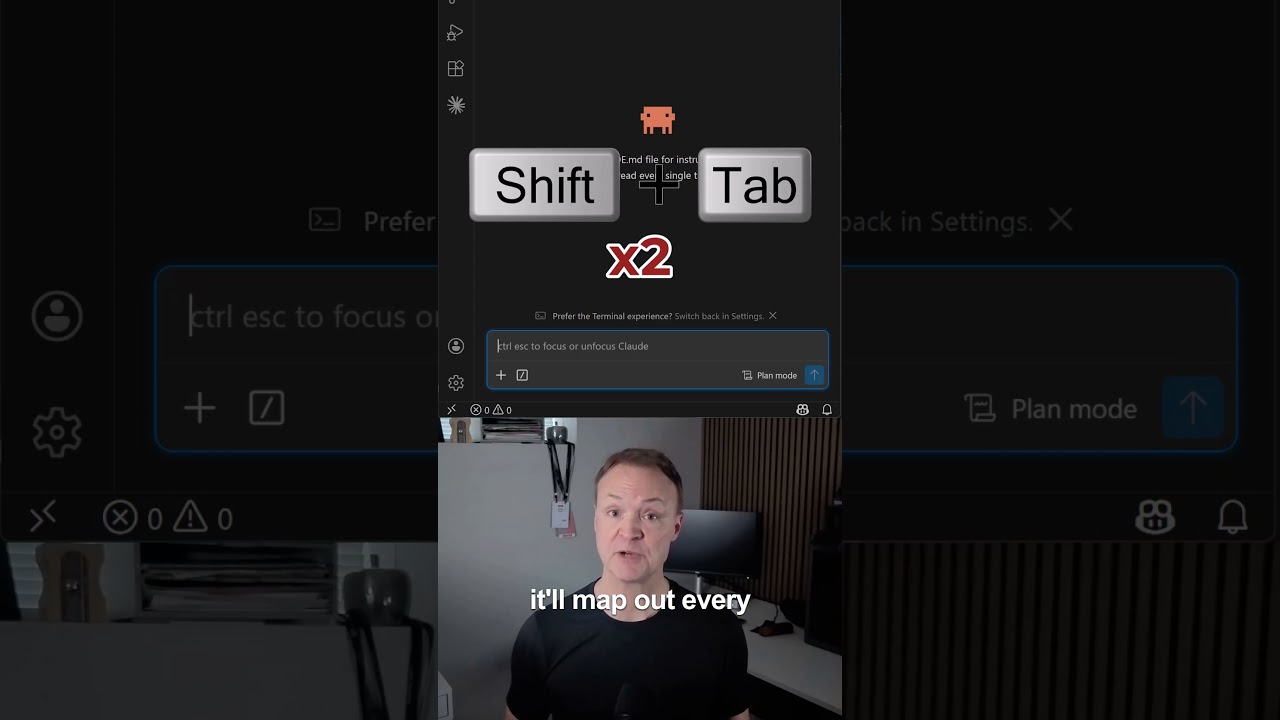
Khiip kept the link to the original. Enable [media] download_videos to fetch the video file.
Watch at https://www.youtube.com/shorts/WvGE_wQpdjM
Description
If you’re using Claude Code, these three tips will save you hours, especially by understanding how to use claude code effectively. Learn about the power of the claude md file, a plain text file you drop into your project folder that Claude Code reads automatically to define your preferences, coding style, and rules. This approach to claude code workflow helps avoid repetition and ensures Claude Code understands your needs from the start, making it a crucial part of claude code best practices.
Transcript
0:00 If you’re using Claude code, these three tips will save you hours. Most people skip all three. Tip one, create a claw.md file. This is a plain text file you drop right into your project folder and Claude code reads it automatically before it does anything. Put your preferences in there, your coding style, your folder structure, your rules. Now,
0:18 every single time you start a conversation, it already knows how you work. No repeating yourself. Think of it as as your agent’s brain. Tip two, use plan mode. Hit shift tab twice and Claude code switches from just doing things to planning first. It’ll map out every step before writing a single line of code. You review the plan, say yes or
0:36 make changes, and then it executes. This one change alone stops most of those moments where it builds something completely different from what you wanted. Tip three, give it goals, not instructions. Instead of saying create a file called app.js and add a function that does this, say build me a research tool that takes a topic, searches the
0:53 web, and saves the report. Let it figure out the how. That’s when Claude code goes from an assistant to an actual agent working for you. Full beginner tutorial on my channel, check out the link.
All renders are real Khiip daemon output — every pane is the identical post. Raw = a plain URL-fetch; Khiip = the free base AGPL render; Khiip Plus = the styled render.
Everything we capture — free vs Plus
Every element per source, from the capability canon. Hover a source name to preview its real Plus render.
In every tier — always
- plain Markdown in your own vault (portable, greppable, git-able)
- works offline once captured
- typed payload queryable over MCP + REST
- bitemporal (valid_from vs recorded_at)
- raw source bytes kept (re-derive later)
- failure-transparent per-capture status
- de-duplicated (ULID)
- provenance: URL / host / year / filetype / id
- no ads / promoted / sponsored / suggested
- no tracking or telemetry
- no algorithmic reordering (chronological, faithful)
| Captured element | Khiip free / self-host | Khiip Plus $7/mo · $59/yr |
|---|---|---|
| X / Twitter Khiip Plus render · X · Article X · Article
Karpathy’s CLAUDE.md hit #1 on GitHub with 82,000 stars. Most devs still haven’t read it.502842.5K13.7K A file named CLAUDE.md hit #1 on GitHub Trending.82,000 stars. 7,800 forks. It started with Andrej Karpathy. Former Director of AI at Tesla. Founding member of OpenAI. He identified 4 behaviors that make Claude Code fail and wrote them down in a single file. A developer took those 4 rules, expanded them, published the file. It went viral… The reason: coding accuracy went from 65% to 94%. Most developers using Claude Code daily have never set this up. They’re starting from zero every session. Re-explaining the same context. Cleaning up unwanted scope changes. Reverting refactors nobody asked for. This is the full file.
The setup most devs missedEvery time you open Claude Code, it starts with nothing. It doesn’t know your stack. Your standards. Your project context. What you’ve already tried. What you explicitly decided not to do three sessions ago. So it guesses. And when it guesses, it refactors code you didn’t ask it to touch. It suggests frameworks that break your existing architecture. It deletes files without asking. It contradicts decisions you already made. CLAUDE.md is a plain text file you place in your project root. Claude Code reads it automatically at the start of every session. One setup. Zero repeated explanations. Three categories of expensive mistakes fixed. 1 / 3 | DEFAULTS: $375/week you’re spending to repeat yourselfThe average developer spends 30 minutes per day re-explaining context to Claude. Stack. Coding standards. Project background. What’s already been tried. None of it persists between sessions unless you write it down once and let Claude read it every time. 30 minutes per day at $150/hour developer rate: $375/week. Per developer. For a team of 5: $1,875/week gone.
These 7 rules go at the top of your CLAUDE.md file. → Kill the filler: → Match length to the task: → Show options before acting: → Admit uncertainty before it costs me: → Who I am and what I know: → Current project context: → Lock your voice:
mistake to avoid: don’t write your CLAUDE.md from scratch. Use this prompt first, then edit the output: 2 / 3 | BEHAVIOR: the $150/hour changes you didn’t authorizeYou ask Claude to fix one function. It refactors three files, renames your variables, reorganizes imports, and rewrites comments you spent time crafting. All without asking. 1 hour to review and revert unwanted changes: $150. Three times a week: $450/week. Per developer. For a team of 5: $2,250/week spent cleaning up changes nobody authorized.
These 7 rules go in the behavior section of your CLAUDE.md. → Stay in scope: → Ask before big changes: → Confirm before anything destructive: → Hard stops for production: → Always show what changed: → Never act without explicit confirmation: → Think before you write code:
3 / 3 | MEMORY + STACK: the setup that makes Claude Code actually reliableClaude forgets everything between sessions. Every decision you made. Every approach that failed. The reason you chose Prisma over Drizzle six months ago. The constraint that exists because of a specific client requirement. It forgets. Then it suggests exactly what you already ruled out. This section gives Claude the closest thing to real memory that currently exists. And locks your tech stack so it stops proposing tools that break your existing architecture.
→ MEMORY.md decision log: → Session end summary: → ERRORS.md failure log: → Permanent facts list: → Lock your tech stack: → Extended Thinking for hard decisions: → The 4 rules that went viral: Karpathy identified 4 behaviors that make Claude Code fail. A developer distilled them into these 4 lines. Coding accuracy went from 65% to 94%.
CONCLUSIONHere’s the full math.
One plain text file. 21 rules. Two hours of work. The developers who set this up are working with a version of Claude that remembers decisions, stays in scope, confirms before destroying anything, never suggests a framework that breaks your architecture. The ones who haven’t are spending $975/week to repeat themselves. p.s. start with Karpathy’s 4 rules. just those 4. paste them into a new file called CLAUDE.md in your project root right now. it takes 2 minutes. add the rest one week at a time as you notice what’s missing. Bookmark this before it gets buried. If this was useful, share it with one person who needs it. 502842.5K13.7K | ||
| handle | ✓ | ✓ |
| display name | ✓ | ✓ |
| full text | ✓ | ✓ |
| timestamp | ✓ | ✓ |
| bold/italic facets | ✓ | ✓ |
| hashtags | ✓ | ✓ |
| mentions | ✓ | ✓ |
| links | ✓ | ✓ |
| likes | ✓ | ✓ |
| reposts | ✓ | ✓ |
| replies | ✓ | ✓ |
| poll | ✓ | ✓ |
| Community Note | ✓ | ✓ |
| reply-context breadcrumb | ✓ | ✓ |
| X-Article title + preview | ✓ | ✓ |
| avatar Plus | — | ✓ |
| follower/following counts Plus | — | ✓ |
| verification class Plus | — | ✓ |
| views Plus | — | ✓ |
| bookmarks Plus | — | ✓ |
| quotes Plus | — | ✓ |
| media (photo/video/gif) Plus | — | ✓ |
| QRT chain Plus | — | ✓ |
| X-Article full body (all block types) + cover Plus | — | ✓ |
| self-thread stitch + conversation lineage | — | — |
| link previews | — | — |
| Reddit Khiip Plus render · Reddit · Text post Reddit · Text
My Second Brain PlaybookMethod I recently read Building a Second Brain: A Proven Method to Organize Your Digital Life and Unlock Your Creative Potential by Tiago Forte. It was pretty good! But one thing that was missing for me was a clear operating procedure for how to interact with my second brain. This post outlines how I use my second brain. ☀️ Daily (morning). Start each day by asking: What do I want to accomplish today? 🌙 Daily (evening). End each day by asking: Did I accomplish today’s goal? Capture any ideas that will help tomorrow. 💡 In the moment. When a thought or to-do pops up, capture it in my second brain and stay focused on the task at hand. 🗓️ Weekly. Block out thirty minutes to process my inbox, organize notes, review active projects, and check that my areas of responsibility are getting attention. 🚀 When starting a new project. Create a project file with the goal and target completion date. 📚 After finishing a book or article. Add a resource entry with key takeaways and any quotes that might be useful in the future. ⏱️ Ongoing. Add time estimates to to-dos and track how long things actually take. That feedback will help me estimate more accurately. I’d love to hear your thoughts! 5021
Comments
| ||
| title | ✓ | ✓ |
| post type (text/link/image/video/gallery/poll) | ✓ | ✓ |
| body | ✓ | ✓ |
| link URL | ✓ | ✓ |
| subreddit | ✓ | ✓ |
| flair (+ pill colors) | ✓ | ✓ |
| author flair | ✓ | ✓ |
| author username/URL | ✓ | ✓ |
| NSFW/spoiler/locked/stickied | ✓ | ✓ |
| score/upvotes | ✓ | ✓ |
| upvote ratio | ✓ | ✓ |
| comment count | ✓ | ✓ |
| top-level comments (author/body/time/edited/score/removed/badges) | ✓ | ✓ |
| media (image/video/gallery) Plus | — | ✓ |
| deep nested comment tree Plus | — | ✓ |
| load-more past ~200 default Plus | — | ✓ |
| crosspost parent Plus | — | ✓ |
| poll options | — | — |
| YouTube Khiip Plus render · YouTube · Video YouTube · Video
Second Brain with Claude Code x Obsidian (Andrej Kaparthy method pt 2) 3.5K views · Apr 24, 20266811:10:41
Video not downloaded Khiip kept the link to the original. Enable DescriptionGet the full step-by-step project guide here: https://learn.nextwork.org/projects/ai-second-brain-claude-code-2?utm_source=youtube Project 1 is here: https://learn.nextwork.org/projects/ai-second-brain-claude-code?utm_source=youtube Welcome to the Automate Your AI Second Brain project! Turn your Obsidian vault into a daily operating system with Claude Code. What you’ll learn today: 🔐 A private GitHub repository backing up your vault with automatic syncing via the Obsidian Git plugin. 🔌 MCP Connectors linking Claude Code to your everyday tools like Google Calendar, Linear, and Notion. 🔄 A /pull-sources slash command that auto-ingests Claude Code sessions, Gmail, and Granola transcripts straight into your vault. ☀️ /briefing and /debrief slash commands that generate a personalized morning brief from your wiki, calendar, and priorities, then capture your day each evening. TIMESTAMPS 00:00:00 - Welcome to this project! 02:59 - Step #1: Get Your Vault Ready 09:24 - Step #2: Back Up and Connect Your Tools 26:14 - Step #3: Auto-Ingest Your Sources 38:48 - Step #4: Create Your Priorities Document 44:38 - Step #5: Build and Run Your Daily Loop 1:00:42 - Secret Mission 1:08:37 - Before you go: Clean Up Your Resources 1:09:59 - Mission Accomplished! #claudecode #obsidian #nextwork #learnwithnextwork Want to join our community? https://community.nextwork.org/ Chapters
TranscriptWelcome to this project!0:00 Now, if your social media is anything like mine, you’re seeing all of these people building Claude Code and Obsidian second brains. Now, this became extremely popular because of this man, Andre Kaparthy, who was one of the early OpenAI researchers. He put out this methodology on GitHub on how to create your own LLM knowledge base, became 0:18 super popular, and a bunch of people started trying it out saying that it was absolutely life-changing. Now, me, I’ve been using a second brain in Notion for about the last year. So, I wanted to try this out. So, last week I built a part one of this project series where I built a second brain with Claude Code and 0:35 Obsidian, and we went through and we actually created exactly what you see right here. Now, I got a lot of comments, feedback, people being like, “Oh, how can I improve this? What are some other things that I can do here?” So, me, I wanted to experiment on the second brain see if it was actually useful cuz I think there’s 0:53 a lot of people on social media who just put this out and then they say it’s life-changing, the best thing ever, but they never actually use it. So, I wanted to see if this is actually useful and something that I can actually get value out of. Um and then hopefully you guys can get value out of and build things for yourself as well. So, in this project, we are not going to be using the terminal cuz that was one of the 1:11 most common things that I got. We’re going to be using the Claude Code desktop UI, which is very, very nice. We’re also going to be looking at different things like routines so that we can schedule tasks to run in the cloud instead of leaving our laptop on the whole time. We’re going to look at token efficiency, and we’re going to just make our second brain a lot better. 1:29 And let’s the end if we actually build something that is worthwhile. This is only going to take about an hour to do. Uh I’d recommend doing part one of the project series if you haven’t, but you can actually do part one within this step-by-step guide as well. You don’t have to have any experience, and by the end of this project, you’re going to have a private GitHub repo that’s going to back up your uh all of the work that 1:48 you’re doing, and it’s going to plug into Obsidian. We’re going to use MCP connectors, which are going to connect different tools, so things like Google Calendar, Linear, Notion, Slack, all of these different areas going to connect into your brain so that you can run these pull sources and auto ingest all the information that 2:05 you want. You’re going to learn how to customize that. You’re going to learn how to also create some briefing commands and debrief commands so you will get an entire automated schedule of your day, and at the end of the day, you’ll run through what you’ve actually done so that you can adjust things and tick things off as you go. Now, the most important part in this project, or the 2:24 part that I think is most valuable, is actually the power of cloud routines. This is something that was released by Anthropic like about a week ago now, I’d say, maybe a week and a half. And what this is going to let you do is run daily tasks in the cloud so you don’t have to keep your laptop on, and actually get these things to run 2:42 anytime that you want. Now, this is a free project. You can get this entire guide for free. I’ll leave it in the link down below. But, all you need is a Claude Pro or Claude Max subscription. So, let’s go ahead and get started with this project. As you can 2:58 So, let’s go ahead and do step one here, Step #1: Get Your Vault Ready3:01 and that is getting our vault ready. So, in the first part of the project, we did the project in our terminal. In this part, we’re going to connect in all of these MCP connectors to calendar, chat, docs, all these different different areas. And by the end of this step, we’re actually going to be in the same part uh that we were in part one, but 3:18 we’re going to be connected in with those MCPs. So, in this step, I am setting up Claude Code desktop, uh and I’m also going to bring in part one of the vault, and scaffold a new Claude MD file with four {slash} commands. Then, I’m going to verify that 3:37 everything works, and this will get me to the point where I should have been if I had done part one. There we go. So, let’s go ahead done here, and and in case you’ve never done a Next.js project before, as you do the project right here, just click this documentation button, and you actually see all of your work getting live added in, and this is very, very useful 3:55 because you can showcase your work to recruiters or to your friends or anyone else who wants to do this. Now, I have actually already installed Claude desktop, which you see right here. But, in case you haven’t, you can click this tab right here, and it’ll run you through all the steps that you need to be able to install Claude desktop. Now, 4:14 I have, so I’m going to go here, and I’m going to make sure that I go into this this code tab right here. Now, the code tab is one that I was already selected in. Yours might look something like this. Don’t worry. Click this tab right here. Those two little What are they called? I don’t know. I always call them 4:31 crocodiles. The crocodiles, and you’ll see something that looks like this. Now, the first thing I’m going to do, I’m running Opus 4.7. I’m just going to change this to Sonnet 4.6. Sonnet 4.6 is going to be more than powerful enough to handle what we’re going to do in this project, and we don’t want you spending 4:48 too many credits. Uh of course, if you’re on a Claude Pro or Max plan, you’re not going to be charged anything for every usage that you have, but you may run into sessions session limits. Uh but, in this project, we’re actually going to show you how to optimize your token efficiency as well. So, that is something we’re going to do as well. So, let’s go back to the guide 5:06 here. I’m going to scroll down. We’re running this in the desktop because so many people spam me saying they didn’t want to use the terminal. So, >> [laughter] >> that’s the reason we’re doing this in the desktop. It is also a lot easier to use uh this interface as well. Now, again, I have already done part one of this project, but if you’re starting from 5:24 scratch, you can do a really quick version over here, and this is going to walk you through the Obsidian setup. But, I have completed part one, so I’m going to make sure that I follow these steps right here. We’re going to set local as our environment, and we’re going to navigate to our second brain folder, which is in our documents. So, I can go into local here. 5:43 That’s exactly what we want. And I’m going to go to the second brain folder. I’ve already done this, obviously, but I’m going to go into here, go documents, and this is the second brain that I want to open up, and this is from our last project. So, you should see something that looks like this, and make sure you deselect work tree. Uh work tree is 6:01 going to create an isolated copy of this repo, and that’s not what we want. We want to be working on the main branch here. So, let’s go back to the project guide. We will scroll down here once it loads, and we’re going to set the permissions to ask permissions. Uh you can either set it to ask or auto accept um the 6:19 edits. I like to set it to uh to ask permissions at first if I’m trying to understand something new that I’m doing. In this case, I’ve already done this project, so I’m going to leave this as auto edits um or accept edits. But, if you have ask permissions, it’ll always ask you to uh for permission essentially before Claude goes ahead and does 6:39 things. So, let’s scroll down here. I’m going to take a screenshot of the second brain vault, and we’re going to put this in here. So, go into here. I’m going to take a screenshot of this, and then I’m going to drag the screenshot into here, hit done, and you 6:56 will see the screenshot populating in here looking beautiful, which is nice. Now, let’s scroll down here. Let’s verify that everything is working. So, last check whether you bought your part one vault or scaffolded a new one, and we’re going to run these four {slash} commands. Now, these are slash 7:13 commands we created last time. So, we’re going to go ahead into here. We’re going to say list the commands available in this vault and summarize the Claude MD in one paragraph each. So, I’m going to hit done here. Now, let’s see what Claude is doing here. All right, looking beautiful. 7:32 Yep, this is looking right. I already actually have these commands in here, which I don’t want. I’m going to say, "Can you please delete the {slash} briefing and the {slash} debrief commands uh and the {slash} pull resources so that I just have the first four commands as this is where I want to start the 7:51 project." Nice. Of course, when you’re doing demos like this live, things like this are going to happen, but I want to get to the exact same point that everyone is at so that we can all do this together. Now, it might take some time to do this, so I’ll join you back when it’s all done. All right, so it’s all looking done now. I’m actually going to just 8:09 rerun this right here, and I will go into a new session. So, I can just go up to the top left just here, click new session, and I’m going to run this again. Hopefully, we’ve got the right thing. So, 1 2 3 4, that is perfect. These are the four things we want. Ingest is going to process new 8:26 files from raw into wiki pages. We’ve got answer questions by synthesizing wiki content, health checks for broken links, orphans, and stale pages plus contradictions, and then log, which is kind of like a log of all the things that we’re doing. So, this is perfect. This is exactly what we want. 8:44 I’m going to go back into here. I’m going to scroll down, and we can see these four commands right here, which is nice. So, I can go ahead, and I can take a screenshot of this, and I’m going to paste it into this box here. And now it says, "Which four {slash} commands are you carrying into the rest 9:02 of the part two, and what is each one for?" I’m carrying in {slash} ingest, {slash} query, {slash} lint, and {slash} log. 9:22 Amazing. So, let’s go ahead. Yeah, and Step #2: Back Up and Connect Your Tools9:24 that brings us onto step two. All right, so in step two, what we’re going to do is back up and connect our tools. Now, our vault is loaded with {slash} ingest, and it stitched your raw materials into a proper wiki. Now, this is obviously something we did in part one. If you 9:42 haven’t, make sure you go up and you do that. But, beautiful. Uh this is what we want, but everything is still living on our laptop. Now, Claude still only knows what is inside that folder. So, next we’re going to give our second brain a home on the internet. We’re going to use GitHub to do this, and we’re going to automate 9:59 this as well. We’re going to use a plugin with Obsidian to auto sync every 10 minutes in the background so that uh GitHub and our Obsidian are always in sync. And then lastly, we’re going to wire at least one MCP connector so Claude can read our calendar, chats, or docs. So, in this step, I’m 10:18 going to create a private GitHub repo to push our vault to. I’m also going to connect our Obsidian uh plugin so that we can auto sync every 10 minutes, and I will connect my Google Calendar MCP. Beautiful. 10:36 Let’s go ahead and hit done here. And now we’re going to do we’re going to check uh if we have Git installed. If you don’t, let’s actually go into the Claude desktop version right here. Let’s see what I’ve never actually done this. But, uh I’ve always used the terminal, 10:55 but you can see that you can run to terminal commands in this UI, which is beautiful. So, our Git version is this right here. That’s exactly what we want. So, we have Git installed. If you don’t, make sure to click this, and you can go ahead and do this. Now, next we’re going to add in uh username. This is a username for our 11:14 GitHub account. Um if you don’t have a GitHub account installed, you’re going to make sure that you create one as well, which you can do in here. Um but, make sure that you have a GitHub account created. I have already set this up, but essentially all I would do here is go username, and I’d put in my GitHub 11:31 username, which is minimus7, and then I would put my user email, which is maximus@next.org. Now, the reason we do this is because Git is going to attach a name and email to every commit or save that we make to this vault, and it’s going to show who made the change. So, even if we’re on a solo repo, it’s still good practice to 11:49 do that. But, now what we’re going to do is go ahead and create a repo. So, let’s go to GitHub right here. I’m going to open up this. I’m going to choose myself as an owner cuz I’m in a few different organizations, and I’m going to name this second brain. Perfect. Now, let’s go back to 12:11 the guide right here. Description, my AI second brain vault synced with Claude code. That’s beautiful. And we’re going to actually change this to private. We don’t want people to see this. We’re not going to add in a read me or a get ignore or anything like that, and we’re going to go ahead and 12:28 create our repository here. Now, let’s go back to the guide. We’ll scroll down a bit. And now that the empty remote repository is waiting, swing back to your terminal and add in a get ignore, and push your first commit. So, before the first commit, tell get 12:46 which files to skip. Some files inside your vault are specific device specific noise that would only cause merge conflicts across machines. So, let’s go to our terminal. We’re going to CD into documents in our second brain folder. And I have never actually done this. I 13:03 actually did this firstly in the terminal, but I’m kind of interested to see if this works. So, it’s going to Oh my gosh. Let’s go. Such a clean UI. I think the future is going to be very little terminals, to be honest. Same with this. I wonder what will happen if we run this command. So, we’re opening up our get 13:22 ignore now. Perfect. This is exactly what we want to see in here. So, if we go back to the guide right now, um you can see that it is already pasted in these right here. Um if you’re not seeing that, just copy this, and I think this is also because I had a get ignore running. And 13:41 you want to press command save to make sure that we save this or control S if you’re on Windows. We’re going to save that file right there. And essentially what we’re excluding is this workspace JSON from Obsidian, and then the mobile JSON. So, we’re going to save your personal Obsidian layout and 14:00 like which notes are open, how your panes are arranged, and where your cursor is. So, that is specific to our device and that we’re on, so syncing it would just override our layout every single time that we switch machines. So, we don’t want to do that. We don’t want to save all of these random things that we don’t need to do every time that we’re on a different machine. 14:17 Now, lastly, we also included trash in our get ignore, and this is Obsidian’s recycling bin for deleted notes. We don’t want to push our deleted notes. We want to delete them forever, so that makes sense. Now, let’s go initialize your vault as a Git repo and make your first commit. So, 14:36 in our terminal, we’re going to go ahead and do this. I’m going to go into here. I’m going to go get commit. So, we’re initializing, we’re adding, and then we’re committing. So, I will allow this. And that is beautiful. Amazing. 14:55 Now, let’s scroll down here. And we can do this. So, go back to your second brain repo on GitHub and copy the commands or push and um for this right here. And if you’ve already initialized the repo in a previous project or you’ve done this um before, then this is going to 15:13 help you out right here. Um if not, you’re completely fine. So, let’s go ahead and run this right now. And we’re going to run these commands. This is the remote origin. Perfect. It’s all looking beautiful. 15:32 This is exactly what we want to see. Push successfully. Branch main is now tracking the right branch that we want. That is beautiful. So, let’s go scroll down here, and we’re going to go back to GitHub here, and if I hit this refresh button, you should see 15:50 all of these files. How magical. Let’s go ahead and take a screenshot of this, and I’m going to go back into here, and I’m going to paste this into this box right now. Now, what we’re going to do 16:09 is set up an auto sync with Obsidian Git. So, pushing once is nice, but pushing every 10 minutes forever without thinking about it, that is a pretty cool thing to do. Now, this is what uh the Obsidian Git plugin does. So, let’s go ahead and do that. So, we’re going to go into 16:26 Obsidian now. I’m going to open this up. Obsidian. And we’re going to go to this toggle window right here. I’m going to click into settings, and I actually already have this installed, but I’m going to show you how to do it. Go to community plugins right here. I’ll 16:43 delete it so that I don’t have it installed. And now, we want to go to this browse tab right here. We’re going to go type in Git. Click on that, and then install Git. Now, we’re not actually done here. We need to click enable, and this is going 17:01 to enable us uh to connect to the GitHub repo that we want. So, let’s go back to the project guide here. We will scroll down, and we are up to here. We’ve enabled it. Now, we want to go ahead and change some settings. So, we’re going to go to the settings tab. We’re going to set up auto 17:20 commit and sync interval to every 10 minutes, and we’re going to also going to choose auto commit and sync after file edits, and also pull on startup. Plus push and commit on sync. A lot of things. Don’t worry if you didn’t catch that. We will do it slowly. So, you can go settings right here. 17:37 If you didn’t know how to do that, and you’re lost on this page, just go back into settings, go to Git, and then we need to enable a few things here. So, let’s scroll up. We will scroll down a little bit. What am I looking for? Wait. Let’s go back to the project 17:59 guide. Even I forgot. We want to have uh settings Git, and then we want auto commit and sync interval. So, let’s look at that. Auto commit and sync interval. Where is it? I just had this before. 18:18 That’s so interesting. Give me 1 second. I’m just going to have a look. Oh, it wasn’t working because I have disabled on this device, so it’s going to take a little bit of time. I will uh I’ll join you back when this is all set up. Okay. So, now it’s looking a bit better. This is what we want. So, we want to enable this. That’s the first 18:37 one we want. And we’re going to do auto commit after 10 uh 10 minutes right there. That’s what we want. We will also auto pull interval. Let’s go 10 minutes as well. We don’t need to uh sync on stage files. Commit messages is fine. 18:58 Let’s scroll down here. We want to pull on startup, so every time that we uh open up Obsidian, it’s going to pull from our vault. And push and commit on sync. That’s beautiful. Pull and commit on sync. That’s what we want as well. So, if we run these sync commands, it will all work with our GitHub 19:17 repo, which is beautiful. So, that’s all we need. We’ll go back to the project guide right here. We’re going to scroll down, and we will go into this section right here, which is uh running our own get commit and sync. So, if we go command P, 19:35 that’s going to open up this command palette, and we can go and get com um commit. Oh, maybe I need to restart this um because it hasn’t pulled in the latest changes. Yeah, so if your if yours isn’t coming 19:53 up with get commit and sync there, often one of the things I find is that you need to run you need to essentially close the application and run it again. So, restart it. So, I’m going to go shift P right here. You can see get commit and sync is at the top. And I will run this here. There’s nothing that we actually need to 20:10 change right now. Um but if we go to our GitHub repo, because what it’s done is it’s pushed and pulled on sync when I opened it up again, you can see that we’ve made those changes. So, let’s go to our repo. And you can see there was a commit 6 minutes ago, which is exactly when this 20:28 happened, which is beautiful. Um let’s double-check. Nice. There we go. So, it was like 6 minutes ago. I don’t think that actually happened 6 minutes ago. It happened 1 minute ago, which is what we wanted. So, we can see our commit is in there once we refreshed our page, and we can go back to the project guide right here. 20:47 If you don’t see a commit on GitHub, you can click this tab right here, and there’s a few different things that you can run through. But, it can be a little bit frustrating when you haven’t closed your Obsidian and then restarted it again, cuz you’re not going to see those changes. Now, let’s take a screenshot of that commit 21:05 right here. I’m going to go screenshot this. I will go into here and click done. And then we will add in our connectors now. So, our vault is versioned and 21:23 safe, and we’re going to let Claude we’re going to now give Claude a window into the world outside of our vault. And this is where MCP connectors are super super important. If you’re wondering what MCP is, it stands for model context protocol. And essentially, I like to think about it as a way for AI tools a a simple workflow for them to connect to 21:44 other AI tools. Kind of like we have HTTPS for the internet. It’s a standard. It’s a framework for the internet to essentially people know the rules of websites. What this is doing, it’s it’s allowing AI tools to know the rules so that they can connect with other AI tools. 22:02 So, we’re going to go to Claude desktop. We’re going to click the plus and we’re going to select a MCP connectors in here. Let’s go to Claude desktop. We’ll click this plus and we’re going to go connectors. And we will go add connectors. So, what do we want to add in here? The question to that is 22:20 what do you want to have in your second brain? Do you want to have Google Calendar in here? Do you want to have linear? Do you want to have Slack? You can add in whatever you want. And in this case, I’m going to add in Google Calendar. And you may see that mine doesn’t have a plus yet because I’ve already added this in, but I can go into here. 22:38 I’ll disconnect it. I’ll remove it so that I can show you guys how to do it. You’re going to go connect and it’s going to go ahead and connect you to your Google Calendar. Now, you’ll see that mine comes up with an error there, cuz it’s already done this before and I can see Google Calendar is already enabled here. 22:56 But, there’s all these different tools that I have as MCPs that I don’t use in my second brain that I use for other things here. Um but let’s say I want Google Calendar, linear, Notion. Maybe my Gmail, too. These are things that I would probably want in my second brain to give it context. Now, we can go back to the project guide 23:15 right here. We’re going to uh have different settings and that we can actually control. So, in our Google Calendar, if I wanted to give it access to only certain things, I could go into connectors. I could go to manage connectors here. I’ll go to Google Calendar. 23:32 And there’s some things that I I’ve I’ve given Claude the MCP connector always the ability to read use read-only tools, but things like creating calendar events, deleting calendar events, responding or updating, I need approval. So, uh the MCP tooling will stop and it 23:51 will ask me for approval before it actually goes ahead and does these things. Now, we can go ahead, we can customize all of these different things for our Gmail, Google, linear, whatever you want. Take your time here. Look through all of the settings so that you can get to a place where you’re actually happy with the accessibility 24:09 that you’ve given these tools. So, let’s go back to customize here. I will go back to the project guide and I will scroll down to here. Now, I will copy this in and I’m going to go to the Claude desktop session that I have running here in Claude code. 24:27 I’m going to go what meetings do I have today? And you’re going to watch the MCP tool get called here. So, let’s see. Using tool search, and you can see it’s actually searching for events in my calendar. Uh and it’s using that Google Calendar MCP. Now, I can see that I have five meetings right now. It’s actually 24:46 currently 3:20 p.m., so I’m missing my one-on-one with my boss, which is kind of bad, but she’s outside and I think she’s going to be cool with it because I’m trying to record this project for you guys. So, you can see that now I have my Google Calendar synced to my Claude account, which is crazy cool, 25:03 right? Now, we will go back to the project guide because this is just the start. This is literally just the start of the things that we can do. So, I’m going to take a screenshot of Claude code desktop running and we will answer the question as well. So, Claude code going to be able to do this. Beautiful. 25:22 I will paste this into here. And I connected my Google Calendar to Claude and pulled in my meetings for the day. Now, of course, like I said, you can pull in all of these different resources. You can add in your Notion. 25:39 You can add in your linear. You can add in your Google Calendar. The more things you add in, the more context you will use. And we will show you how to optimize and make this efficient, but it is something worth noting that if you’re building a second brain and you are building it with a lot of different connectors, it is going to be expensive 25:57 to run. It’s going to use up a lot of tokens and it may be something that you are cautious about. Um but again, we can always customize things and I think the the purpose of this project is to teach you how to do these things so that you can go ahead and customize them yourself. Step #3: Auto-Ingest Your Sources26:14 Now, this actually brings us on to step project. Now, in step three, what we’re going to do is auto ingest our sources. So, obviously it is tough to do this manually, and now we have our vault backed up. We can also reach our different tools with MCP connectors. But right now, the reach is read-only. Every briefing still starts with a cold vault 26:33 unless you drop a fresh note from raw yourself. Now, this is exactly what the copy-paste version of this of of essentially creating a second brain would look like. We don’t want this. We want to automate it. So, let’s run a slash command here that is going to capture from our real sources on demand and ingest them using 26:53 the slash ingest command. Now, that is what takes our wiki from something you maintain to something that maintains itself, which is beautiful. That’s what we want, right? So, in this step, what are we doing? I’m building a pull sources command that is going to 27:12 capture Claude code sessions. It’s going to pull in different tools that I wanted. And we’re also going to look at uh triaging the pull sources captured by skimming the one-liner headings and deleting anything that doesn’t belong in our wiki so that we don’t waste tokens. Then we’ll run a slash ingest command on 27:32 the ones that we want and confirm new materials that are going to flow into our wiki. Remember, our wiki is where the information that we want to query will live. So, firstly, how much does it cost to do this step? Both the pull and the 27:50 slash are going to run through our Claude subscriptions. They’re not an API bill. So, they spend against your limit. You may run into session limits depending on how much you’re trying to pull in, but I think it’s good to actually understand that so that you can see what this is going to look like for you moving forward. Now, I’m on a max plan, so I’m not going 28:07 to run into these issues, but if you’re on a pro plan, you may. So, pull sources is light. It’s mostly going to read local files and then MCP data. Um if you are running a large MCP port, it may actually require a lot of tokens. Ingest is going to be heavier. This is going to read every file in raw. 28:25 It’s going to dedupe it. What a weird word. Cross-reference and write new wiki pages. Expect it to eat a noticeable chunk of your daily quota when you first run it because it’s going to be expensive. So, let’s go ahead and build our pull sources. 28:43 Slash commands are just uh files that live in our commands folder within Claude. So, we’re going to write one to spell out where to look, what to write, and how to hand off to slash ingest. So, before we write the prompt, let’s skim the sources you’re starting starting with so we know what command is reaching to. 29:00 And we can add more later as well. So, let’s pull what we will read, not what’s available. Every file your command pulls becomes a flat a file that slash ingest processes. So, wiki page it might create in any context a future slash briefing might read. The default 29:19 posture here is selective, which is not greedy, but when you set up each source below, pick a realistic volume cap and name what to skip. Widing the net is later easy on. Shrinking a bloated wiki is harder. So, let’s go ahead and do this. 29:36 Rather than filling in the placeholders yourself in the prompt below, ask Claude to interview you about the sources, and then we can do that as well. So, let’s go ahead. We’ll copy this into Claude and and go into our desktop and we will paste this in. Now, what this is going to do is it’s 29:53 first going to interview us on different things and different questions that we have within here. So, we’ll see here additional sources beyond Claude code Claude code sessions, which will always be source one. Which one of these do you want to pull from? So, again, if you don’t want Claude’s code sessions in your second brain, you don’t need to have that in 30:12 you can tell Claude this and that’s the way that I’ve set up this project so that you can customize it yourself. So, I’m going to say I actually just want to have my calendar in here um and Claude code as well. I don’t want anything else at the moment. You know what? 30:31 Yeah, I think that’s good for now. I don’t want too much in here. I’m going to leave it pretty bare-bones and over time I will add to things if I want that um or not. What to pull? Just today’s events, a rolling window. Um I think it actually makes sense cuz I’m going to do this daily. I just want 30:49 today’s events cuz I’m going to do this daily. Uh max number of events I’m not going to have that many meetings in a day, so it can just be the amount that are in a day. Uh only events where I have I am an attendee. Uh 31:07 That’s fine. I don’t really care about this, only my calendar. And let’s Yeah, you can leave public holidays and that kind of stuff. I’m happy with that naming convention. And the extra front matter keys 31:25 uh let’s just leave it as you suggest. Beautiful. So, it’s going to ask us questions. Just make sure you take your time to fill these in. I’m going to go ahead and do this and it will uh be building something in the background here, which is what we want. So, I’ll update you when we are done 31:43 here. Amazing. So, this is looking good now. And this is Yep, this is exactly what I want. Cool. All good. Now, Claude is going to go ahead and it’s going to create the file here. You can see it is creating a commands 32:01 folder. Let’s go ahead and allow that. And it is creating the MD file for our command that we want. Again, might take a little bit of time, but I’ll join you back when it’s all done. Amazing. Claude has already finished and it has created this file here. If we 32:19 click into here, we can see the file that it’s created. It’s going to have detailed instructions on what the slash command is going to do. And we will go uh we’ll actually take a screenshot of this. Beautiful. And we’ll go back to the project guide. 32:38 Scroll down. And I will go get that from my desktop. Oh, no. This is embarrassing. You’re going to see my thousand screenshots. Anyway, we go which source are you most excited to auto ingest and what would you add in the add your own source here block first? 32:57 Now, the most uh the source I’m most excited about is Google Calendar. For now, I want to keep things simple. Uh eventually, I will add in probably Linear because that is where we have all of our tasks as a team and I want to be able to keep up to date and also update 33:15 Linear from my second brain. Amazing. Let’s go ahead done here. We’re going to scroll down and run {slash} pull resources and verify. So, running the command end to end is where the second brain is going to capture itself uh and the story is going to stop being theoretical. So, you might want to see 33:33 the new files land in {slash} raw uh and then watch the ingest turn them into real pages. So, thing with Claude code uh and any desktop application really is that we need to close this before we can run this again. So, I’m going to go out of here. I’ll type in Claude. 33:51 And now, when we go to the code tab, we should be able to type in uh the command that we need to run, which is pull sources, if you haven’t seen it before. Going to run pull sources here and this is going to allow us to be able to pull in our sources. 34:09 So, we can go ahead, hit enter. It’s going to take some time. May take around an estimate Let’s say two to three minutes, depending on how many sources you have. But what it’s going to do is it’s going to find the last seven days for calendar cuz that’s what we put our instructions in as and we will go from there. So, I’m going 34:27 to hit uh always allow here and I’ll join back with you once this is done. All right. We’re looking like Claude is cooked, which is nice. And you can see this note here. Before running {slash} ingest, let’s have a look at these uh files that we have in the Obsidian repo. So, let’s go into here. 34:46 Go into raw because this is where our files are going to live. We’ve just pulled in these sources. They’re raw right now. We want them to be ingested into our wiki. So, let’s go into here. I’m going to go into calendar. And as we talked about, this is only going to pull in my calendar events for today. So, I have my one-on-one with 35:04 Amber, which is my boss. I’m sorry, Amber. We’ve got lunch. We’ve got town hall. Um we’ve got two of them actually today. And then a weekly demo and retro, which is in 22 minutes, so I need to get this done really fast. So, we’ve got our four different sources right here. And that’s what we want. Let’s say I want to delete one. I don’t want to have 35:22 this in here. I am actually going to go ahead and delete this town hall. Uh and I have these four meetings in here. Again, if you did this with other things like your Claude exports or your um maybe you did it with your granola meetings or your Linear issues, these are all things you could do as well. Um but for this, I’m going to going to show 35:40 you how to do this with the calendar and then you can pull in more resources as you go as well. So, I will scroll into here and I’m going to go down. We have in our settings right here, which is beautiful. That’s what we want. We want the files to look like this as well, 35:58 um which we saw. And then we’re going to look at uh deleting what we need. I’ve just gone ahead. I’ve deleted what I wanted to. And now we can go ahead and run ingest. And ingest, what is that going to do? Ingest is going to we need tokens, 36:16 right? To to ingest everything that we have deleted in this raw file. Um not everything we’ve deleted, everything that remains in this raw file. So, if you don’t do this, then running ingest is going to convert everything in these files into our wiki and we don’t want to do that. So, I’m going to go into here. I’m going to run ingest. Make 36:34 sure you’re going to say run ingest on just the calendar files. {slash} ingest on just the calendar files in raw. Beautiful. Uh obviously, if I wanted to, I could run this on everything, but in here, I 36:52 just want to do this so I can show you guys the example of what this looks like. So, now again, it might take a little bit of time, so I’m just going to leave it for now and I will join back with you once it’s done. So, you can see that right now what it’s doing is ingesting the calendar files. 37:09 It’s then going to update the person pages. So, it’s probably going to be updating Amber’s files, which we saw. That’s my boss. And then all of the other files that I’m in, people like Maya or Krishna, people in the team, it’s going to update this with those people as well so that we can connect all of these different meetings 37:27 to different people. Again, this is where this the power of a second brain really starts to come in. And now it’s going to update the index um and it’s going to actually log in something as well into our log.md file. So, let’s wait for that to do that. Might take a little bit of time. 37:45 So, now we can see a summary of what it’s done. Four source summary pages created, the four meetings that I that we just saw. And it’s also updated two people’s pages, one with a recurring cadence for Amber and then also Maya as well. 38:01 And we can go back to the project guide here. I’m going to scroll down and I’m going to take a photo, sorry, of this right here. Let’s take a photo. Add it in here and we will hit done. So, our vault is now going to capture 38:18 itself on your terms and you can run this whenever you want uh so that you don’t have to manually be doing this all the time, ingesting uh essentially going to these different sources, exporting it out daily, ingesting it like that. You can run this manually um without actually having to do it 38:36 by hand. So, the good thing about this as well is that you can delete the sources that you don’t want so that you don’t ingest them and then don’t use too many tokens up. Step #4: Create Your Priorities Document38:48 But this leads us on to step four. And in step four, we’re going to create our priorities.md. Now, the vault captures itself now, but Claude code sessions, inbox threads, and meeting transcripts and more all flow into raw on demand. So, when you run that command, pull 39:06 sources, and ingest promotes them into wiki. But a vault full of context is still not a vault that knows what you actually care about. So, if you ask Claude code for a morning briefing right now, it would pull in every single event, which is not what we want. We don’t want all these bits of context in 39:23 here cuz it’s going to be really crowded for our week. So, now, uh AI second brain, what does it need? It needs a steering wheel. It needs something to actually give it direction. So, a place that our real priorities are for the week. So, in this step, we’re going to create a priorities.md with five sections and we’re going to give Claude 39:40 a clean way to separate deadlines from long-term responsibilities in the background. So, in this step I’m creating a priorities.md folder that is going to give context to what is actually important for me, so that when I run my briefings it is something that I care about. Go ahead and I’m going to hit 39:59 enter there. Scroll down. We’re going to open Claude code desktop with our second brain vault, and we’re going to paste this prompt into our chat. So, I’m going to actually run a new session here. Make sure that we have second brain selected, work tree off. I’m going to paste this in, and it’s going to create 40:17 a priorities.md at the vault root, so next to the Claude MD files, and it’s going to ask us some questions. So, it says, “What projects are you working on at the moment?” I am working on making sure that Next Work has 15% week-on-week growth every single week of our user base. 40:37 Uh and we are doing this for the entirety of the year. In terms of areas, uh I am across content creation. I also in my personal life uh have finances to take care of, plus fitness, uh and I’m also working across the team. So, I have team management in there. 40:56 Resources. Mainly looking at uh What do I look at the most? The best place to to learn in the world. learn.nextwork.org is the resource that I use basically to learn everything. So, that’s what I do, and then the key people I work with are Amber, John, 41:14 Maya, Pano, Krishna, and Natasha. I’m also going to say in here, “I don’t want you to put anything that would be private information in my daily brief, uh because I’m running this demo for a YouTube video.” 41:32 Nice. So, this is just going to give a priorities document, so when we run our commands later on, it knows exactly what we should be looking after, uh and I don’t want you to see anything private, because then I will get fired. I don’t want to get fired. Anyway, it’s going to take some time to do this, and 41:49 I’ll join back with you when it’s all done. Great. So, now our priorities.md file is created right here. I can click into this, and we can see what it looks like. First thing it’s going to say at the top is, “Edit this file weekly.” Our priorities are going to change every single week, so this file is something 42:07 that we want to look at every single week. Now, project that is ongoing for me is the 15% growth. We’ve been hitting that, which is good, but our content engine is also a project that uh is going to probably change as we hire more people. 42:23 I have different areas, I have resources, and I have people in here as well, just for context when we run the next parts of our uh of the project right here. So, take a screenshot here. I’m going to scroll down, and I’m going to pop this into here. Now, let’s go ahead 42:41 and answer this question. My most specific priority is the 15% week-on-week growth. We have to hit that as a team. Uh and the specificity matters because we don’t want Claude to go ahead and look at everything. We want it to be specific 42:59 with what it’s looking for, so it doesn’t overload its context window and then charge us too much money, so we’ll be broke. >> [sighs] >> Let’s go ahead, hit done here. And we’re going to update our Claude MD file to reference priorities now. So, uh at the moment, if we go to 43:18 our folder right here, you can see the Claude MD file. Um That’s kind of awkward. I didn’t delete this. You can see our Claude MD file doesn’t reference priorities right now. >> [laughter] >> Yeah. Let’s go ahead, delete these, so that I’m on the same page as you. Let’s 43:37 go copy this in. We’re going to go back to Claude code right here. Paste this in. Actually, always a good idea to start a new session, so that you’re clearing your context window. You’re not spending more and more each time that uh you don’t clear your context window, it is going to cost you more in terms of 43:53 tokens to run the next prompt. So, make sure you get into that habit. If you’re doing a different task, make sure it is in a different session. But, what this is going to do is just update our Claude MD files. So, it’s super simple. Um hopefully it has done that now, which is beautiful. And we can 44:11 go back to the project guide. We’ll scroll down, and oh my gosh, our files should look like that. Hopefully. So, if I go back to here, you can see that it’s back in here, which is beautiful. Uh isn’t that beautiful how things just sync up so beautifully? I said beautiful a lot of times there. 44:30 Now, we see the files in here. We also see the tree diagram, and we can move on to step This is where we’re going to Step #5: Build and Run Your Daily Loop44:38 actually create our diagrams. And by diagrams, I mean our daily loop. I don’t know why I said diagrams. I’m pretty tired, guys. Anyway, we’re going to create I or we’re going to use our priorities.md uh which we need here to essentially create these two {slash} commands that we’re 44:56 going to be running. Now, uh MCPs are connected up. Now, we need to lay the groundwork for our daily operating system. This is a morning {slash} command that hands you your day, and an evening {slash} command that captures what happened, and one full run end-to-end to actually prove that this works. 45:13 So, in this step, I’m building two {slash} commands, one for the start of my day, and one for the end of my day to check in what I’ve done. And we will run this entirety loop-to-loop, so that we can uh get a simulation of what a day would look like. I’ll go ahead, I’ll hit done here, and 45:31 we will move on to the next step. So, we’re going to build and test uh our {slash} briefing command here. And {slash} commands in Claude code are just markdown files living in the commands. When you type {slash} briefing, Claude code is going to read the matching briefing.md file that we create in commands, like we did just before for 45:50 pull sources. And it’s going to run it as a prompt. So, we can spec this out exactly how we want. We’re going to open up Claude code, go to code the code tab, select the folders as we have before, and then we’re going to paste in this prompt. So, we already have this open. I’m going to run a new session here, paste in this prompt, and 46:09 it’s going to check the priorities for my current focus, check today’s calendar, scan the log for the last three entries, gen- uh reads the wiki pages related to my active projects, and then it’s going to generate a brief with sections today’s schedule, active threads, priority reminders, and suggested actions. It’s going to append 46:28 a timestamp uh entry to the wiki.log.md. And we can go ahead and run this. We also figure out a way to make this more effective, right? Because this Claude MD file where we’re running the commands in, uh we can go ahead and we can change those. We can make this completely specked out 46:45 to exactly what you want. Now, it will take some time again, so I’ll see you back in a little bit. Great. So, we are all done here, but let’s go back to the project guide to check what we’re going to do next. This {slash} command uh is working the exact same way as what we’ve done before. Again, you might need to quit Claude 47:02 desktop here. Like, if I go into Claude right now, and I run {slash} briefing, you’re not going to see it in the terminal, so we need to go ahead, quit Claude, run this up again, and now we should be able to hit {slash} briefing just like that. Let’s go back here just to double-check if we have to 47:21 do anything, uh but we will go ahead and run this. Let’s go run {slash} briefing here. Now, this is what it’s going to do is it’s going to create a brief for our daily uh log. This is what we’re going to get at the start of the day, but again, like I said, we can change this up if we 47:39 don’t like it. We can make this look a little bit different. So, let’s wait for it to do its thing, and hopefully it shouldn’t actually take too long. This should be a relatively small uh task to do. But, you can also take a look at the amount of tokens it’s going to use, so you can see what is efficient and what’s 47:56 not. So, it’s run its course now, and you can see this is what our daily briefing would look like. You’ve got our calendar events right here. You’ve got our active threads, so what are we working on? What is What is things that we need to look into here? And then we’ve got priority reminders and suggested actions as well. So, 48:14 if we go back into our log right here in Obsidian, we can see that hopefully this debrief should be in here as well. So, let’s go to our wiki. We’ll go to our log, and you can see that give it a second. It might take a little bit here. 48:32 Uh if I search debrief. Let’s give it some time. Give it some time, guys. Let’s Obsidian do its thing. You can see that it’s actually run the log over here. Normally, I’d expect it to say {slash} debrief, so if I wanted 48:49 to, I would change the way that this log is actually outputting, so that I know exactly what I’m doing here. Um but in this case, I don’t really actually care about seeing my {slash} debrief in here. Um I don’t need to to do this, but uh you could if you wanted to. Now, I will go ahead, and I’ll take a 49:09 screenshot of the {slash} briefing command and the output that is generated. So, let’s go ahead, run this right here. I’ll paste this in, and I will hit done. It asks to build and test {slash} debrief. So, with building and testing our debrief, 49:26 briefing is a one-shot read that’s going to uh hand you context. The {slash} debrief is a different command. So, it’s actually a conversation. It’s going to ask us a few short questions at the end of the day and we can actually go ahead and answer those questions and then /debrief is going to propose updates to 49:44 other pages before we can make these changes. So, let’s go into our desktop code desktop and we’re going to paste in this command here. I’m going to start a new session here. Always get in that habit and I will go ahead and press enter here. And Claude is going to go ahead and it’s going to ask us some questions. This is going to simulate us having the end of 50:03 the day uh and before we actually do that, it’s going to ask us some questions about this file right here. So, we can see here that our file is ready. It’s gone ahead and created this command file for us. So, here is the file right here. We can expand this out. 50:21 We can read the different steps here, but it’s going to ask us these four questions. So, let’s go ahead. We’ll go back to the project guide here. We’ll scroll down a little bit. And we will quit Claude code as we normally do. And then we can run this debrief command right here. So, let’s go 50:38 here. We’re going to quit. Going to open up Claude again. Oops. I mean, there we go. And now we can run /debrief. So, let’s go /debrief. Hit enter. And Claude is going to ask us some 50:54 questions. So, let’s see. It’s going to first read the priorities.md. What did we accomplish today? Today I am filming a YouTube video. Finished the project on building a second brain. And I also looked at some data work. I updated some standards for the team 51:13 for different asset flows and then also uh we worked on a team retro just now as well. Cool. So, that has been my day so far. Conversations that mattered the most were what we were going to do when we 51:31 release a new feature next week that will allow students to create their own projects. We decided on how we want to market this and what this is going to look like. By the way, that’s a plug for new feature that’s coming out. You’ll be able to create your own projects. 51:49 Anyway, that is something I probably shouldn’t have said on a YouTube video that is not going to be out uh that is going to be out before then. Anyway, that sounds like a significant decision. Did any priorities shift or surface today? Next week I will be on content for Monday and Tuesday to make sure that we are marketing this for the launch. 52:08 So, that has changed. Uh previously I thought I’d be writing projects Monday, Tuesday, but we’ve changed over to this. So, now it’s going to go ahead and check the wiki index before writing the log entry. Uh so, it’s going ahead. It’s reading the index.md. It’s now writing an entry into our log.md. So, we’ll be able to 52:27 check that over. And uh what is it saying here? New wiki page. You mentioned a feature students being able to create their own projects and the marketing strategy was decided for it. Sounds like substantial. Do you want me to create a wiki page for feature launch priority shift? Yep, let’s go ahead. Yes, you can create a 52:46 wiki page for the feature launch. Call it learner generated content. And for priority shift that’s yeah, for for next week’s priorities uh I do want a priority shift for the learner generated content that will be released. 53:04 Nice. Let’s go ahead and do that. Now, what this is doing is every day at the end of the day you will go through this file right here once you run /debrief and it will update your second brain to update all the things that have happened throughout the day and update all the different tasks that 53:21 we’re working on so we always stay up to date with what we’re doing. And that’s exactly what we want. So, saying I’ll create the wiki page, update the index, and update priorities.md all at once. Beautiful. I’ll link them because they’re the same initiative. So, that’s that linking that 53:39 we see on uh in Obsidian in the open graph. That is beautiful. Everyone loves that, eh? Everyone wants to Everyone just wants to see the Where is it? Everyone wants to see this right here. Wow. How stunning. Everyone wants that in their life. 53:58 So, if we go here you’re back to here and we can see that three different files were created. So, we got uh priorities.md was updated. Uh LGC launch was updated um which is learner generated content. And then we have a learner generated content section as 54:15 well. So, that is beautiful. We can go back to the project guide right here. And we can go and check the log.md file in Obsidian to check if anything has been updated. Uh obviously this can take some time as we noticed last time, but you’ll see that this beautiful debrief 54:34 has been shipped in right here of all the things that we did and then key decisions for the day so we can always see a daily record of what we have done. To be honest, if I was to do this I would build this log or like my journal into its own section. Uh that’s what I want to do and that’s what I have 54:53 been doing on my own second brain on Notion for the last year and a half. Uh I prefer to have a journal within a laptop because it it can help me index and query different ideas. Uh and my handwriting sucks. To be honest, that’s the main point. I can’t read my own handwriting. So, I have my journal on a machine. 55:12 But we can go ahead and actually run this again. We can try the arguments feature and this is a bit of a faster way to do this. You may think, “Oh, that takes too long.” And that’s correct. So, what we can do is we can run /debrief. But we’re going to do this like this. So, we’re going to say /debrief and then 55:29 we’re going to say these different things that we’ve done in the day. This is another way to run this so that we don’t need to go through all the questions. This is all we want to write today. And sometimes time and stuff, you know, little time big problems. Now, it’s going to go ahead and do the same thing. 55:47 But we’ll see in log that it’s going to update with the changes that we made. It’s going to also update the uh relevant wiki pages as well. But it’s a lot faster. It’s going to probably use less tokens as well um because we know exactly what we’re getting out of this. So, let’s give it some time and we’ll 56:05 let it do its thing. Okay, beautiful. It’s already done here. So, we can go into here and we will see that everything is in here. Beautiful. That’s exactly what we want. We’ve just added in a quick log of the day and that is our debrief. It’s also updated the relevant pages. We can go in here. 56:24 We can take a screenshot of this. We can post it in here. We can also say I’d use quick mode when I don’t have much time and I can’t go through all of the questions and I know exactly what I have done that day. 56:42 Uh sometimes I won’t want to use quick mode because I want to go into a bit more detail and update the different uh indexes in more clarity. With more clarity. Beautiful. And now let’s confirm everything is synced to GitHub. So, you’ve just 56:59 written new entries to wiki log.md from both briefings and the debrief. Obsidian get plugin should be pushing those changes to our second brain repository automatically. So, let’s go back to GitHub. Right over here. I’m going to go to this repository. 57:17 I’m going to refresh my page and some of these changes should be linking in here. But I can see that it hasn’t actually pushed those last changes as of yet. So, let’s go check that out in here. So, at the bottom here we can press this. Ooh, this is interesting. Let’s Let Let me troubleshoot this real quick 57:36 and I’ll get back to you. I think honestly the reason this isn’t working right now is because we’ve set our interval for 10 minutes. But what I could do is actually just go ahead and quit Obsidian and then open it up again and because we did push and pull on open, you should see that in the right hand corner there 57:55 where it will commit things. So, let’s go back to our vault here. Still not seeing any updates. Log should be updating which is kind of interesting to me that it’s not. I guess this is 58:12 This is the fun part about live demos. Things like this are going to happen. So, let’s go ahead. We will start a new session here. I’m going to say Currently what would I need to do to get Obsidian to automatically ingest and push my changes from the 58:31 log.md into GitHub? I’m kind of interested to to figure this out and I will let you know what we can do. So, honestly this is probably quite relevant. I I 58:48 think most likely what I did do is just not follow the instructions and I didn’t even put push interval on. So, definitely need to do that. Um I’m going to run this. Go into settings. Go into get. And we’re going to make sure So, auto sync is every 10 minutes. Got 59:07 auto commit after file edits. Auto pull every 10. Commit. Pull on startup. Push and get commit. Hmm. 59:25 Interesting. I wonder if I was to run this? Okay, so I just fixed it. I just had one setting messed up 59:43 and that was in Git. [clears throat] I should have had uh this switched off. I had this that was sent auto commit and sync only staged files, which if you’re not the smartest like me, you will only stage files that are committed or commit and sync if turned off all files are 1:00:01 committed, which is actually what we wanted. So, now if we go to GitHub, we hit refresh, you can see that there is a commit that is made. Nice. Problem solving. Let’s go back to the project guide right here. 1:00:19 I’m going to scroll back down to step five. Let’s keep going down here. And I think we’re almost at the end of step five actually. Take a screenshot of your Git um nice. We’ll do that. >> [snorts] >> Let’s take a screenshot of this right here. 1:00:38 We will drag it into here and we’ll hit done. Secret Mission1:00:42 And that actually takes us to the secret mission. So, our daily operating system is live. Each morning we can run briefing. We can run a debrief at the end of the day. And in the secret mission, we’re going to do something pretty damn cool. So, let’s get into that. So, this part of the project I am actually most excited for and this is scheduling your briefing as 1:01:01 a cloud routine. Now, your daily work loop works when you open Claude code and run {slash} briefing yourself. Now, this is fine as a prototype, but realistically we want to kind of automate this stuff, right? Like this is the whole reason we’re doing it. So, in the secret mission, you’re going to hand {slash} briefing over to cloud routines so I can set up a daily morning 1:01:21 briefing for you. So, this project so I can get my morning briefing questions automatically done for me. Beautiful. So, let’s go in here. We’re going to set it up with the UI. So, we’re going to go into Claude code 1:01:39 desktop. We’re going to go to routines and then we’re going to click remote and start creating our own session here. So, let’s go routines. We’re going to go into remote here or routines, sorry, and then click remote. And here we’re going to call this What are we going to call this? Second brain. 1:01:57 Morning briefing. We’re going to add in this prompt here, which we’ll read over. So, this prompt is saying run the {slash} briefing {slash} command against this repository, read priorities.md, scan wiki login scan wiki {slash} log.md and read the wiki pages relevant to my 1:02:15 active projects. It’s going to say generate this from today’s schedule. And then also show me the things that we those questions that we looked at before. Saying do not create a branch or pull request. This is a personal vault does not require a code review flow. Now, we need to select a repository, but 1:02:33 most likely what you are actually seeing in here is something that says set up. So, let’s say I archive this. It’ll probably say set up over here. I’ve already set this up, so I’m going to see something slightly different to you. When I click set up like that, it’s going to refresh my page for me. I go back to routines, go back to remote. I’m 1:02:53 going to have to put this in again. Uh morning briefing. And I’m pasting this in. Once you’ve set this up, if you’re a bit confused and you’re like, “What does this mean?” Go through this project guide. It’ll show you how to set it up with your GitHub account. We need to only allow access to the second brain 1:03:12 repo. I mean, that’s just best security, but you can give it access to all repos if let’s say you only have one. Um but best security is just giving it access to only that one repo unless you want to connect to others. Now, we’re going to select our repo here. It’s going to look something like this. And we’re going to schedule in our task. 1:03:30 So, I’m still using Sonnet right here. Uh if we go back to the guide, you will see the schedule button. We’re going to set it for 2 minutes past what the time is right now. So, right now for me it is 5:40 It’s 5:40 p.m. So, I’m going to set it 1:03:49 to 5:42 p.m. Add the trigger. And I can give it access to certain tools. I actually only want this one to have access to my uh Gmail. I’ve synced in nothing else, so I don’t need all these different connectors for this task. So, it can just have access to my Google calendar 1:04:08 and go from there. So, we can click create. And what you will see is we’ll wait a couple minutes for this to actually run. And we can click in here. It’s going to be active. It’s saying its next run is at 5:42 p.m. And it’s going to run the exact {slash} briefing that we needed from before and we’ll go ahead 1:04:26 and see the results there. So, I’m going to wait a little bit and we will get into this shortly. In the meantime, we can actually just go ahead and we’ll take a screenshot of this. And we will paste this into our guide right here and hit done. And in case you’re wondering, where is this going to show up? Like if I’m not 1:04:44 typing in {slash} briefing into Claude desktop, where is it going to show it? And where this is going to show is at the bottom of your log.md file. So, of course we can change the the structure, the formatting if you want. It just depends on the prompt that you give it. But for us, it’s going to be simple and it’s going to be in the log.md file. 1:05:02 Again, you could do this in your daily journal if you wanted to. It’s up to you. But when you open Obsidian and the Obsidian plugin, it’s going to pull in the latest commit and you’re going to see the new briefing at the bottom of your log ready with your coffee or in my case probably a nice chai. So, what time is it? It’s 5:43, which means 1:05:23 if we go back here, it should actually be running, which we can see right here. So, it’s going to take some time. It’s probably going to take I’d say at least 3 minutes to run this, kind of similar to the command or the terminal that we were looking at before. Not the terminal, the Claude code desktop view. So, it’s going to take some time and we 1:05:40 can return here and have a look at the results. In the meantime, I’ll actually just show you what’s at the bottom of the Obsidian log right here. And that is the last thing that we saw. So, just keep an eye on this, remember this, and we’ll have a look at what actually pops up in a bit. So, now if we’re in GitHub, you can see that there was a commit 2 1:05:59 minutes ago, which is beautiful. And we can go into wiki. Then we will go into log and you can see at the bottom here this briefing actually ran. So, briefing ran, cycle two wraps tomorrow LGC beta. Exactly what we want. We want that briefing at the start of 1:06:19 the day. Obviously, we’re not going to look at it in GitHub, right? We’re going to look at it in Obsidian. So, Obsidian is going to take about 10 minutes to sync this in, but obviously we’ve run it overnight. So, by the time we come here in the morning, we should see the latest changes here. 1:06:37 Let’s go. So, we got cycle two wraps tomorrow with LGC beta live and editor pipeline. So, these are the things that I need to do. And we’re seeing it at the bottom of our log right here. So, we get that daily sort of task. Now, obviously I would kind of want this to look different. Probably want this to be in check boxes and want it to be 1:06:56 a little bit more user-friendly so it looks nice. And we can change the the way that this lays out, the way this it looks, but it’s all in that prompt. We can change this in the prompt itself and this is why I wanted you to get the idea that you can change anything in this project to be the way that you want because it 1:07:13 is your second brain. That’s what I want to get across the line. It is your second brain. And if we go back here, we can change the settings here so we can go into here. We can run this daily, so I’m going to run this at 8:00 a.m. my time. [snorts] Hit done. 1:07:31 And I’m going to save it. If you’re running a Claude max plan, you’ll notice that you can run 15 daily runs. If you’re running a pro, I think it’s five. Um that is at the time of recording this video, but we can go from there. Now, I’m going to take a screenshot of this. 1:07:50 I’m going to go back into [clears throat] the project and I will actually take I’m just going to take another one so it’s easier. Screenshot. I’ll paste this in and I’ll say 1:08:06 morning habit will be I’ll check my Obsidian, go over my task for the day, make any adjustment as needed, and I will also go over my {slash} debrief at the end of the day so I can make sure that I’m not missing anything 1:08:25 either. Now, we’ve gone ahead with switched it to the time that we actually want and we can clean up our resources. So, this is not the end of the project. If Before you go: Clean Up Your Resources1:08:37 you want to, you can go ahead, you can delete your GitHub repository if you are not interested in this or you want to just clean that up, but obviously this is not going to cost you anything. Go ahead and delete your different routines here. So, what you would do, go double click on this or 1:08:55 right click, hit delete routine. That would delete your routine right there. And if you wanted to delete your GitHub repository, you would go ahead, go up to settings in your repo, go down to the bottom here and delete this repo. And I don’t actually want to do this, 1:09:13 but you would just press delete though. Now, the cool thing about next week projects is that at the end here, it will say The key tools I have used include Claude code desktop, Obsidian, and my own brain, 1:09:30 which is great. Uh this project, I think it’s taken me about an hour, an hour and 15 minutes. Nice. And I did this project to learn how to upgrade my second brain. 1:09:48 Additionally, I want to work on the formatting of this to see how useful it can be. Uh but honestly, I’m a little bit skeptical, maybe. Maybe I’m just old-fashioned. Mission Accomplished!1:09:59 I can go ahead, scroll to the bottom, and now I can click this mission accomplished button, and I can share my documentation. At any point in the project, you can share your documentation, but here you can share it to LinkedIn, the community, so we have a community of learners all around the world where you can get help, feedback, ideas from, and share it to X, 1:10:18 copy this live URL, you can download it as a readme, PNG, PDF, all these different formats. And it looks like this. It’s so beautiful. And you can change the theme to dark, light mode, all of these different different ones, and you can share this to anyone in the world. So, as always, leave a like, subscribe, do 1:10:37 all that cool stuff, and I will join you in the next one. Peace. | ||
| title | ✓ | ✓ |
| description | ✓ | ✓ |
| duration | ✓ | ✓ |
| published date | ✓ | ✓ |
| video id | ✓ | ✓ |
| is-Short | ✓ | ✓ |
| uploader | ✓ | ✓ |
| channel id/URL | ✓ | ✓ |
| subscribers | ✓ | ✓ |
| categories | ✓ | ✓ |
| tags | ✓ | ✓ |
| chapters | ✓ | ✓ |
| views | ✓ | ✓ |
| likes | ✓ | ✓ |
| comment count | ✓ | ✓ |
| flat transcript | ✓ | ✓ |
| timestamped transcript segments Plus | — | ✓ |
| thumbnail + video media Plus | — | ✓ |
| top comments | — | — |
| Web article Khiip Plus render · Web · News article Web · News Article
TechCrunch · AIAnthropic launches Claude Sonnet 5 as a cheaper way to run agents | TechCrunchBy Rebecca Bellan · Jun 30, 2026
Anthropic’s Claude Sonnet 5 brings stronger agentic capabilities, lower pricing, and improved safety, positioning the model as a cheaper alternative to Opus, GPT-5.5, and Gemini Pro.
As shipping agentic capabilities becomes table stakes among foundation model companies, Anthropic is releasing Claude Sonnet 5, a more powerful and agentic version of the lab’s midsize model. “It can make plans, use tools like browsers and terminals, and run autonomously at a level that, just a few months ago, required larger and more expensive models,” Anthropic said in a blog post. That framing mirrors what OpenAI and Google have said about their own recent releases. OpenAI’s GPT-5.6 Sol was launched in preview last week, and it is also the firm’s most agentic model yet, allowing users to split work across subagents for longer autonomous tasks. Google’s Gemini 3.5 Flash, which launched in May, was pitched as a shift from a conversational chatbot to an agentic tool that plans, builds, and iterates on real work with minimal human input. Sonnet 5’s pitch is confirmation that agentic capability is the new baseline expectation at every price tier. Now the differentiator isn’t going to be who can do agentic work best, but how cheaply they can do it and how reliably without human oversight. Sonnet 5 promises performance close to that of Opus 4.8, but for much lower costs. Starting Tuesday, Claude Sonnet 5 will be the default model for free and Pro plans and is available for every subscription. At launch, Sonnet 5 is priced at $2 per million input tokens and $10 per million output tokens through August 31, after which the price will jump to $3 per million input tokens and $15 per million output tokens. That makes Sonnet 5 cheaper than Opus 4.8, as well as OpenAI’s GPT-5.5 and Google’s Gemini 3.1 Pro. (It’s still more expensive than Gemini 3.5 Flash.) The new model also demonstrates significant improvements over its predecessor Sonnet 4.6, released in February, on agentic performance like reasoning, tool use, software coding, and knowledge work, according to Anthropic. For example, on one benchmark, Sonnet 5 scores a 63.2% on agentic coding, compared to Opus 4.8’s 69.2% and Sonnet 4.6’s 58.1%. On a knowledge work benchmark, Sonnet 5 actually slightly outperforms Opus 4.8, which is known for winning on solving the hardest problems like making subtle judgment calls and deep research. “Opus 4.8 is still the model of choice for higher accuracy on these tasks, but Sonnet 5 provides developers with lower-priced options that are of much higher quality than what was previously available,” Anthropic says. “Between Sonnet 5 and Opus 4.8, users can adjust the effort level to find the right balance of cost and performance.” According to testers cited in the blog post, Sonnet 5 also excels at finishing complex tasks where previous model versions would have stopped short and “checks its own output without explicitly being asked.” “We handed Claude Sonnet 5 a two-part job — update Salesforce account tiers, send a launch announcement to enterprise contacts — and it finished end to end,” Daniel Shepard, a senior engineer at Zapier, said in a statement. “That used to stall halfway. For day-to-day automation, it’s a no-brainer. ” On safety, Sonnet 5 also demonstrates a lower rate of “undesirable behaviors” like cooperation with misuse and deception than its predecessor, making it safer to use in agentic contexts. It’s better at refusing malicious requests and sidestepping hijack attempts in prompt-injection attacks. It also hallucinates and engages in sycophantic behavior at a lower rate than Sonnet 4.6. That said, it’s not on the same level as Opus 4.8 and Claude Mythos Preview when it comes to misaligned behavior. “Evaluations also show that it has a much lower ability to perform dangerous cybersecurity tasks than our current Opus models,” reads the blog post. Lovable co-founder Fabian Hedin said in a statement that Claude Sonnet 5 “refuses unsafe requests cleanly and consistently.” “At Lovable, we’re putting powerful tools in the hands of millions of builders,” Hedin said. “A model that knows when to say no is just as important as one that knows how to build.” Updated to correct that the price of output tokens is $15 per million output tokens after August 31. #AI_agents #Anthropic #Claude #sonnet_5 | ||
| title | ✓ | ✓ |
| full body text | ✓ | ✓ |
| dek/description | ✓ | ✓ |
| byline (author + URL) | ✓ | ✓ |
| section | ✓ | ✓ |
| tags | ✓ | ✓ |
| article type | ✓ | ✓ |
| language | ✓ | ✓ |
| publisher | ✓ | ✓ |
| breadcrumbs | ✓ | ✓ |
| published + modified dates | ✓ | ✓ |
| site name | ✓ | ✓ |
| favicon | ✓ | ✓ |
| hero image URL | ✓ | ✓ |
| inline media: hero + captioned/credited figures + video embeds, woven into the body Plus | — | ✓ |
| Wikipedia | ||
| title | ✓ | ✓ |
| sections | ✓ | ✓ |
| references | ✓ | ✓ |
| infobox | ✓ | ✓ |
| categories | ✓ | ✓ |
| contributors attribution | ✓ | ✓ |
| last-modified + revision id | ✓ | ✓ |
| hero image | ✓ | ✓ |
| site name | ✓ | ✓ |
| language | ✓ | ✓ |
| styled render only Plus | — | ✓ |
| PDF maintenance-mode at v0.1–0.2 | ||
| title | ✓ | ✓ |
| authors | ✓ | ✓ |
| pages | ✓ | ✓ |
| figures | ✓ | ✓ |
| tables | ✓ | ✓ |
| metadata | ✓ | ✓ |
| styled render only Plus | — | ✓ |
| Rendering | ||
| plain Markdown callout | ✓ | ✓ |
| 6 per-source styled cardsPlus | — | ✓ |